Online class notes that keep up with the class
To take notes in an online class, get the slides before it starts, keep your notes open beside the class, screenshot slides instead of copying them, write down what the teacher adds in your own words, and review within a day. HoverNotes helps with the capture: a notes panel beside Google Meet or a recorded lecture, with screenshots and optional AI study notes.
 Add to Chrome
- Google Meet, Zoom and Teams in the browser
- Recorded lectures in your browser
- AI Notes: 20 free minutes
Step by step
How to take notes in an online class
Before class
Step 1: Get the slides and the topic
Download the slides or skim the reading first, so in class you listen instead of copying.
Step 2: Open your notes beside the class
Keep your notes in the same window as the class. Switching apps is when you miss things.
During class
Step 3: Capture slides, don't copy them
Screenshot the slide and write only what the teacher adds: the example, the reason, the warning.
Step 4: Mark what to come back to
Flag anything you didn't follow or that sounds like exam material, so you can find it later.
Step 5: Write your questions down
Note questions as they come and ask them at the end of class or in your next tutoring session.
After class
Step 6: Review within 24 hours
Fill the gaps, answer your questions, and turn the key points into review cards or practice questions.
Live classes
Inside a live class on Google Meet
For a lecture, a seminar or a tutoring session in Chrome or Edge.
Notes beside the call
Open the panel from the HoverNotes button in your browser toolbar and type next to the class, not in another app.
Screenshots with Ctrl/⌘+K
With the panel focused, Ctrl/⌘+K saves a frame from the call into your notes. Check the first one shows the shared slides, not a camera tile.
AI Notes from the class audio
AI Notes listens to the audio playing in the tab and drafts study notes as the class goes. It doesn't use your microphone.
Study notes, not meeting notes
Made for a class or a tutoring session. It doesn't write meeting summaries or action items, and it isn't a call recorder.
Recorded lectures
The same panel on recorded lectures
It works on most sites that play video in your browser, and on lecture files you've downloaded with the local video note taker.
- YouTube
- Udemy
- Coursera
- University lecture portals
- Video files on your computer
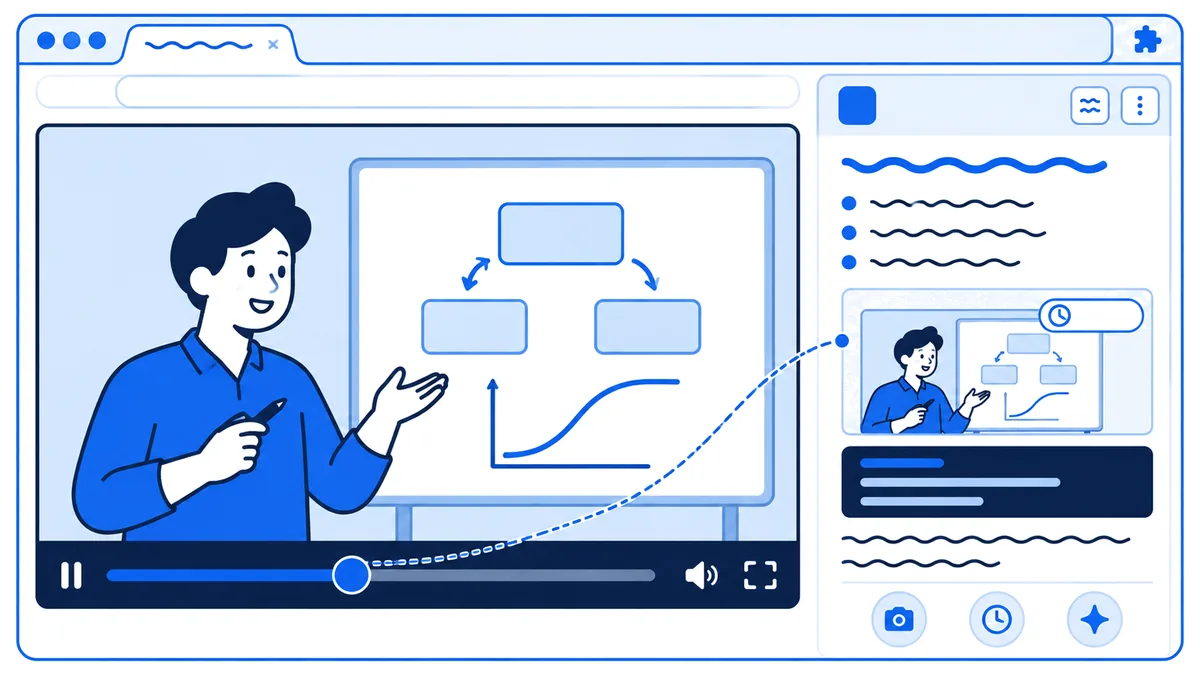
Timestamps that jump back
Ctrl/⌘+J adds the time to your note. Click it later to replay that part.
Slides, code and diagrams
Ctrl/⌘+K saves the frame on screen into your note, with its timestamp.
Any speed, 0.1x to 16x
Speed through what you know and slow down for the hard parts.
What's free
No account: Typed notes, screenshots, timestamps and speed controls work without signing up.
Free account, no card: 20 minutes of AI Notes to try it on a class.
Your files: Notes save as Markdown to your Obsidian vault or a folder on your computer.
Questions
Online class notes: common questions
How do I take notes in an online class?+
Get the slides before class, keep your notes open beside the class, screenshot slides instead of copying them, and write down what the teacher adds and the questions you have. Then review within 24 hours. The method works in any notes app; HoverNotes makes the capture faster.
Does HoverNotes work in Google Meet?+
Yes, in Chrome or Edge. On the Meet tab, open the notes panel from the HoverNotes button in your browser toolbar. You can type notes, save screenshots with Ctrl/⌘+K and turn on AI Notes. It takes study notes for a class or a tutoring session. It doesn't write meeting summaries or action items, and it isn't a call recorder.
Does it record my microphone?+
No. AI Notes uses the audio playing in the browser tab, not your microphone. Your typed notes and screenshots stay in your own files.
Can I use AI Notes in any live class?+
Only where you're allowed to. Schools and tutors often have rules about recording or capturing a class, and some places require everyone's consent. Ask your teacher or tutor before you turn on AI Notes in a live class.
Does it work on Zoom or Microsoft Teams?+
Yes, when the class runs in your browser: join Zoom or Microsoft Teams from Chrome or Edge instead of the desktop app, and open HoverNotes from the toolbar button. The desktop apps aren't supported. Recorded classes you can play in your browser work too.
Is it free?+
Typed notes, screenshots, timestamps, speed controls and saving to Obsidian or a folder are free without an account. A free account adds 20 minutes of AI Notes, no card needed. After that, AI Notes needs a paid plan.
Where are my notes saved?+
As Markdown files in your Obsidian vault or a folder on your computer. AI Notes are processed on our servers.
Keep going
Related pages
Medical lecture notes
Slides and timestamps for recorded medical, nursing and PA lectures.
OpenIT certification notes
Notes on AWS, CompTIA, Cisco and Azure video courses.
OpenVideo note taker
Notes on any video, on YouTube or from a file on your computer.
OpenNeso Academy Computer Networks
What the free course covers for GATE and semester exams, and free notes for all 43 topics.
Open
Take notes in your next class
Add the free HoverNotes extension to Chrome or Edge, then open it beside Google Meet, Zoom or Teams in your browser, or a recorded lecture.
Add to ChromeFree: notes, screenshots and timestamps • AI Notes: 20 free minutes, then a paid plan