IT certification notes you can find again
Working through a 40-hour exam course on video? HoverNotes puts a notes editor beside each lesson: screenshot a diagram or a console step in one click, link every note to its timestamp, and let AI notes draft the talking parts.
 Add to Chrome — it's free
Trusted by learners worldwide
Join thousands of students, professionals, and lifelong learners who use HoverNotes to enhance their video learning experience.
Learners at
- UT Austin
- Georgia Tech
- Arizona State
- UBC
- Monash
- TCS
- Deloitte
- IBM
- Accenture
- PwC
What it is
A note-taker for certification video courses
HoverNotes is a Chrome and Edge extension for taking notes on the video you're watching. On an AWS, CompTIA, Cisco or Azure course, that means a note per section, screenshots of diagrams, console screens and CLI output with the timestamp to jump back to, and an optional AI draft of each lesson. Notes save as Markdown, so they fit an Obsidian vault or a study repo.
Halfway through the course, the first half is gone
Long certification courses make sense while you watch and fade by exam day. Rewatching whole sections is slow. What helps is finding the exact minute a topic was explained when a practice question trips you up, and that is what timestamped notes and screenshots are for.
What it does
Made for long, technical courses
Screenshots of diagrams and consoles
Save architecture diagrams, subnet tables, console screens and terminal output into your notes in one click, each with its timestamp. This works on Udemy's protected player too.
Every note links to its minute
When a practice question trips you up, jump from your note to the moment the instructor explained it instead of rewatching the section.
AI notes for the talking parts
Turn on AI notes and HoverNotes drafts study notes as the lesson plays, including commands and code shown on screen. Check them against the course before you rely on them.
0.1x to 16x speed
Skip through the parts you already know and slow down for the lab, with keyboard controls for speed and skipping.
Markdown you own
Each note is a Markdown file in your Obsidian vault or a folder, so you can sort notes by exam domain and keep them in a Git repo.
Ask Hovie about the lesson
On paid plans, Hovie answers questions from your note and the video's transcript: compare two services again, or write practice questions for the section.
See the output
The lesson and your notes, side by side
The editor sits next to the course video, so the diagram, your note and its timestamp end up in one place.
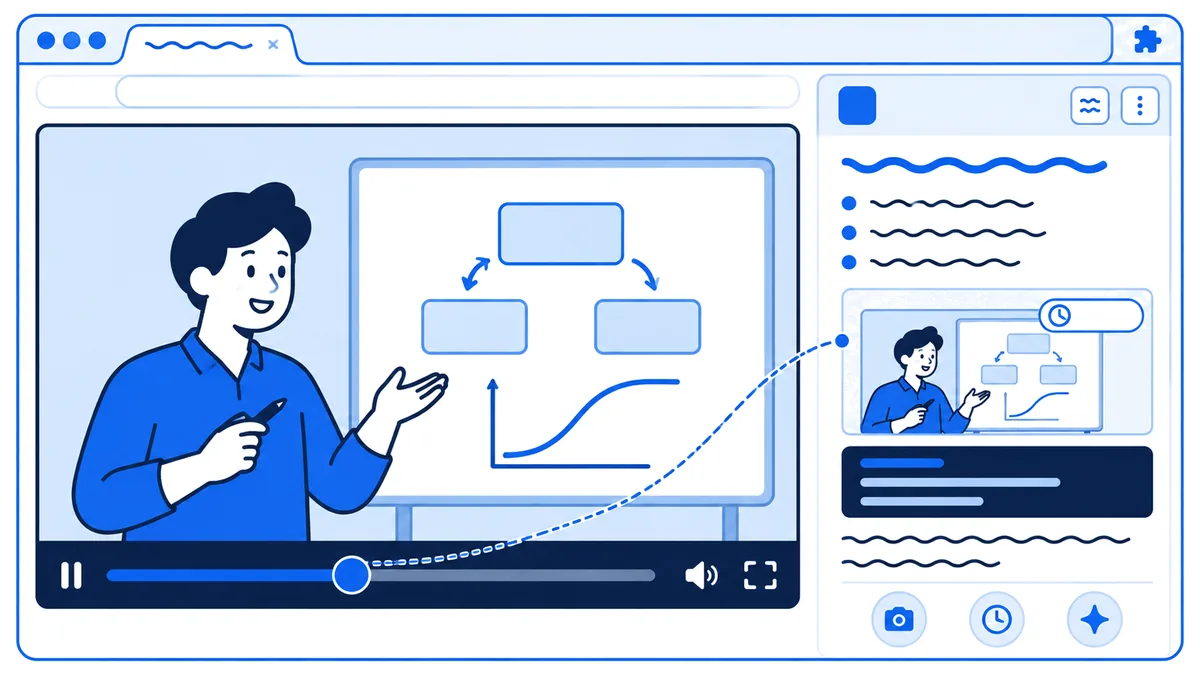
Timestamped notes that jump back to the explanation
Screenshots of diagrams, consoles and commands
Markdown files in your Obsidian vault or a study repo
How it works
One course section, start to finish
Open the lesson
Open the lesson on Udemy, YouTube or your course site and start HoverNotes from the button on the video.
One note per section
Name each note after the exam domain or course section, so your notes follow the exam outline.
Write what you'd get wrong
Note the limits, the "which service when" and the gotchas. Screenshot diagrams and commands instead of copying them.
Let AI draft the rest
Turn on AI notes to draft the lesson while you watch, then cut it down to what you need.
Index your practice-exam misses
When you miss a practice question, find the note, click its timestamp and rewatch that minute.
Review from Markdown
Your notes are plain Markdown in Obsidian or a folder, ready to search the week before the exam.
Where it works
On Udemy, YouTube and most course sites
HoverNotes works on most sites that play video in the browser. Certification learners use it on Udemy (with screenshots on its protected player), YouTube, Coursera, Pluralsight and KodeKloud. It takes notes on the courses you have access to; it doesn't download videos. More on Udemy: Udemy note taker.
What Our Users Say
The newest detailed reviews from the Chrome Web Store, in the reviewers' own words
Questions
IT certification notes: common questions
How should I take notes on a certification video course?+
Don't transcribe. Write one line for each thing you'd get wrong on a practice question, screenshot diagrams and commands, and keep every note linked to its timestamp. After each section, close the video, write down the decisions it taught (for example, when to use one service over another) and compare them with your notes.
Does it work on Udemy courses?+
Yes. Open a lecture on udemy.com and start HoverNotes from the video. Udemy's protected player often turns a normal screenshot into a black frame; HoverNotes captures the frame as it appears on screen.
Is HoverNotes affiliated with AWS, CompTIA, Cisco or Microsoft?+
No. HoverNotes is an independent note-taking tool. The exam names on this page describe what people study; HoverNotes doesn't provide exam content, practice questions or course videos.
Can I turn my notes into flashcards?+
Not inside HoverNotes yet. Your notes are Markdown files, so you can write cards from them in Anki or any other app.
Is it free?+
Timestamped notes, screenshots, speed controls and export to Obsidian or Markdown are free. New accounts get 20 free minutes of AI notes, then AI notes need a paid plan. Hovie is on paid plans.
Keep going
Related pages
Jeremy's IT Lab CCNA: guide and free notes
Is the free CCNA course enough, what each of its 63 days covers, a study plan, and free day-by-day notes.
Read moreProfessor Messer Security+ (SY0-701): guide and free notes
Is the free Security+ course enough, what its 28 objectives cover, a study plan, and free notes for every objective.
Read moreUdemy note taker
Notes and clean screenshots on Udemy courses, where most certification learners study.
Read moreHow to learn effectively from Udemy videos
A method for long video courses: what to write down and when to stop and test yourself.
Read moreVideo speed controls
Speed from 0.1x to 16x with keyboard shortcuts, on any video in the browser.
Read moreTake notes on your next lesson
Add HoverNotes to Chrome or Edge, open your course and save your first diagram.
Add to Chrome Free: notes, screenshots and export • AI notes: 20 free minutes, then a paid plan