Medical lecture notes with every slide and timestamp
Take notes beside your recorded lectures. One click saves the slide on screen with its timestamp, every note links back to the moment it was said, and AI notes can draft the text while you watch.
 Add to Chrome — it's free
Trusted by learners worldwide
Join thousands of students, professionals, and lifelong learners who use HoverNotes to enhance their video learning experience.
Learners at
- UT Austin
- Georgia Tech
- Arizona State
- UBC
- Monash
- TCS
- Deloitte
- IBM
- Accenture
- PwC
What it is
A note-taker for recorded medical lectures
HoverNotes is a Chrome and Edge extension that opens a notes editor next to the video you're watching. In a pharmacology or pathology lecture, that means slides and diagrams saved as screenshots, notes stamped with the time so you can jump back to the explanation, and an optional AI draft you check against the slides. Notes save as Markdown files to an Obsidian vault or a folder on your computer.
A 50-minute lecture shouldn't take two hours
Pausing every few minutes to type or screenshot a slide doubles the time a lecture takes, and you end up with a wall of text and no way back to the moment the lecturer explained it. With slides captured in one click and every note linked to its timestamp, you watch at your usual speed and find any explanation again in seconds.
What it does
Made for slide-heavy lectures
Slides and diagrams in one click
Save the frame on screen into your notes: a pathway, a histology image, a drug-class table. Each screenshot keeps its timestamp, so you can return to that moment in the lecture.
AI notes as a first draft
Turn on AI notes and HoverNotes writes study notes with screenshots as the lecture plays. Check drug names, doses and clinical details against the slides before you study from them.
Any speed, 0.1x to 16x
Run a slow lecturer at 2x and a dense mechanism at 0.75x, with keyboard controls for speed and skipping.
Lectures in a second language
Live Translate plays the lecture in your language as it runs, in 11 languages. 10 free minutes to try; plans include an hour a month.
Ask about the lecture
On paid plans, Hovie answers questions about the lecture you're on, using your note and the video's transcript: explain a mechanism again, or write practice questions.
Notes to review later
Notes save as Markdown to your Obsidian vault or a folder. Signed in, you can also export them as PDF or Word.
See the output
Your lecture and your notes, side by side
The editor sits next to the video, so the slide, your note and its timestamp end up in one place.
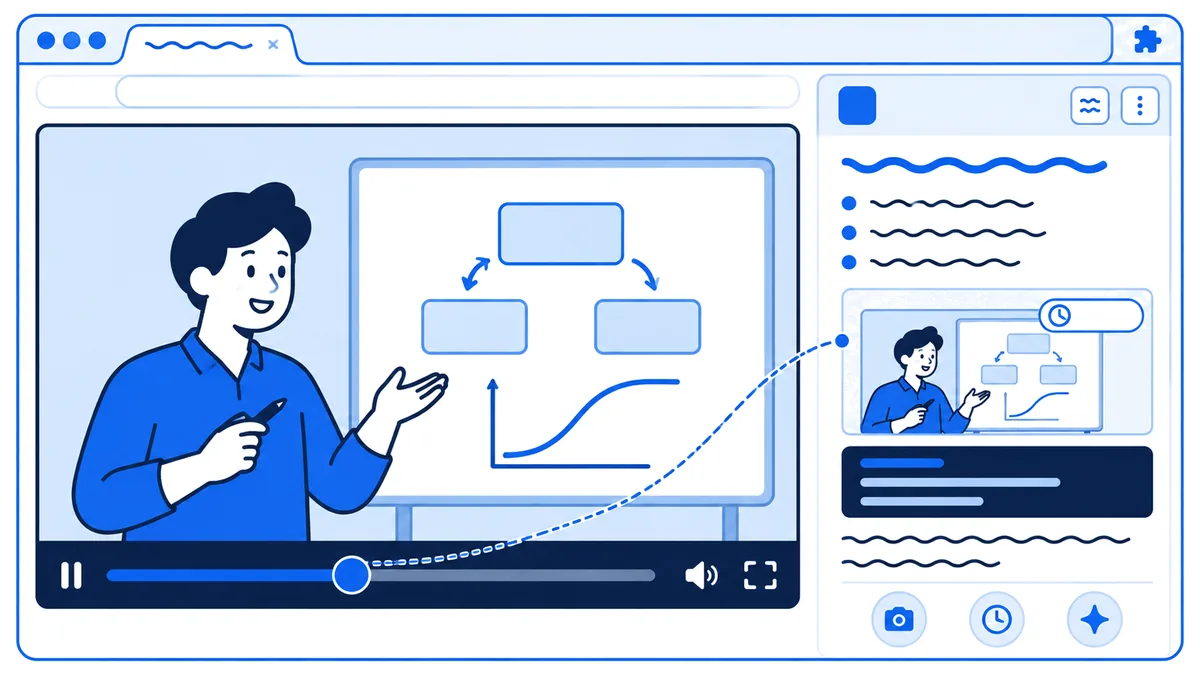
Timestamped notes that jump back to the explanation
Screenshots of slides and diagrams, saved into your notes
Markdown files in your own Obsidian vault or folder
How it works
One lecture, start to finish
Open the lecture
Open the recording in your browser, on your school's lecture site or on YouTube, and start HoverNotes from the button on the video.
Set your speed
Pick the speed that suits the lecturer. Slow down for the hard parts and speed up for the parts you know.
Capture the slides that matter
Screenshot a slide or diagram instead of copying it. Write only what the slide doesn't say.
Type, or let AI draft
Write your own notes, or turn on AI notes to draft them as the lecture plays.
Check against the slides
Read the draft against the slides and fix what's wrong or missing, especially numbers, doses and clinical details.
Review from your notes
Your notes are Markdown files in Obsidian or a folder. Make your review cards from them in the app you already use.
Where it works
On your school's recordings and on YouTube
HoverNotes works on most sites that play video in the browser. Medical and nursing students use it on lecture recordings in Canvas, Panopto and Echo360, and on YouTube lectures. For lecture files you've downloaded, use the local video note taker.
What Our Users Say
The newest detailed reviews from the Chrome Web Store, in the reviewers' own words
Questions
Medical lecture notes: common questions
How should I take notes in medical school lectures?+
Capture the slide instead of copying it, write only what the slide doesn't say, and keep every note linked to its timestamp, so you rewatch the 30 seconds you need instead of the whole lecture. Then make your review cards from those notes. HoverNotes does the capture and the timestamps; the method works with any notes app.
Does it work on my school's lecture recordings?+
Usually, if the recording plays in your browser. Students use HoverNotes on Canvas, Panopto and Echo360 recordings and on YouTube. If your school's player doesn't work, contact us and tell us which one it is.
Can I trust the AI notes for medical facts?+
Treat them as a first draft. AI notes come from the lecture you're watching, not from textbooks or question banks, and they can get a drug name, a dose or a number wrong. Check them against the slides and your lecturer before you study from them.
Can I export to Anki or make flashcards?+
Not yet. Notes and screenshots save as Markdown and to Obsidian, so you can write cards from them in Anki or any other app. Flashcards inside HoverNotes aren't available yet.
Is it free?+
Timestamped notes, screenshots, speed controls and export to Obsidian or Markdown are free. New accounts get 20 free minutes of AI notes, then AI notes need a paid plan. Live Translate has 10 free minutes, and Hovie is on paid plans.
Where are my notes saved?+
As Markdown files in your Obsidian vault or a folder on your computer. AI notes, Live Translate and Hovie are processed on our servers.
Keep going
Related pages
Video lecture notes for medical students
How to study from recorded lectures in medical school, and where notes fit.
Read moreLecture note taker
The general guide to taking notes on lectures, for any subject.
Read moreIT certification notes
The same workflow for AWS, CompTIA, Cisco and Azure video courses.
Read moreTake notes on your next lecture
Add HoverNotes to Chrome or Edge, open a recorded lecture and save your first slide.
Add to Chrome Free: notes, screenshots and export • AI notes: 20 free minutes, then a paid plan