Screenshot any YouTube video straight into your notes

To screenshot a YouTube video, pause on the frame, then right-click the video twice in Chrome or Edge and choose Copy video frame, or press Win+Shift+S (Windows) or Cmd+Shift+4 (Mac). Saving frames for notes? The free HoverNotes extension adds a screenshot button to YouTube that files each frame, timestamped, straight into your notes.
Paste a YouTube link
Drop in any YouTube URL to load the video here. With the HoverNotes extension installed, grab a clean timestamped screenshot of any frame with one click.
Free Starter includes 20 minutes of AI notes · Upgrade anytime
Trusted by learners worldwide
Join thousands of students, professionals, and lifelong learners who use HoverNotes to enhance their video learning experience.
Learners at
- UT Austin
- Georgia Tech
- Arizona State
- UBC
- Monash
- TCS
- Deloitte
- IBM
- Accenture
- PwC
The guide
How do you screenshot a YouTube video?
There are four good ways. The first three are free and built into your browser or device; the last one is for when you're saving frames to study from.
Right-click: Copy video frame
- Open the video in Chrome, Edge or Brave and pause on the frame you want.
- Right-click the video, then right-click again to open the browser's own menu.
- Choose Copy video frame, or Save video frame as… to save it as a file.
Best for: One-off frames at the video's full quality, with no player bar or cursor.
Keyboard shortcut
- Pause the video and press F to make it fullscreen.
- On Windows, press Win+Shift+S and drag over the video. On a Mac, press Cmd+Shift+4 and drag.
- Windows copies the image to your clipboard; a Mac saves it to your desktop.
Best for: Any browser, including Safari and Firefox. The image is only as sharp as your screen.
On a phone
- Turn the phone sideways so the video fills the screen, and pause on the frame.
- If the controls cover the picture, tap the video once to hide them.
- On an iPhone, press the side button and volume up together. On Android, press power and volume down.
Best for: Quick grabs on the go. Crop the screenshot afterwards in your photo app.
HoverNotes, for notes
- Install the free HoverNotes extension for Chrome or Edge and open a YouTube video.
- Start taking notes, then click the screenshot button on the player.
- The frame lands in your note with a clickable timestamp, saved to your Obsidian vault or as Markdown.
Best for: Studying and research: many frames, each filed with a link back to its moment in the video.
Tips for getting the exact frame
- Step frame by frame. While the video is paused, press . to move one frame forward and , to move one frame back, until the text or slide you want is fully on screen.
- Raise the quality first. Pick the highest quality in YouTube's settings before you capture. Copy video frame and HoverNotes save the frame at the quality that's playing; a keyboard screenshot can only be as sharp as your screen.
- Go fullscreen for shortcuts. Press F before a keyboard screenshot so the video fills the screen, and move the mouse away so the player controls fade out.
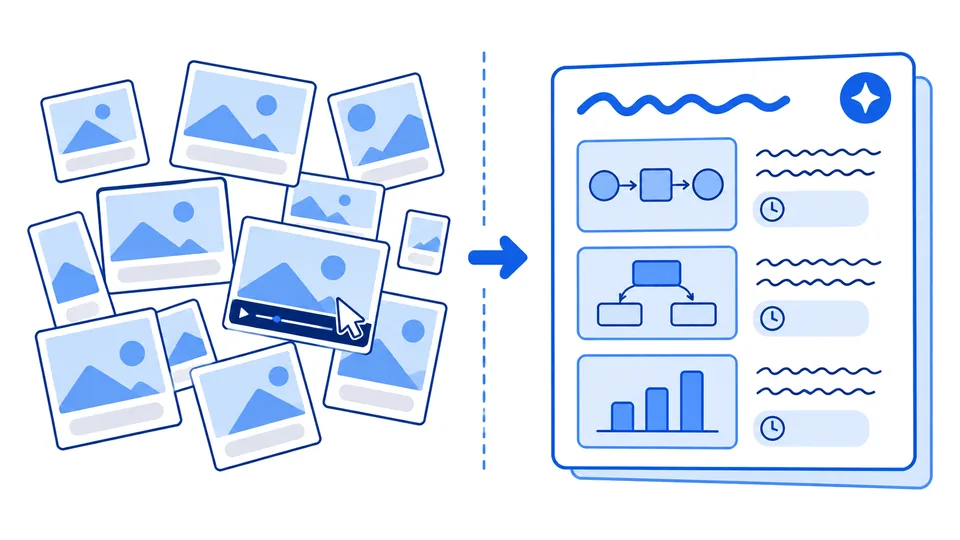
Pausing, print-screening, and cropping every important frame?
Even a clean Copy video frame still has to be pasted somewhere, named, and matched to the moment it came from. Do that for every slide in a lecture and the screenshots pile up on your desktop with names like Screenshot 47. HoverNotes grabs the clean source frame, timestamps it, and files it straight into your notes, so the screenshot is actually useful later.
Why it's different
Cleaner than print-screen, smarter than a transcript
Clean source frames
No cursor, no player controls, no blur. HoverNotes grabs the actual video frame — capturing code, equations, and diagrams exactly as they appear on screen.
One click, into your notes
A screenshot button sits right on the player. One click timestamps the frame and inserts it straight into your notes — no downloading and re-organizing loose PNGs.
Local-first and private
Screenshots and notes are saved as plain files directly to your own Obsidian vault, so your content stays yours.
See the output
Screenshots that land in notes you actually keep
HoverNotes sits right beside your YouTube video and lets you drop timestamped screenshots of the code, equations, and diagrams straight into study notes, saved to your Obsidian vault.

Watches the video live and writes AI study notes as you go
Captures timestamped screenshots of on-screen code, equations & diagrams
Saves everything privately to your own Obsidian vault
How it works
Screenshot a YouTube video in three steps
Open the video
Paste a YouTube link here, or just open any video on YouTube with the HoverNotes extension installed.
Click the screenshot button
Hit Start Taking Notes, then use the one-click screenshot button to grab the current frame — clean and timestamped, no print-screen needed.
Saved to Obsidian
Each screenshot drops into your notes as Markdown locally in your own Obsidian vault — timestamped and ready to study.
What Our Users Say
The newest detailed reviews from the Chrome Web Store, in the reviewers' own words
Questions
YouTube screenshots — common questions
How do I take a screenshot of a YouTube video?+
Pause on the frame you want. In Chrome or Edge, right-click the video twice and choose Copy video frame; in any browser, press Win+Shift+S on Windows or Cmd+Shift+4 on a Mac. If you're taking notes, the HoverNotes extension adds a one-click screenshot button to the player that timestamps the frame and drops it straight into your notes.
Can I screenshot a YouTube video online, without installing anything?+
Yes. In Chrome or Edge, right-click the video twice and choose Copy video frame, or use your computer's screenshot shortcut in any browser. What no web page can do, including this one, is grab the frame for you: YouTube plays in a secure cross-origin embed, so browser security stops pages from saving it as an image. The HoverNotes extension runs alongside YouTube itself, so it can.
Does the screenshot capture on-screen code and diagrams?+
Yes — that's the whole point. HoverNotes captures the actual video frame, so code snippets, equations, and diagrams come through exactly as they appear on screen, not as a rough transcript paraphrase. Each screenshot is timestamped so you can click back to that exact moment in the video.
What resolution are the screenshots?+
On YouTube, HoverNotes copies the frame straight from the video at the quality it's playing, so a 1080p stream gives you a 1080p screenshot. If small text looks soft, raise the YouTube quality setting before you capture.
Are the screenshots timestamped and saved with my notes?+
Yes. Every screenshot is tagged with the moment it was taken and inserted directly into your notes — no loose PNG files to rename and organize. Everything is saved as Markdown locally in your own Obsidian vault, so it stays private and easy to search later.
Does it only work on YouTube?+
No — YouTube is just the start. HoverNotes takes timestamped screenshots and notes on any video that plays in your browser, including Udemy, Coursera, university lectures, and local video files.
Does it work on sites that block screenshots, like Netflix or Udemy?+
Yes. The same extension you use for YouTube also works on streaming and course sites that normally return a black image when you try to screen-capture them — it still grabs a clean, full-resolution frame, so you get one screenshot tool that works everywhere you watch.
Is it free?+
The HoverNotes Starter plan is free: manual notes, screenshot capture, video controls and Obsidian export, plus 20 minutes of AI video notes to try. When you want more, upgrade to Unlimited Pro for unlimited AI notes — cancel anytime.
Free tools
More free tools
- Video to screenshotsSave full-resolution PNG frames from a video file on your computer.
- Annotate YouTube videosPin notes and screenshots to exact moments in a YouTube video.
- Video note takerTake notes on a YouTube link or a video file, by hand or with AI.
- Live video translateHear any video in one of 11 languages as it plays.
- Video speed controlsPlay any video from 0.1x to 16x with keyboard shortcuts.
- All 13 free toolsNotes, screenshots, translation and speed controls, and what each one needs.
Stop print-screening YouTube by hand
Install the HoverNotes extension and grab clean, timestamped screenshots of the code, equations, and diagrams with one click — dropped straight into your notes in your Obsidian vault. Works on YouTube, Udemy, Coursera, and 20+ sites.
 Add to Chrome
Free Starter includes 20 minutes of AI notes • Upgrade anytime