Turn any video into notes you can review later
Take notes your way on any video — YouTube, Udemy, Coursera, or your own files. Let the AI watch and write clean study notes for you, or jot timestamped notes by hand. HoverNotes captures the on-screen code, equations, and diagrams a transcript misses, saved straight to your Obsidian vault.
Load a video to take notes
Pick or drag a video file here
Load a local video to start taking notes — nothing is uploaded, it plays right in your browser. Watching on YouTube, Udemy, or Coursera instead? The extension takes notes there too.
Trusted by learners worldwide
Join thousands of students, professionals, and lifelong learners who use HoverNotes to enhance their video learning experience.
Learners at
- UT Austin
- Georgia Tech
- Arizona State
- UBC
- Monash
- TCS
- Deloitte
- IBM
- Accenture
- PwC
What it is
Notes to review, not a transcript to clean up
Turning a video into notes should give you something you can actually study from — not a raw wall of transcript text. HoverNotes is a real video note-taker: it turns any video into clean study notes, written automatically by AI as it watches or by hand with timestamps you can jump back to. Works on a tutorial, lecture, or talk on YouTube, Udemy, and Coursera, or a local file you load right here — capturing the on-screen code, equations, and diagrams a transcript misses, then saving everything as Markdown in your own Obsidian vault.
Re-watching the whole video just to write down what mattered?
Taking notes from a video by hand means pausing, rewinding, and pausing again — and a plain transcript dump just gives you text to wade through, with none of the code, diagrams, or structure you actually need. HoverNotes watches the video for you and writes it all down the first time, so you can learn instead of scrubbing the timeline.
Why it's different
Notes you can study from — not a transcript to fix
Study-ready, not a transcript dump
Headings, syntax-highlighted code blocks, and timestamped screenshots — organized notes you can revise from, not a raw wall of text you have to reformat.
Keeps what the words leave out
On-screen code, equations, and diagrams are captured exactly as they appear — the visual detail a plain transcript drops, even when captions are off.
Every note jumps to the moment
Click any line to jump straight back to that second in the video — revisit the exact part you need without scrubbing the timeline.
See the output
Notes that capture what transcripts miss
HoverNotes sits right beside your video and turns it into study notes as you watch — with timestamped screenshots of the code, equations, and diagrams, saved to your Obsidian vault.
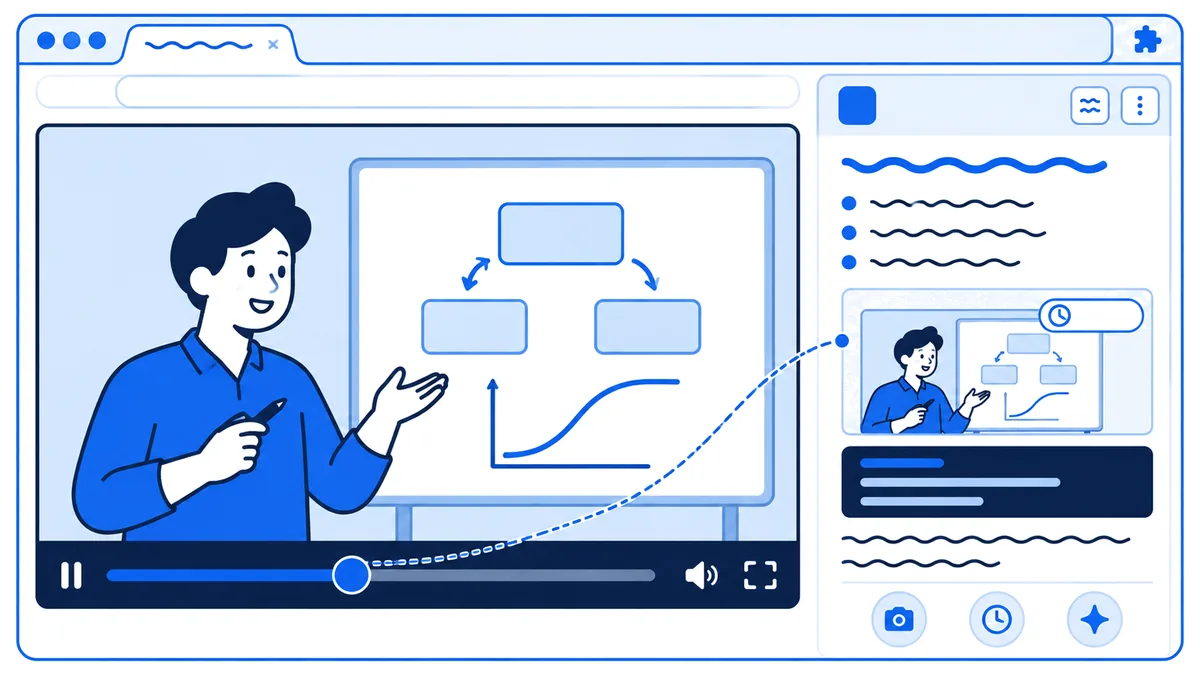
Watches the video live and writes AI study notes as you go
Captures timestamped screenshots of on-screen code, equations & diagrams
Saves everything privately to your own Obsidian vault
How it works
Turn any video into notes in three steps
Open the video
Load a local file here, or open any video on YouTube, Udemy, or Coursera with the HoverNotes extension installed.
Take notes, your way
Let the AI watch and write study notes for you, or jot your own timestamped notes by hand — whichever fits the video.
Saved to Obsidian
AI notes, timestamped screenshots of code and diagrams — all saved as Markdown locally in your own Obsidian vault, ready to study.
What Our Users Say
The newest detailed reviews from the Chrome Web Store, in the reviewers' own words
Questions
Video to notes — common questions
How do I turn a video into notes?+
Install the HoverNotes extension, then open any video — on YouTube, Udemy, Coursera, or a local file loaded here — and turn on notes. Let the AI watch the video and write clean study notes for you, capturing the on-screen code, equations, and diagrams a transcript misses, or jot your own timestamped notes by hand. Everything saves as Markdown to your Obsidian vault.
Are these real notes or just a transcript?+
Real notes. A transcript is a raw wall of text; HoverNotes gives you organized notes with headings, syntax-highlighted code blocks, and timestamped screenshots of what's on screen — the kind of notes you actually study from, not a transcript you have to clean up yourself.
What videos does it work on?+
Any video that plays in your browser. That includes YouTube, Udemy, Coursera, university lectures, conference talks, and local video files (MP4, WebM, MOV, MKV, and more) you load right here. If it plays in the browser, HoverNotes can take notes on it.
Can the AI take notes for me, or do I write them myself?+
Both. HoverNotes can watch the video and write timestamped study notes automatically — or you can type your own notes by hand and click any note to jump back to that exact moment. Use whichever fits the video, and everything saves to your Obsidian vault.
Does it capture on-screen code, equations, and diagrams?+
Yes — that's the core difference. Because the AI watches the actual video frames, it captures code snippets, equations, and diagrams exactly as they appear on screen, even when captions are disabled. Transcript-only tools simply can't see any of that.
Where are my notes saved?+
Locally and privately. HoverNotes is local-first: your notes and timestamped screenshots are saved as plain Markdown directly to your computer in your Obsidian vault. Local video files play in the browser and are never uploaded. Your notes stay yours.
Is it free?+
HoverNotes has a free Starter plan: manual notes, screenshot capture, video controls and Obsidian export are all free, plus 20 minutes of AI video notes to try. When you want more, upgrade to Unlimited Pro for unlimited AI notes — cancel anytime.
Free tools
More free tools
- Video note takerTake notes on a YouTube link or a video file, by hand or with AI.
- YouTube to notesTurn a YouTube video into study notes with timestamped screenshots.
- YouTube video summarizerSummarize a YouTube video into notes, including the code and diagrams on screen.
- YouTube screenshotsCapture clean YouTube frames, without the player bar, timestamped in your notes.
- Live video translateHear any video in one of 11 languages as it plays.
- All 13 free toolsNotes, screenshots, translation and speed controls, and what each one needs.
Turn your videos into notes you can review later
Install the HoverNotes extension and let AI capture the code, equations, and diagrams while you watch — or take your own timestamped notes by hand. Everything saves straight to your Obsidian vault. Works on YouTube, Udemy, Coursera, local files, and any other video site.
 Add to Chrome
Free Starter includes 20 minutes of AI notes • Upgrade anytime