Best Chrome Extensions for Online Learning | HoverNotes
ObsidianDecember 9, 2025•Updated: July 16, 2026
Best Chrome Extensions for Online Learning
Discover the best Chrome extensions for students. Boost focus, take smarter notes from videos, and streamline research with our top picks for online learning.
By HoverNotes Team•18 min read
Your browser is more than a window to the internet; it can be a customized study environment. For students, the right tools make the difference between passively watching content and actively retaining it. The biggest problem with video learning on platforms like YouTube, Coursera, or Udemy is retention. You watch hours of tutorials but can't recall key concepts a week later. This happens because manual note-taking is a pain: constantly pausing, rewinding, and trying to capture diagrams with scattered screenshots breaks your focus.
This guide details the best Chrome extensions for students, chosen to solve specific learning challenges. We'll cover tools for video note-taking, focus, research, and citation management. Each recommendation breaks down its core features, ideal use cases, and pricing, with direct links and screenshots. This is a curated list of practical extensions to help you learn more effectively.
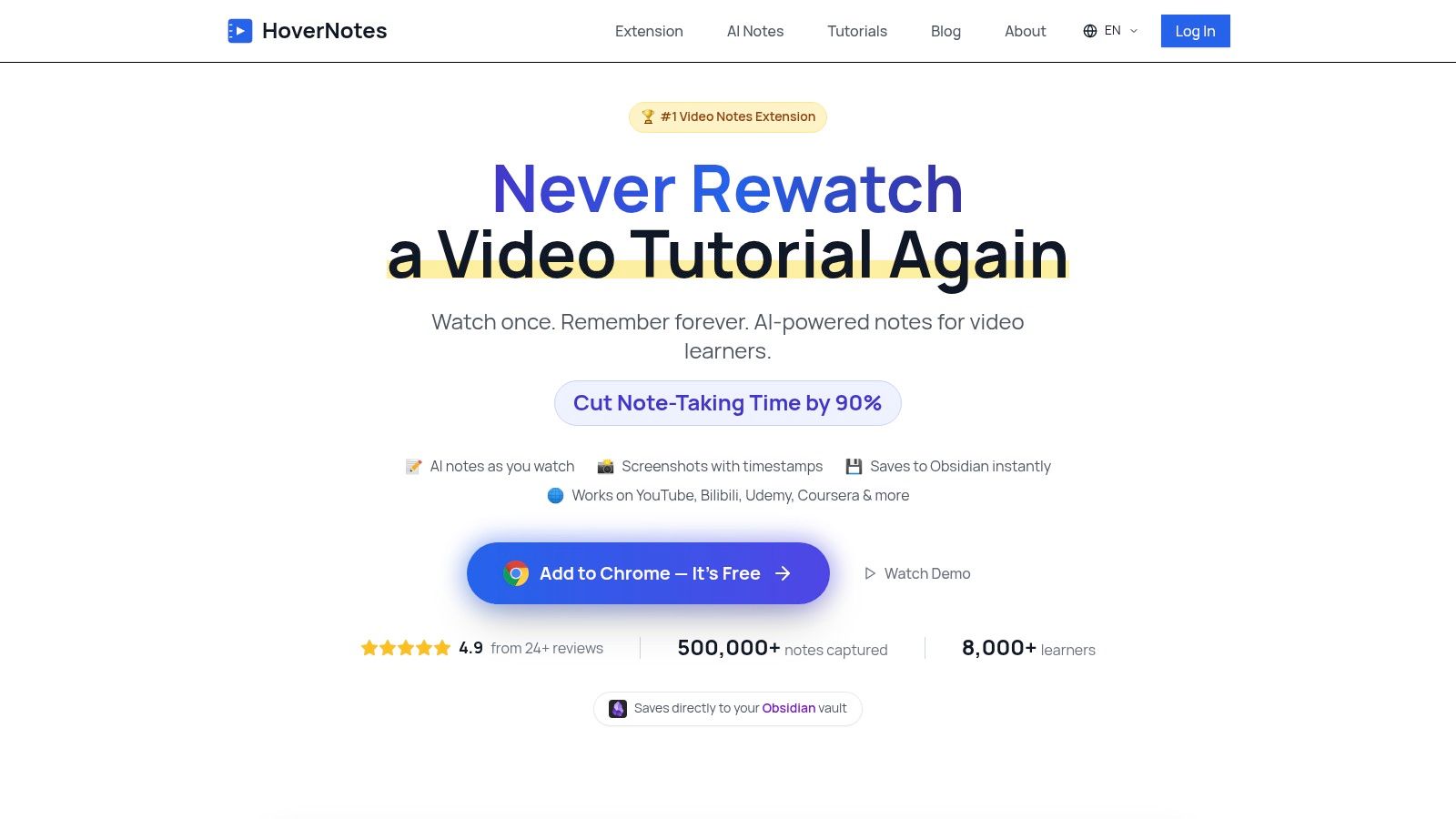
HoverNotes is a Chrome extension that watches videos with you, generates AI notes, and saves them as Markdown directly to your file system. It's built to solve a core problem: it's hard to remember what you learn from video, and manually pausing to type notes or take screenshots is inefficient. Unlike tools that only parse transcripts, HoverNotes watches the video frame-by-frame to capture what's actually on screen—code, diagrams, and demonstrations. This makes it essential for anyone learning technical subjects on YouTube, Udemy, or university portals.
Its key feature is generating structured notes with timestamped screenshots. You can click any screenshot in your notes to jump back to that exact moment in the video. For students using Obsidian, HoverNotes offers a seamless, local-first workflow. Notes save directly to your computer as plain .md files, so you own your knowledge forever. You can find more information about how HoverNotes fits into a student's app ecosystem on their blog.
A distraction-free video mode is also included, which puts the video and your notes side-by-side while blocking ads and recommendations. With a entry-level access that doesn't require a credit card, broad platform compatibility (it works on any website with video), and a 4.9/5 rating, HoverNotes is a practical tool for serious learners.
AI Video Analysis: Captures both spoken words and on-screen visuals like code and diagrams.
Timestamped Screenshots: Capture the full frame or snip a specific region; click the screenshot to jump back to that moment in the video.
Local-First Markdown Export: Saves notes as .md files directly to your file system, perfect for Obsidian or Logseq. Notes also copy cleanly into Notion.
Distraction-Free Video Mode: A split view that blocks site ads and puts your notes next to the video.
Universal Platform Support: Works on YouTube, Udemy, Coursera, LinkedIn Learning, and even with local video files on your computer.
Multi-Language Notes: Watch a video in one language and get AI-generated notes in another.
entry-level access: Includes 20 minutes of AI credits to start (no credit card needed), plus unlimited manual note-taking, timestamped screenshots, and video mode. Confirm current options on the HoverNotes pricing page.
upgraded plans: Offer more AI credits through one-time purchases or subscriptions.
The Chrome Web Store is the official marketplace for browser extensions and the most secure place to find them. Its "Education" category is curated for students, listing thousands of extensions for research, note-taking, and productivity. This is the foundational library where nearly all the best Chrome extensions for students are vetted and distributed.
The store provides built-in trust and transparency. Each listing shows user ratings, total user count, the last update date, and the permissions an extension requires. This helps you gauge quality and safety before installing. For students on school-managed devices, it’s also the hub where administrators deploy approved tools to everyone.
While it's a marketplace, not a single tool, its role in discovery and safety is critical. Instead of searching the open web and risking insecure downloads, the Chrome Web Store provides a centralized, reviewed environment.
Pros: Safest source for extensions, detailed user reviews, one-click installation, and automatic updates.
Cons: Quality varies widely; some low-quality or abandoned extensions exist. School accounts may have installation restrictions.
Plans: Check the official product page linked above for current availability, limits, and regional pricing.
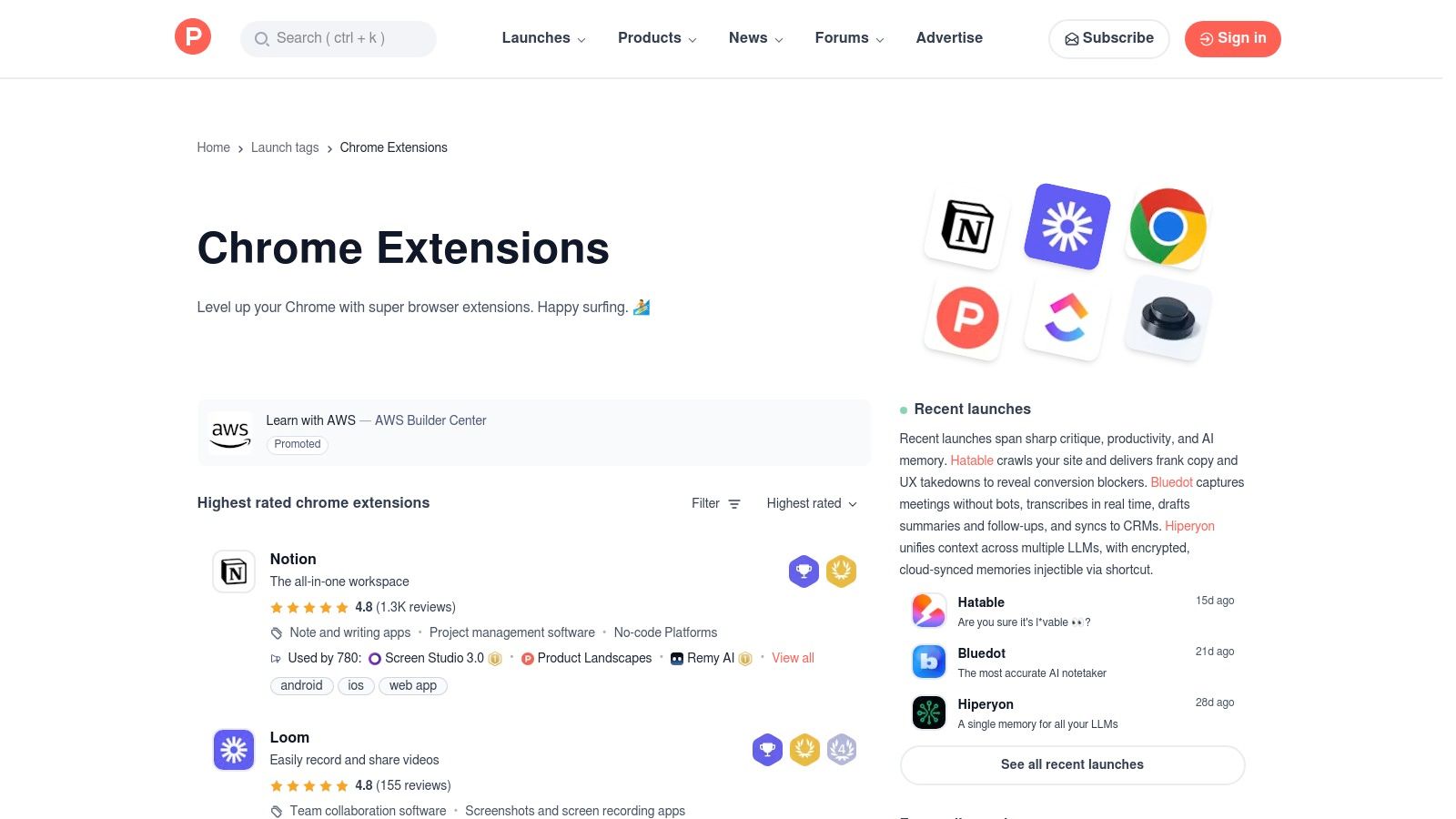
For students looking for new and innovative tools, Product Hunt is the go-to community platform. Its "Chrome Extensions" topic is a constantly updated showcase of new browser tools, often before they become mainstream. It’s a good place to find emerging utilities for studying and productivity, curated by tech enthusiasts and developers.
Product Hunt is valuable for its social proof. New extensions are upvoted and discussed by users, providing direct insight into features and potential bugs. This direct line to developers offers a level of transparency that traditional app stores don't always match, helping you vet some of the best Chrome extensions for students based on community feedback.
Product Hunt surfaces niche and newly-launched extensions that solve specific student problems, from unique video note-takers to advanced research aids. You can often find powerful new browser extensions for developers and learners here.
Pros: Excellent for discovering new extensions, direct community feedback, and engagement with developers.
Cons: Can prioritize hype over stability; not all extensions are well-supported long-term.
Plans: Check the official product page linked above for current availability, limits, and regional pricing.
#4. Chrome Web Store Student Collection – Official student picks
Google's official Chrome Web Store maintains a student collection for discovering extensions aimed at study, organization, research, accessibility, and focus. Because listings can change, use the collection as a starting point rather than assuming every featured extension will remain available indefinitely.
Review the permissions, privacy practices, recent update history, and support information on each listing before installing it. A place in a collection is useful for discovery, but it is not a substitute for evaluating whether an extension is appropriate for your school or personal data.
This is the first-party catalog, so availability and developer information are easier to verify than on an old third-party roundup. It also gives you a direct path to current listing details and permissions.
Pros: First-party listings, current availability, permissions, privacy disclosures, and update history.
Cons: Store placement is not an independent endorsement; you still need to assess privacy and fit.
Access: Open to browse when checked on July 16, 2026; availability and commercial terms vary by listing.
Chrome-Stats is an independent analytics platform that provides a data-driven layer on top of the official Chrome Web Store. It tracks install numbers, ratings, and update history, allowing you to see what’s genuinely popular and well-maintained. Its "Education" section shows the most-used tools, offering a quantitative look at the best chrome extensions for students based on real-world usage data.
This site is useful for comparing similar extensions. Instead of relying only on star ratings, you can check an extension’s growth and how often its developers push updates. This helps you avoid installing "abandonware" that may have security flaws or compatibility issues. It's a market research tool for your browser.
Chrome-Stats helps you look beyond marketing copy and make informed decisions based on data. It's a powerful secondary resource for discovering high-quality, reliable extensions by analyzing their performance history.
Pros: Data-driven discovery, helpful for comparing popularity and update frequency, identifies trending and recently updated extensions.
Cons: Not an official store—always install from the official Web Store link. The interface can be dense.
Plans: Check the official product page linked above for current availability, limits, and regional pricing.
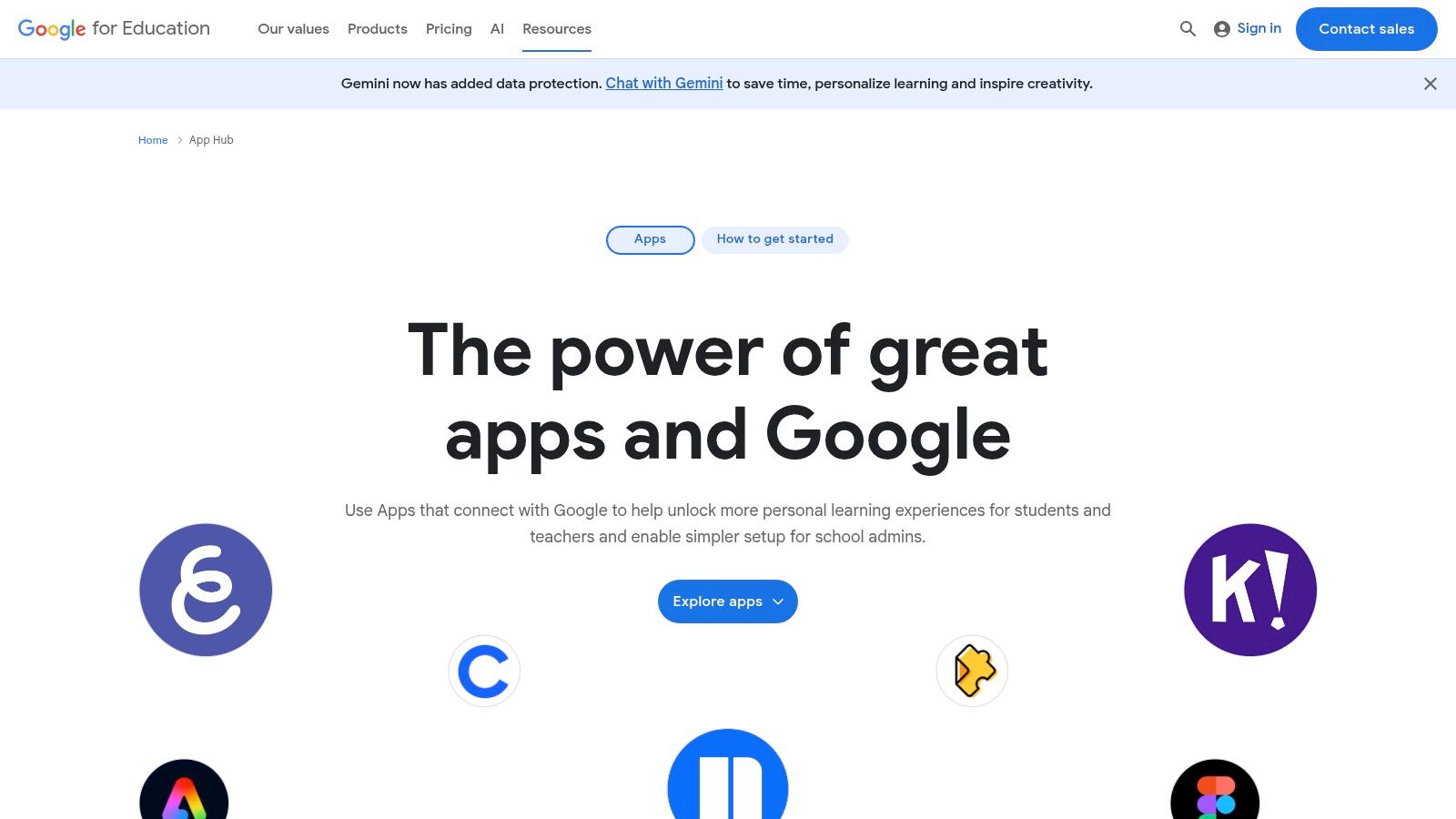
The Google for Education App Hub is a curated catalog of applications and tools that integrate directly with Google Classroom and Chromebooks. While the Chrome Web Store is vast, the App Hub is a focused directory for K-12 and higher education, showcasing tools vetted for educational use.
This platform provides detailed information on how each app integrates with Google services, such as single sign-on (SSO) or Classroom add-on capabilities. It also offers filters for compliance standards like COPPA and GDPR, which helps institutions choose secure tools. For students, it provides a trusted starting point to discover learning aids approved for school environments.
The App Hub is tailored specifically for the educational tech stack, making it easier to find reliable and compatible tools. It bridges the gap between discovery and deployment, especially in school-managed settings.
Pros: Curated by Google for education, provides clear integration and compliance details, helps administrators plan deployments.
Cons: Not every listing is a Chrome extension; it's a broader app ecosystem. Links can lead to vendor sales pages instead of direct installations.
Plans: Check the official product page linked above for current availability, limits, and regional pricing.
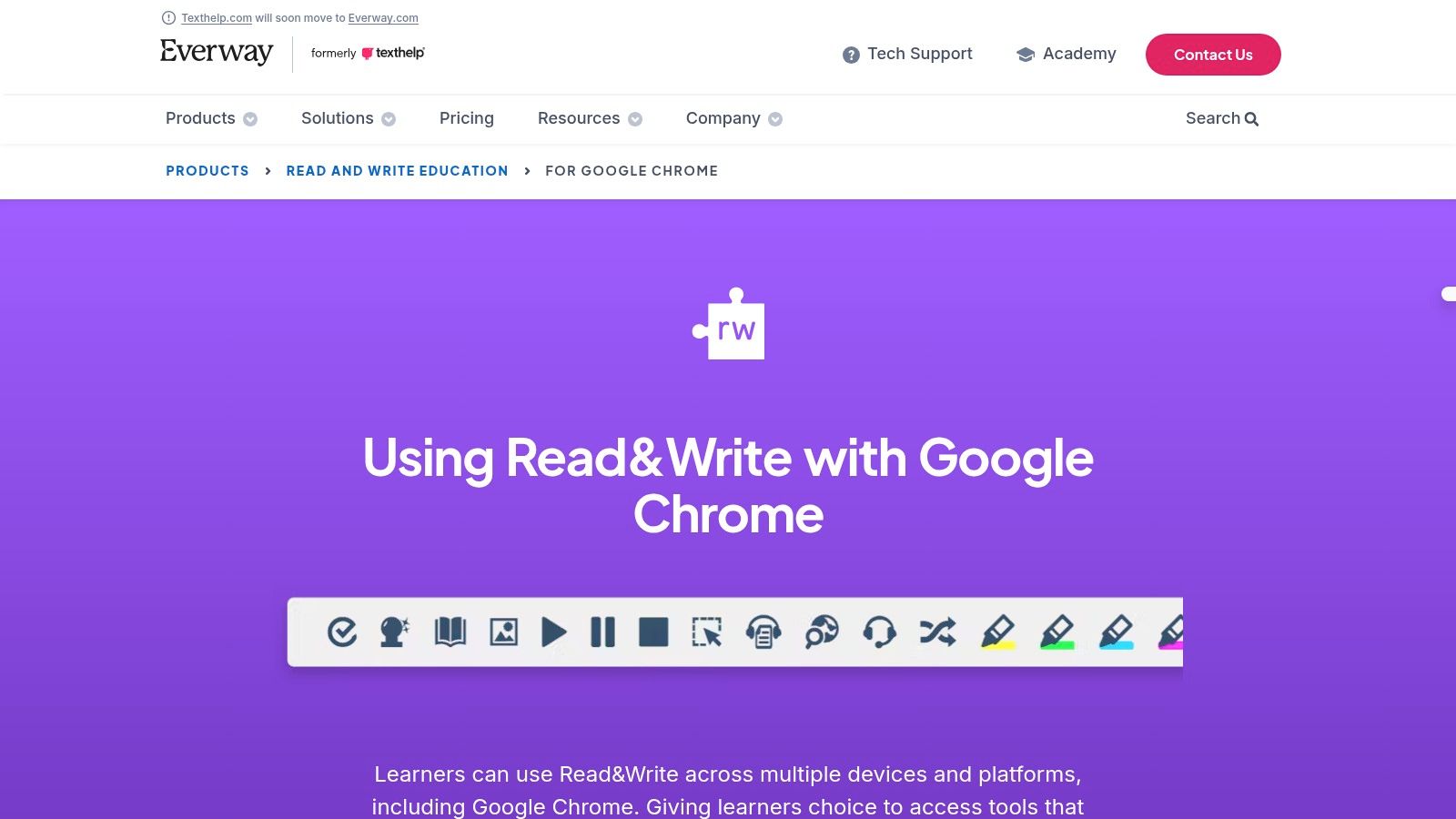
Texthelp’s Read&Write is an assistive technology extension designed to make digital content more accessible. It provides a toolbar that integrates into Google Docs, Slides, PDFs, and web pages, offering support for students with diverse learning needs. Its tools help with reading comprehension, writing, and studying.
The extension excels by offering a suite of tools in one place. Users can have text read aloud with dual-color highlighting, use speech-to-text for dictation, look up words in picture dictionaries, and use word prediction to aid in writing. For studying, it includes tools to collect highlights from any text into a new document with automatic bibliography creation.
Read&Write is a powerhouse for accessibility and literacy support. It goes beyond simple text-to-speech, providing a holistic toolkit that addresses multiple aspects of reading and writing.
Pros: Deep integration with Google Workspace, comprehensive accessibility features, and a 30-day full-featured trial.
Cons: The most useful features require an upgraded plan after the trial. Full deployment in a school setting requires administrative setup.
Plans: Check the official product page linked above for current availability, limits, and regional pricing.
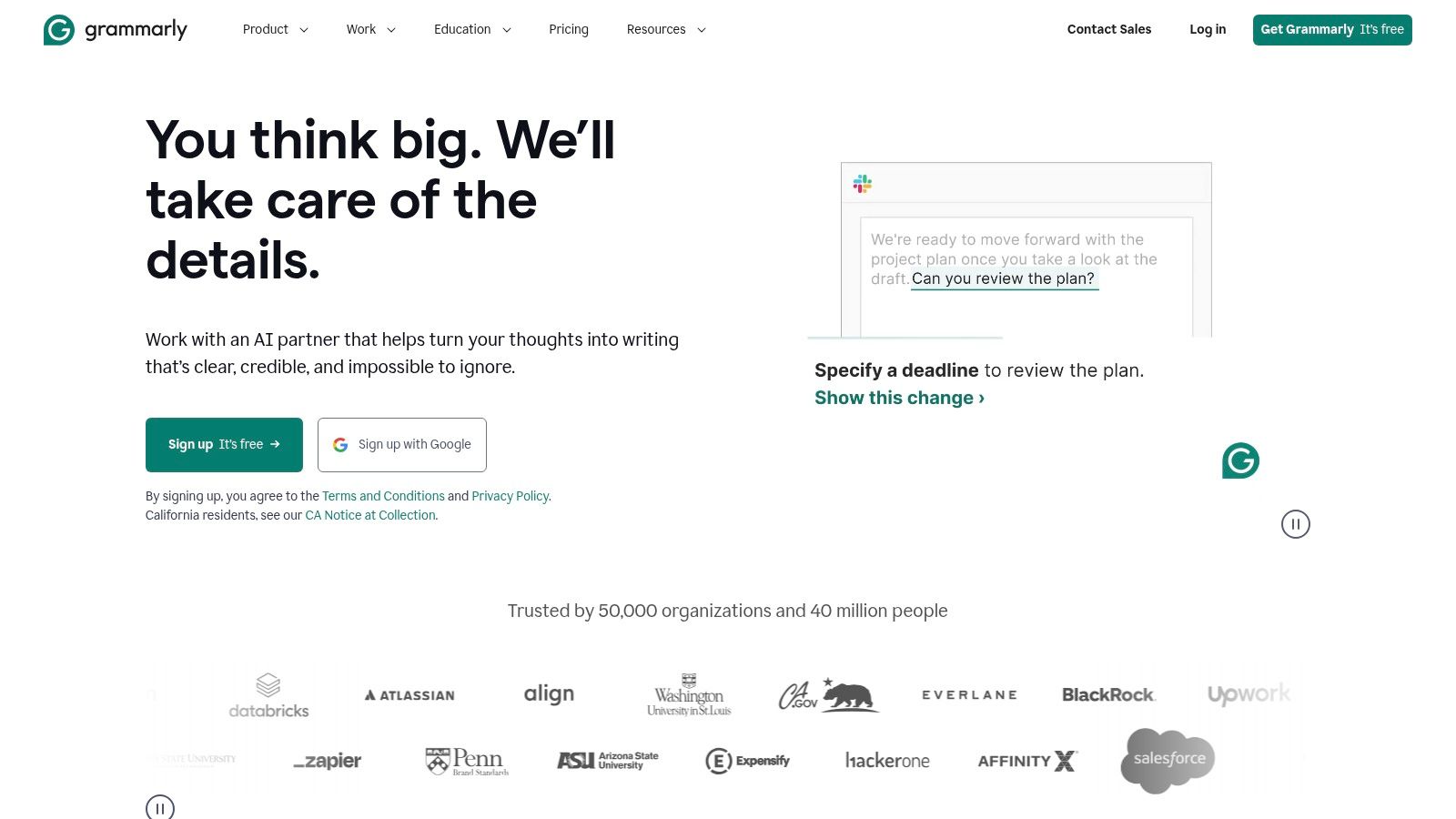
Grammarly is a writing assistant that acts as a digital proofreader almost everywhere you type. From emails to essays in Google Docs, it provides real-time feedback on grammar, spelling, punctuation, and clarity. It helps ensure your writing is polished, catching common errors before you submit.
Grammarly is one of the best Chrome extensions for students because it helps improve writing skills, not just fix mistakes. The extension underlines potential issues and provides clear explanations, helping you understand the rules behind them. Its tone detector even analyzes your word choice to help you sound confident, friendly, or formal depending on the audience.
Grammarly goes beyond a simple spell-check, offering contextual suggestions that enhance academic writing. It integrates seamlessly into a student’s daily workflow, providing a consistent safety net against typos and grammatical errors.
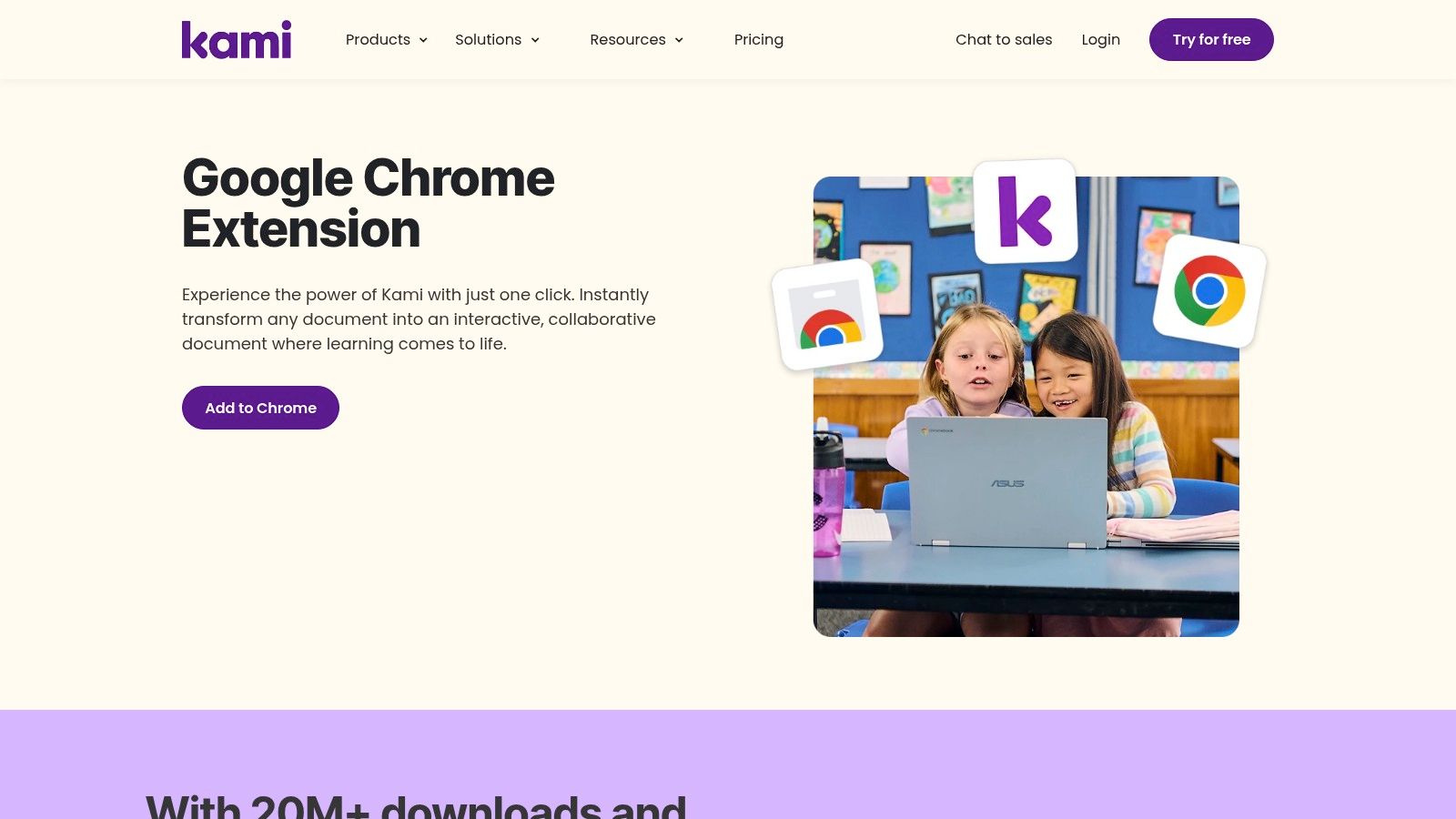
Kami transforms static documents like PDFs into interactive, collaborative learning spaces. Designed for the classroom, it allows students to annotate, draw, and comment directly on digital assignments. It bridges the gap between paper-based work and the digital classroom, making it easier to complete assignments without printing anything.
Kami integrates with major Learning Management Systems (LMS) like Google Classroom, Canvas, and Schoology. Students can open an assignment from their LMS, complete it using Kami's tools—including text, audio, and video comments—and turn it in directly. This streamlines the assignment workflow for both students and teachers.
Kami is more than a PDF viewer; it's a digital classroom tool that makes remote learning manageable. Its focus on accessibility and multi-format feedback supports diverse learning styles and simplifies communication.
Pros: Deep integration with Google Classroom and other LMS platforms. Extensive annotation tools. Reduces paper usage.
Cons: The most powerful features are locked behind upgraded plans. Its primary value is realized when used school-wide.
Plans: Check the official product page linked above for current availability, limits, and regional pricing.
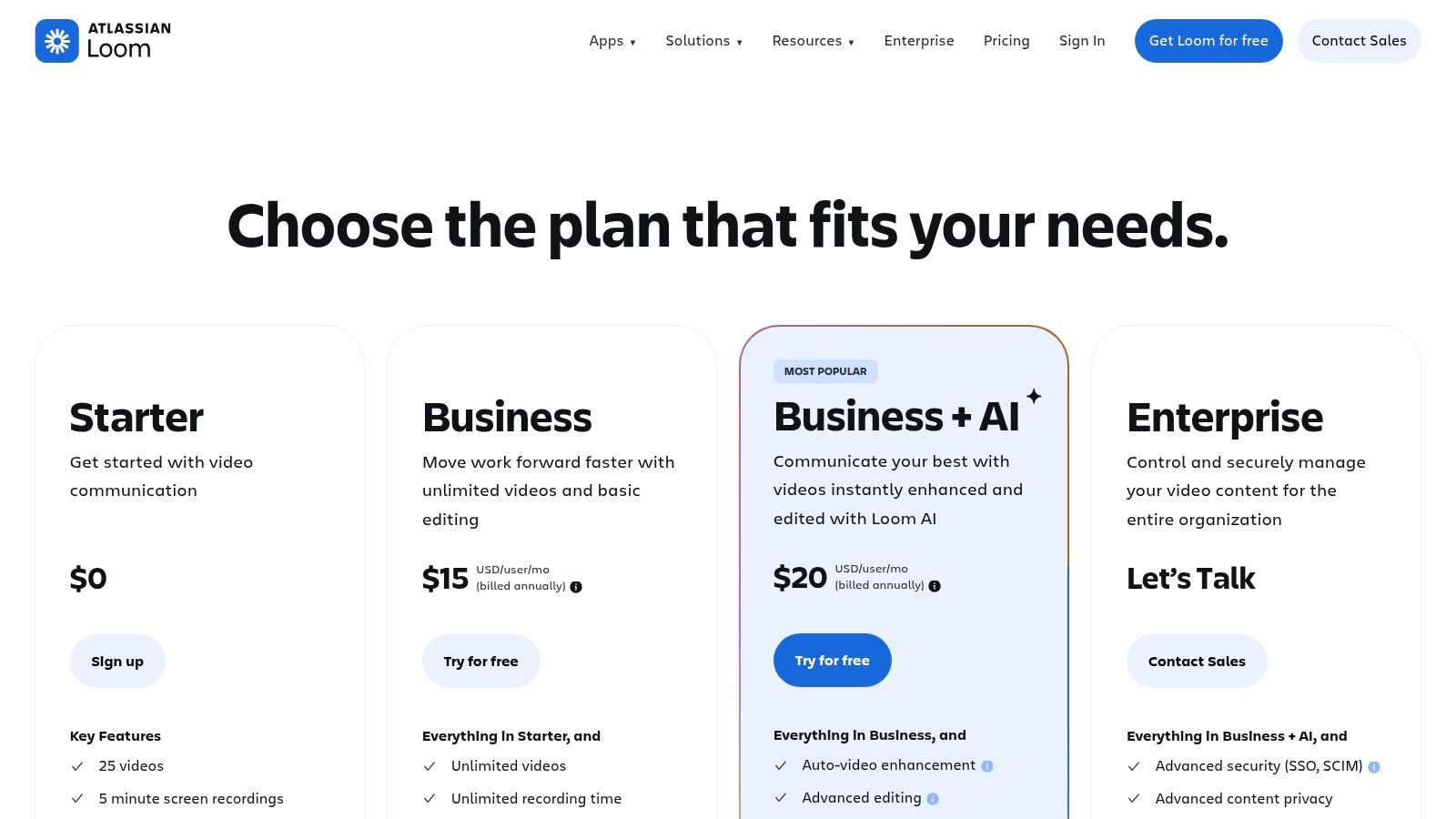
Loom is a Chrome extension for creating and sharing quick video messages. For students, it's an efficient way to record a screen, webcam, or both to explain a concept, present a project, or give feedback to a peer. Instead of writing a long email, you can record a short video with a voiceover and share it with a simple link.
Loom stands out for its speed and simplicity. Recording starts with a single click, and the video is immediately ready to share when you finish—no rendering or uploading needed. While Loom is for creating videos, its higher-tier plans include AI features that can generate notes and summaries, similar to other AI video summarizer tools. It's particularly useful for visual demonstrations in subjects like coding or design.
Loom simplifies visual communication, which is crucial for remote learning. It allows students to show their work and thought processes clearly, making it easier to get help or collaborate on group assignments without scheduling live meetings.
Pros: Extremely fast and easy for creating walkthroughs and feedback videos. EDU discounts make it affordable.
Cons: Advanced AI features are behind upgraded plans. The entry-level access has limits on video length and quantity.
Plans: Check the official product page linked above for current availability, limits, and regional pricing.
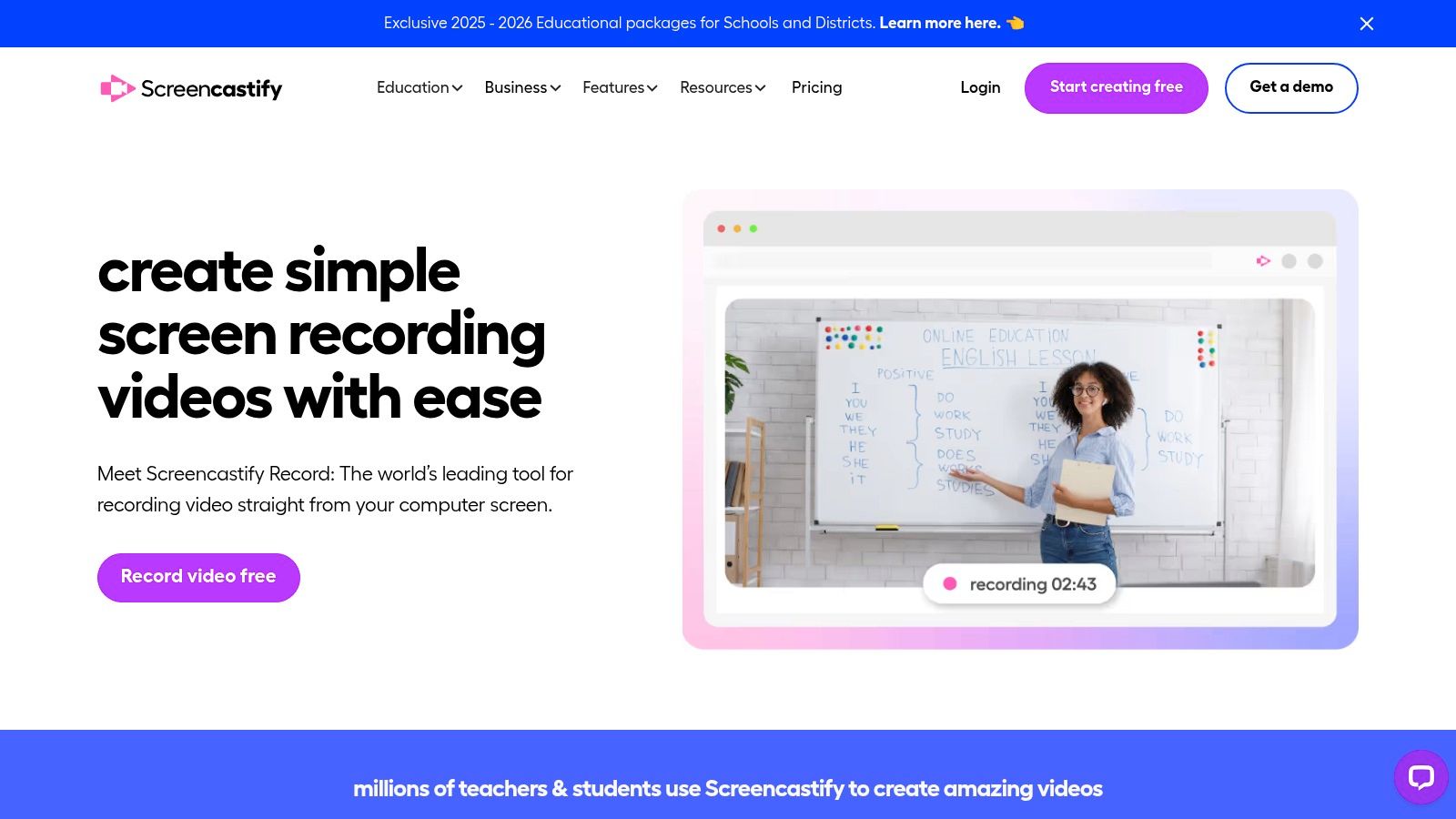
Screencastify is a popular screen recorder designed for education. It lets students and teachers easily record their screen, webcam, or a single browser tab. For students, this is a powerful tool for creating presentations, demonstrating a process for a group project, or recording a question for a professor.
It stands out for its seamless integration with Google Drive, where recordings are automatically saved. The platform also includes interactive question features and is built to comply with education-specific privacy standards like FERPA and COPPA. While many tools can record a screen, Screencastify’s focus on simplicity and school-friendly features makes it one of the best chrome extensions for students. Using it effectively can also help you create better visual notes, a topic you can learn more about by exploring how to transcribe a YouTube video for study purposes.
Screencastify simplifies creating video-based assignments and communication. Its direct integration with the Google ecosystem removes technical friction, letting students focus on their content.
Pros: Easy to use, auto-saves directly to Google Drive, strong focus on education-specific compliance.
Cons: The entry-level access has significant limitations on video length and storage. Advanced editing requires an upgraded plan.
Plans: Check the official product page linked above for current availability, limits, and regional pricing.
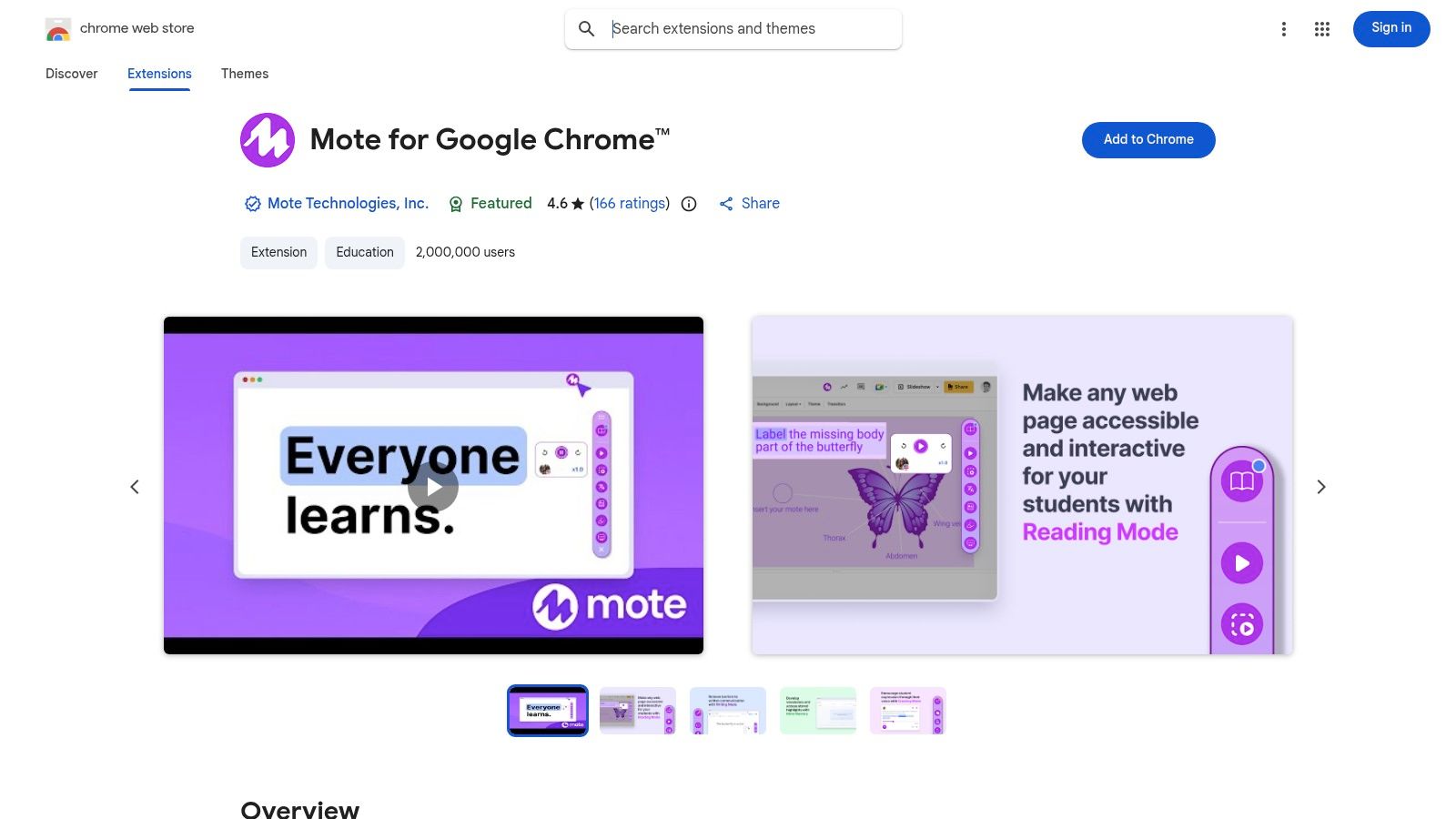
Mote integrates voice notes directly into Google’s ecosystem. This classroom-focused extension allows teachers and students to record and share audio comments in Google Docs, Slides, and Classroom. Instead of typing lengthy comments, users can speak their thoughts, making feedback more personal, nuanced, and efficient.
Mote stands out for its commitment to accessibility. Each voice note can be automatically transcribed, providing captions that adhere to WCAG 2.1 AA standards. This ensures that comments are accessible to students with diverse learning needs. For school-wide adoption, Mote provides clear deployment guides for Google administrators.
Mote adds a human touch to digital feedback, saving time while improving clarity. It moves beyond text-based communication, allowing tone and emphasis to be conveyed more effectively in a learning environment.
Pros: Speeds up the feedback process, useful for multilingual classrooms, and offers well-documented K-12 pricing.
Cons: Advanced features like unlimited transcriptions require a upgraded plans. Works best within the Google ecosystem.
Plans: Check the official product page linked above for current availability, limits, and regional pricing.
The goal isn't to install every tool available. It's about selecting a few extensions that solve your specific learning bottlenecks. This roundup covered a range of tools, from writing aids like Grammarly to specialized helpers for screen capture. Your browser is a customizable learning environment you can build to support your needs.
An effective learning stack is tailored to your study habits. If you're constantly sidetracked by YouTube recommendations, a distraction blocker is essential. If you struggle with managing citations, Zotero Connector will save you hours. First, identify your biggest points of friction—the repetitive tasks, the distractions—and then find a tool that directly addresses that problem. Don't add an extension just because it's popular; add it because it solves a real issue for you.
As you choose from the best chrome extensions for students, keep these principles in mind:
Performance Impact: Every extension uses system resources. Be selective and periodically review what you have installed. If your browser slows down, try disabling less-used tools.
Privacy and Permissions: Before clicking "Add to Chrome," review the permissions an extension requests. Does a simple note-taking app really need to read your entire browsing history? Prioritize tools that respect your data.
Workflow Integration: The best tools fit into your existing process. If you use Obsidian, an extension that saves notes to a proprietary cloud format creates more work. Look for tools that output to common formats like Markdown or offer simple copy-paste into your preferred apps like Notion.
The right combination of Chrome extensions can transform your browser into a personalized learning assistant. The goal is to reduce cognitive load, automate repetitive tasks, and create a focused environment where you can engage deeply with the material. By curating your own learning stack, you build a system that helps you learn more effectively and retain information long after the lecture is over.
For students who learn from video tutorials and use knowledge management systems like Obsidian or Notion, visual context matters. HoverNotes is a Chrome extension that watches videos with you, generates AI notes, and saves them as Markdown files directly to your computer. Because it watches the screen instead of just reading a transcript, it captures the code and diagrams that other tools miss. Notes copy cleanly into Notion if that's where you keep everything, and you can try it free to see how the timestamped screenshots and distraction-free mode improve your workflow.
Useful notes should make you do something with the material, not merely store more text. The U.S. Institute of Education Sciences recommends spacing learning over time, combining graphics with verbal explanations, using active retrieval, and asking deep explanatory questions (practice guide). A peer-reviewed review of educational video research also emphasizes signaling important information, splitting lessons into manageable segments, giving learners control, and adding active-learning prompts (review). Applied here, that means pausing at concept boundaries, capturing only the visual evidence you need, writing a question in your own words, and later answering it before replaying the source. These practices are evidence-based; a universal retention percentage for one app or workflow is not.
Stop forgetting what you watch. This guide offers science-backed methods to boost your video learning retention using active recall and smarter note-taking.
Discover the cognitive science behind why you forget most video learning content and learn how active, strategic note-taking can transform your retention.
Learn the best ways to screen capture from YouTube for your study notes. This guide covers manual methods, browser tools, and how to organize captures.