Discover the best note taking apps for students. Our 2026 guide compares tools for video, lectures, and research to help you study smarter, not harder.
By HoverNotes Team•19 min read
Taking notes is a core part of learning, but the methods have changed. Lecture recordings, online courses from Udemy or Coursera, and YouTube tutorials are now as common as textbooks. The problem? Passively watching videos often leads to poor retention. Manually pausing to type, awkwardly taking handwritten notes, or grabbing disorganized screenshots just doesn't work. To learn effectively, you need a tool built for how students actually study today. This guide breaks down the best note taking apps for students, focusing on what truly matters for modern learning workflows, especially for video content.
We'll skip the generic recommendations and give you a clear, practical comparison. For each app, we provide an objective analysis based on four key criteria:
Platform Support: Where can you use the app? Does it work on any website with video?
Export Options: Can you get your notes out easily? Do you own your data in an open format like Markdown?
Obsidian/Notion Integration: How well does it fit into your existing system?
Plans: Check the official product page linked above for current availability, limits, and regional pricing.
This roundup is for serious learners, from university students and software developers to medical students and professionals studying for certifications. Let's find the right app to not only capture information but to understand and retain it for the long term.
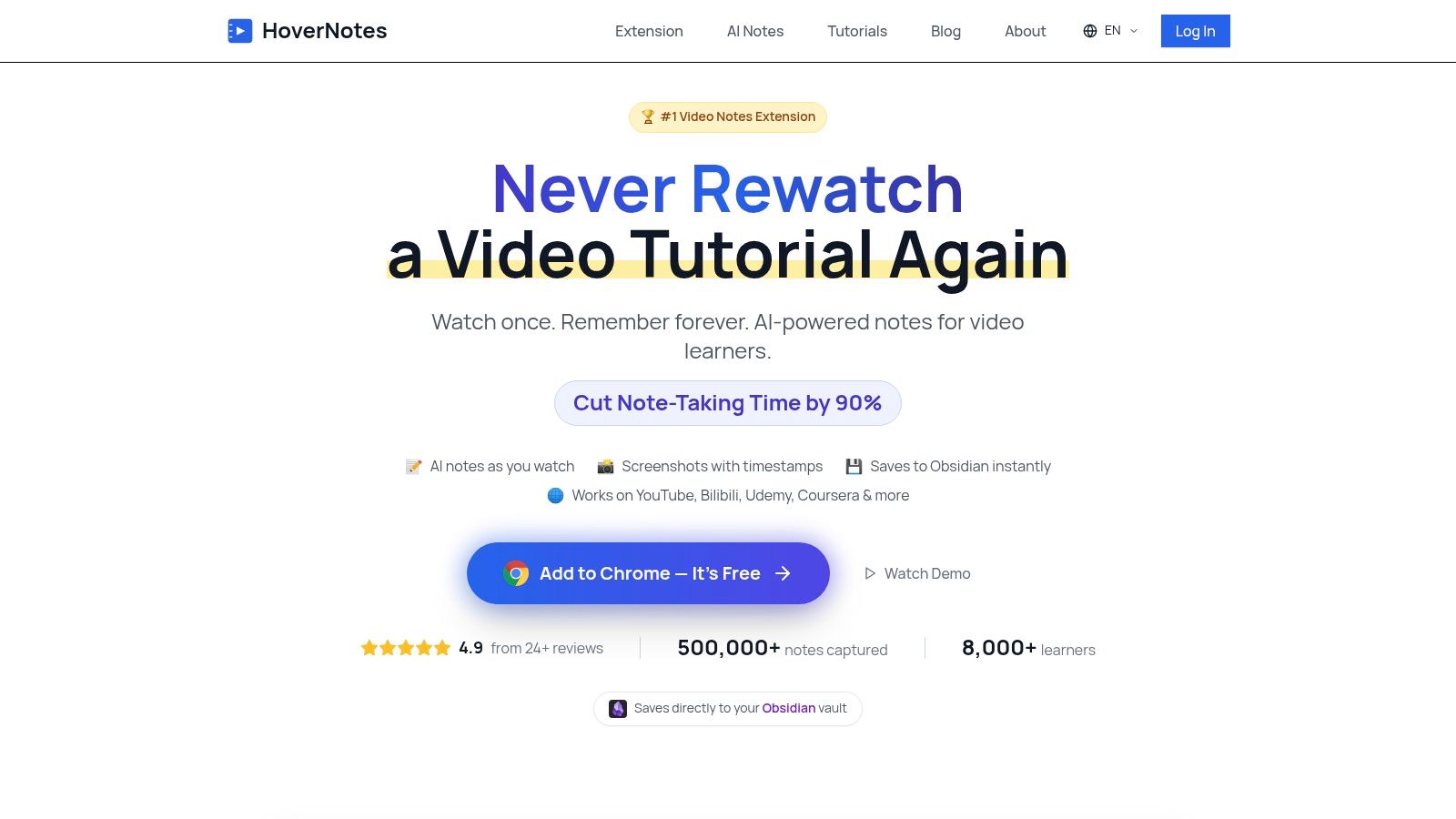
For students who learn primarily from video, HoverNotes is a Chrome extension that watches videos with you, generates AI notes, and saves them as Markdown directly to your file system. It’s built to solve the video learning retention problem: you watch a two-hour lecture but forget most of it a week later. HoverNotes tackles this by creating detailed, searchable study materials in real-time.
What sets it apart is that it doesn't just parse a transcript; it actually watches the video frame-by-frame. This is critical for visual-heavy fields like STEM or coding. It captures on-screen code snippets, diagrams, and equations, embedding them directly into your notes. This means your study material reflects what was actually shown, providing essential visual context that transcript-only tools miss.
HoverNotes streamlines the entire process of learning from video, making it one of the best note taking apps for students who value efficiency and data ownership.
Clickable Timestamped Screenshots: Capture a screenshot of the video frame with one click. Each image is embedded in your notes with a timestamp you can click to instantly jump back to that exact moment in the video. It’s perfect for reviewing a complex coding demonstration without endless scrubbing.
Local-First and Obsidian-Ready: Notes save as plain Markdown (.md) files directly to your machine. This allows for seamless, native integration with Obsidian, Logseq, or any text editor. Your notes belong to you, live on your device, and are accessible offline.
Universal Platform Support: It works almost anywhere there's a video: Udemy, Coursera, YouTube, university portals, and even local video files.
Focus Mode: To combat distractions, video mode arranges the video on one side and your notes on the other, blocking site ads and creating a clean study environment.
Notion-Friendly: Notes can be copied and pasted directly into Notion with formatting and images intact, making it easy to integrate with an existing Notion dashboard.
HoverNotes uses a entry-level and upgraded options model that's easy to try.
entry-level access: New users get 20 minutes of AI note-generation credits, no credit card needed. The entry-level access also includes unlimited manual note-taking, unlimited timestamped screenshots, and access to Focus Mode. Confirm current options on the HoverNotes pricing page.
upgraded plans: Additional AI capacity and unlimited options are available, with regional prices shown on the current HoverNotes pricing page.
Watches the video, not just the transcript, capturing visual context.
Primarily a Chrome extension, so it's browser-based.
Saves notes as local Markdown files, ideal for Obsidian users and data ownership.
AI credits are required for automated note-taking.
Works on nearly any website with video, not just YouTube.
Lacks features for handwritten notes.
Timestamped screenshots make reviewing specific video moments effortless.
Best For: Students in technical fields, Obsidian users, self-learners on platforms like Coursera and Udemy, and anyone who wants a permanent, searchable knowledge base from video.
For students who prefer handwritten notes, especially on an iPad with an Apple Pencil, Goodnotes is a top choice. It turns a tablet into a digital notebook, great for annotating lecture slides, solving math problems, or sketching diagrams. Its strength is replicating the pen-and-paper experience with digital benefits.
Goodnotes handles PDFs well. You can import a 100-page slide deck and mark it up during a lecture, highlighting concepts and adding notes in the margins. The platform’s handwriting recognition makes your handwritten notes searchable, a key feature for finding specific terms across all your notebooks.
Goodnotes uses a entry-level and upgraded options model. The entry-level access is limited to three notebooks. an upgraded plan unlocks unlimited notebooks and full cross-platform sync. Apple users can also make a one-time purchase for a lifetime license on Apple devices only. You can find details on the official Goodnotes pricing page.
Excellent for handwritten notes and Apple Pencil users.
entry-level access is extremely limited (3 notebooks).
Robust PDF annotation for lecture slides.
Full cross-platform sync and collaboration require a subscription.
Powerful search that includes your handwritten text.
AI features are a separate, paid add-on.
Integrated study tools like flashcards.
Exporting to Markdown for tools like Obsidian is not a clean process.
Practical Tip: Goodnotes is ideal for highly visual subjects like chemistry, physics, or anatomy. If you want to learn more about effective study techniques, you can find helpful strategies on how to take study notes.
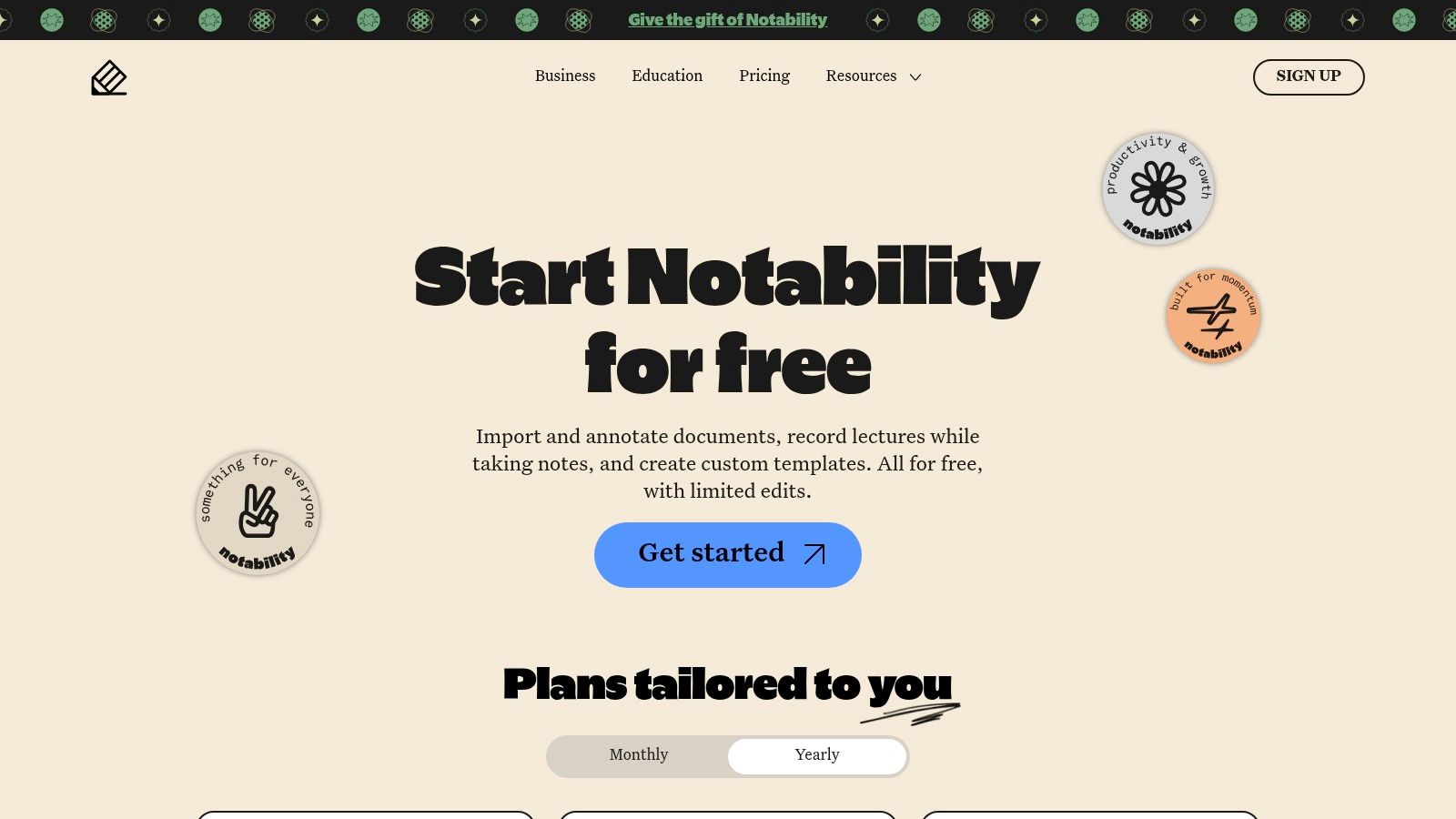
Notability combines handwritten notes with synchronized audio recordings. This feature is a game-changer for lectures, allowing you to tap any part of your written notes and instantly hear the audio from that exact moment. It offers a powerful safety net, blending listening and writing into one experience.
The app’s interface is simple and fast. Beyond audio sync, Notability supports PDF annotation, typed notes, and creative tools like digital stickers. AI features like transcription and summarization on higher-tier plans further solidify its position as an all-in-one academic hub for iPad users.
Notability uses a entry-level and upgraded options subscription model. The free "Starter" plan offers basic note-taking features. The "Plus" and "Pro" subscriptions unlock unlimited editing, cross-platform sync, and advanced AI capabilities. Full details can be found on the official Notability pricing page.
Practical Tip: Use Notability’s audio recording during fast-paced lectures. Focus on capturing key concepts and diagrams. Later, tap a note to rehear the professor’s detailed explanation for that point.
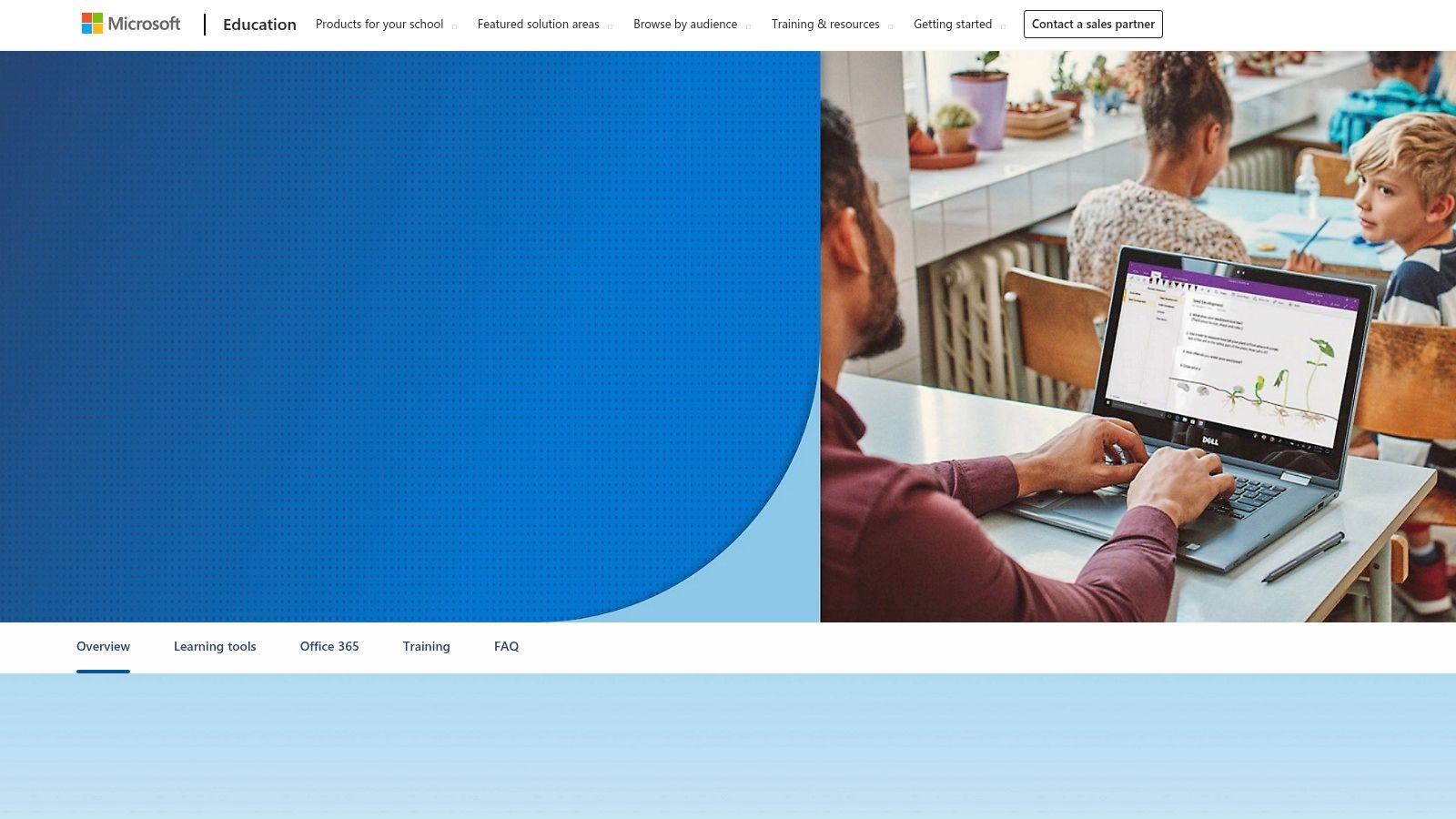
For students in the Microsoft ecosystem, OneNote is a powerhouse, often free through school Office 365 Education plans. It's a digital three-ring binder with a flexible canvas, allowing you to type, write, draw, and insert media anywhere. This makes it ideal for organizing complex projects and combining typed notes with handwritten diagrams.
OneNote's major advantage is its tight integration with Microsoft 365. You can embed Word documents, Excel spreadsheets, and PowerPoint slides directly into your notes. For group projects, the Class Notebook feature provides a collaborative space, a content library, and private notebooks for each student.
OneNote's core application is free. Many students get access to the full Office 365 suite at no cost through their school. You can check your eligibility on the official Microsoft OneNote for Education page.
available without an additional charge for most students.
Best when you are fully in the Microsoft 365 ecosystem.
Excellent cross-platform support with reliable sync.
Exporting notes to clean Markdown for Obsidian is difficult.
Powerful collaboration features, especially Class Notebook.
The freeform canvas can sometimes feel disorganized.
Strong inking support for handwritten notes.
The interface can feel dated compared to newer apps.
Practical Tip: Use OneNote's "Send to OneNote" printer driver on Windows to save web pages and PDFs as static pages in your notebook. If you want to learn about tools that enhance this process for video, check out our post on a dedicated lecture note taker.
For students who want an all-in-one digital workspace, Notion combines documents, databases, wikis, and project management tools. It’s great for organizing everything from class notes and reading lists to group project timelines in one system.
Notion's strength is its flexibility. A simple page can hold notes, images, and video embeds. That same page can become a complex database with custom properties, filters, and views (like a calendar or Kanban board). Students can create a central "dashboard" for their entire academic life.
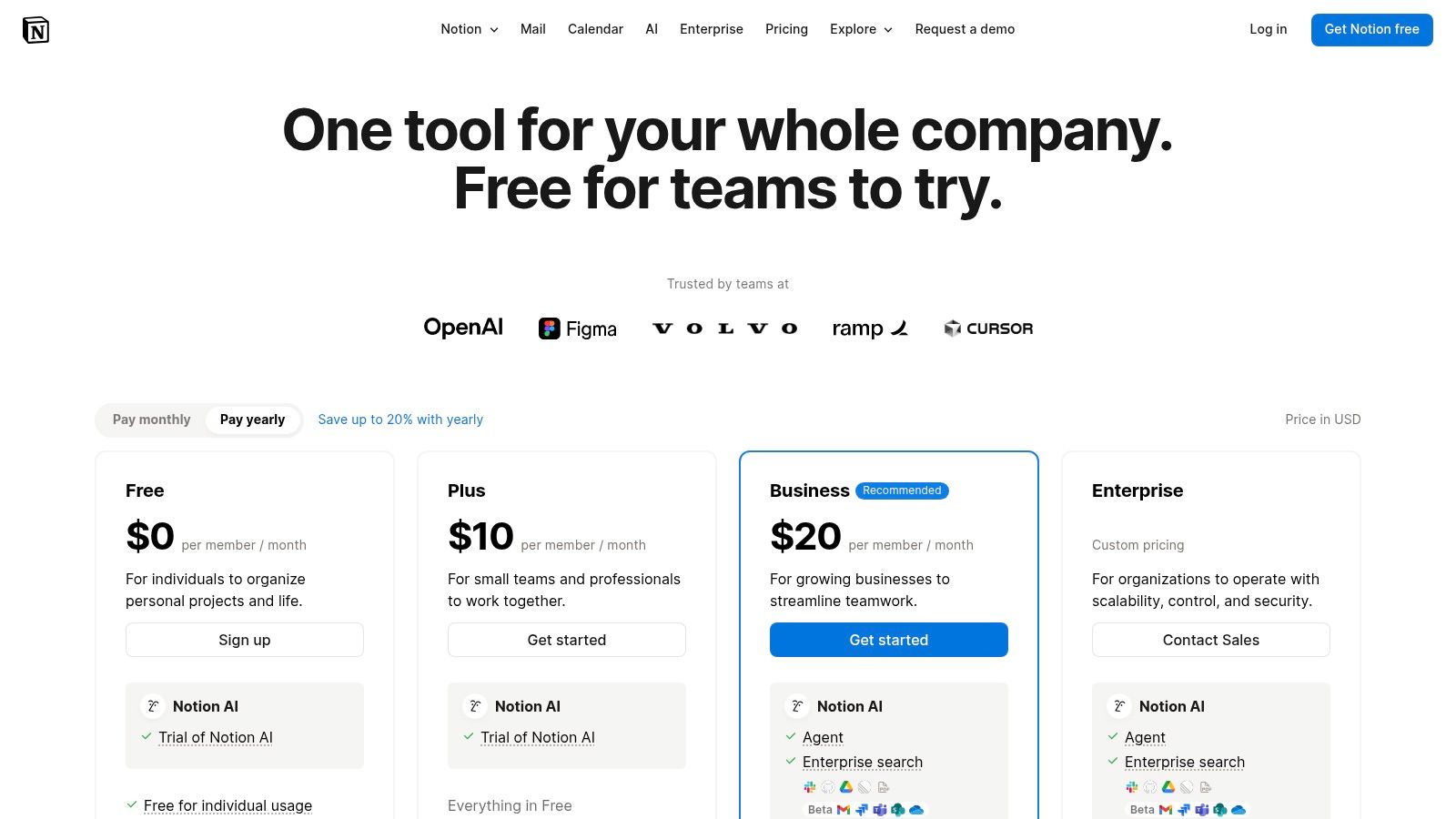
Notion uses a entry-level and upgraded options model. The entry-level access is generous but has some limitations. Crucially, Notion offers its Plus Plan for free to anyone with a valid school email address. This unlocks unlimited blocks and larger file uploads. Learn more on the official Notion pricing page.
Highly flexible for organizing all aspects of student life.
Can have a steep learning curve.
Powerful database features for structured information.
Offline functionality can be limited.
Free Plus Plan for students is a great value.
Lacks dedicated handwriting and PDF annotation features.
Thriving community and vast template ecosystem.
Can feel slower than simpler note-taking apps.
Practical Tip: Use Notion's database feature to create a master task list for all your courses. Add properties for course name, due date, and status. For those taking video courses, a good workflow is key; learn about one in our guide on moving from Notion to HoverNotes for tutorials.
For students who see their notes as an interconnected web of knowledge, Obsidian is a powerful, long-term solution. It's a personal knowledge base that lives on your local machine. Built on plain text Markdown files, Obsidian ensures you own your data forever, making it one of the best choices for building a lasting "second brain."
Obsidian's core strength is its local-first philosophy. Your notes are just folders of .md files on your computer. By creating links between notes, you build a "knowledge graph" that visually represents how concepts connect. This is invaluable for research, helping you discover relationships between lecture notes and reading summaries.
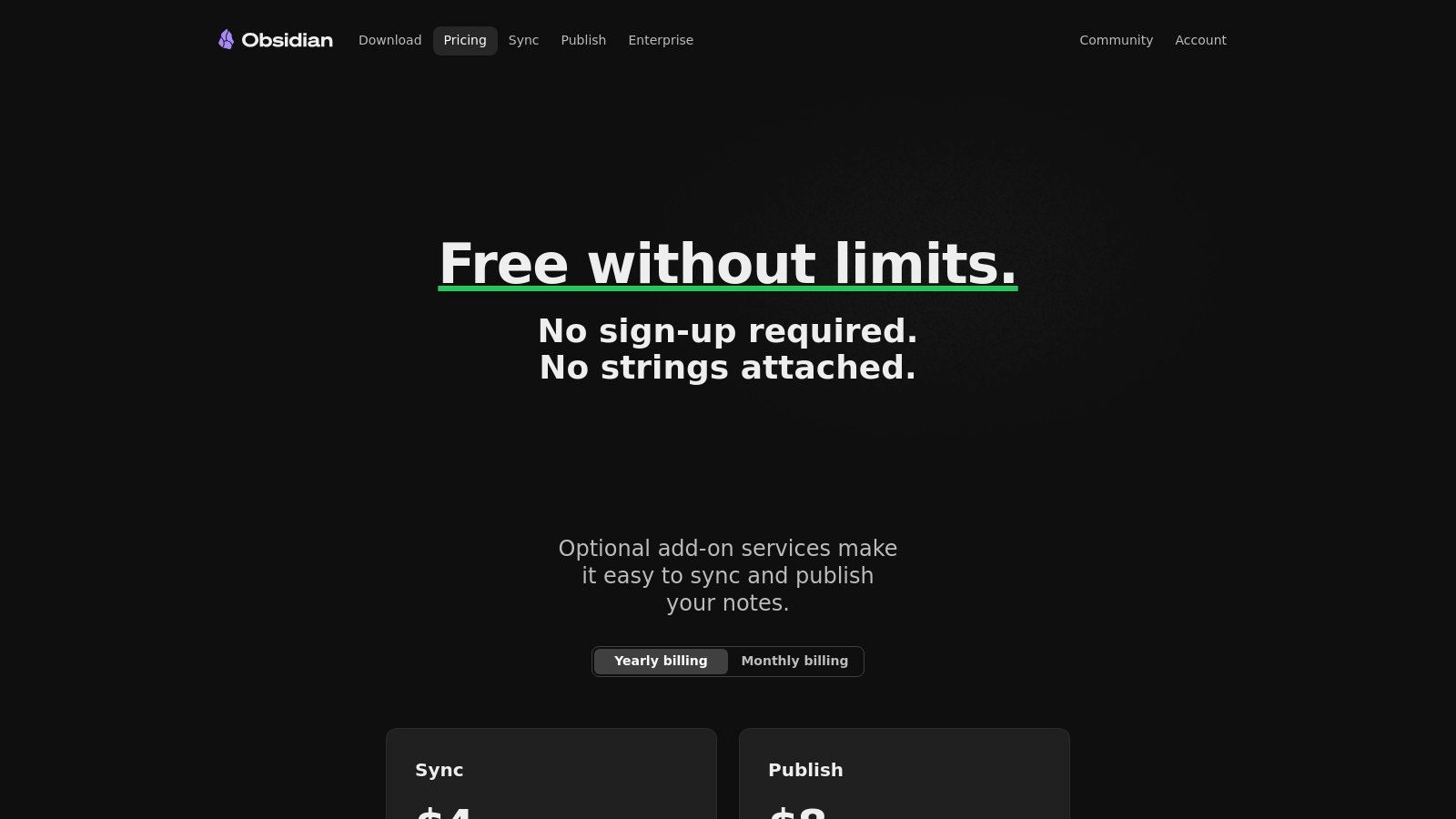
The core Obsidian app is free for personal and educational use on Windows, macOS, and Linux. Optional paid services include Obsidian Sync for end-to-end encrypted synchronization and Obsidian Publish to turn notes into a website. Find the latest pricing on the official Obsidian pricing page.
Complete data ownership and privacy with local Markdown files.
Steeper learning curve than simpler apps.
Highly customizable with a vast library of plugins.
Core app lacks real-time collaboration.
Free for personal use with optional paid sync.
No native handwriting support; optimized for keyboard.
Excellent for building a long-term knowledge base.
Syncing requires an upgraded plan or manual setup.
Practical Tip: Obsidian excels when paired with tools that feed it well-structured Markdown notes. For video lectures, an extension like HoverNotes is ideal because it saves AI-generated notes with timestamped screenshots directly as .md files. This lets you build a rich study guide in your Obsidian vault without manual effort. Learn more in this complete guide to taking video notes in Obsidian.
Evernote is a veteran in the digital note-taking space, functioning as a "digital filing cabinet." It excels at capturing, organizing, and finding information from web pages, documents, images, and handwritten notes. For students juggling multiple subjects and research projects, Evernote provides a centralized hub.
Its core strength has always been its robust search and the Web Clipper browser extension. Students can clip articles or screenshots from any webpage. The platform's search function can find text inside PDFs, Office documents, and even images, making it great for heavy research.
Evernote uses a entry-level and upgraded options model, but the entry-level access has significant limitations, making it more of a trial. upgraded plans (Personal, Professional) unlock unlimited devices, larger note sizes, and offline access. It's best to check the official Evernote pricing page for current details.
Excellent for capturing web research with its Web Clipper.
entry-level access is very limited.
Powerful cross-document search.
More expensive than many competitors.
Mature and reliable ecosystem.
Lacks specialized student tools like flashcards.
Active development with new AI features.
Exporting to plain Markdown can be complex.
Practical Tip: Use Evernote as your research repository. Create a notebook for each course and use the Web Clipper to save articles and PDFs. Tag notes with keywords like "exam_topic" to make retrieval faster. For more on how AI is changing note-taking, check out our guide on modern AI note-taker apps.
Excellent: Native Obsidian support, easy copy-paste to Notion
Entry-level and upgraded options (20 min AI free), upgraded plans
Taking structured, visual notes from any video content (courses, lectures).
Goodnotes
Apple-first, some Windows/Android support
Good (PDF, images)
Poor: Not designed for Markdown export.
Entry-level and upgraded options (3 notebooks), an upgraded plan or one-time purchase
Handwritten notes, PDF annotation, and diagramming on an iPad.
Notability
Apple-first, web viewer
Good (PDF, RTF)
Poor: Not designed for Markdown export.
Entry-level and upgraded options, an upgraded plan for full features
Capturing lectures with synced audio recordings for detailed review.
Microsoft OneNote
Excellent (all platforms)
Poor (proprietary format, PDF)
Poor: Does not integrate with Markdown workflows.
Free with most school accounts
Organizing class materials within the Microsoft 365 ecosystem.
Notion
Excellent (all platforms)
Good (Markdown, CSV)
Good: Serves as an alternative system; notes can be pasted in.
Free Plus Plan with school email
Building an all-in-one workspace for notes, tasks, and project management.
Obsidian
Excellent (Desktop)
Excellent (local .md files)
Native: It is a Markdown-based system.
Free for personal use, optional paid sync
Building a long-term, interconnected personal knowledge base.
Evernote
Excellent (all platforms)
Fair (HTML, ENEX)
Poor: Clunky export to Markdown.
Entry-level and upgraded options (limited), paid subscriptions
Clipping web pages and organizing a digital filing cabinet of research.
#Choosing Your Tool: Match the App to Your Learning Style
The "best" app is the one that fits your specific study habits. The right tool should feel like an extension of your thinking, not another complex system to manage. Your ideal choice hinges on a few questions: How do you learn best? Where does your course content live? And who owns your notes?
For the tactile learner: If you learn by writing, especially for subjects heavy on diagrams or equations, Goodnotes and Notability are top choices for their seamless stylus integration.
For the integrated university student: If your school provides Microsoft 365, OneNote is a robust and free option for organizing notes and collaborating on projects.
For the "second brain" architect: Students building a personal knowledge management (PKM) system will find a home in Notion or Obsidian. Notion excels at structured databases and project management. Obsidian, with its local-first, Markdown approach, offers unparalleled longevity and privacy.
A significant portion of modern education happens on screen. Video lectures and online courses present challenges that traditional note-takers weren't designed for. Manually pausing, typing, and capturing screenshots is a tedious process that breaks your learning flow.
This is where a specialized tool is a necessity. The problem with video learning is that passive watching leads to poor recall. Active engagement is key. Tools designed for video handle the mechanical tasks so you can focus on absorbing the content. For instance, HoverNotes is purpose-built to solve this. It doesn't just analyze a transcript; it watches the video, capturing crucial visuals like diagrams and code. Every note is automatically timestamped, letting you jump back to the precise moment in the lecture with one click.
If your workflow involves hours of video content, a dedicated video note-taker is the missing link. It streamlines the capture process, ensuring the knowledge from videos doesn't get lost. Notes copy cleanly into Notion if that's where you keep everything, and if you use Obsidian for learning, HoverNotes saves notes directly to your vault.
A significant part of learning now comes from video, and a specialized tool can make all the difference. Even without AI, the distraction-free mode and screenshots in HoverNotes are worth it for focused study. You can try it free—20 minutes of AI credits, no credit card required. Confirm current options on the HoverNotes pricing page.
Useful notes should make you do something with the material, not merely store more text. The U.S. Institute of Education Sciences recommends spacing learning over time, combining graphics with verbal explanations, using active retrieval, and asking deep explanatory questions (practice guide). A peer-reviewed review of educational video research also emphasizes signaling important information, splitting lessons into manageable segments, giving learners control, and adding active-learning prompts (review). Applied here, that means pausing at concept boundaries, capturing only the visual evidence you need, writing a question in your own words, and later answering it before replaying the source. These practices are evidence-based; a universal retention percentage for one app or workflow is not.
Learn how to use the Cornell method for video note taking to improve learning from YouTube or Coursera. This guide offers actionable steps and templates.
Discover how to start learning from videos effectively if I have ADHD. This guide offers brain-friendly strategies for focus, note-taking, and retention.