
The short answer
Videos are one of the most popular ways we learn today. From YouTube tutorials to Udemy courses and university lectures, so much knowledge is delivered in video format. But here's the challenge: our learning happens in videos, while our knowledge lives in Obsidian.
That gap between passive watching and active knowledge building has always been the problem for many video learners. You watch a lecture, take scattered notes, and a week later you've forgotten most of it.
The good news? There are now several tools that make video note-taking in Obsidian smoother, faster, and more effective.
In this guide, I'll walk you through the best options available in 2026.
Traditional Plugin Approaches
If you want to stay fully inside Obsidian, plugins are the natural first step (see our Obsidian YouTube plugin comparison for current picks):
- Media Notes Plugin – Embed videos directly in your notes, add clickable timestamps, and navigate quickly.
- Timestamp Notes Plugin – Create timestamped notes that link back to exact video moments.
- Media Extended Plugin – Play videos inside Obsidian and add notes without leaving your vault.
- Native Embeds – Use Markdown syntax
to embed YouTube or local videos.
These plugins are great for learners who want everything in one place, though they don't usually go beyond timestamping.
Browser Extensions
Sometimes, you don't want to keep Obsidian open while watching a video — especially if you're on YouTube, Udemy, or Zoom. That's where browser extensions come in:
- YiNote – Lets you pause, capture screenshots with timestamps, and export notes directly to Markdown.
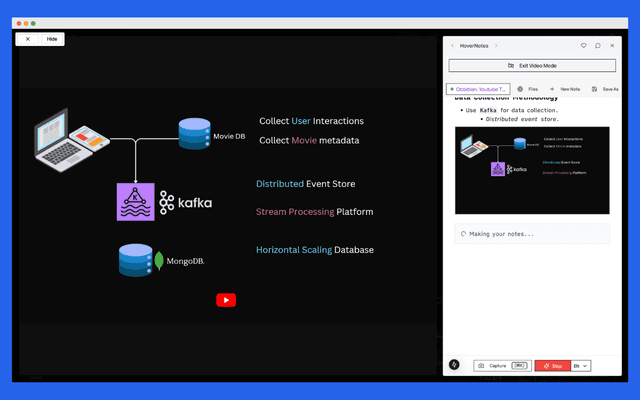
- HoverNotes – A newer option that turns video watching into an AI-driven note-taking session.
HoverNotes in particular takes a different approach with:
- ✨ AI-enhanced notes (tables, diagrams, code snippets)
- 📸 One-click screenshots + timestamps
- 💾 Local-first storage into your Obsidian vault
- 🎯 Works everywhere (YouTube, Udemy, Coursera, Google Meet, Zoom, offline videos)
- 🚫 Fewer distractions (Video Mode dims the page around the video; on YouTube it can mute, speed up or skip ads)
Quick Comparison
| Tool / Plugin | Inside Obsidian? | AI Notes | Timestamps | Screenshots | Works in Browser | YouTube ad controls |
|---|---|---|---|---|---|---|
| Media Notes | ✅ Yes | ❌ No | ✅ Yes | ❌ No | ❌ No | ❌ No |
| Timestamp Notes | ✅ Yes | ❌ No | ✅ Yes | ❌ No | ❌ No | ❌ No |
| Media Extended | ✅ Yes | ❌ No | ✅ Yes | ❌ No | ❌ No | ❌ No |
| YiNote | ❌ No | ❌ No | ✅ Yes | ✅ Yes | ✅ Yes | ❌ No |
| HoverNotes.io | ❌ No (but saves directly to vault) | ✅ Yes | ✅ Yes | ✅ Yes | ✅ Yes | ✅ Mute, speed up, skip |
Why This Matters
Video learning often feels passive: you watch, you forget, and you have to rewatch. With the right tools, video learning becomes active and searchable inside your Obsidian vault. That means you learn once, and keep the knowledge forever.
The key is finding the workflow that fits your learning style. Whether you prefer staying inside Obsidian with plugins or using browser-based tools that sync to your vault, the important thing is making your video learning stick.
Getting Started
- Choose your approach: Plugin-based (stay in Obsidian) or browser-based (watch anywhere)
- Test the workflow: Try taking notes on a short video to see what feels natural
- Build the habit: Consistent note-taking is more valuable than perfect tools
- Review regularly: Use Obsidian's linking and search to revisit your video notes
How to Choose the Right Workflow
Start with the kind of video you watch most often. An Obsidian plugin is a good fit when the video can be embedded and you want every step to happen inside your vault. A browser workflow is more practical when courses live behind logins, use custom players, or span several learning platforms. If diagrams, code, or slides matter, choose a workflow that captures visual context instead of relying on transcripts alone.
Test one approach on a real lesson before reorganizing your whole vault. Confirm that timestamps reopen the correct moment, screenshots remain available locally, and exported notes are easy to search. The best setup is the one you can repeat without interrupting the lesson every few minutes.
The future of learning is active, not passive. These tools help bridge that gap between consuming video content and building lasting knowledge in your personal system.
Try HoverNotes
Ready to transform your video learning? Get HoverNotes from the Chrome Web Store and start turning every video into permanent knowledge in your Obsidian vault.