The short answer
The best Obsidian YouTube plugin for most people is Media Extended. It plays YouTube and local videos inside Obsidian, inserts clickable timestamps and captures screenshots. If you only need the words, YTranscript pulls a video's transcript into your note. If you watch in the browser on sites like Udemy or Coursera, HoverNotes, a Chrome extension, saves notes and timestamped screenshots to your vault as Markdown.
TL;DR
- Watch and take notes inside Obsidian: Media Extended. Playback, timestamps and screenshots for YouTube, Vimeo and local files.
- Just the transcript: YTranscript. One command puts a video's captions into your note.
- A paid highlight pipeline: Readwise Reader. Highlight a video's transcript and sync it to Obsidian.
- Watch in the browser, save to your vault: HoverNotes. A Chrome extension, not a plugin, for course sites and anything else Obsidian can't play.
Do You Need a Plugin?
Not to watch a YouTube video in a note. Obsidian embeds YouTube natively: paste this into a note and the player appears.

What you don't get is a link to a moment in the video, screenshots or playback hotkeys. That's what the plugins below add.
Obsidian YouTube and Video Plugins Compared
Checked October 2026, from GitHub releases and Obsidian's download counts.
| Tool | Type | Last update | YouTube | Local files | Timestamps | Screenshots | Transcript | Price |
|---|---|---|---|---|---|---|---|---|
| Media Extended | Obsidian plugin | Oct 2026 (v4.2.9) | Yes | Yes | Yes | Yes, full or cropped | Yes | Free |
| YTranscript | Obsidian plugin | Oct 2026 (v1.5.0) | Yes | No | In the transcript | No | Yes | Free |
| Readwise Reader | Paid app + plugin | Sep 2026 (plugin v3.0.4) | Yes | No | — | No | Yes | $9.99/month billed annually |
| HoverNotes | Chrome extension | Active | Yes | Yes, in the browser | Yes | Yes, full or snip | No (AI notes instead) | Free plan, paid AI |
| Timestamp Notes | Obsidian plugin | Jul 2022 (v1.0.8) | Yes | Limited | Yes | No | No | Free |
To install any of these plugins, open Settings → Community plugins, select Turn on community plugins (this turns off Restricted mode), then browse the community plugin directory. Obsidian automatically scans every plugin version and shows a safety scorecard on its page. Plugins still get full access to your files, so prefer ones with recent updates and many downloads.
1. Media Extended
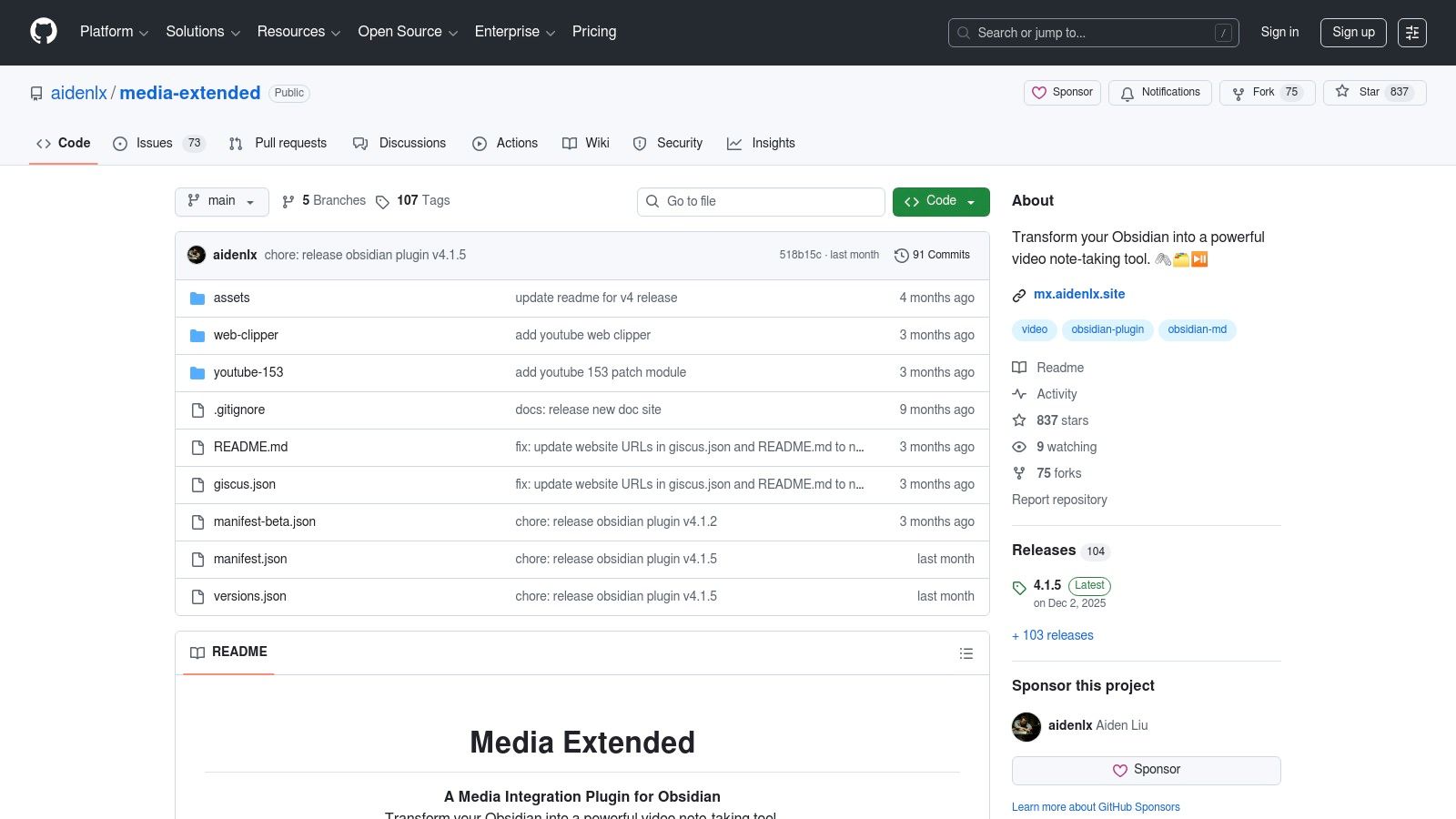
Media Extended is the most complete video plugin for Obsidian, with about 400,000 downloads. It opens a video in a pane next to your note, and a hotkey inserts a timestamp link that jumps back to that moment.
- Plays: local video files, YouTube and Vimeo in Obsidian's own player. Bilibili and Coursera open in its web viewer, which is desktop-only.
- Captures: screenshots of the full frame or a cropped area, straight into your note.
- Transcripts: loads
.srt,.vttand.assfiles and YouTube captions as a clickable transcript. - Know before you install: since version 4 (September 2025) Media Extended is closed source; version 3 stays MIT-licensed on GitHub. YouTube playback sometimes breaks when YouTube changes its player, and the docs have fix pages for the common errors.
Best for: anyone who wants to stay inside Obsidian for YouTube and local videos.
2. YTranscript
YTranscript does one thing: it pulls a YouTube video's transcript into your note, with timestamps that link back to the video. Copy the video link, then run YTranscript: Insert YouTube transcript from the command palette. It works on desktop and mobile.
The transcript is only as good as the video's captions, and it records what was said, not what was on screen. For other ways to get the text, see how to transcribe a YouTube video.
Best for: searchable text of talks and lectures where the words matter more than the visuals.
AI summarizer plugins build on the same idea: they fetch the transcript and ask an AI model for a summary. Most need your own API key and send the transcript to that AI provider, so check both before installing one.
3. Readwise Reader
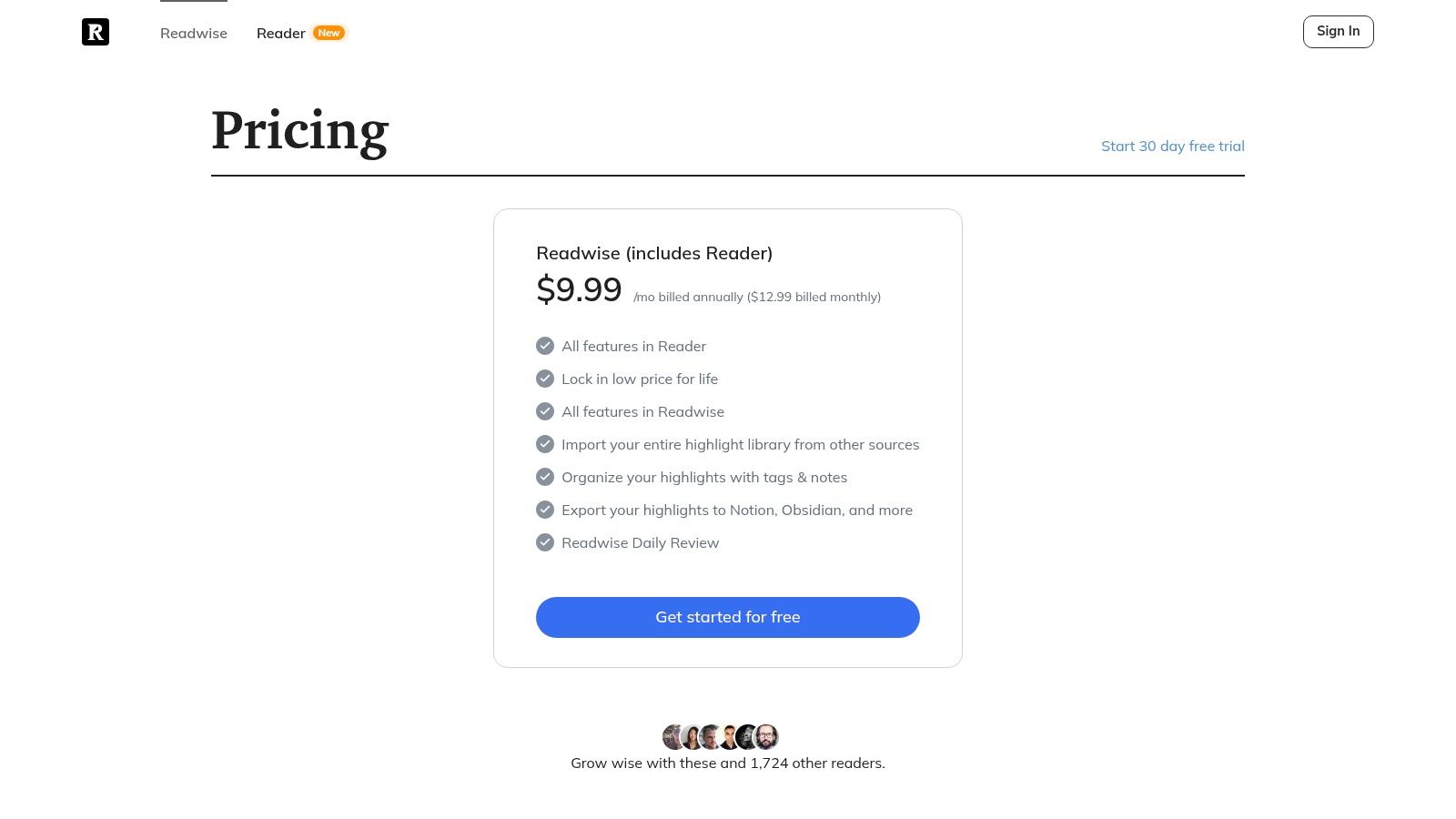
Readwise Reader is a read-later app that also opens YouTube videos with a synced transcript. You highlight lines of the transcript as you watch, and the official Readwise plugin syncs those highlights into Obsidian. It costs $9.99 a month billed annually ($12.99 monthly) after a 30-day free trial, as of October 2026.
Best for: people already using Readwise for articles and books.
4. HoverNotes (a Chrome Extension That Saves to Your Vault)
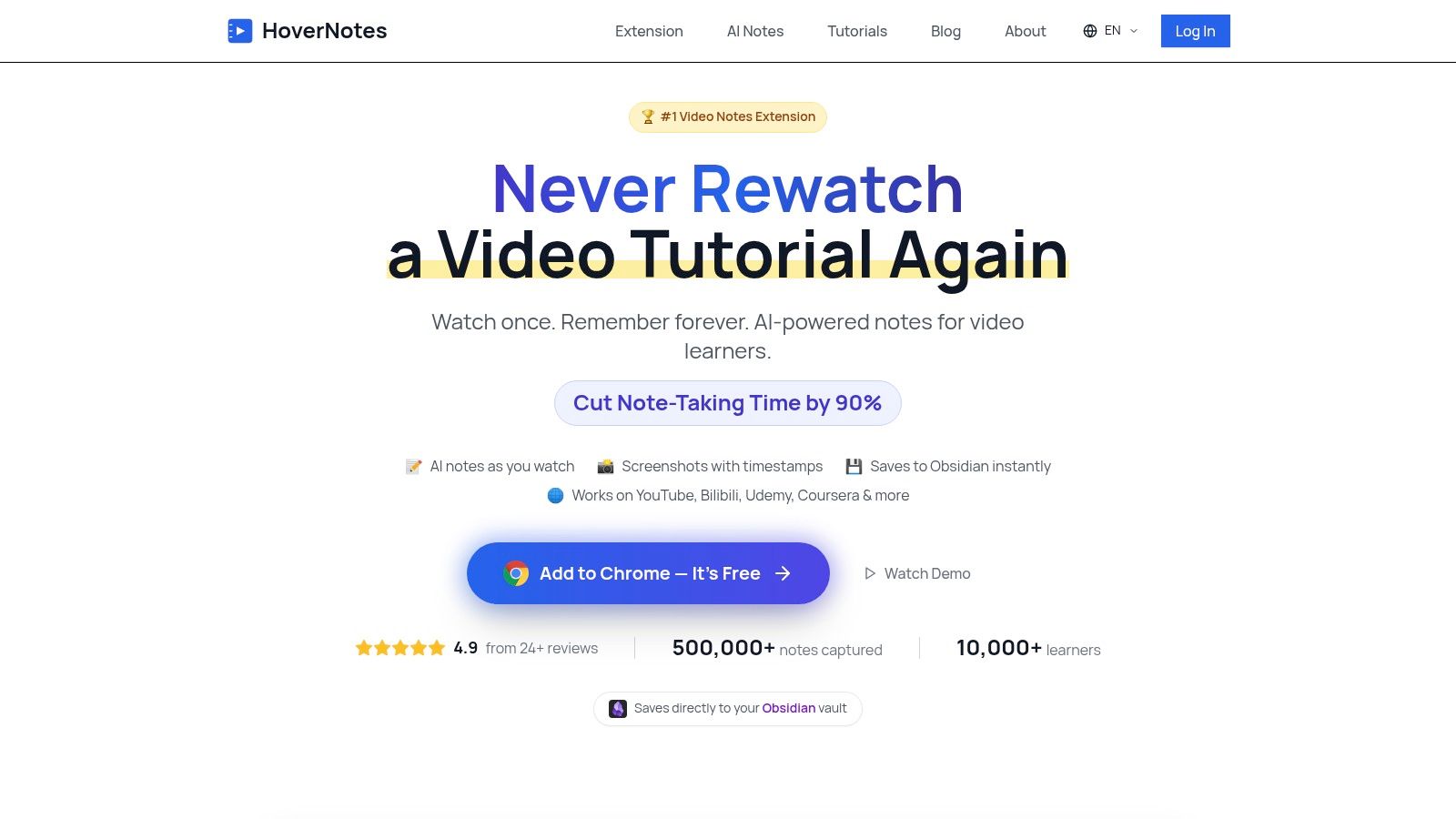
HoverNotes isn't an Obsidian plugin. It's a Chrome extension that watches with you on the site where the video already plays, such as YouTube, Udemy, Coursera or a university portal, and saves your notes into a folder you choose, such as your Obsidian vault.
- Notes: type your own, or turn on AI notes, which can include the code, slides and diagrams a transcript misses.
- Screenshots: one click captures the full frame or a snip of one area, with a timestamp link back to that moment.
- Focus: a distraction-free mode puts the video and your notes side by side. On YouTube it can mute, speed up or skip ads.
- Files: everything saves as Markdown in your vault. AI notes are processed on HoverNotes' servers.
- Brave and other browsers without folder access: a companion Obsidian plugin is in private testing and isn't in the community directory yet.
The free plan includes the note editor, timestamped screenshots, snip capture and distraction-free mode, plus 20 minutes of AI notes. See Obsidian video notes with HoverNotes for how it works, and the pricing page for current plans.
Best for: course platforms and other sites Obsidian can't play.
5. Timestamp Notes
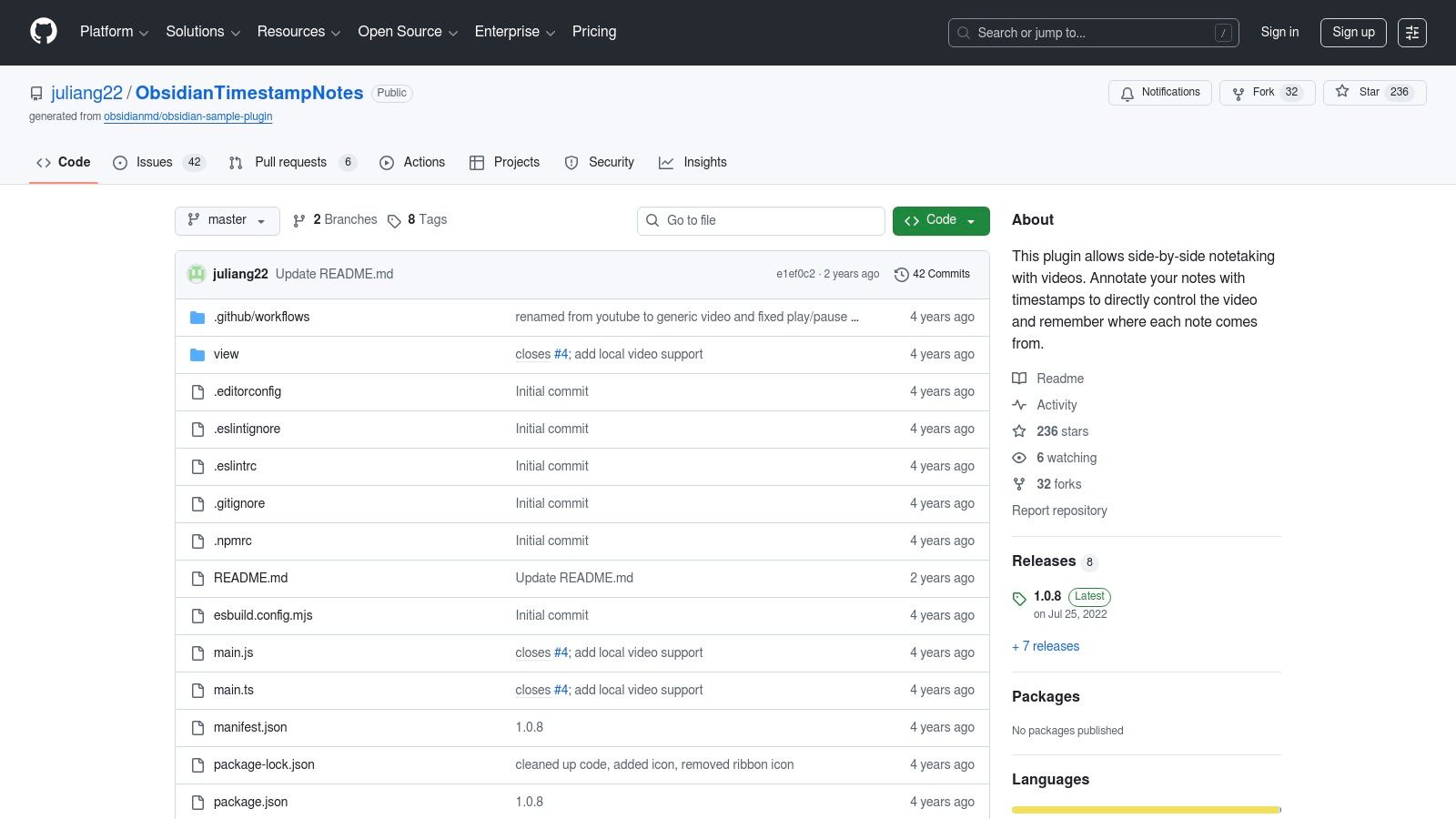
Timestamp Notes opens a video in a side pane and inserts a clickable timestamp with a hotkey. It supports YouTube, Vimeo and Twitch, with settings for colors and how far the seek keys jump. It still works, but it hasn't had a release since July 2022, and Media Extended does the same and more.
Best for: a minimal, keyboard-only timestamp workflow, if you accept an unmaintained plugin.
Which Option Is Right for You?
- You watch YouTube or local files and want to stay in Obsidian: Media Extended.
- You want the words, searchable: YTranscript, or Readwise Reader if you already pay for it.
- You learn on course sites or anywhere else in the browser: HoverNotes, which keeps the video where it plays and puts the notes in your vault.
Native plugins now cover YouTube, local files and a few course sites. For other sites, or to keep watching in your browser, use an extension that writes to your vault. For a full setup walkthrough, see how to take YouTube notes in Obsidian.

FAQ
Can Obsidian play YouTube videos without a plugin?
Yes. Paste  into a note and Obsidian embeds the player. You don't get timestamp links, screenshots or hotkeys; for those, install Media Extended.
Is Media Extended still free and maintained?
It's free in the community directory and was last updated in October 2026 (v4.2.9). Since version 4 (September 2025) its code is closed source. Your notes stay in plain Markdown, and the older version 3 remains MIT-licensed on GitHub.
How do I get a YouTube transcript into Obsidian?
Install YTranscript, copy the video link and run YTranscript: Insert YouTube transcript. It inserts the captions with clickable timestamps and works on desktop and mobile. Accuracy depends on the video's captions.
Is HoverNotes an Obsidian plugin?
No. HoverNotes is a Chrome extension that saves notes and screenshots into a folder you choose, such as your Obsidian vault. A companion Obsidian plugin for browsers without folder access, like Brave, is in private testing and isn't in the community directory yet.