Meilleurs plugins Obsidian pour la prise de notes vidéo | HoverNotes
General22 janvier 2026•Updated: 16 juillet 2026
Meilleurs plugins Obsidian pour la prise de notes vidéo
Découvrez le meilleur plugin vidéo Obsidian pour votre flux de travail. Nous comparons les meilleures options pour prendre des notes horodatées à partir de vidéos YouTube, Udemy et locales.
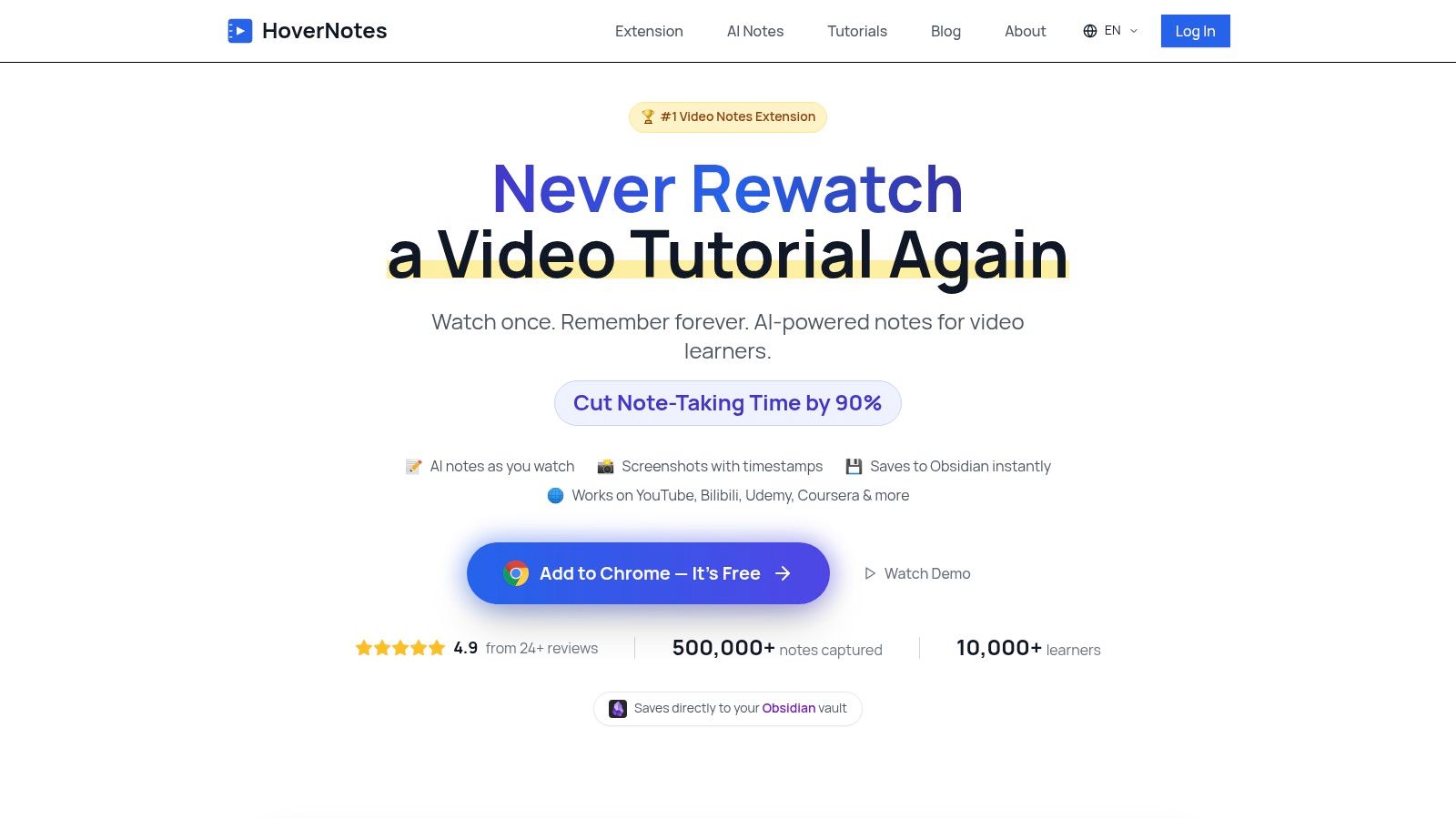
Pour une solution navigateur tout-en-un : Utilisez HoverNotes. C'est une extension Chrome qui utilise l'IA pour prendre des notes avec des captures d'écran horodatées depuis n'importe quel site vidéo (YouTube, Udemy, fichiers locaux) et les sauvegarde sous forme de fichiers Markdown directement dans votre coffre Obsidian. Elle capture le contexte visuel, pas seulement les transcriptions.
Pour une expérience native dans Obsidian : Utilisez Media Extended. C'est le plugin communautaire le plus puissant pour intégrer et contrôler des vidéos locales ou web directement dans vos notes, avec horodatage et fonctions de capture d'écran.
Pour des transcriptions simples dans YouTube : Utilisez YTranscript. C'est un plugin léger qui importe la transcription complète d'une vidéo dans votre note en une seule commande.
Pour un raccourci clavier simple d'horodatage : Utilisez Obsidian Timestamp Notes. Il offre un moyen rapide, piloté au clavier, d'ajouter des horodatages cliquables pendant que vous regardez une vidéo dans un volet latéral.
Prendre des notes à partir d'une vidéo est fastidieux. On met constamment en pause, on relance, on lutte pour capturer ce qui est à l'écran. Cela casse la concentration et nuit à la mémorisation. Un bon workflow vidéo Obsidian relie vos notes directement à la vidéo, transformant une simple observation passive en apprentissage actif. Ce guide présente les meilleurs outils pour cela, des plugins natifs aux extensions navigateur intégrées à votre coffre.
HoverNotes est une extension Chrome qui "regarde" les vidéos avec vous, génère des notes via IA, et les sauvegarde au format Markdown directement dans votre système de fichiers. Elle s'adresse aux apprenants qui doivent capturer non seulement ce qui est dit, mais aussi ce qui est montré à l'écran. Contrairement aux outils qui ne traitent que les transcriptions, HoverNotes analyse la vidéo image par image, capturant les codes, diagrammes et démonstrations à l'écran. C’est donc une solution fiable pour apprendre à partir de tutoriels techniques, cours universitaires ou formations en ligne sur des plateformes comme YouTube, Udemy et Coursera.
Sa force principale réside dans son intégration locale avec Obsidian. Pendant que vous regardez une vidéo, HoverNotes génère des notes horodatées et les enregistre directement dans votre coffre sous forme de fichiers Markdown (.md) simples. Vous êtes entièrement propriétaire de vos notes — pas de synchronisation cloud ni de format propriétaire. Ce sont simplement des fichiers sur votre machine, prêts à être liés et recherchés dans votre coffre.
Le workflow est pratique. Un « mode focus » place la vidéo d’un côté et vos notes de l’autre, bloquant les publicités du site pour favoriser la concentration. La fonction la plus utile est la capture d'écran horodatée — un clic sur une capture dans vos notes vous ramène au moment exact de la vidéo. Ceci vous fait gagner énormément de temps, évitant de scruter la timeline.
Pour les développeurs, la fonction « capture de sélection » permet de ne saisir qu’une portion précise de l’écran, comme un bloc de code ou un diagramme, au lieu de l’image entière. Elle supporte aussi des notes IA multilingues, pour suivre un tutoriel en japonais et obtenir des notes en anglais. L’installation est unique ; les instructions sont disponibles sur leur site pour en savoir plus sur HoverNotes et son intégration Obsidian.
Avantages :
Capture des visuels : « Regarde » la vidéo pour capturer codes, diagrammes et diapositives que les transcriptions ne prennent pas.
Intégration directe Obsidian : Sauvegarde les notes en fichiers Markdown simples directement dans votre coffre local. Vous êtes propriétaire de vos notes.
Captures d’écran horodatées : Chaque capture inclut un horodatage cliquable — un clic vous ramène à ce moment précis.
Compatible partout : Utilisable sur YouTube, Udemy, Coursera, portails universitaires, et même avec des fichiers vidéo locaux.
Inconvénients :
Basé sur le navigateur : C’est une extension Chrome, donc pensée pour un usage sur ordinateur, pas mobile.
Configuration nécessaire : Un paramétrage unique est requis pour connecter l'extension à votre système de fichiers local.
L’IA n’est pas parfaite : Comme toute IA, elle peut parfois manquer de contexte ou faire de petites erreurs, mais vous pouvez toujours éditer les notes manuellement.
Un accès de base vous donne l’éditeur manuel de prise de notes, les captures horodatées et le mode sans distraction. Vous bénéficiez aussi de 20 minutes de crédits IA gratuits à l’inscription, sans carte bancaire. Vérifiez les options actuelles sur la page tarifaire de HoverNotes.
#2. Répertoire officiel des plugins communautaires Obsidian
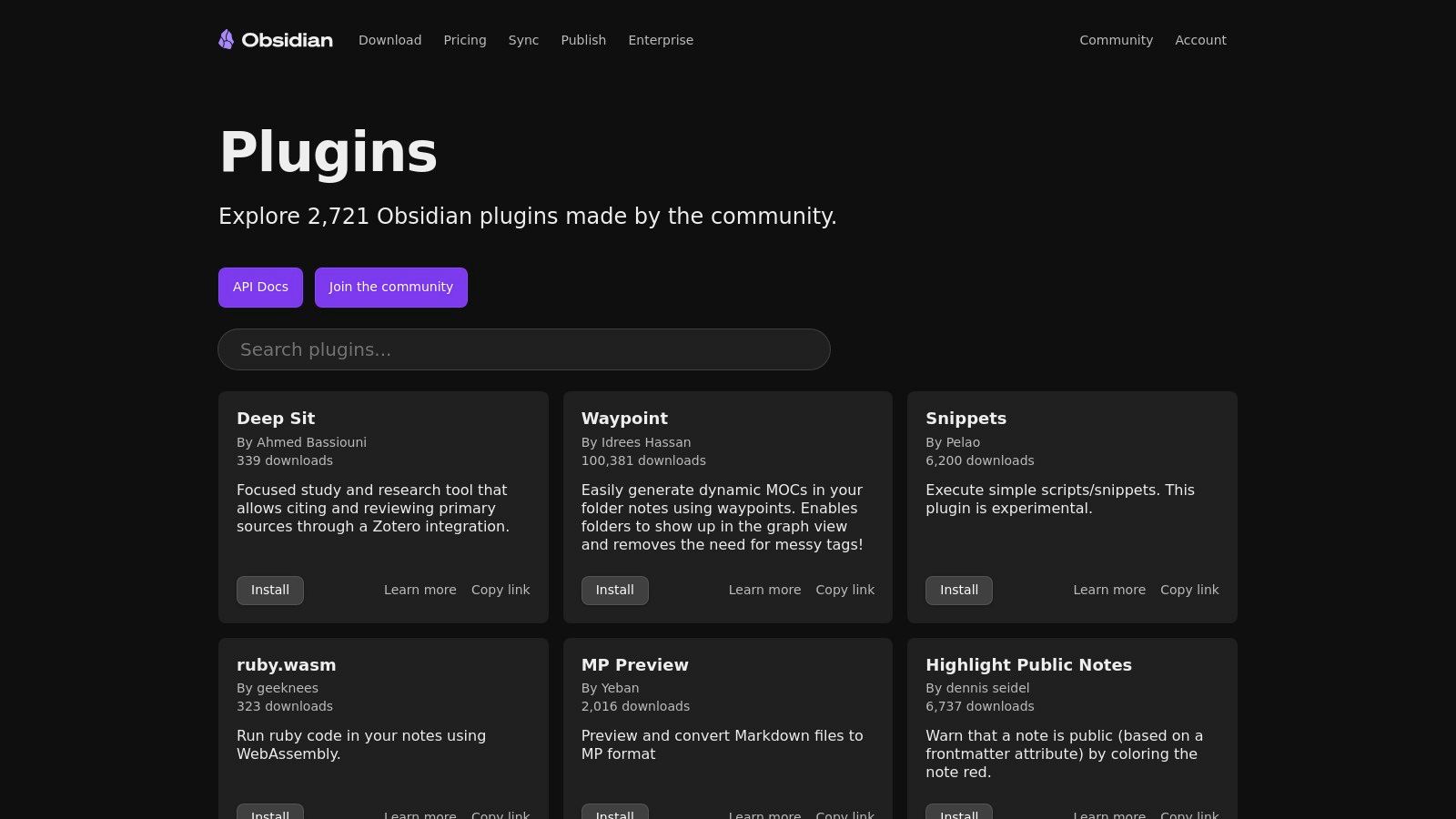
Le lieu le plus sûr pour trouver un plugin vidéo Obsidian est le répertoire officiel des Community Plugins dans l’application Obsidian. C’est la place centrale vérifiée pour toutes les extensions créées par la communauté. C’est l’endroit où chercher en priorité des outils comme Media Extended ou YTranscript, garantissant d’obtenir des versions stables et validées.
L'avantage principal est l’intégration fluide. Depuis les paramètres de Obsidian, vous pouvez rechercher, lire les descriptions et installer des plugins en un seul clic. Pas besoin de télécharger manuellement des fichiers sur GitHub ni de craindre des problèmes de compatibilité. Ce canal direct est une force clé de l’écosystème Obsidian et fondamental pour construire une configuration robuste. Vous pouvez en apprendre plus sur l'usage de Obsidian pour la gestion personnelle des connaissances et comment les plugins permettent des workflows puissants.
Comment accéder : Allez dans Settings > Community plugins. Vous devrez désactiver le « mode sécurité » une fois pour activer les plugins communautaires.
Comment chercher : Utilisez des mots-clés comme « vidéo », « transcription », « YouTube » ou « horodatage » pour trouver les outils pertinents.
Sécurité : Les plugins du répertoire officiel passent par une revue de l’équipe Obsidian, offrant un niveau de sécurité absent lors d’une installation manuelle depuis des sources inconnues.
Documentation : Chaque page de plugin renvoie directement à son dépôt GitHub où vous trouverez des instructions détaillées et pourrez signaler les problèmes.
Le seul bémol est que les plugins très récents ou expérimentaux ne sont pas toujours listés immédiatement. Mais pour la plupart des utilisateurs, le répertoire officiel reste la source indispensable.
Site web :https://obsidian.md/plugins (Il est préférable de naviguer depuis l’appli : Settings > Community plugins)
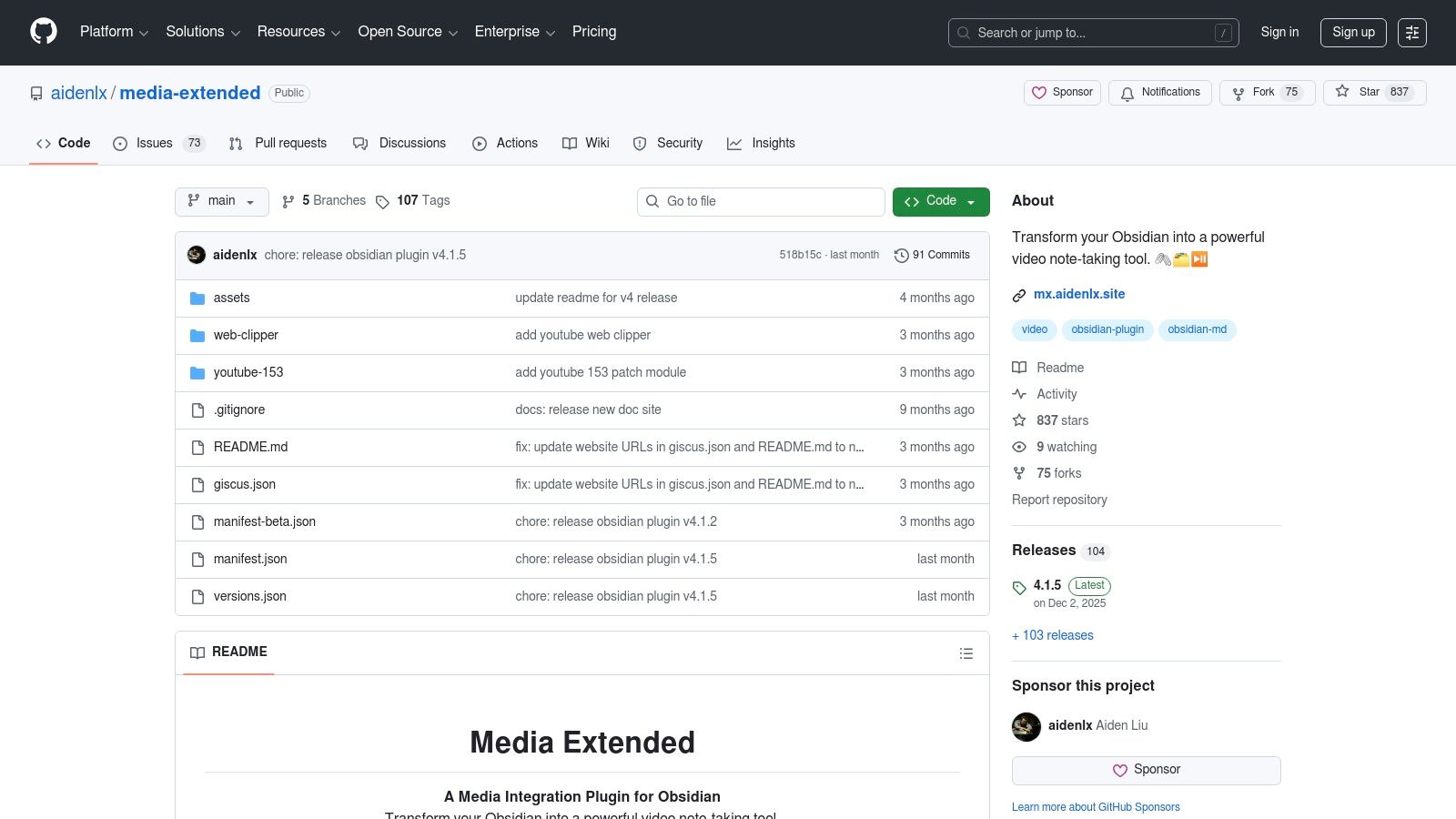
Media Extended est le plugin natif de référence pour travailler avec des fichiers vidéo et audio localement dans vos notes. C’est une extension mature qui gère la lecture, l’horodatage et même l’intégration de transcriptions pour les médias locaux ou web. C’est un choix solide pour étudiants et chercheurs souhaitant tout garder dans l’interface Obsidian.
La force du plugin réside dans son intégration profonde. Vous pouvez intégrer une vidéo YouTube ou un fichier de cours local et créer des horodatages précis cliquables menant au moment exact référencé. Cela résout le problème agaçant du va-et-vient entre lecteur vidéo et notes, qui nuit à la concentration. Pour un guide détaillé sur ce type d’outils, vous pouvez lire comment prendre efficacement des notes vidéo dans Obsidian.
Lecture universelle : Intégrez et lisez des vidéos depuis YouTube, Vimeo, Bilibili, ou des fichiers locaux sur votre ordinateur.
Horodatages cliquables : Un raccourci clavier insère un lien horodaté. En cliquant dessus, le lecteur intégré se positionne à cet instant précis.
Capture d'écran : Prenez une image de la vidéo et intégrez-la directement dans vos notes, avec un lien horodaté vers la source. Idéal pour capturer diagrammes ou diapositives clés.
Intégration des transcriptions : Chargez un fichier de sous-titres (SRT/VTT) et cliquez sur n’importe quelle ligne pour faire avancer la vidéo à ce point.
L’offre fonctionnalité est puissante mais avec une courbe d’apprentissage plus élevée que des plugins plus simples. Certains utilisateurs signalent aussi des problèmes occasionnels de lecture dans YouTube dus à des changements API. Néanmoins, pour un workflow natif complet de prise de notes vidéo, Media Extended reste l’option la plus avancée.
#4. Obsidian Stats (catalogue de plugins avec métriques)
Alors que le répertoire officiel sert à l'installation, Obsidian Stats est un site tiers utile pour faire de la recherche. C'est un tableau de bord analytique de l'écosystème des plugins. Quand vous hésitez entre différentes options de plugin vidéo Obsidian, ce site vous donne d'un coup d'œil des métriques d’adoption communautaire, d’activité de maintenance et de popularité.
La valeur du site tient à ses données. Au lieu de lire uniquement la description, vous voyez des chiffres précis comme le total de téléchargements et la date de dernière mise à jour. C’est un moyen rapide d’éviter d’installer un plugin abandonné ou de choisir l’outil le plus stable et populaire selon vos besoins. Il centralise les données clés pour décider.
Métriques clés : Affiche le nombre de téléchargements, les étoiles GitHub et la date de dernière mise à jour pour chaque plugin, vous aidant à repérer les outils populaires et bien entretenus.
Tri et filtres : Vous pouvez trier les plugins par nombre de téléchargements ou par actualité des mises à jour pour mettre en avant les outils les plus pertinents.
Liens directs : Chaque listing renvoie à la page officielle et au dépôt GitHub du plugin. Utilisez ce site pour comparer, puis explorez GitHub pour la documentation détaillée.
Découverte : Servez-vous-en pour dénicher de nouveaux plugins. Une recherche « vidéo » peut faire remonter des outils prometteurs en forte croissance.
Gardez en tête que c’est un site externe non officiel. Il sert à la découverte, mais installez toujours les plugins via le répertoire communautaire officiel dans l’application, pour des raisons de sécurité.
Si vous voulez juste le texte d’une vidéo YouTube, YTranscript est une solution légère et efficace. Ce plugin vidéo Obsidian a un but unique : extraire la transcription complète d’une vidéo YouTube directement dans vos notes. Au lieu d’intégrer un lecteur multimédia, il insère du texte avec des horodatages cliquables, rendant le contenu vidéo instantanément consultable dans votre base de connaissances. C’est idéal quand vous souhaitez savoir ce qui a été dit sans avoir besoin de voir comment c’était présenté.
L’atout principal de YTranscript est sa simplicité. D’une commande, vous collez une URL YouTube et obtenez une transcription complète et horodatée dans votre note active. Parfait pour revoir des cours ou interviews où le contenu parlé est essentiel. En transformant l’audio en texte, il rend le savoir vidéo aussi facile à lier et rechercher que toute autre note. Vous pouvez en apprendre plus sur comment transcrire une vidéo YouTube et les différentes méthodes existantes.
Commande simple : Collez une URL YouTube, sélectionnez-la et lancez la commande « YouTube Transcript: Insert Transcript ».
Horodatages cliquables : Chaque ligne est précédée d’un horodatage (ex. [00:01:23]). Cliquer dessus ouvre la vidéo dans votre navigateur à cet instant précis.
Texte d’abord : Idéal pour créer une archive consultable. Vous pouvez utiliser les fonctions de recherche et rétro-liens Obsidian sur la transcription elle-même.
Qualité source : La précision dépend des sous-titres YouTube. Les sous-titres vérifiés par des humains offrent de meilleurs résultats que les automatiques.
La limite principale est qu’il ne gère que les transcriptions ; pas de lecture vidéo ni captures d’écran dans Obsidian. Pour plus de précision, certains logiciels de transcription IA de pointe proposent de meilleurs résultats pour un éventail plus large de médias.
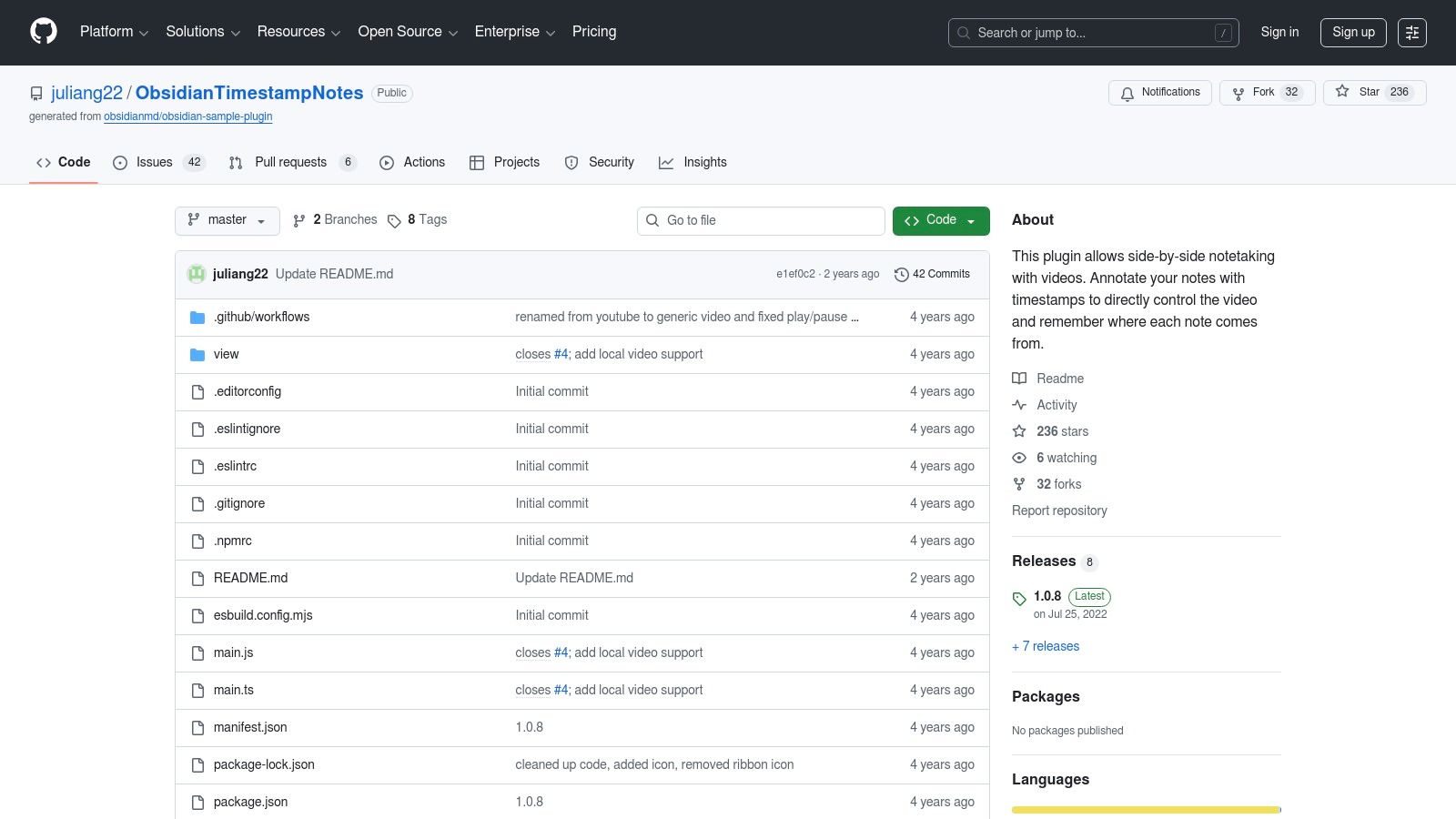
Obsidian Timestamp Notes est un plugin minimaliste pour ceux qui veulent un workflow rapide piloté au clavier pour prendre des notes horodatées. Ce plugin vidéo Obsidian se concentre sur une tâche : vous permettre de regarder une vidéo et d’insérer rapidement des horodatages cliquables sans lâcher le clavier. Il offre un lecteur vidéo intégré à côté de vos notes, créant un espace d’apprentissage unifié.
Ce plugin est idéal pour relever les moments clés lors de cours ou tutos. Il supporte YouTube, Vimeo et fichiers vidéo locaux. Le workflow s’articule autour de raccourcis clavier pour jouer, mettre en pause et insérer un horodatage, vous aidant à rester concentré. Pour rendre vos notes encore plus précises, apprendre comment extraire des clips d'une vidéo YouTube peut être une compétence utile associée.
Lecteur intégré : Ouvrez une vidéo depuis une URL ou un fichier local, elle apparaît dans un volet latéral à côté de votre note.
Pilotage au clavier : Utilisez des commandes clavier pour contrôler la lecture et insérer un horodatage cliquable pré-formaté dans votre note.
Support de plateformes : Fonctionne avec YouTube, Vimeo, Twitch et fichiers vidéo locaux.
Templates personnalisables : Vous pouvez définir le format exact de vos horodatages, contrôlant leur apparence dans Markdown.
Le point faible est sa focalisation ; il ne gère pas les captures d’écran ou sous-titres comme des plugins plus complets. Mais si vous cherchez un moyen simple et rapide d’horodater du contenu vidéo, sa simplicité est son principal atout.
Readwise Reader propose une solution complète pour capturer la connaissance depuis de nombreuses sources. Bien qu’il ne s’agisse pas que d’un plugin vidéo Obsidian, ce service payant excelle dans le traitement des contenus YouTube. Il génère des transcriptions, vous permet de surligner les passages importants, puis exporte le tout de façon fluide dans votre coffre Obsidian. Il joue le rôle d’une application « lire plus tard » qui gère aussi bien les vidéos que les articles ou PDF.
Le principal avantage de Readwise Reader est son pipeline intégré. Vous sauvegardez une vidéo YouTube dans votre file d’attente, le service la traite, et vous obtenez une transcription propre. Vous pouvez surligner des parties du texte en regardant, ces surlignages sont automatiquement collectés. Le plugin officiel Readwise Obsidian synchronise ensuite ces surlignages directement dans votre coffre. Si vous valorisez l’automatisation, vous pouvez explorer comment l’IA optimise la prise de notes vidéo en détail.
Workflow intégré : Enregistrez une vidéo YouTube, obtenez la transcription, surlignez-la, et synchronisez automatiquement tout dans Obsidian.
Plugin officiel : Le plugin Readwise officiel pour Obsidian est robuste et très configurable, laissant personnaliser le format de vos notes vidéo.
Bibliothèque unifiée : Regroupe vidéos, articles, livres électroniques et tweets dans une seule boîte de réception pour tout votre contenu d’apprentissage.
Fonctions IA : Comprend un outil IA appelé Ghostreader capable de résumer du contenu ou répondre à vos questions à son sujet.
L’inconvénient principal est le coût de l’abonnement. Il s’agit d’un investissement important si vous n’avez besoin que d’un simple outil d’horodatage. Toutefois, pour les utilisateurs déjà dans l’écosystème Readwise, c’est un pont très élégant entre vidéo en ligne et base locale de connaissances.
#Comment se comparent les principaux plugins vidéo Obsidian ?
Outil
Fonctionnement
Idéal pour
Avantage clé
HoverNotes
Extension navigateur (externe)
Apprendre depuis n'importe quel site vidéo (Udemy, Coursera, YouTube, etc.) en capturant le contexte visuel.
Sauvegarde captures d'écran horodatées et notes IA en fichiers Markdown dans votre coffre local. Compatible partout.
Media Extended
Plugin natif (interne)
Travailler avec des fichiers vidéo locaux ou quelques vidéos web entièrement dans l'interface Obsidian.
Le plugin natif le plus puissant pour lecture intégrée, horodatage et captures d'écran.
YTranscript
Plugin natif (interne)
Extraire rapidement le texte complet d'une vidéo YouTube pour recherche et référence.
Import de transcription simple, rapide, en une commande, avec horodatages cliquables.
Timestamp Notes
Plugin natif (interne)
Prendre des notes manuelles sur des cours avec un workflow rapide piloté au clavier pour horodater.
Efficacité via raccourcis clavier pour insérer des horodatages sans souris.
Readwise Reader
Service payant (externe)
Utilisateurs souhaitant un système unifié pour capturer et annoter vidéos, articles et PDF.
Pipeline automatisé fluide de la capture vidéo YouTube à la synchronisation des surlignages dans Obsidian.
#Quelle méthode de prise de notes vidéo est faite pour vous ?
Le meilleur plugin vidéo Obsidian ou workflow dépend de vos habitudes d’apprentissage. L’objectif est de trouver un outil qui vous aide à vous concentrer et à mieux retenir, pas qui vous encombre.
Pour choisir, posez-vous ces questions :
Où regardez-vous vos vidéos ? Si vous utilisez surtout des fichiers locaux, un plugin natif comme Media Extended est un excellent choix. Si vous apprenez sur plusieurs sites (YouTube, Udemy, portails universitaires), une extension navigateur est plus flexible.
Quelles informations vous faut-il ? Si vous avez juste besoin de texte consultable, YTranscript est efficace. Si vous apprenez le code ou étudiez des diagrammes, le contexte visuel est crucial, et un outil capable de capturer des captures d'écran horodatées vous sera nécessaire.
Préférez-vous des notes manuelles ou automatisées ? Certains apprennent mieux en tapant tout eux-mêmes, et un outil comme Obsidian Timestamp Notes le supporte. D’autres préfèrent laisser l’IA prendre les notes pour se concentrer sur la compréhension des concepts.
Pour la plupart des étudiants et autodidactes aujourd’hui, l’apprentissage s’effectue sur plusieurs plateformes. Vous pouvez regarder un cours sur un portail universitaire, un tuto sur YouTube et un cours sur Udemy dans la même semaine. Un plugin natif Obsidian ne vous suit pas partout.
C’est là qu’un outil basé sur navigateur comme HoverNotes prend tout son sens. Il fonctionne sur n’importe quel site avec vidéo. Puisqu’il "regarde" la vidéo au lieu de se contenter d’une transcription, il capture les extraits de code et diagrammes que d’autres outils manquent. Surtout, il enregistre vos notes en fichiers Markdown standards directement dans votre coffre Obsidian. Vous profitez de la commodité d’une extension navigateur avec la sécurité locale prioritaire de Obsidian. Vos notes vous appartiennent.
En fin de compte, le bon outil est celui qui rend l’apprentissage vidéo moins laborieux. Choisissez-en un, testez-le pendant une semaine, et voyez s’il vous aide à construire une base de connaissances plus cohérente et utile.
Si votre apprentissage s’étend sur plusieurs plateformes et que vous avez besoin de capturer un contexte visuel comme du code et des diagrammes, HoverNotes connecte votre navigateur à votre coffre. Il fonctionne sur n'importe quel site vidéo et sauvegarde les notes en fichiers Markdown directement dans Obsidian. Vous pouvez essayer HoverNotes gratuitement avec 20 minutes de crédits IA pour voir si ce workflow correspond à vos habitudes d'étude. Vérifiez les options actuelles sur la page tarifaire HoverNotes.
Découvrez les meilleurs plugins Obsidian pour l'apprentissage en 2026. Une pile complète incluant la capture vidéo, la répétition espacée, dataview et excalidraw pour les étudiants.
Mettez en place un flux de travail puissant pour vos notes Obsidian YouTube. Découvrez comment capturer, organiser et relier les connaissances tirées des vidéos afin de vraiment vous souvenir de ce que vous regardez.
Les notes vidéo IA analysent les visuels et l'audio pour améliorer l'apprentissage et la rétention. Découvrez pourquoi cette méthode surpasse les approches audio seules.