Watch Once, Reference Forever.
© 2026 HoverNotes. All rights reserved.
English 한국어 中文(简体) 日本語 Italiano Português Русский Deutsch Español Tiếng Việt Français
オンライン学習に最適なChrome拡張機能 | HoverNotes
Obsidian 2025年12月9日 • Updated: 2026年7月16日
オンライン学習に最適なChrome拡張機能 学生におすすめのChrome拡張機能を厳選してご紹介します。集中力を高め、動画から効率よくメモを取り、オンライン学習に役立つリサーチをスムーズに進めましょう。
著者 HoverNotes Team • 3 分で読める
ブラウザは、インターネットを見るための窓にとどまりません。自分仕様の学習環境にもなります。学生にとって、適切なツールの有無は、コンテンツをただ受け身で眺めるだけで終わるか、内容を能動的に定着させられるかを分けます。YouTube、Coursera、Udemyのようなプラットフォームで動画学習をする際の最大の課題は、記憶への定着です。何時間もチュートリアルを見たのに、1週間後には重要な概念を思い出せない。これは、手作業でノートを取るのが面倒だからです。何度も一時停止し、巻き戻し、散らばったスクリーンショットで図解を残そうとすると、集中が途切れてしまいます。
このガイドでは、学生が直面する具体的な学習課題を解決するために選んだ、最適なChrome拡張機能を詳しく紹介します。動画ノート、集中、リサーチ、引用管理のためのツールを取り上げます。各おすすめについて、主な機能、最適な利用シーン、料金を、直接リンクやスクリーンショットとあわせて解説します。より効果的に学ぶための実用的な拡張機能を厳選したリストです。
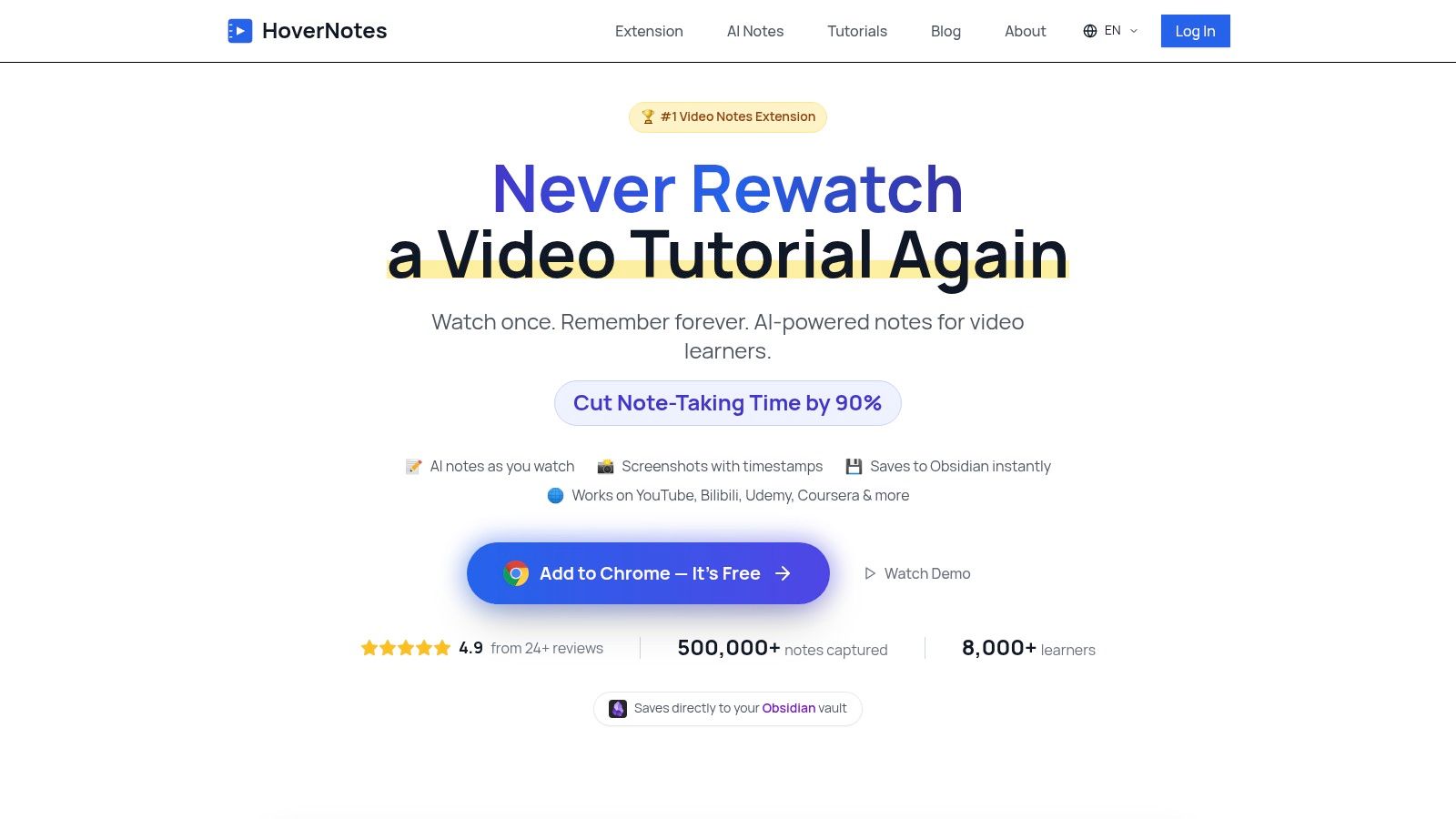
# HoverNotesは、動画を一緒に視聴し、AIノートを生成して、それをMarkdownとしてファイルシステムに直接保存するChrome拡張機能です。動画で学んだ内容は記憶に残りにくく、手動で一時停止しながらノートを入力したりスクリーンショットを撮ったりするのは非効率、という根本的な問題を解決するために作られています。文字起こしだけを解析するツールとは異なり、HoverNotesは動画をフレーム単位で見て、コード、図解、デモなど、画面上で実際に表示されている内容を捉えます。そのため、YouTube、Udemy、大学のポータルで技術系の科目を学ぶ人にとって不可欠なツールです。
最大の特徴は、タイムスタンプ付きスクリーンショットを含む構造化ノートを生成できることです。ノート内の任意のスクリーンショットをクリックすると、動画のその瞬間に戻れます。Obsidianを使っている学生にとって、HoverNotesはローカルファーストのシームレスなワークフローを提供します。ノートはプレーンな
.md
広告やおすすめをブロックしながら、動画とノートを横並びで表示する、気が散らない動画モードも搭載されています。クレジットカード不要のエントリーレベルアクセス、幅広いプラットフォーム対応(動画のあるあらゆるウェブサイトで動作)、そして4.9/5の評価を備えたHoverNotesは、本気で学ぶ人のための実用的なツールです。
AI動画分析: 話されている言葉と、コードや図解などの画面上のビジュアルの両方を取得します。タイムスタンプ付きスクリーンショット: フルフレームを保存することも、特定の領域を切り取ることもできます。スクリーンショットをクリックすると、動画内のその瞬間に戻れます。ローカルファーストのMarkdownエクスポート: ノートを.mdファイルとしてファイルシステムに直接保存します。ObsidianやLogseqに最適です。ノートはNotionにもきれいにコピーできます。気が散らない動画モード: サイト上の広告をブロックし、動画の横にノートを配置する分割ビューです。ユニバーサルなプラットフォーム対応: YouTube、Udemy、Coursera、LinkedIn Learningで動作し、さらにコンピューター上のローカル動画ファイルにも対応します。多言語ノート: ある言語の動画を視聴し、別の言語でAI生成ノートを作成できます。
コンピューターサイエンスの学生: プログラミングチュートリアルから、シンタックスハイライト付きのコードスニペットを直接取得できます。STEM分野の学生: 録画講義に出てくる複雑な図解や方程式を学習し、視覚的な文脈をノート内に埋め込みたい場合に役立ちます。ObsidianとLogseqのユーザー: 動画から得た知識を、直接かつプライベートにローカルの保管庫へ取り込みたい人に向いています。ファイルは自分のものです。単なるMarkdownです。オンライン講座の受講者: UdemyやCourseraを使って資格試験の準備をし、何度も一時停止せずに検索可能な学習ガイドを作りたい場合に適しています。
エントリーレベルアクセス: 開始用に20分のAIクレジットが含まれます(クレジットカード不要)。加えて、手動ノート作成、タイムスタンプ付きスクリーンショット、動画モードは無制限に利用できます。現在のオプションはHoverNotesの料金ページ で確認してください。アップグレードプラン: 買い切りまたはサブスクリプションで、より多くのAIクレジットを利用できます。
Chrome Web StoreからHoverNotes拡張機能 をインストールします。
YouTubeのようなサイト、または講座プラットフォームで動画を開きます。
ツールバーのHoverNotesアイコンをクリックして、サイドパネルを開きます。
AIメモを使う場合は、「Start AI Note Taking」ボタンをクリックします。手動メモの場合は、エディターにそのまま入力し始め、スクリーンショットにはカメラアイコンを使います。
終わったら、メモをローカルフォルダーに直接保存するか、Notionのようなアプリケーションにコピー&ペーストします。
# Chrome Web Storeはブラウザー拡張機能の公式マーケットプレイスであり、それらを見つけるうえで最も安全な場所です。「Education」カテゴリは学生向けに整理されており、リサーチ、メモ作成、生産性向上のための拡張機能が数千件掲載されています。学生に最適なChrome拡張機能のほぼすべてが審査され、配布されている基盤となるライブラリーです。
このストアには、信頼性と透明性を高める仕組みが組み込まれています。各掲載ページには、ユーザー評価、総ユーザー数、最終更新日、拡張機能が必要とする権限が表示されます。これにより、インストール前に品質と安全性を判断しやすくなります。学校管理のデバイスを使う学生にとっては、管理者が承認済みツールを全員に配布するための中心的な場所でもあります。
単一のツールではなくマーケットプレイスですが、発見と安全性における役割は非常に重要です。オープンなウェブを検索して安全でないダウンロードのリスクを負う代わりに、Chrome Web Storeは一元化された審査済みの環境を提供します。
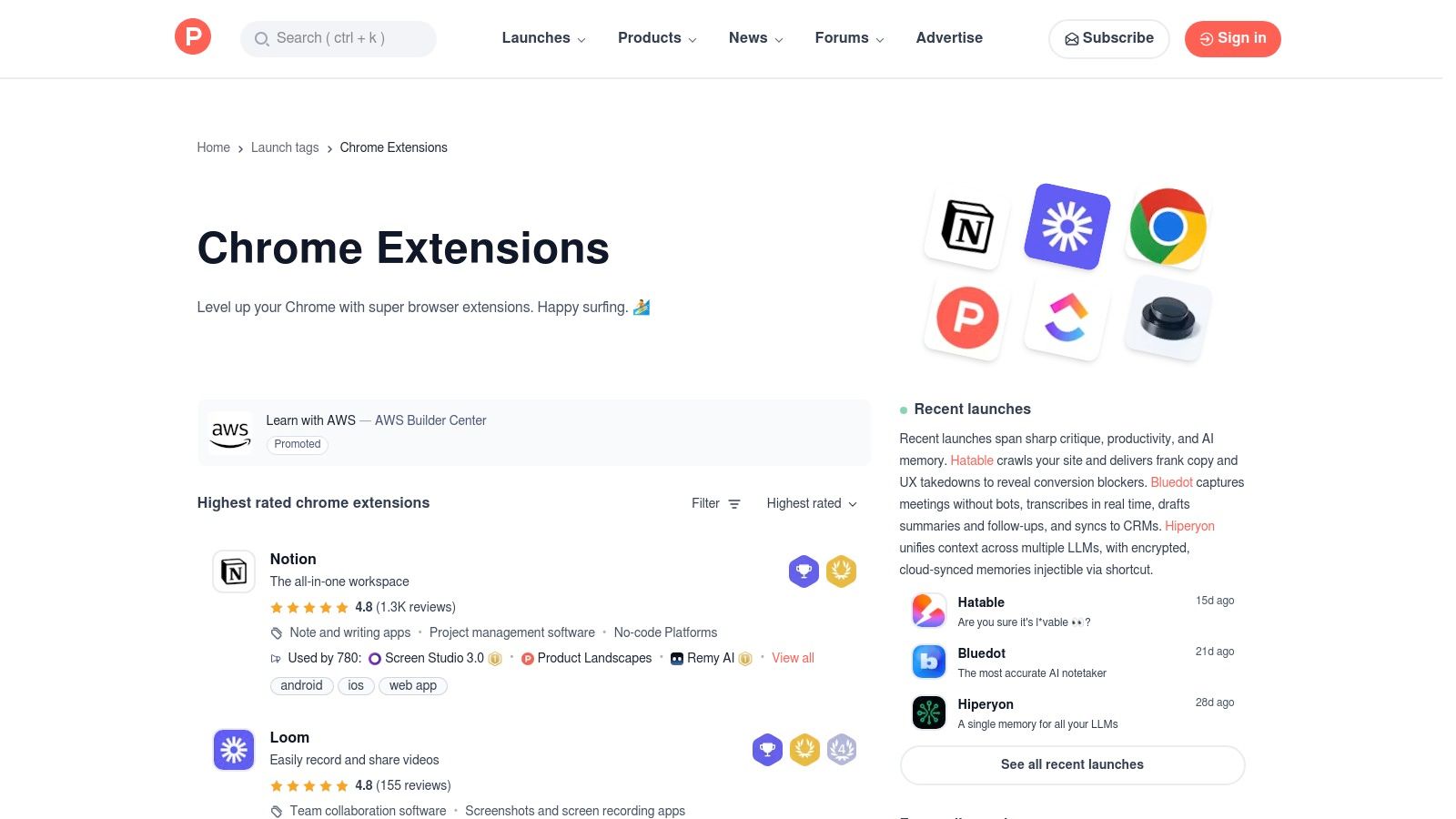
長所: 拡張機能を入手する最も安全なソース、詳細なユーザーレビュー、ワンクリックでのインストール、自動更新。短所: 品質には大きなばらつきがあり、低品質なものや放置された拡張機能も存在する。学校アカウントではインストールに制限がある場合がある。プラン: 現在の提供状況、制限、地域別価格については、上記リンク先の公式製品ページを確認してください。ウェブサイト: chromewebstore.google.com # 新しく革新的なツールを探している学生にとって、Product Huntは定番のコミュニティプラットフォームです。「Chrome Extensions」トピックでは、新しいブラウザーツールが常に紹介されており、主流になる前に見つかることも少なくありません。テック愛好家や開発者によってキュレーションされた、学習や生産性向上に役立つ新興ユーティリティを見つけるのに適した場所です。
Product Huntの価値は、そのソーシャルプルーフにあります。新しい拡張機能はユーザーによって投票され、議論されるため、機能や潜在的なバグについて直接的な洞察が得られます。開発者と直接つながれるこの仕組みは、従来のアプリストアでは必ずしも得られない透明性をもたらし、コミュニティからのフィードバックをもとに、学生に最適なChrome拡張機能を見極める助けになります。
Product Huntでは、個性的な動画メモツールから高度なリサーチ支援ツールまで、学生の具体的な課題を解決するニッチな拡張機能やリリース直後の拡張機能が見つかります。開発者や学習者向けの強力な新しいブラウザ拡張機能を見つけられることも少なくありません。
# Google公式のChrome ウェブストアには、学習、整理、リサーチ、アクセシビリティ、集中に役立つ拡張機能を見つけるための学生向けコレクションがあります。掲載内容は変わる可能性があるため、注目されている拡張機能が今後もずっと利用できると考えるのではなく、発見の出発点として活用するとよいでしょう。
インストールする前に、各掲載ページで権限、プライバシーに関する取り組み、最近の更新履歴、サポート情報を確認してください。コレクションに含まれていることは発見には役立ちますが、その拡張機能が学校や個人データにとって適切かどうかを評価する代わりにはなりません。
これはファーストパーティのカタログなので、古い第三者サイトのまとめ記事よりも、提供状況や開発者情報を確認しやすいのが利点です。また、現在の掲載情報や権限の詳細へ直接アクセスできます。
長所: ファーストパーティの掲載情報、現在の提供状況、権限、プライバシー開示、更新履歴を確認できる。短所: ストアで取り上げられていることは、独立した推奨を意味しない。プライバシーや用途への適合性は自分で評価する必要がある。アクセス: 2026年7月16日に確認した時点で閲覧可能。利用可能性と商業条件はリストによって異なります。Webサイト: Chrome ウェブストア学生向けコレクション # Chrome-Statsは、公式のChrome ウェブストアの上にデータに基づく分析レイヤーを提供する独立系の分析プラットフォームです。インストール数、評価、更新履歴を追跡し、本当に人気があり、きちんと保守されているものを確認できます。「Education」セクションでは、実際の利用データに基づいて、学生に最適なChrome拡張機能の中でも利用者の多いツールを定量的に把握できます。
このサイトは、似た拡張機能を比較する際に役立ちます。星評価だけに頼るのではなく、拡張機能の成長状況や、開発者がどのくらい頻繁に更新を出しているかを確認できます。これにより、セキュリティ上の欠陥や互換性の問題を抱えている可能性のある「放置されたソフトウェア」をインストールしてしまうリスクを避けやすくなります。いわば、ブラウザのための市場調査ツールです。
Chrome-Statsは、宣伝文句の先にある実態を見て、データに基づいた判断を下すのに役立ちます。拡張機能のパフォーマンス履歴を分析することで、高品質で信頼できる拡張機能を見つけるための強力な補助リソースになります。
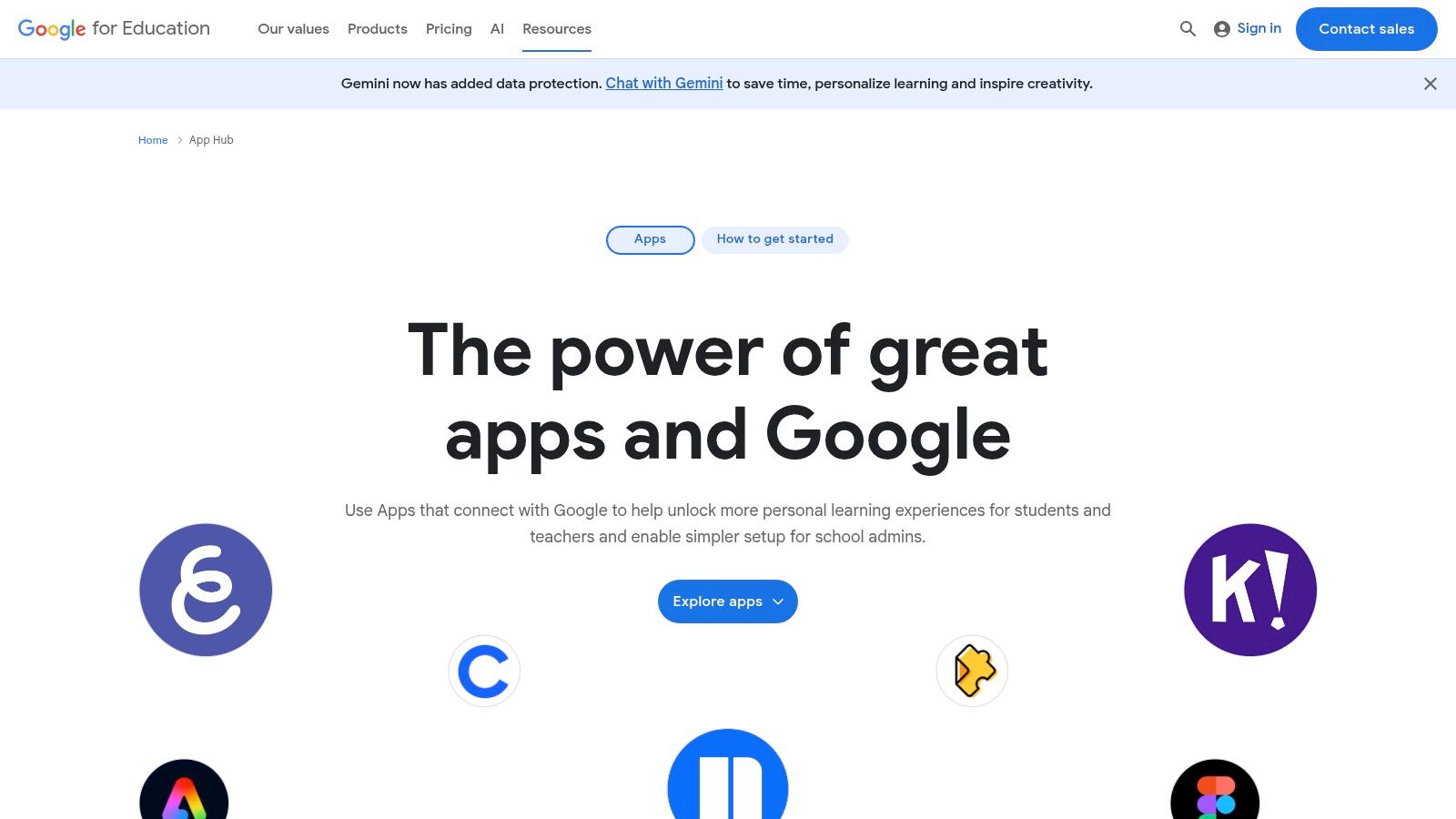
長所: データに基づいて発見できる。人気度や更新頻度の比較に役立ち、トレンドの拡張機能や最近更新された拡張機能を把握できる。短所: 公式ストアではないため、インストールは必ず公式ウェブストアのリンクから行うこと。インターフェースは情報量が多く、やや詰め込まれている。プラン: 現在の提供状況、制限、地域別価格については、上記リンク先の公式製品ページを確認してください。Webサイト: chrome-stats.com/key/education # Google for Education App Hubは、Google ClassroomやChromebookと直接連携するアプリケーションやツールを集めたキュレーション型カタログです。Chrome ウェブストアは非常に広範ですが、App HubはK-12から高等教育までを対象にした、教育利用向けに精査されたツールを紹介する特化型ディレクトリです。
このプラットフォームでは、シングルサインオン(SSO)やClassroomアドオン機能など、各アプリがGoogleサービスとどのように連携するかについて詳しい情報を提供しています。また、COPPAやGDPRといったコンプライアンス基準で絞り込めるフィルターも用意されており、教育機関が安全なツールを選ぶ助けになります。学生にとっても、学校環境で承認された学習支援ツールを見つけるための信頼できる出発点になります。
App Hubは教育向けテクノロジースタックに特化して設計されているため、信頼性が高く互換性のあるツールを見つけやすくなっています。特に学校管理下の環境では、ツールの発見から導入までのギャップを埋める役割を果たします。
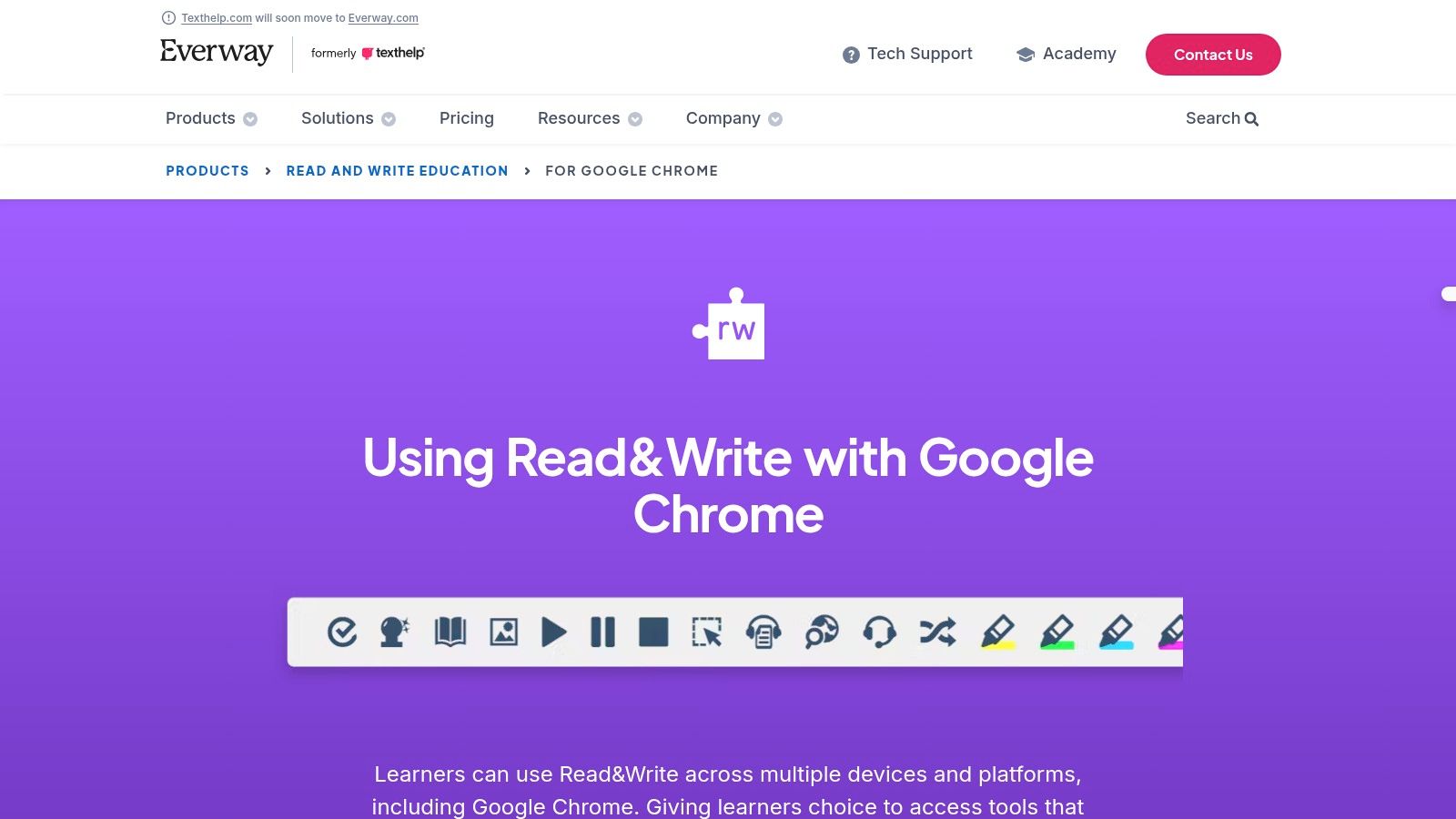
長所: 教育向けにGoogleがキュレーションしており、連携やコンプライアンスに関する情報が明確で、管理者が導入計画を立てやすい。短所: 掲載されているものすべてがChrome拡張機能というわけではなく、より広範なアプリのエコシステムである。リンク先が直接インストールではなく、ベンダーの販売ページにつながる場合がある。プラン: 現在の提供状況、制限、地域別価格については、上記リンク先の公式製品ページを確認してください。ウェブサイト: edu.google.com/apphub # TexthelpのRead&Writeは、デジタルコンテンツをより利用しやすくするために設計された支援技術の拡張機能です。Google Docs、Slides、PDF、ウェブページに統合されるツールバーを提供し、多様な学習ニーズを持つ学生をサポートします。読解、文章作成、学習を支援するツールが備わっています。
この拡張機能の強みは、複数のツールを一か所で提供している点です。ユーザーは、2色のハイライト付きでテキストを読み上げてもらったり、音声入力でディクテーションを行ったり、絵辞典で単語を調べたり、文章作成を助ける単語予測を利用したりできます。学習向けには、任意のテキストからハイライトを集めて新しいドキュメントにまとめ、自動で参考文献を作成するツールも含まれています。
Read&Writeは、アクセシビリティと読み書きの支援において非常に強力なツールです。単なるテキスト読み上げにとどまらず、読むことと書くことの複数の側面に対応する包括的なツールキットを提供します。
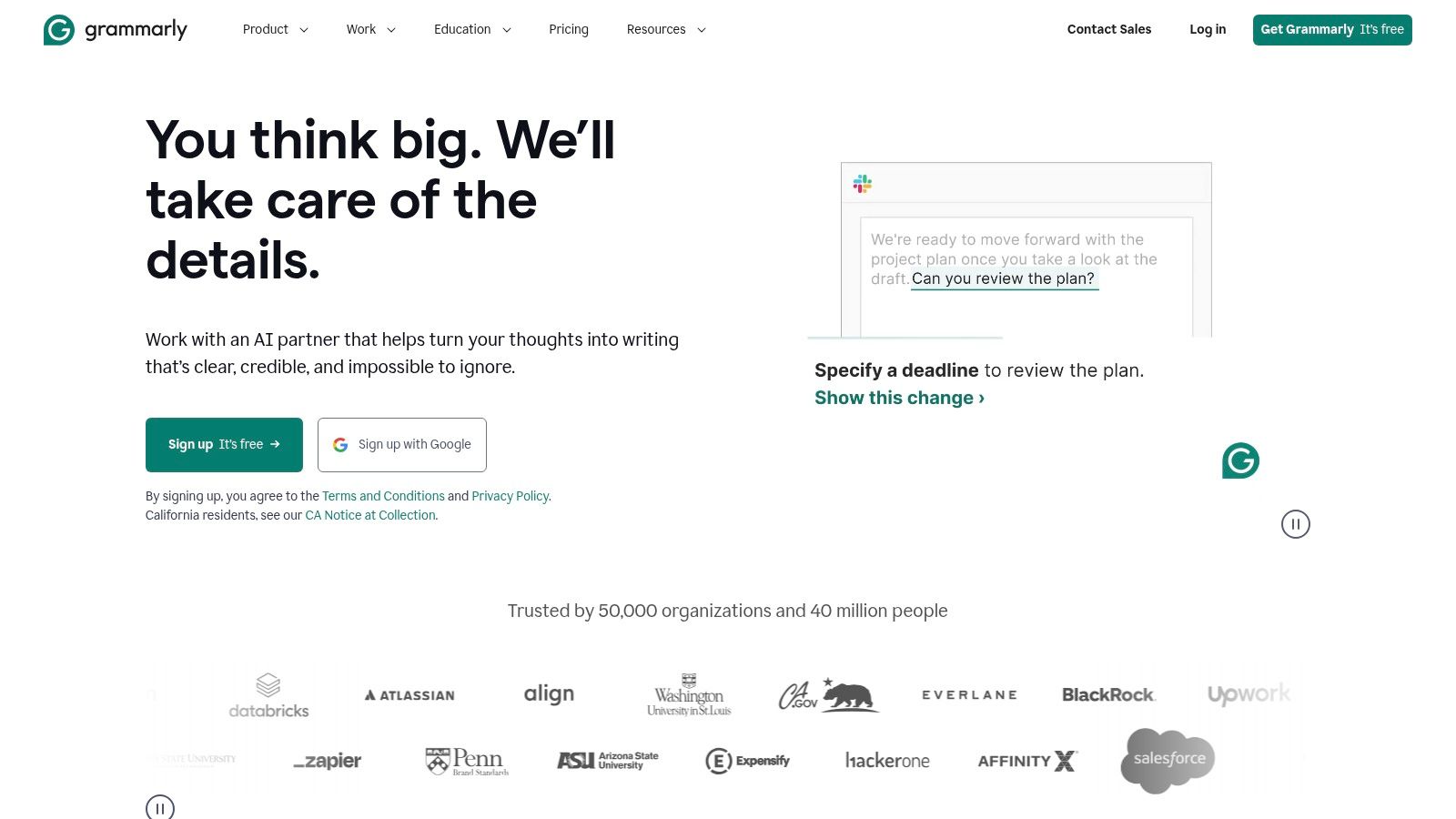
Grammarlyは、入力するほぼあらゆる場所でデジタル校正者として機能するライティングアシスタントです。メールからGoogle Docsのエッセイまで、文法、スペル、句読点、明瞭さについてリアルタイムでフィードバックを提供します。提出前に一般的な誤りを見つけ、文章を洗練されたものにするのに役立ちます。
Grammarlyが学生にとって最良のChrome拡張機能の一つである理由は、単に間違いを直すだけでなく、ライティング力の向上を助けてくれるからです。この拡張機能は問題の可能性がある箇所に下線を引き、わかりやすい説明を示して、その背後にあるルールを理解できるようにします。トーン検出機能は語句の選び方まで分析し、相手に応じて自信のある、親しみやすい、またはフォーマルな印象を与えられるよう支援します。
Grammarlyは単純なスペルチェックを超え、学術的な文章を高める文脈に応じた提案を行います。学生の日々の作業フローに自然に溶け込み、タイプミスや文法ミスを防ぐ一貫したセーフティネットを提供します。
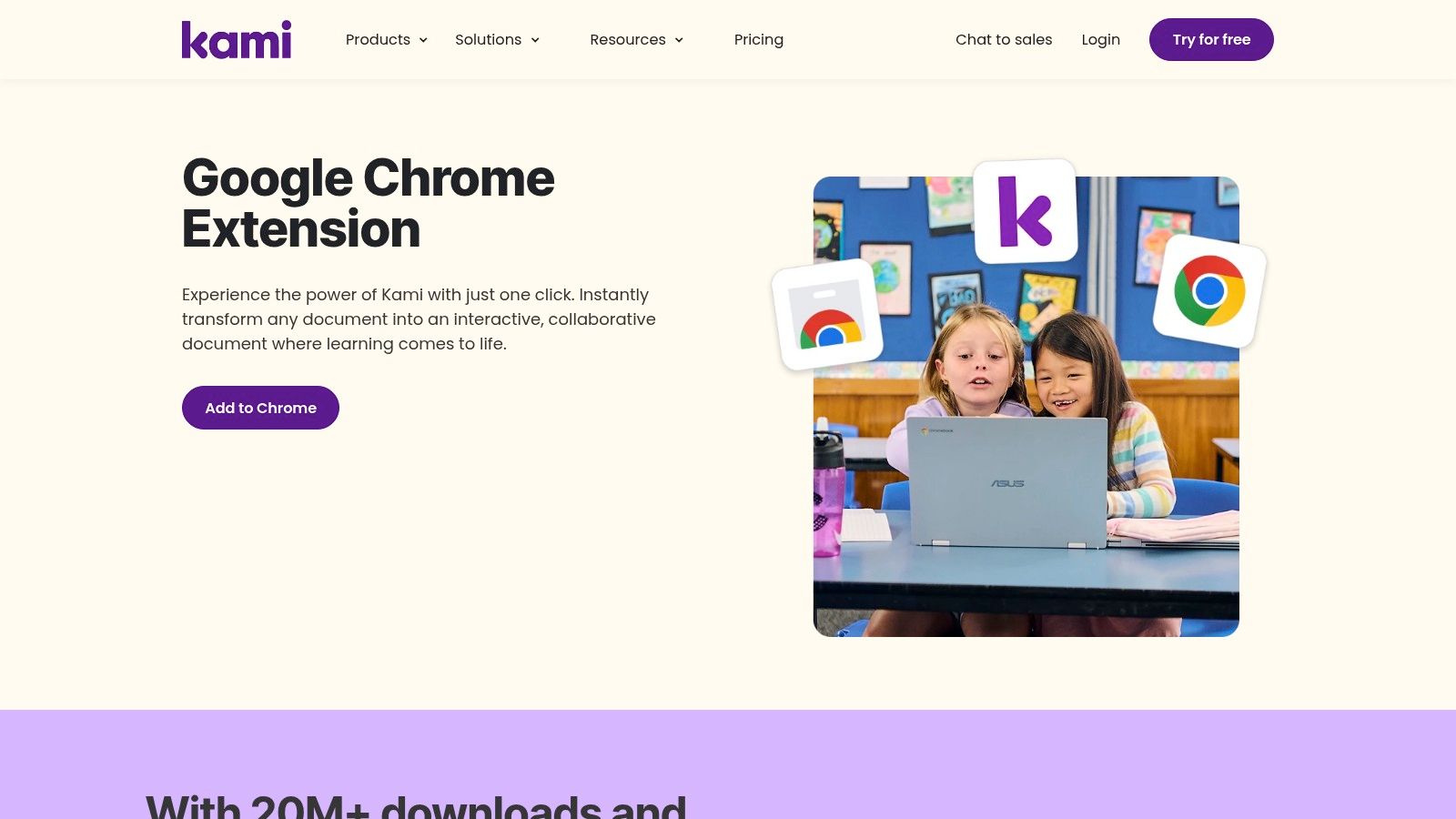
Kamiは、PDFのような静的なドキュメントを、インタラクティブで共同作業ができる学習空間へと変えます。教室での利用を想定して設計されており、学生はデジタル課題に直接注釈を書き込んだり、描画したり、コメントを付けたりできます。紙ベースの作業とデジタル教室の間のギャップを埋め、印刷せずに課題を完了しやすくします。
Kamiは、Google Classroom、Canvas、Schoologyなどの主要な学習管理システム(LMS)と連携します。学生はLMSから課題を開き、テキスト、音声、動画コメントなどKamiのツールを使って仕上げ、そのまま提出できます。これにより、学生と教師の双方にとって課題のワークフローが効率化されます。
Kamiは単なるPDFビューアではありません。遠隔学習を進めやすくするデジタル教室ツールです。アクセシビリティと複数形式でのフィードバックに重点を置くことで、多様な学習スタイルを支え、コミュニケーションを簡素化します。
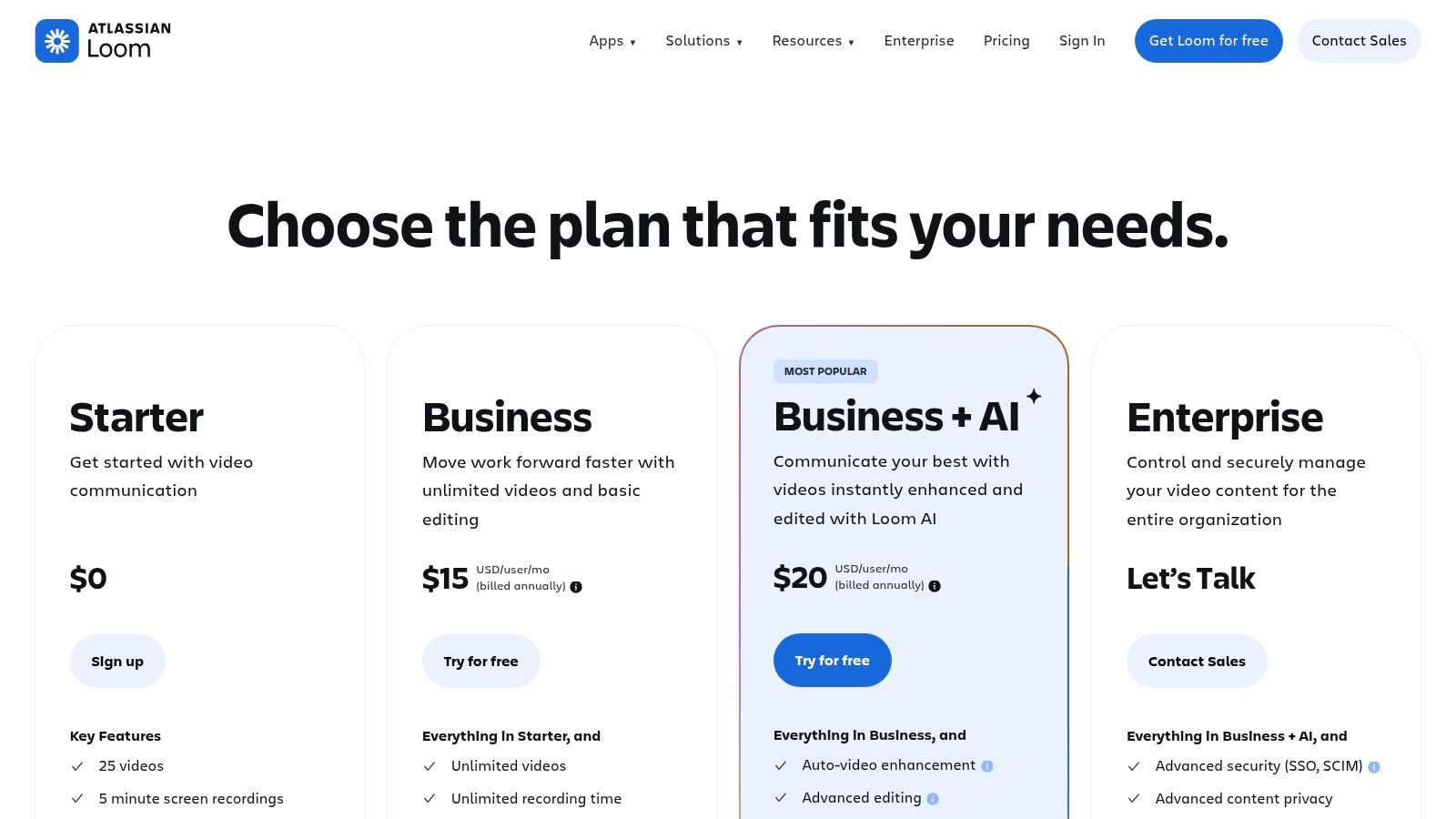
長所: Google Classroomやその他のLMSプラットフォームと深く連携。注釈ツールが充実。紙の使用量を削減できる。短所: 最も強力な機能は上位プランでのみ利用可能。学校全体で導入したときに、その価値が最も発揮される。プラン: 現在の提供状況、制限、地域別価格については、上記リンク先の公式製品ページを確認してください。ウェブサイト: kamiapp.com Loomは、短い動画メッセージを作成して共有するためのChrome拡張機能です。学生にとっては、画面やウェブカメラ、またはその両方を録画し、概念の説明、プロジェクトの発表、同級生へのフィードバックに使える効率的な手段です。長いメールを書く代わりに、ナレーション付きの短い動画を録画し、シンプルなリンクで共有できます。
Loomの際立った特徴は、その速さとシンプルさです。ワンクリックで録画を開始でき、終了すると動画はすぐに共有可能になります。レンダリングやアップロードは不要です。Loomは動画作成ツールですが、上位プランには、他のAI動画要約 ツールと同様に、メモや要約を生成できるAI機能が含まれています。コーディングやデザインのような科目で、視覚的なデモを行う際に特に役立ちます。
Loomは、遠隔学習に欠かせない視覚的なコミュニケーションを簡単にします。学生は自分の作業や思考の過程を明確に示せるため、ライブ会議を予定しなくても、助けを求めたりグループ課題で協力したりしやすくなります。
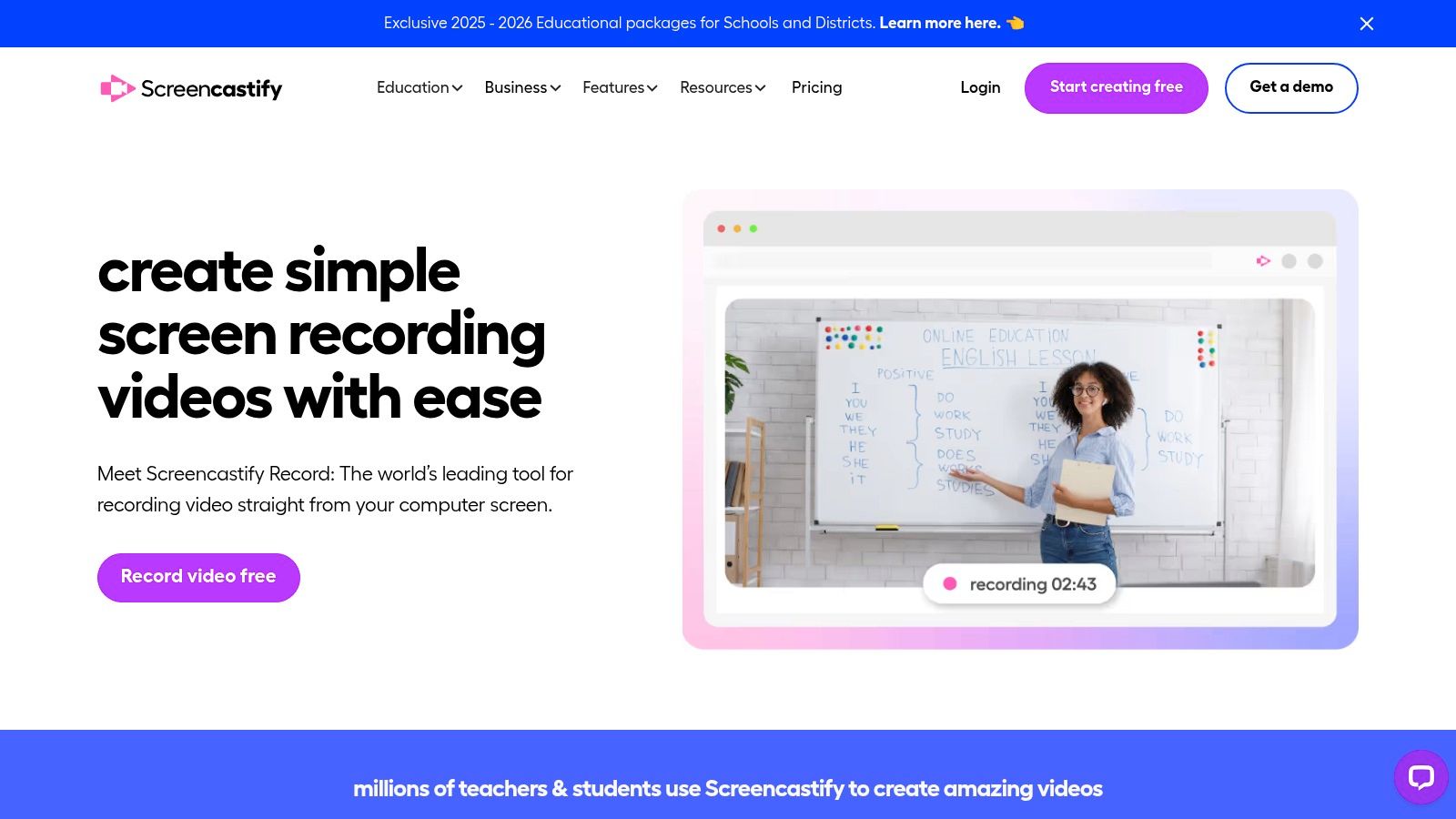
長所: チュートリアルやフィードバック動画を非常にすばやく簡単に作成できる。EDU割引により手頃な価格で利用できる。短所: 高度なAI機能は上位プランでのみ利用可能。エントリーレベルのアクセスでは動画の長さと本数に制限がある。プラン: 現在の提供状況、制限、地域別価格については、上記リンク先の公式製品ページを確認してください。ウェブサイト: www.loom.com/pricing # Screencastifyは、教育向けに設計された人気の画面録画ツールです。学生や教師は、画面、ウェブカメラ、またはブラウザの単一タブを簡単に録画できます。学生にとっては、プレゼンテーションの作成、グループプロジェクトでの手順説明、教授への質問の録画に使える強力なツールです。
特徴的なのは、録画が自動的に保存されるGoogle Driveとのスムーズな連携です。このプラットフォームにはインタラクティブな質問機能も含まれており、FERPAやCOPPAのような教育分野特有のプライバシー基準に準拠するよう設計されています。画面録画ができるツールは多くありますが、Screencastifyはシンプルさと学校で使いやすい機能に重点を置いているため、学生に最適なChrome拡張機能の一つとなっています。効果的に使えば、より優れた視覚的ノートの作成にも役立ちます。学習目的でYouTube動画を文字起こしする 方法を調べることで、このテーマについてさらに学べます。
Screencastifyは、動画ベースの課題作成やコミュニケーションを簡素化します。Googleエコシステムとの直接連携により技術的な手間が減り、学生はコンテンツに集中できます。
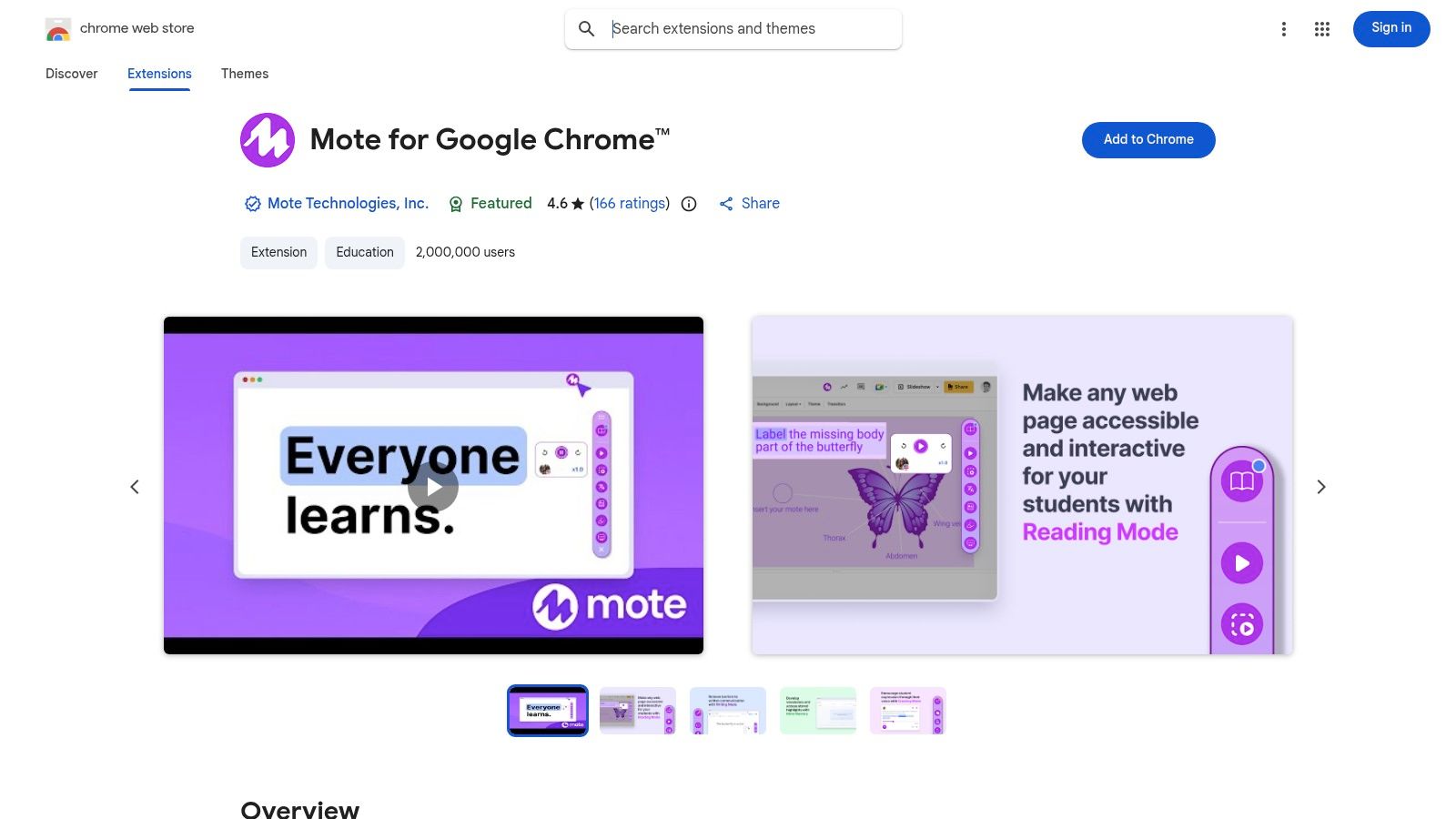
長所: 使いやすく、Google Driveに直接自動保存され、教育分野特有のコンプライアンスを重視している。短所: エントリーレベルのアクセスでは、動画の長さとストレージに大きな制限がある。高度な編集には上位プランが必要。プラン: 現在の提供状況、制限、地域別価格については、上記リンク先の公式製品ページを確認してください。ウェブサイト: screencastify.com/products/screen-recorder Moteは、Googleのエコシステムに音声メモを直接組み込みます。教室での利用に重点を置いたこの拡張機能により、教師と学生はGoogle Docs、Slides、Classroom内で音声コメントを録音して共有できます。長いコメントを入力する代わりに、ユーザーは考えを声で伝えられるため、フィードバックがより個人的で、ニュアンスに富み、効率的になります。
Moteの際立った点は、アクセシビリティへの取り組みです。各音声メモは自動で文字起こしでき、WCAG 2.1 AA基準に準拠したキャプションを提供します。これにより、多様な学習ニーズを持つ学生もコメントにアクセスできます。学校全体で導入する場合、MoteはGoogle管理者向けの明確な展開ガイドを提供しています。
Moteはデジタルでのフィードバックに人間味を加え、明確さを高めながら時間を節約します。テキスト中心のコミュニケーションを超えて、学習環境の中で声の調子や強調をより効果的に伝えられます。
メリット: フィードバックのプロセスを速め、多言語の教室でも役立ち、K-12向けの料金体系も詳しく示されています。デメリット: 無制限の文字起こしなどの高度な機能には、上位プランが必要です。Googleエコシステム内で使うと最も効果を発揮します。プラン: 現在の提供状況、制限、地域別価格については、上記リンク先の公式製品ページを確認してください。ウェブサイト: www.mote.com/chrome 目標は、利用できるツールをすべてインストールすることではありません。自分の学習上のボトルネックを解決してくれる拡張機能をいくつか選ぶことです。この記事では、Grammarlyのようなライティング支援ツールから、画面キャプチャに特化した補助ツールまで、幅広いツールを取り上げました。ブラウザは、自分のニーズに合わせて作り上げられる、カスタマイズ可能な学習環境です。
効果的な学習スタックは、自分の学習習慣に合わせて調整されているものです。YouTubeのおすすめにいつも気を取られてしまうなら、集中を妨げるものをブロックするツールは必須です。引用管理に苦労しているなら、Zotero Connectorが何時間もの手間を省いてくれます。まずは、繰り返し作業や気が散る原因など、自分にとって最大のつまずきのポイントを特定し、その問題に直接対応するツールを探しましょう。人気があるからという理由だけで拡張機能を追加するのではなく、自分にとって実際の問題を解決してくれるから追加するのです。
学生向けの最高のChrome拡張機能 を選ぶ際は、次の原則を念頭に置いてください。
パフォーマンスへの影響: どの拡張機能もシステムリソースを使用します。厳選し、インストール済みのものを定期的に見直しましょう。ブラウザが遅くなったら、あまり使っていないツールを無効にしてみてください。プライバシーと権限: 「Chromeに追加」をクリックする前に、その拡張機能が要求する権限を確認しましょう。シンプルなメモアプリが、本当に閲覧履歴全体を読み取る必要があるでしょうか。自分のデータを尊重するツールを優先してください。ワークフローとの統合: 最高のツールは、すでに使っている作業の流れに自然に収まります。Obsidianを使っている場合、独自のクラウド形式でメモを保存する拡張機能は、かえって作業を増やしてしまいます。Markdownのような一般的な形式で出力できるツールや、Notionのような普段使っているアプリへ簡単にコピー&ペーストできるツールを探しましょう。 Chrome拡張機能を適切に組み合わせれば、ブラウザを自分専用の学習アシスタントへと変えられます。目標は、認知的負荷を減らし、繰り返し作業を自動化し、教材に深く向き合える集中環境を作ることです。自分だけの学習スタックを厳選して作ることで、より効果的に学び、講義が終わった後も長く情報を定着させるための仕組みを構築できます。
動画チュートリアルで学び、ObsidianやNotionのようなナレッジ管理システムを使っている学生にとって、視覚的な文脈は重要です。HoverNotes は、あなたと一緒に動画を視聴し、AIノートを生成して、Markdownファイルとしてコンピューターに直接保存するChrome拡張機能です。単に文字起こしを読むのではなく画面を見るため、他のツールが見落としがちなコードや図表も記録できます。すべてをNotionで管理している場合も、ノートはきれいにコピーできます。無料で試して、タイムスタンプ付きスクリーンショットと集中しやすいモードがワークフローをどう改善するか確認できます。
有用なノートとは、単に多くのテキストを保存するものではなく、その教材に対して何らかの行動を促すものです。米国 Institute of Education Sciences は、学習を時間を空けて分散させること、図表と口頭説明を組み合わせること、能動的な想起を用いること、深い説明を求める問いを立てることを推奨しています(実践ガイド )。教育動画研究の査読済みレビューでも、重要な情報を目立たせること、授業を扱いやすい単位に分割すること、学習者に制御権を与えること、能動学習のプロンプトを加えることが重視されています(レビュー )。ここに当てはめるなら、概念の切れ目で一時停止し、必要な視覚的証拠だけを取り込み、自分の言葉で問いを書き、あとで元の動画を再生する前にその問いに答える、ということです。これらはエビデンスに基づく実践ですが、特定のアプリやワークフローに普遍的な定着率があるわけではありません。
Obsidian January 25, 2026
見たものを忘れないで。この記事では、アクティブリコールや賢いメモの取り方を使って、動画学習の記憶保持を科学的に向上させる方法を紹介します。
Obsidian January 13, 2026
なぜほとんどの動画学習コンテンツを忘れてしまうのか、その認知科学の背景を探り、能動的で戦略的なノート作りが記憶保持をどのように変えるかを学びましょう。
General December 19, 2025
YouTubeからの画面キャプチャの最適な方法を学び、学習ノートに役立てましょう。このガイドでは、手動の方法、ブラウザツール、そしてキャプチャの整理方法を解説します。