12 Best Udemy Chrome Extension Tools for Serious Learners | HoverNotes
GeneralDecember 8, 2025•Updated: July 16, 2026
12 Best Udemy Chrome Extension Tools for Serious Learners
Discover the top Udemy Chrome extension tools to improve your learning. Enhance video playback, take AI notes, translate subtitles, and stay focused.
By HoverNotes Team•22 min read
Udemy is a great platform for learning new skills, but its default interface can be limiting. You’ve probably felt the friction of constantly pausing to write a note, only to lose your place. Or maybe you've tried to recall a diagram from a video you watched last week, but the memory is gone. This is a common problem with video learning: passive watching leads to poor retention. Taking notes manually is clumsy—juggling windows is a pain, and screenshots end up in a random folder, disconnected from their context.
A good Udemy Chrome extension can change this passive viewing into an active, efficient learning workflow. This list breaks down 12 practical extensions designed to solve these problems. We’ll look at tools for everything from adding dual-language subtitles and precise playback controls to capturing detailed, AI-powered notes that understand visual information. Each entry includes install links, screenshots, a breakdown of features, and an honest look at its pros and cons to help you find the right tool for your specific needs.
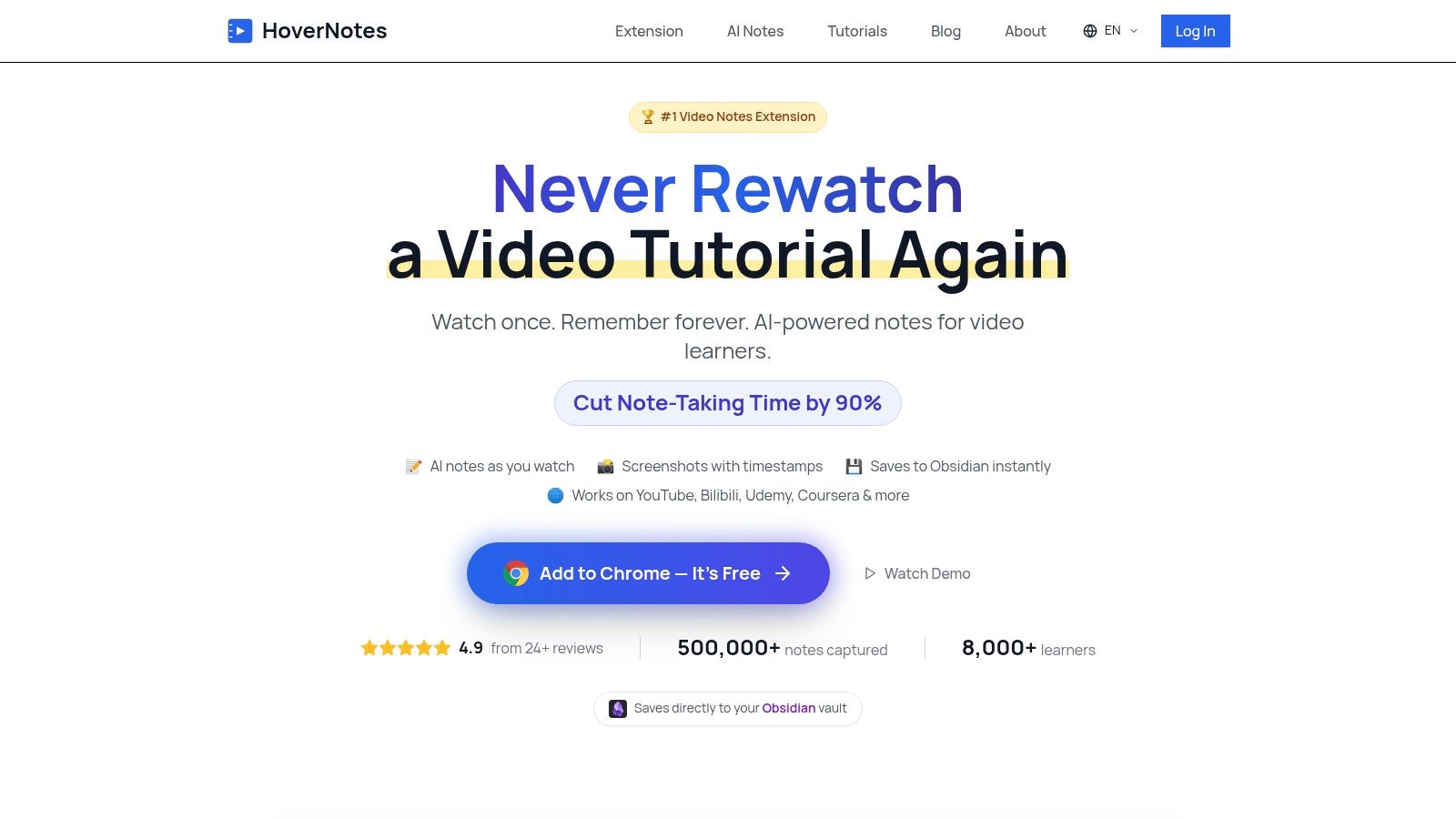
HoverNotes turns passive video watching on Udemy into active knowledge creation. It's a Chrome extension that watches videos with you, generates AI notes, and saves them as Markdown directly to your file system. This makes it a solid Udemy Chrome extension for anyone taking learning seriously, especially in technical fields where on-screen details are critical.
Unlike tools that only parse transcripts, HoverNotes watches the video to capture what's actually on screen. It understands visual context, grabbing code snippets (with syntax highlighting), diagrams, and formulas directly from the video frames. For Udemy courses on programming, data science, or design, a transcript alone misses the most important information.
HoverNotes is built for active learners who want to turn video lessons into a permanent personal knowledge base. Its main strength is capturing the visual context that transcript-only tools miss entirely.
Its integration with Personal Knowledge Management (PKM) systems is a key feature. The extension saves notes as plain Markdown (.md) files directly to your computer, making it ideal for Obsidian and Logseq users. This local-first approach means you own your notes; they aren't locked into a cloud service. Every note includes clickable, timestamped screenshots—one click returns you to that exact moment in the Udemy lecture, which is invaluable for reviewing complex topics.
AI Note-Taking That Sees the Screen: Automatically generates structured notes from both the spoken lecture and on-screen visuals. Perfect for grabbing code examples in a Python course or diagrams in a system design lecture.
Timestamped Clickable Screenshots: Capture a full screenshot or snip a specific region of the video. Clicking the image in your notes takes you back to that exact moment in the player.
Direct Obsidian & PKM Integration: Notes save as .md files directly to your Obsidian vault. No proprietary format or sync service—your notes belong to you.
Distraction-Free Mode: Puts your notes right next to the video and blocks Udemy's ads and recommended videos so you can focus.
Works Beyond Udemy: Use it on YouTube, Coursera, university portals, and even local video files on your computer.
HoverNotes uses a entry-level and upgraded options model. The entry-level access includes manual note-taking, unlimited timestamped screenshots, and the distraction-free mode. New users get 20 minutes of free AI credits to test the automated note generation, no credit card needed. Confirm current options on the HoverNotes pricing page.
This tool is a great fit for developers, students, and any serious learner using Obsidian, Notion, or other PKM tools. If you're tired of the constant pause-rewind-type cycle on Udemy, HoverNotes automates the tedious parts so you can focus on understanding the material. Read more on how HoverNotes enhances your Udemy studies on their blog.
#2. Udemy Dual Subtitles – Subtitle Translator (Chrome Web Store)
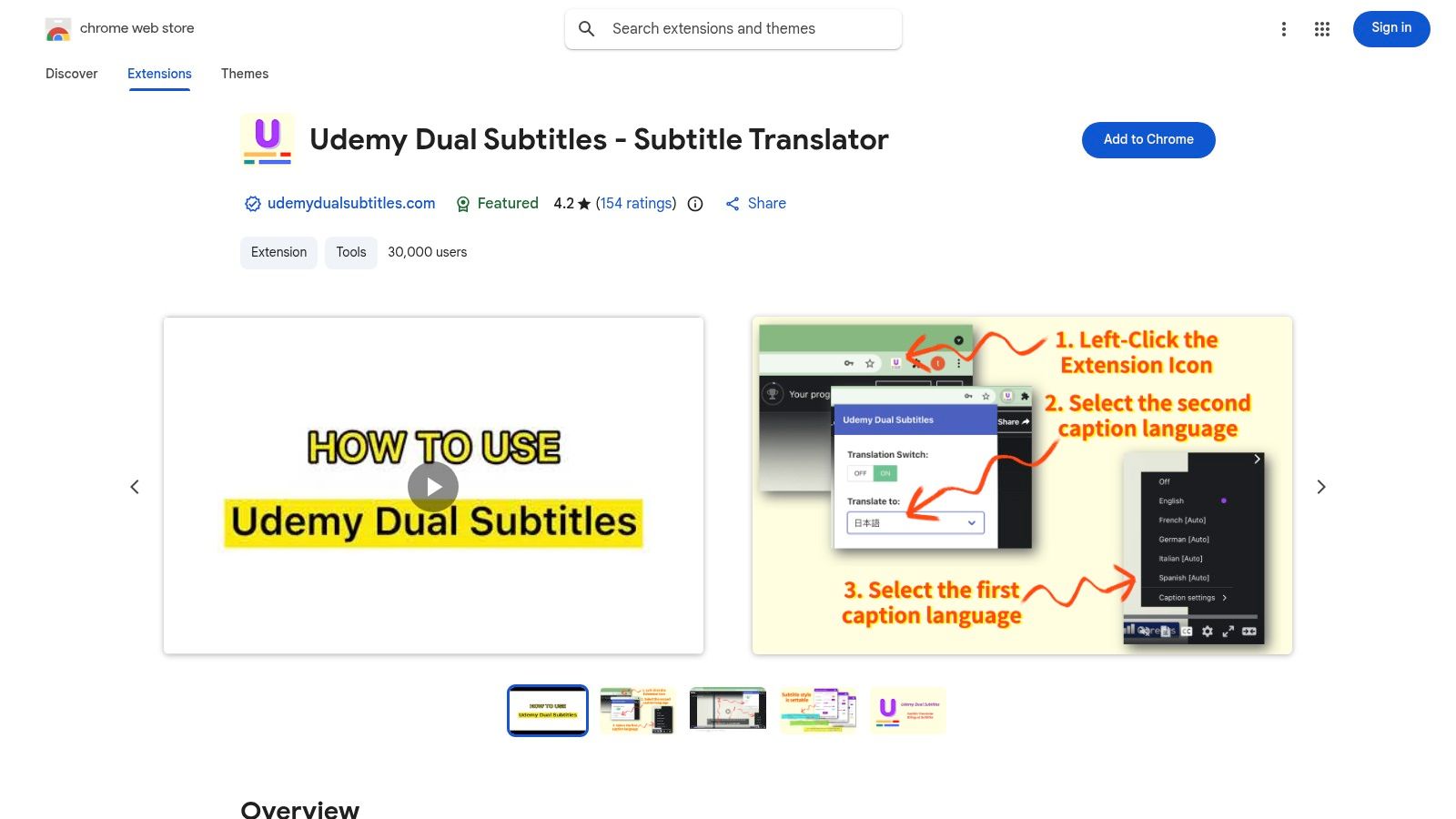
If you're taking a course in a non-native language, Udemy Dual Subtitles is an essential tool. This popular udemy chrome extension solves a common problem: understanding complex topics when the audio isn't in your first language. It displays two sets of captions at the same time—the original language and a real-time translation—right in the Udemy player. This lets you follow the original audio while having a reference in a language you're comfortable with.
Setup is minimal, and the extension remembers your settings across videos. It also lets you download the official captions as text files, which is useful for offline review. However, its effectiveness depends entirely on the course having official captions, and translation quality can vary. While this extension is great for bilingual text, it can't capture visual context like on-screen code or diagrams. For more comprehensive learning, you can get AI-generated video notes with screenshots using a tool like HoverNotes, which analyzes the visual content itself.
#3. Udemy Subtitle Translator – Yakuu (Chrome Web Store)
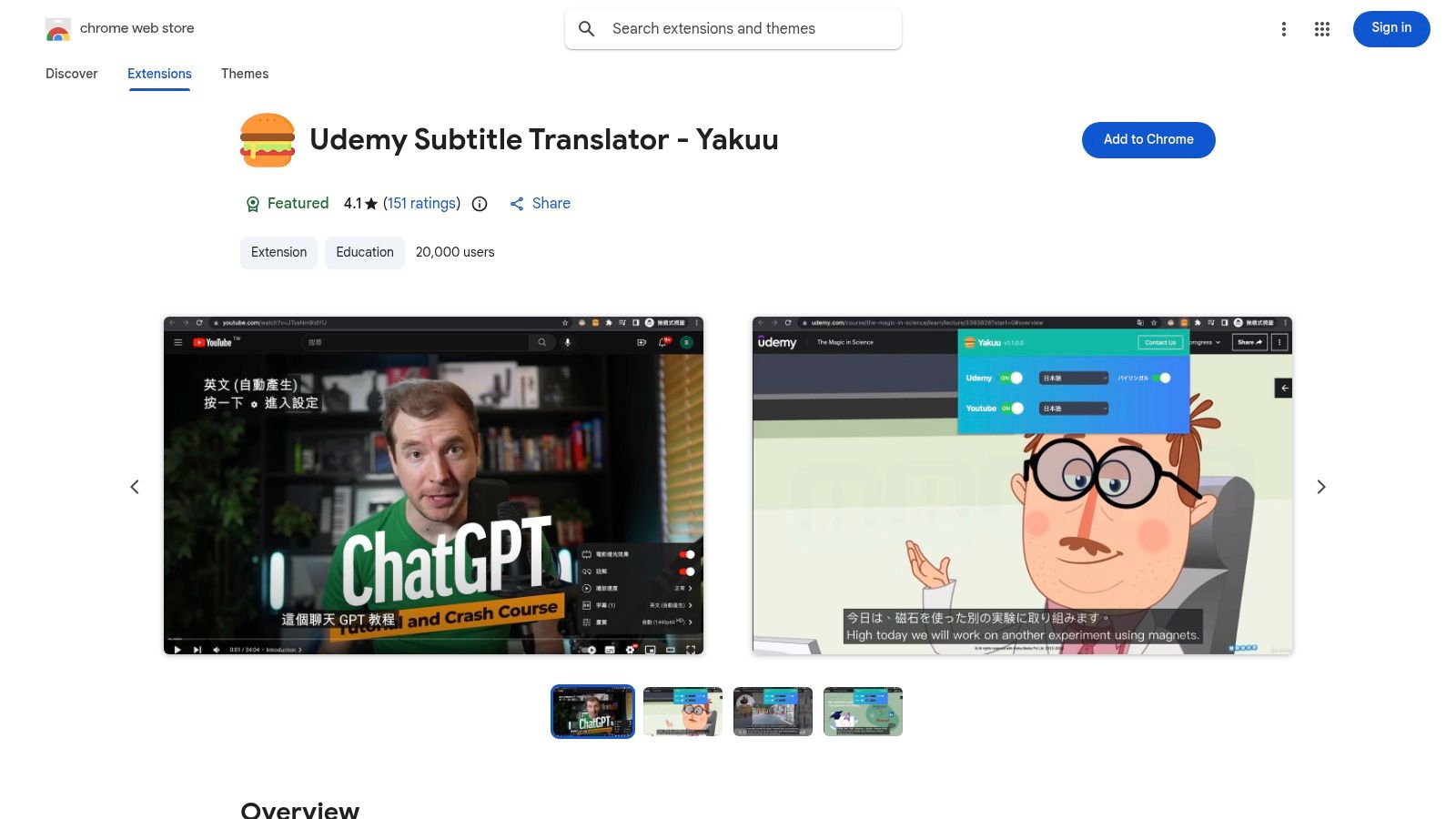
For learners who use both Udemy and YouTube, Udemy Subtitle Translator by Yakuu offers a consistent dual-language subtitle experience. This established udemy chrome extension provides bilingual captions, making it easier to follow material in a language you're still learning. It overlays translated subtitles alongside the original, so you have an immediate reference without having to pause and look up words.
The extension is known for its simple "enable and watch" workflow and multiple display modes that work well in fullscreen. It automatically detects and displays subtitles in your local language when available. However, it only handles subtitles. It won't help you capture on-screen text, code snippets, or diagrams. For that, you need a tool like HoverNotes, which analyzes the video frames to generate comprehensive notes with timestamped screenshots, ensuring you don't miss visual context.
If you learn on multiple platforms, Video CC Translator offers a versatile, all-in-one solution. This udemy chrome extension works across Udemy, YouTube, Udacity, and more, providing a consistent subtitle translation experience everywhere. It uses backends like Google Translate and DeepL to generate real-time captions in your language, which can be repositioned and restyled for better readability. This broad compatibility is great if you want a single tool for video captions across your learning ecosystem.
While its multi-platform support is a strength, its general-purpose design means it lacks some Udemy-specific optimizations. The interface is built for all supported sites, which can feel less integrated than an extension made only for Udemy. Its functionality is also strictly limited to translating existing closed captions; it can't help you capture or understand the visual information in a course. For that, a tool like HoverNotes is necessary, as it analyzes the video frames to generate comprehensive notes with timestamped screenshots.
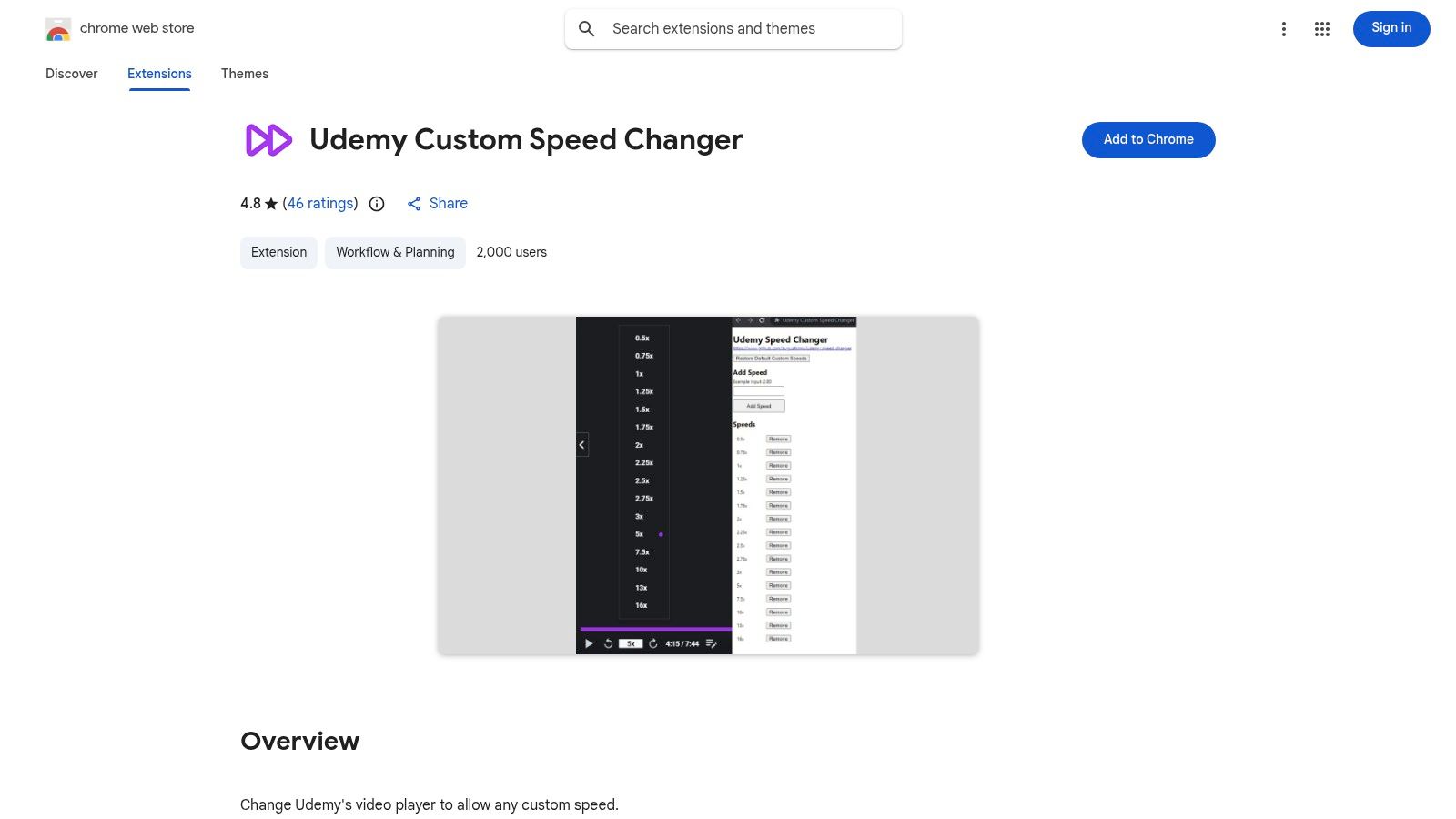
Udemy's built-in playback speed controls are limited to a few presets. For learners who want to fine-tune their viewing speed, Udemy Custom Speed Changer provides the granular control the native player lacks. This lightweight udemy chrome extension adds a comprehensive list of custom speeds, from fractional increments up to 16x. This is perfect for rapidly reviewing familiar content or slowing down technical sections to a more digestible pace.
The extension does one job and does it well. You can customize the list of speed presets to fit your learning habits. While it excels at speed control, it doesn't address other aspects of learning, like note-taking. For learners who need advanced playback controls combined with powerful note-taking features, a tool like HoverNotes can be a better fit. It provides speed controls and also lets you capture timestamped screenshots and generate AI-powered notes, addressing the need to retain information, not just consume it faster.
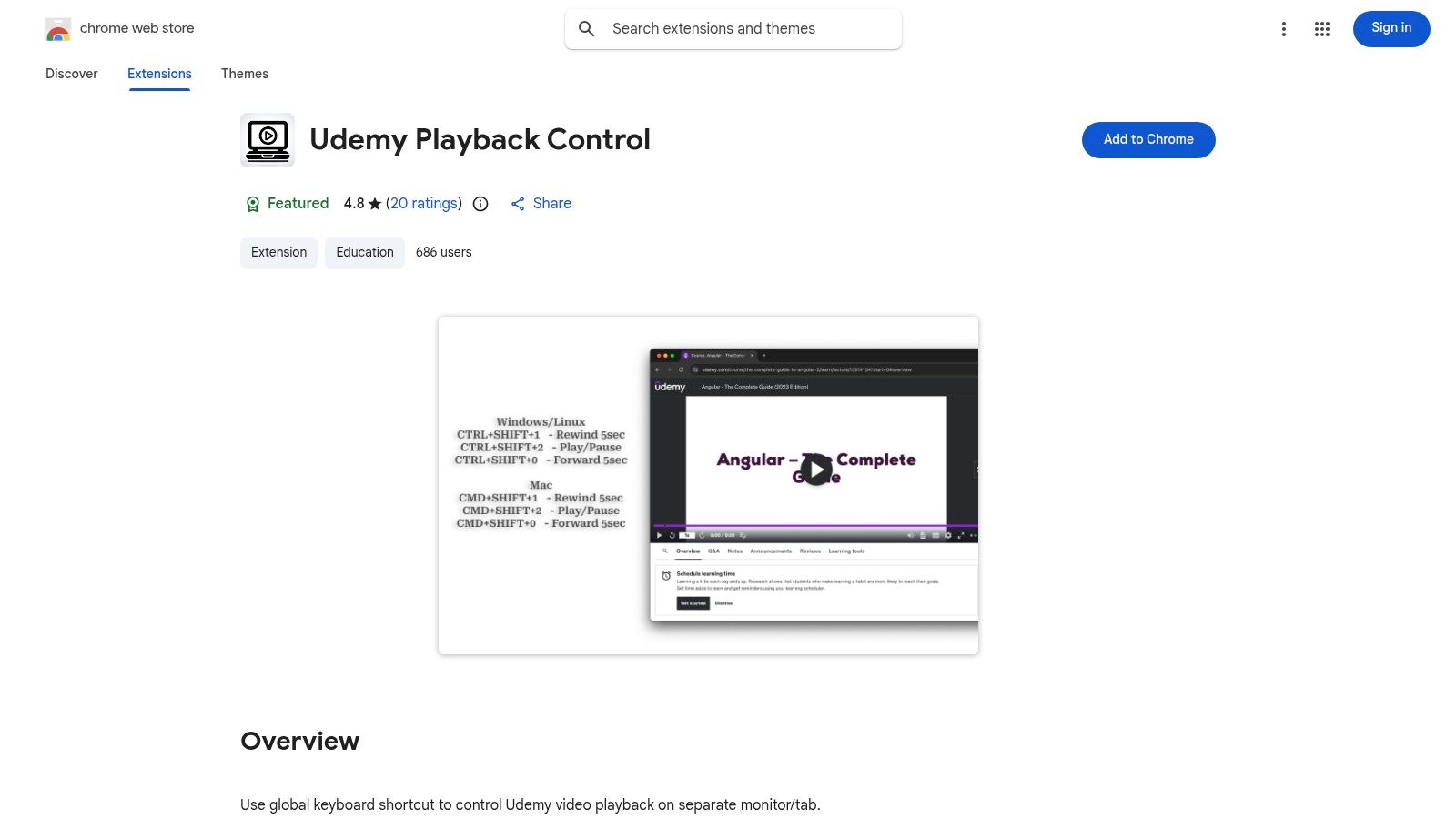
For learners who use a multi-monitor setup—like following a coding tutorial on one screen while writing code on another—Udemy Playback Control is a significant productivity boost. This specialized udemy chrome extension provides global keyboard shortcuts, letting you play, pause, or seek through a video without switching tabs or clicking into the Udemy window. This removes a common point of friction, helping you maintain focus.
The extension is lightweight and serves its single purpose well. Its value is in minimizing context switching. However, its main limitation is that it only works reliably when a single Udemy tab is open, which may be a drawback for users who keep multiple courses open at once. While this extension excels at background playback management, tools like HoverNotes offer more advanced video control features alongside comprehensive note-taking, providing a more integrated solution for active learning.
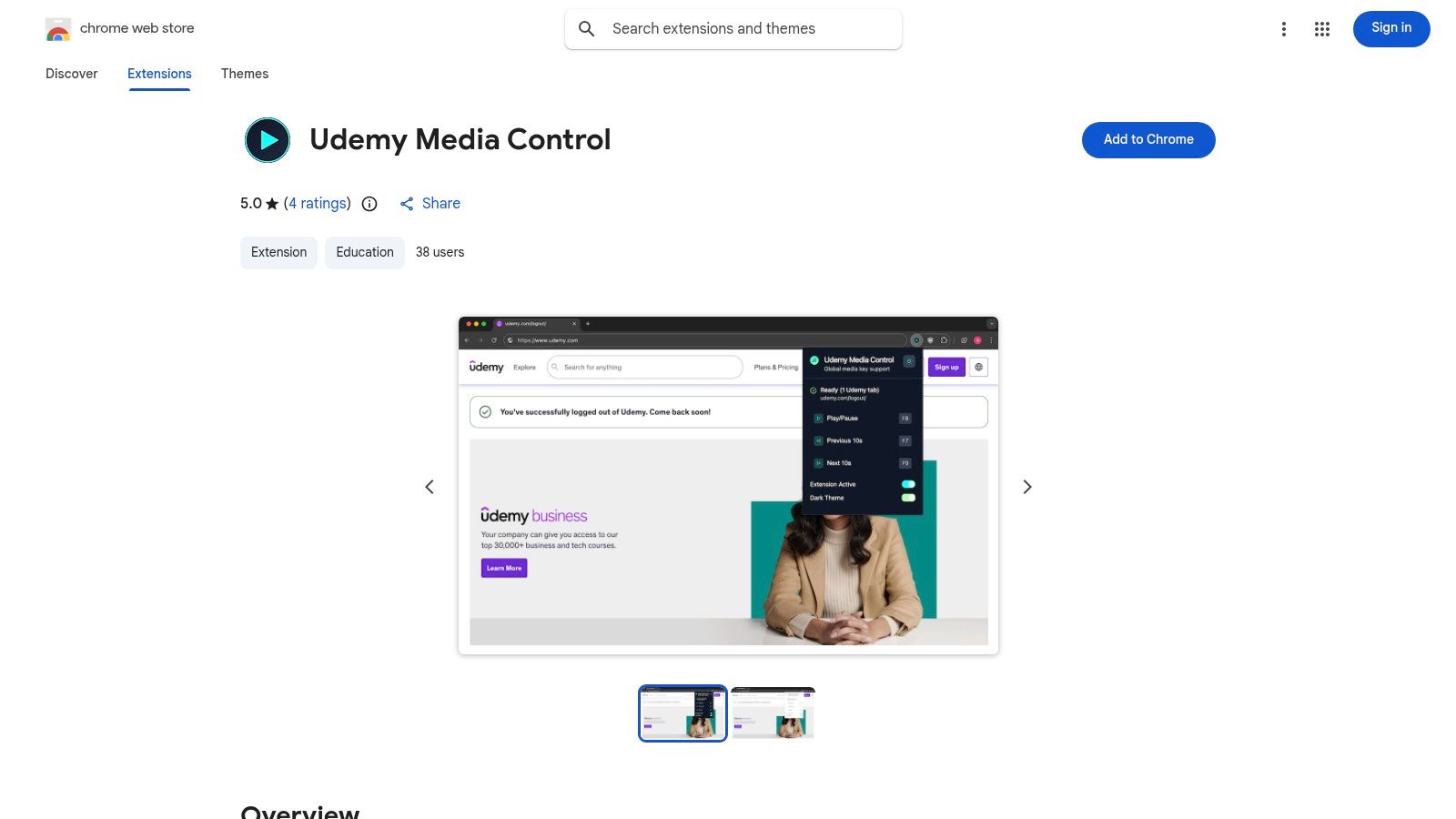
For learners who rely on physical keyboard shortcuts, Udemy Media Control is a simple but powerful udemy chrome extension. It enables hardware media key support, allowing you to use your keyboard's dedicated play/pause (F8), seek backward (F7), and seek forward (F9) keys to control video playback. This is useful for quickly pausing to take a note or rewinding without taking your hands off the keyboard.
The extension detects which browser tab has an active Udemy video, ensuring your media keys control the right content. There is no setup required. While it restores a familiar control scheme, its functionality is limited to playback. Manually controlling playback to capture notes can be tedious. More advanced tools offer a different solution. For instance, HoverNotes not only provides its own keyboard shortcuts for playback but also automates note-taking with AI and timestamped screenshots. This helps capture visual information and solves issues like the Udemy screenshot black screen problem.
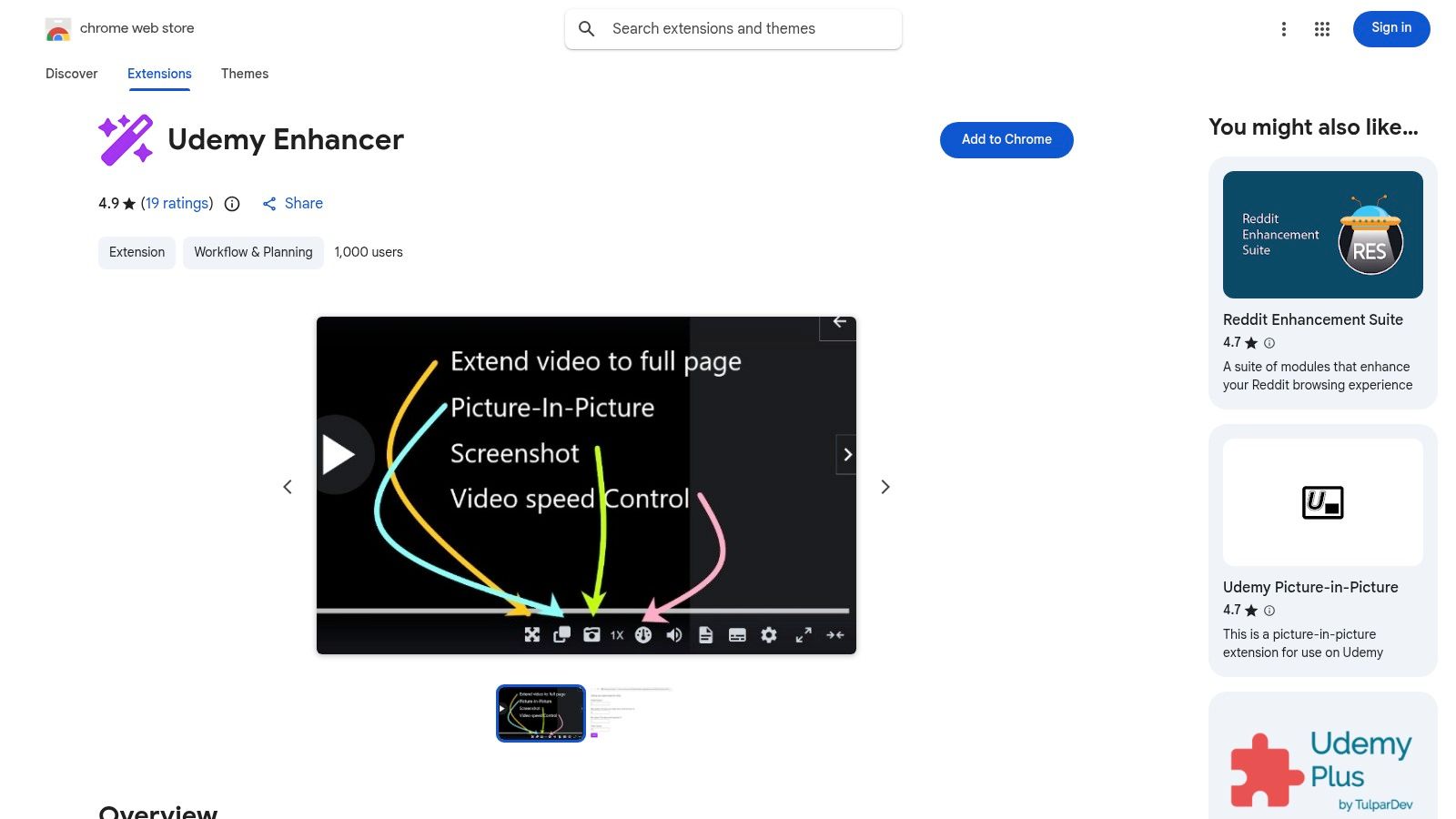
Udemy Enhancer is a versatile, open-source udemy chrome extension that acts as a multi-tool for the platform's video player. It consolidates several quality-of-life features into one package: a theater mode, picture-in-picture (PiP) for multitasking, and finer control over playback speed beyond Udemy’s defaults.
One of its most practical features is taking region-specific screenshots directly from the video, which is great for capturing code snippets or diagrams. However, the screenshots are not timestamped or integrated into a note-taking workflow. For learners who need to connect visual captures with contextual notes, a dedicated tool is more effective. You can find more on how to supplement this in our guide to enhancing your Udemy learning. The extension's main drawback is its reliance on Udemy's player structure; if Udemy updates its site, some features may temporarily break.
#9. Udemy Subtitle Reader (Chrome Web Store + Official Site)
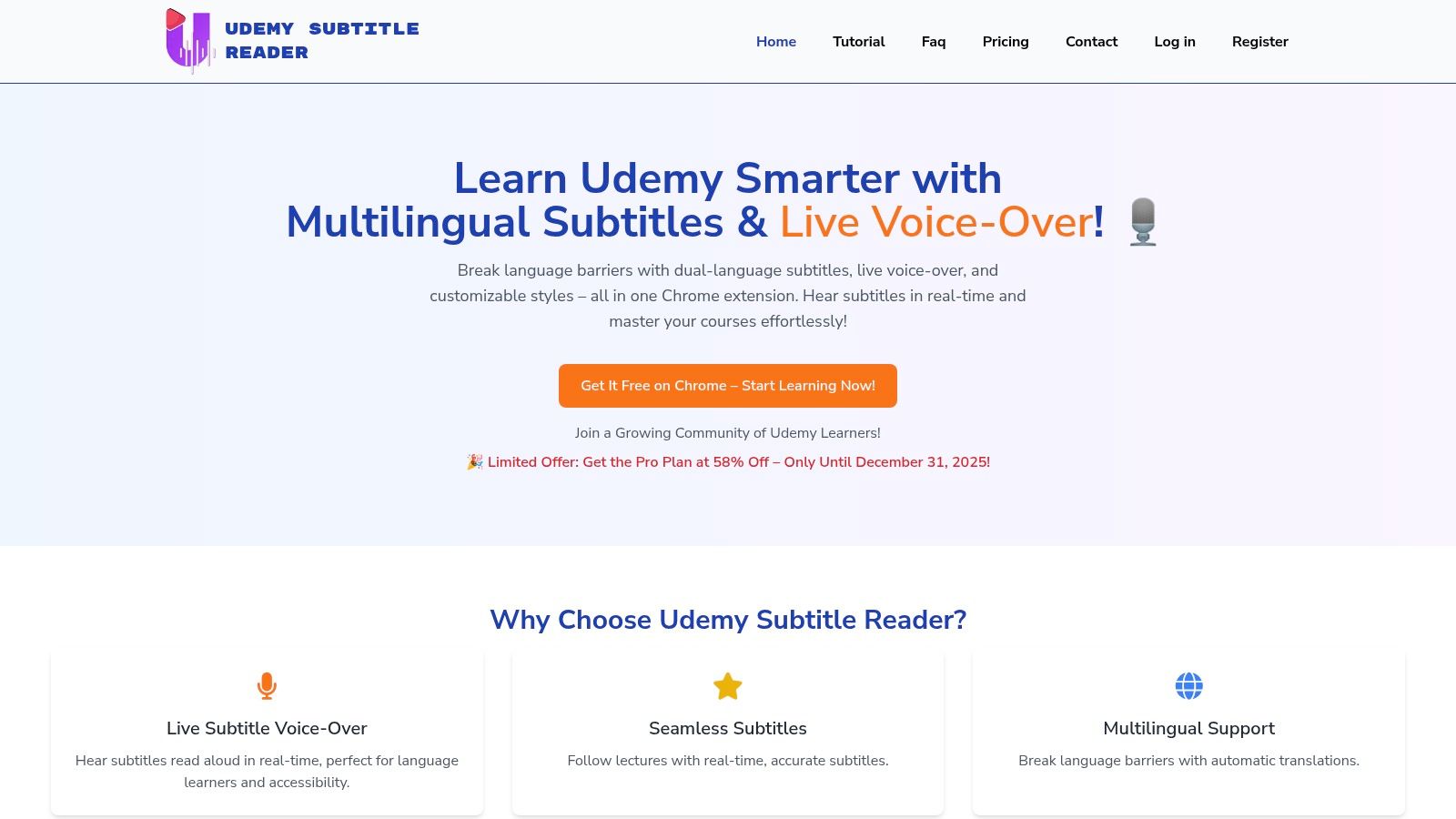
Udemy Subtitle Reader is a multifaceted udemy chrome extension that consolidates several useful features into one package. It integrates dual subtitles, subtitle downloads, and a live text-to-speech (TTS) voice-over function. This makes it ideal for learners who want to read captions in two languages and hear them read aloud, which can be a powerful aid for auditory learners or those improving pronunciation.
Unlike simpler tools, Udemy Subtitle Reader is supported by an official marketing site with clear documentation. However, its focus is entirely on textual and auditory content from subtitles. For learners who need to capture on-screen information like code, diagrams, or UI elements, a different approach is necessary. Tools like HoverNotes excel here, as they watch the video frame-by-frame, letting you snip visual details and embed them as timestamped screenshots in your notes.
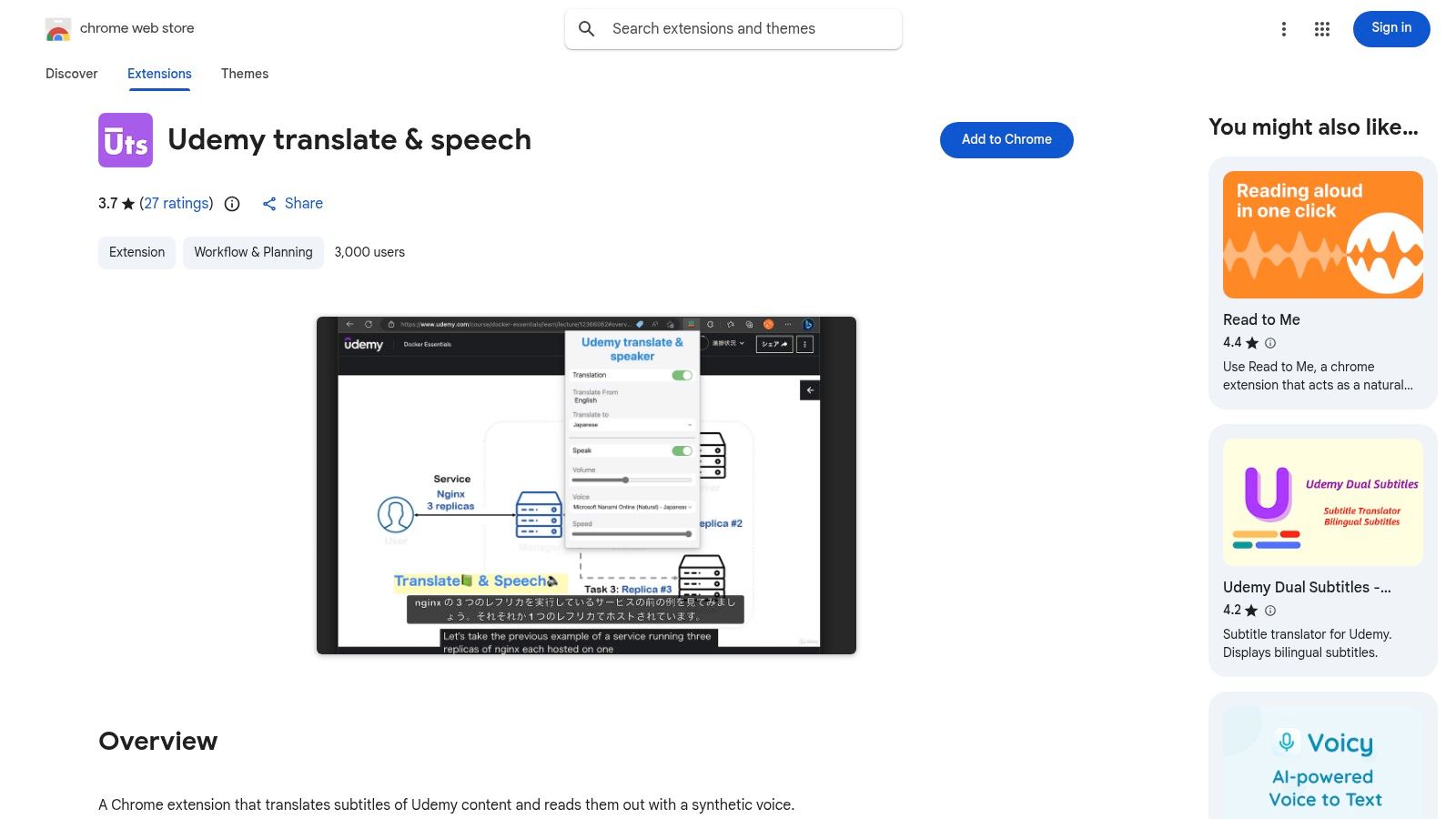
For learners who benefit from auditory reinforcement or require accessibility features, Udemy translate & speech offers a unique, audio-centric approach. This udemy chrome extension enhances the learning experience by translating subtitles and reading them aloud using text-to-speech (TTS). This can be useful for hands-free review or for users with visual impairments. The extension provides options to select different synthetic voices and adjust the playback speed.
The extension works on standard Udemy and Udemy Business domains. Its effectiveness is doubly dependent: on the availability of official captions, and on the quality of the machine translation and synthetic voice. A robotic-sounding TTS or inaccurate translation can hinder comprehension. This tool is purely audio and doesn't capture on-screen diagrams or code. For retaining visual information, HoverNotes provides a more complete solution by generating notes that include timestamped screenshots.
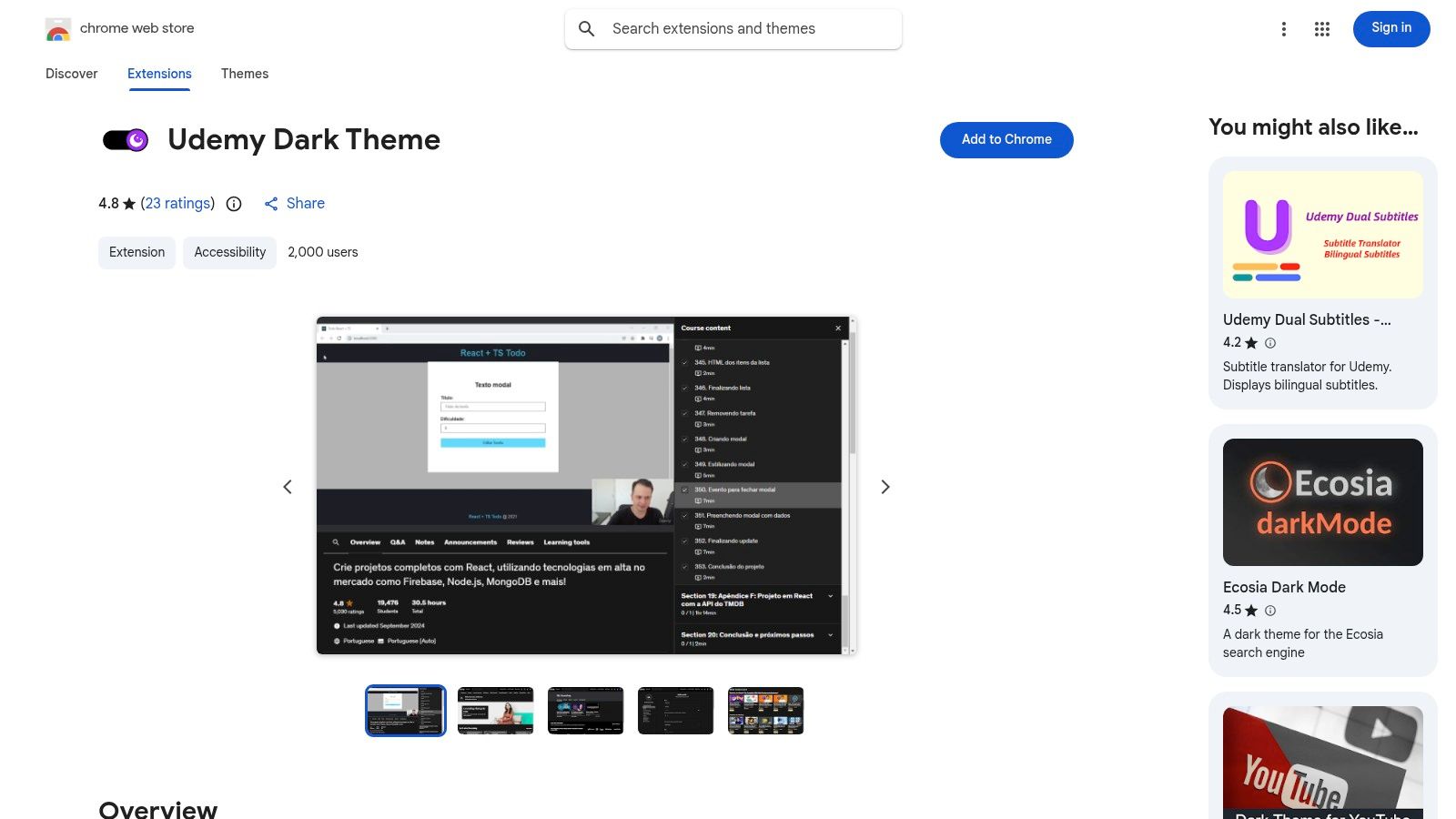
Long study sessions, especially at night, can cause eye strain. The Udemy Dark Theme extension is a straightforward solution, transforming the platform's bright interface into a more comfortable, darker palette. This udemy chrome extension does one thing well: it applies a global dark mode across the entire Udemy website, from the course dashboard to the video player. It’s a simple, set-and-forget tool for anyone who spends hours on the platform.
The extension works via a simple toggle in your browser's toolbar. Its popularity and high ratings reflect its reliability. The developers also maintain an open GitHub repository for community feedback. However, like any third-party styling tool, it can occasionally lag behind official Udemy UI updates, which might cause certain elements to render incorrectly until the extension is updated. It's an excellent tool for visual comfort, but for enhancing the actual learning process, you'll need a more functional extension.
#12. Video Translator for Udemy — AI Voice Dubbing (Chrome Web Store)
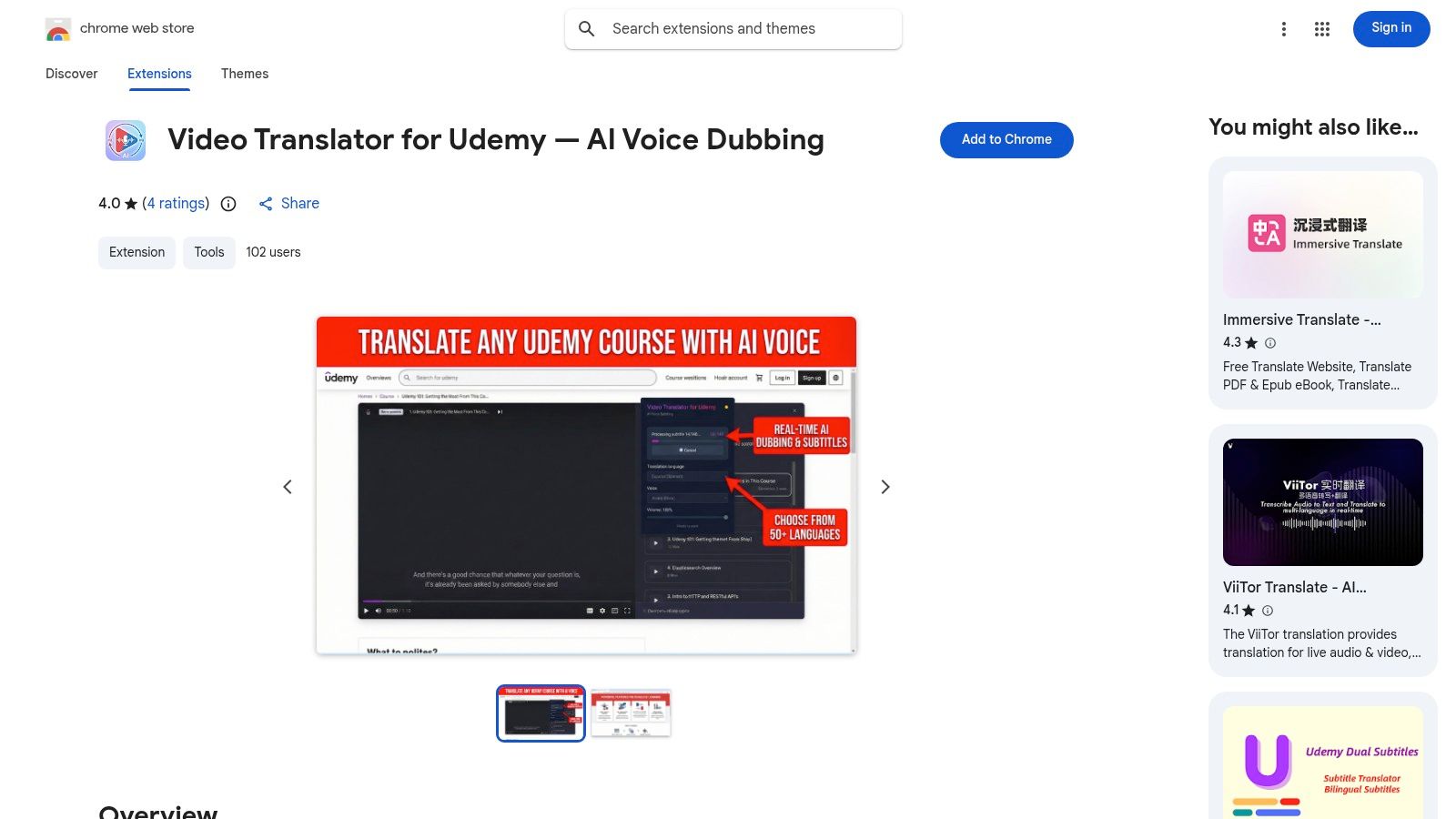
For learners who find reading subtitles distracting, Video Translator for Udemy offers a unique solution. Instead of displaying text captions, this udemy chrome extension provides real-time AI voice dubbing. It translates the lecturer's audio into your chosen language on the fly, allowing you to listen to the course as if it were recorded in your native tongue. This is a significant advantage for absorbing information without the cognitive load of reading and translating.
The extension lets you balance the volume between the original and dubbed audio, which is useful for checking the original phrasing. While its voice-to-voice translation is impressive, the AI's accuracy can vary with specialized jargon. It’s an excellent tool for understanding spoken content, but it doesn't address the visual aspects of learning. For a more complete study aid that captures both audio and visual information, a tool like HoverNotes generates AI-powered notes with timestamped screenshots.
Learning effectively online requires a deliberate strategy for engagement and retention. The tools on this list aren't just minor conveniences. Each Udemy Chrome extension can be a component in a personalized learning "stack" designed to solve specific problems with video-based education.
We've covered extensions that break down language barriers, like Udemy Dual Subtitles, making global knowledge more accessible. We've seen tools like Udemy Custom Speed Changer that give you command over playback, letting you match the instructor's pace to your own. These are crucial for optimizing the viewing experience. They fix immediate problems like needing to re-listen to a complex explanation or read subtitles in your native language.
However, optimizing viewing is only half the battle. The biggest challenge in online learning isn't watching the video; it's remembering what was in it weeks later. This is where you need to shift your stack from passive viewing aids to active knowledge capture.
The difference between a casual learner and a serious one is often their system for retaining information. A dark theme extension makes late-night study sessions easier on the eyes, but it doesn't help you recall a critical code snippet during an interview. This is why the most impactful addition to your Udemy toolkit is a solid note-taking extension.
The right tool depends on the problem you're trying to solve.
If you're a language learner, a dual-subtitle extension is a must-have.
If you're a developer coding on a second monitor, global hotkey extensions are essential for maintaining flow.
If your primary challenge is retaining complex, visual information, a dedicated note-taking tool that understands video is the most critical component.
This is where the distinction becomes clear. Many extensions enhance the Udemy player, but only a few tackle the core problem of knowledge retention. For learners who use a personal knowledge management (PKM) system like Obsidian or Notion and value owning their data, HoverNotes is a strong contender. Its ability to "watch" the video and capture visual context with timestamped screenshots directly addresses the pain points of serious learners.
Its local-first architecture ensures your notes are just plain Markdown files on your computer. You own them forever. This aligns with the principles of building a durable, personal knowledge base. While other extensions improve the moments you spend on Udemy, a tool like this enriches the knowledge you take away from it.
Ultimately, the best Udemy Chrome extension is the one that removes the most friction from your learning process. Identify your biggest bottleneck. Is it language, focus, playback control, or knowledge retention? Build your stack one tool at a time, starting with the one that solves your most pressing problem.
If your goal is to build a lasting knowledge base from your Udemy courses, not just watch them, HoverNotes was designed for that specific purpose. It works on any video platform, saving timestamped screenshots and AI-generated notes as Markdown files directly to your computer for use in Obsidian or Notion. The timestamp screenshot feature alone saves hours of rewatching.
Build a powerful workflow for your Obsidian YouTube notes. Learn how to capture, organize, and link video knowledge to actually remember what you watch.