The short answer
To take notes from a video lecture, skim the slides first, then watch without pausing every minute: write key ideas, questions and examples in your own words. When something matters, mark the timestamp and screenshot the slide or formula instead of copying it. Afterwards, write a two-sentence summary and turn your notes into questions you answer from memory before rewatching.
The usual trap is the pause-rewind-type loop that turns a one-hour lecture into two. The three steps below fix that: prepare before you press play, capture while you watch, and turn your notes into questions afterwards.
Why Your Current Video Lecture Notes Aren't Working
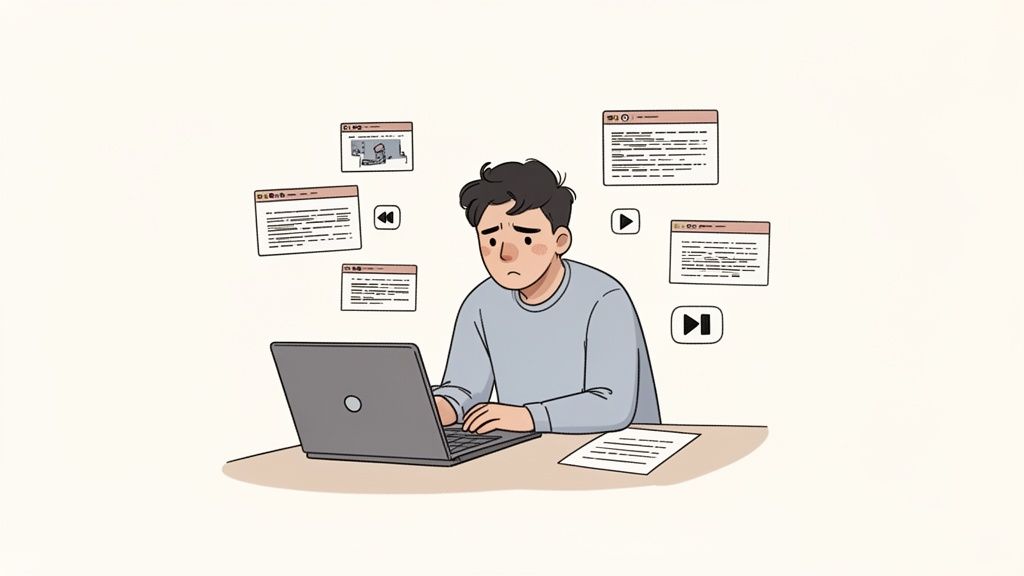
Pausing to catch up, rewinding to hear a key phrase and losing your train of thought is exhausting, and it doesn't help you learn.
Many students end up transcribing the professor's words. The result is a wall of text disconnected from the diagrams, formulas or code on the screen. When you review for an exam a week later, those notes are nearly useless without the visuals they refer to.
Doing something with the material while you watch makes a measurable difference. In one study of online lectures, short quizzes between lecture segments reduced mind wandering and improved final test scores (Szpunar, Khan & Schacter, 2013).
The common workaround, snapping screenshots, creates a different mess. Your desktop fills with randomly named image files, detached from your text notes. Good luck piecing that together during exam week.
Step 1: Before You Press Play
A few minutes of preparation makes the lecture easier to follow. The goal is a clean, focused setup, not a complicated system.
- Skim the slides or outline. If your course posts slides, read the headings first so you know where the lecture is going and what to listen for.
- Put the video and your notes side by side. Switching windows breaks your focus. Close other tabs and turn on "Do Not Disturb".
- Open a lecture template (below) so every note has the same structure.
This works the same on Blackboard, Canvas, Panopto or a custom university portal.
Choosing Your Note-Taking Tool
Any app that saves plain files works well for lecture notes: Obsidian, Logseq or OneNote are common choices. For a comparison, see the best lecture note-taking apps.
Apps that save plain Markdown (.md) files have one big advantage: you own the files. Move them, back them up, search them. You aren't tied to a proprietary format or a company that might disappear. To go further, see how to create a knowledge base that lasts beyond one course.
Create a Simple Lecture Template
A template takes seconds and keeps every lecture organized and searchable. Copy this into a new note:
---
course: [Course Code, e.g., CS101]
lecture: [Lecture Number or Title]
date: [YYYY-MM-DD]
tags: [keyword1, keyword2]
---

## Summary
(Two sentences, written after the lecture)

## Key Topics
-
-
-

## Lecture Notes
###

## Questions to Answer From Memory
-
With the structure ready, your attention goes to the content, not to where your notes from video lectures should go.
Step 2: While You Watch
The goal isn't to transcribe. Capture what matters for understanding and remembering the material.
- Write in your own words. Note key ideas, examples and the questions they raise, not full sentences from the professor.
- Don't pause for every point. Pause at the end of a topic instead. If you miss something, write the timestamp next to it and come back after the section.
- Use speed controls. Slow down for dense derivations and speed up through parts you already know.
- Capture visuals instead of copying them. Screenshot the slide or snip the formula rather than retyping it.
Grab Visuals with Timestamped Screenshots
Much of a lecture's value is visual: the complex diagram, the key slide, the block of code. Two kinds of capture cover it:
- Full-frame capture: Grab the whole slide or video frame.
- Snip capture: Select just one region, like a single formula or part of a diagram, to keep notes clean.
The captures should carry timestamps, so you can get back to the explanation. In HoverNotes, a Chrome and Edge extension that watches with you, press Ctrl/⌘+K to screenshot the frame into your notes and Ctrl/⌘+J to insert a timestamp; S and D slow the video down or speed it up. Click a screenshot in the HoverNotes panel and the video jumps back to that moment. Snip capture is free on every plan.
Capturing Formulas and Code Snippets
In STEM and computer science, the most important information is often on screen. A transcript might mention "the Schrödinger equation", but it won't show the formula, and typing equations while keeping up leads to errors. Use snip capture to:
- Isolate a single formula: Snip just the equation, not the whole slide.
- Grab a block of code: Capture only the function being discussed.
- Save a specific diagram: Pull one graph out of a crowded slide.
If the audio is poor or the professor is hard to follow, screenshot the slides yourself so the formulas and key terms are in your notes whatever you miss by ear. For getting the spoken part into text, see our guide on how to transcribe a YouTube video.
Optional: Let AI Write the First Draft
AI notes can take the first pass so you can listen and think. HoverNotes generates notes as the lecture plays and saves them as Markdown to a folder you choose. Treat them as a first draft.
HoverNotes can also write AI notes in a language you choose, so a lecture in Japanese can produce notes in English. For more on this workflow, see our guide on how to take notes on videos effectively.
Want to practise the method? Try it on a real lecture, such as Oxford Mathematics' first-year lecture on complex numbers:
Step 3: After the Lecture
The learning that lasts until the exam happens when you go back over your notes. Right after the lecture, do four things:
- Summarize the gist: At the top of your note, write a two-sentence summary in your own words. If you can't, you haven't grasped the core idea yet.
- Extract key terms: Pull out important vocabulary, formulas or names into a "Key Terms" list and define each one.
- Connect your ideas: Link concepts from this lecture to other notes. Did your psychology professor mention a cognitive bias that also came up in economics? Link the two notes.
- Turn notes into questions: Write questions your notes answer, then answer them from memory before you rewatch anything.
For a review schedule leading up to exams, see how to study effectively for exams.
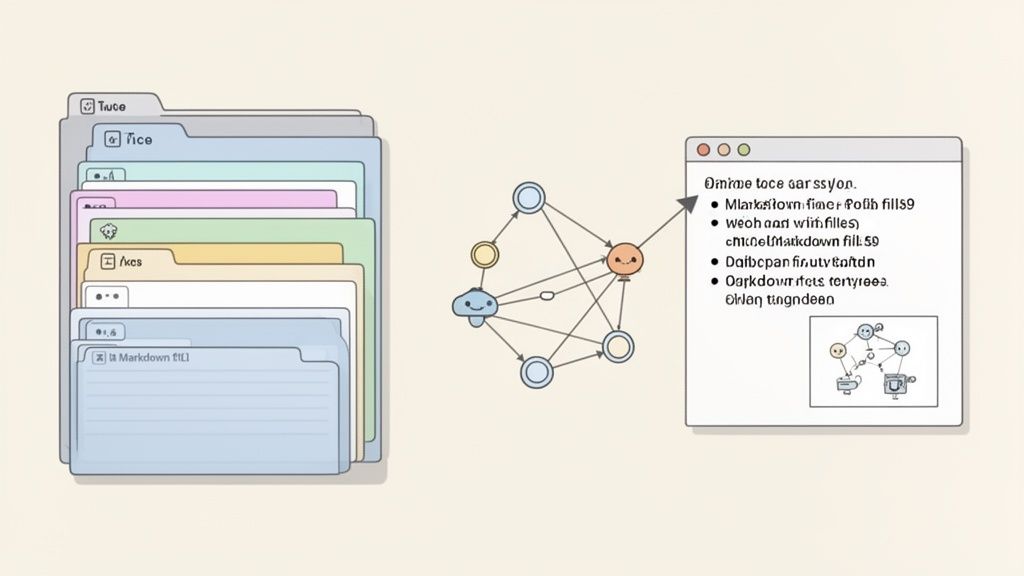
A Simple Folder Structure That Works
A logical folder structure keeps a whole degree organized:
University/Semester 1 - Fall 2026/CS101 - Intro to Programming/CS101 - Lecture 01 - Variables.mdCS101 - Lecture 02 - Loops.md
PSYC203 - Cognitive Psychology/PSYC203 - Lecture 01 - Memory.md
In a tool like Obsidian, this folder structure becomes the backbone of your vault, and HoverNotes can save your lecture notes straight into it as Markdown files.
Targeted Revision Using Visual Anchors
Rewatching hours of lectures before an exam is a poor use of time. Your notes should get you to the right moment fast.
Instead of scrubbing through a video to find one diagram, find the screenshot in your notes and jump back to that moment for a quick refresh. Focus on the five or six most important diagrams or formulas from each lecture, and quiz yourself on what each one shows before you replay it.

FAQ
Should I pause a video lecture to take notes?
Only at the end of a topic. Pausing for every point can double the time a lecture takes. Write the timestamp next to anything you missed and come back to it after the section. Short self-quizzes between segments help more: in one study, they reduced mind wandering and improved test scores.
Is it better to handwrite or type notes from lectures?
Either can work. A well-known 2014 study favoured longhand, but a 2019 replication found the differences were small and inconsistent. What matters more is writing ideas in your own words instead of transcribing. Typed notes are easier to search and to combine with screenshots.
Can I take notes on Canvas, Blackboard or Panopto lectures?
Yes, as long as the lecture plays in your browser. The method above works with any note app. With HoverNotes, a Chrome and Edge extension, you can screenshot slides with Ctrl/⌘+K and insert timestamps with Ctrl/⌘+J beside the video, without an LMS integration. Some protected players can block screenshots.
Is it safe to use AI note takers on university lectures?
Check your university's rules on recording and sharing course material first. In HoverNotes, your notes and screenshots save as Markdown files to a folder you choose. If you turn on AI notes, the lecture as it plays (picture and sound) is processed on HoverNotes' servers; the Audio-only AI Notes setting limits that to the audio.
Prefer to take notes yourself? You can use HoverNotes without the AI: the distraction-free mode puts the video beside the editor, and screenshots, snips and timestamps work the same. Try HoverNotes free: the note editor, timestamped screenshots, snip capture and video controls, plus 20 minutes of AI notes. No credit card. Confirm current options on the HoverNotes pricing page.
What Learning Research Supports
Useful notes should make you do something with the material, not merely store more text. The U.S. Institute of Education Sciences recommends spacing learning over time, combining graphics with verbal explanations, using active retrieval, and asking deep explanatory questions (practice guide). A peer-reviewed review of educational video research also emphasizes signaling important information, splitting lessons into manageable segments, giving learners control, and adding active-learning prompts (review). A controlled study of online lectures found that brief tests between segments reduced mind wandering and improved learning (Szpunar, Khan & Schacter, 2013). Applied here, that means pausing at concept boundaries, capturing only the visual evidence you need, writing a question in your own words, and later answering it before replaying the source. These practices are evidence-based; a universal retention percentage for one app or workflow is not.