Cómo tomar apuntes de las conferencias en video de la universidad | HoverNotes
Course Platforms11 de enero de 2026•Updated: 16 de julio de 2026
Cómo tomar apuntes de las conferencias en video de la universidad
Toma notas magistrales de las clases en video con un sistema práctico para capturar ideas clave rápidamente en Canvas, Blackboard o cualquier portal universitario.
Por HoverNotes Team•14 min de lectura
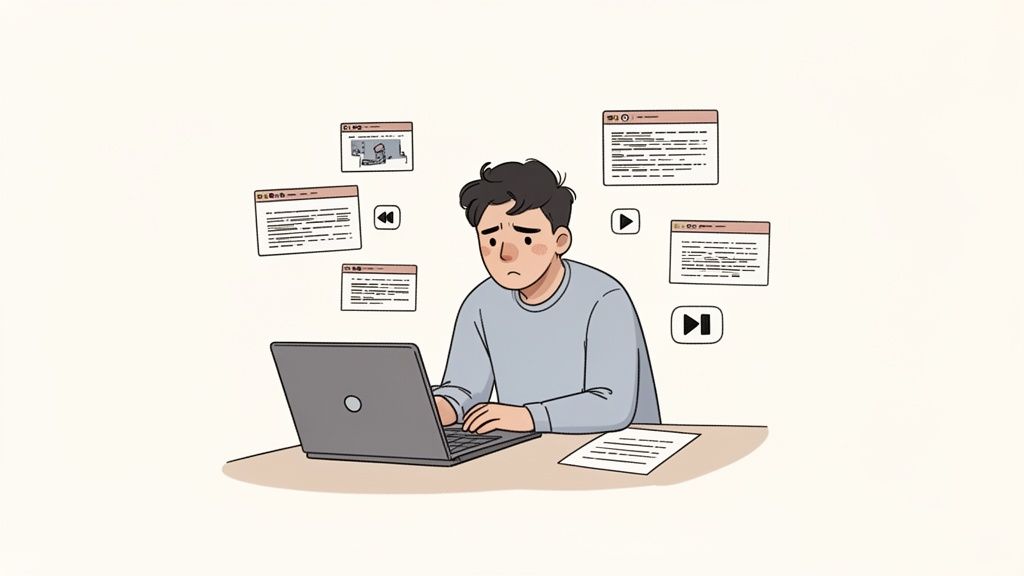
Frente a una conferencia grabada de dos horas, presionas reproducir. A los cinco minutos, ya estás en el ciclo: pausa, rebobina, escribe, pierdes el hilo. Repite.
Esto no solo es frustrante; es un sistema defectuoso. Ver un video pasivamente, aunque con buenas intenciones, hace que la mayor parte de esa información desaparezca en pocos días. Tu tiempo de estudio se desperdicia.
Un sistema efectivo para tomar notas de conferencias en video debe ser diferente. Necesita combinar participación activa con herramientas inteligentes para construir una base de conocimiento permanente, buscable y que realmente poseas y controles.
#Por qué tus notas actuales de video conferencias no funcionan
Seamos directos. El ciclo constante de pausar para ponerte al día, rebobinar para escuchar una frase clave y perder tu línea de pensamiento es agotador e ineficaz.
Muchos estudiantes terminan simplemente transcribiendo las palabras del profesor. ¿El resultado? Un muro de texto completamente desconectado de los diagramas, fórmulas o ejemplos de código en la pantalla. Cuando revisas para un examen una semana después, esas notas son casi inútiles sin el contexto visual original. Este es un problema común de retención en el aprendizaje por video: la gente ve, pero no recuerda.
Esto no es solo una sensación. Sin recordar activamente o externalizar lo aprendido, estás luchando una batalla perdida contra la eficiencia de tu cerebro.
La psicología cognitiva es clara: sin resumir o practicar la recuperación, la retención se desploma. Combina eso con horas de contenido en video y tienes una inversión enorme de tiempo con muy poco conocimiento duradero.
#El caos de las capturas de pantalla dispersas y los riesgos de privacidad
La solución común —tomar capturas de pantalla— crea otro tipo de desorden. Tu carpeta de escritorio se llena de archivos de imagen con nombres aleatorios, completamente desconectados de tus notas de texto. Buena suerte armando ese rompecabezas durante la semana de exámenes.
Una carpeta con capturas dispersas es casi inútil para la revisión. Para ser efectivo, el contexto visual debe estar embebido directamente donde corresponde en tus notas.
Finalmente, hay un problema serio: la privacidad y propiedad de los datos. Tus notas de clase contienen propiedad intelectual universitaria y tu propio trabajo académico. Usar herramientas online que suben este contenido a servidores de terceros es un gran riesgo de privacidad. Tus materiales académicos deben ser tu propiedad, almacenados localmente en tu máquina, no encerrados en la nube de alguien más. Esto es innegociable para un trabajo académico serio.
#Construyendo tu espacio digital para tomar notas con foco
Antes de presionar "reproducir", unos minutos de preparación pueden hacer toda la diferencia. La meta es crear un entorno limpio y enfocado que te ayude a absorber la información, no construir un sistema complicado que te obstaculice.
Este flujo de trabajo funciona en cualquier portal universitario, desde Blackboard y Canvas hasta Panopto o un sitio personalizado.
Primero, organiza tu pantalla. Coloca el video de la conferencia en un lado y tu aplicación para tomar notas en el otro. Esta configuración lado a lado elimina la danza que rompe el foco de cambiar entre ventanas. Cierra todas las demás pestañas y activa el modo "No molestar" de tu computadora.
La aplicación que elijas influye muchísimo en si tus notas se vuelven un activo valioso o una basura digital. Para trabajos académicos, usar una aplicación local-prioritaria como Obsidian o Logseq es una elección práctica. Si usas un dispositivo Apple, encontrar la opción adecuada es crucial; puedes consultar algunas de las mejores apps para tomar notas en Mac para ver qué hay disponible.
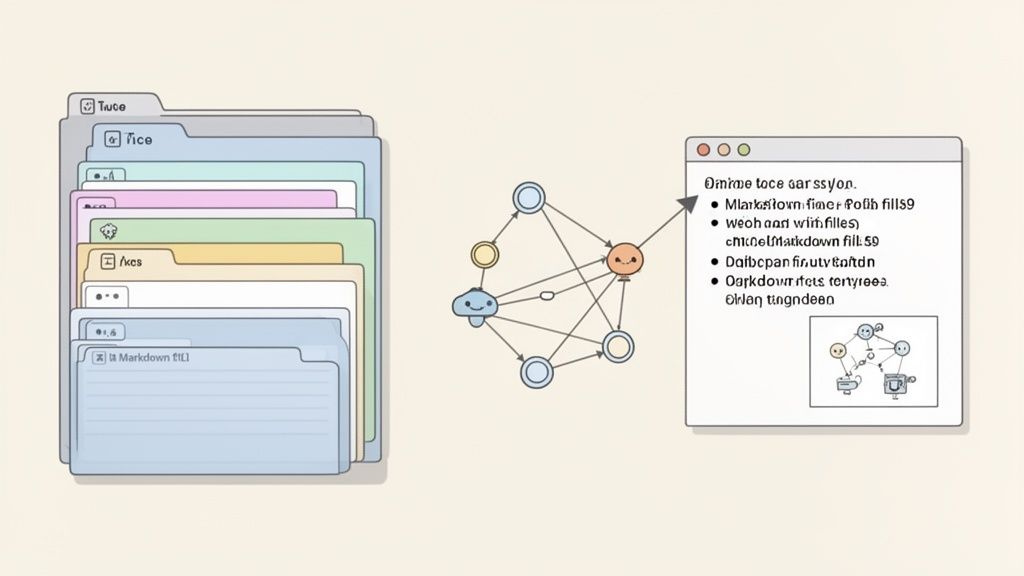
El beneficio clave de estas herramientas es la propiedad. Todas tus notas se guardan como archivos Markdown (.md) simples en tu computadora.
Tú posees los archivos. Muévelos, hazles copia de seguridad, búsquelos con grep—son solo Markdown. Esto es crítico para la privacidad académica, asegurando que tu propiedad intelectual y materiales universitarios nunca salgan de tu máquina.
Este enfoque local-prioritario también hace que tu base de conocimiento sea a prueba de futuro. No estás atrapado en un formato propietario ni a merced de una empresa que podría desaparecer. Estás construyendo una biblioteca personal de conocimiento. Si lo tomas en serio, puedes aprender más sobre cómo crear una base de conocimiento que te sirva por años.
Para mantener la consistencia, crea una plantilla simple para cada nueva conferencia. Parece trivial, pero asegura que tus notas estén organizadas y sean buscables desde el principio.
Aquí tienes una plantilla básica Markdown para copiar y pegar:
#curso: [Código del curso, por ejemplo, CS101]
conferencia: [Número o título de la conferencia]
fecha: [AAAA-MM-DD]
etiquetas: [palabraClave1, palabraClave2]
Usar una plantilla toma segundos pero ahorra horas de reorganización después. Sienta una base estructurada para que puedas enfocar tu energía mental en el contenido, no en la logística de dónde deben ir tus notas de video conferencias.
#Un flujo de trabajo en tiempo real para tomar notas de conferencias
Una vez que tu espacio de trabajo esté listo, es momento de presionar play. El objetivo no es transcribir lo que se dice. Queremos capturar lo que importa para comprender y recordar el material.
Un buen sistema para tomar notas combina automatización inteligente con tu propio pensamiento. Esto convierte la visualización pasiva en una sesión de aprendizaje activa donde construyes un registro estructurado y permanente.
Intentar escribir cada palabra del profesor es agotador e ineficaz. Terminas con un muro de texto y cero comprensión. Deja que la IA se encargue del trabajo tedioso.
HoverNotes es una extensión Chrome que observa los videos contigo, genera notas con IA y las guarda como Markdown directamente en tu sistema de archivos. Puede crear un resumen estructurado mientras ves la clase, liberándote para pensar en lo que se dice en lugar de solo desesperarte por escribir. Considera las notas de IA como un buen primer borrador.
Tu trabajo es ser el editor. Conforme las notas de IA aparecen, añade tus propios insights, preguntas o conexiones a otros temas. Este enfoque híbrido es el punto ideal entre automatización y el aprendizaje activo que genera retención.
Este método funciona en cualquier portal universitario—Blackboard, Canvas, Panopto—porque opera en tu navegador. Si tienes curiosidad, contamos con una guía completa sobre cómo tomar notas en videos de forma efectiva.
#Captura visuales con capturas de pantalla con marca de tiempo
Gran parte del valor de una conferencia es visual: el diagrama complejo, la diapositiva crucial, el bloque de código en pantalla. Las herramientas estándar de transcripción no captan esto porque solo procesan audio.
Una configuración simple de tres pasos, como la siguiente, asegura que tu espacio digital esté listo para capturar estos visuales clave.
Con una herramienta que integre imágenes, podrás insertarlas directamente en tus notas de texto, creando una guía de estudio mucho más rica. Tomar notas manualmente mientras ves un video es difícil porque las capturas terminan dispersas y desconectadas.
Tu flujo de trabajo debe hacer esto sin esfuerzo.
Captura de pantalla completa: Toma instantáneamente toda la diapositiva o el cuadro de video.
Captura recortada: Selecciona solo una región específica, como una fórmula o parte del diagrama, para mantener las notas limpias.
Aquí está la clave: estas capturas deben tener marca de tiempo. A diferencia de herramientas que solo procesan transcripciones, HoverNotes observa el video para capturar lo que realmente está en pantalla. Cada captura incluye una marca de tiempo clicable—un clic te lleva a ese momento exacto del video. Cuando estás estudiando para un examen, esto salva horas de volver a ver. Incluso puedes combinar esto con un generador de transcripción de podcast por IA para tener un registro de texto completo y cruzar referencias entre notas visuales y textuales.
#Cómo organizar y repasar tus notas de conferencias para los exámenes
Tomar notas es solo la mitad de la batalla. El verdadero aprendizaje —el que se queda para los exámenes— ocurre cuando organizas y revisas esa información cruda. Esto convierte una grabación de hechos en una poderosa herramienta de estudio.
Un consejo rápido: siempre guarda tus notas en un formato universal como Markdown (.md). Esto garantiza que puedas abrirlas en cualquier dispositivo, para siempre, sin estar encerrado en una aplicación propietaria.
No necesitas un sistema complicado. Una estructura lógica de carpetas es todo lo que necesitas para mantener tu vida académica organizada. Aquí tienes una configuración que escala para toda una carrera:
University/
Semester 1 - Fall 2024/
CS101 - Intro to Programming/
CS101 - Lecture 01 - Variables.md
CS101 - Lecture 02 - Loops.md
PSYC203 - Cognitive Psychology/
PSYC203 - Lecture 01 - Memory.md
Esta jerarquía limpia facilita encontrar cualquier nota específica. Si usas una herramienta como Obsidian, esta estructura de carpetas se convierte en la columna vertebral de tu bóveda digital de conocimiento.
Ahora el paso más importante: convertir notas crudas en algo que comprendas. Esto implica revisión activa, no solo releer.
Después de la conferencia, repasa tus notas y haz estas tres cosas:
Resume la idea central: Al inicio de tu nota, escribe un resumen de dos o tres oraciones de la conferencia con tus propias palabras. Si no puedes, es señal de que no has captado los conceptos clave.
Extrae términos clave: Saca vocabulario importante, fórmulas o nombres. Crea una sección "Términos clave" y define cada uno. Esto construye un glosario para repasos rápidos.
Conecta tus ideas: Esto es especialmente poderoso en apps como Obsidian. Enlaza conceptos de esta conferencia con otros. ¿Tu profesor de psicología mencionó un sesgo cognitivo que también aparece en economía? Crea un vínculo directo entre ambas notas. Con el tiempo, construirás un grafo de conocimiento que revela conexiones no evidentes.
La meta es ir más allá de hechos aislados. Al vincular ideas, estás construyendo una red de conocimiento que imita cómo funciona tu cerebro, facilitando el recuerdo bajo presión en los exámenes.
Si usas Obsidian, HoverNotes guarda tus notas de video conferencias directamente en tu bóveda como archivos planos Markdown, haciendo este proceso fluido.
Todos hemos intentado estudiar para un examen viendo horas de conferencias de nuevo. Es un uso pésimo del tiempo. Tus notas deben ser una herramienta de revisión rápida.
Aquí es donde las capturas de pantalla con marca de tiempo son tan valiosas. En lugar de buscar en un video un diagrama complejo, encuentras la captura en tus notas. Con un clic vuelves a ese momento exacto para un repaso rápido.
Esta revisión focalizada ahorra muchísimo tiempo. Enfócate en los cinco o seis diagramas o fórmulas más críticas de cada conferencia. Pasar por estas anclas visuales puede refrescar tu memoria sobre todo un tema en minutos, no horas.
Para profundizar, consulta nuestra guía sobre cómo estudiar efectivamente para exámenes. Una organización inteligente y una revisión activa marcan la diferencia entre simplemente pasar y obtener las mejores notas.
No todas las conferencias son un simple PowerPoint. Los cursos técnicos lanzan fórmulas densas, fragmentos de código complejos o audio difícil de entender. Un sistema de notas hecho para solo texto simple fracasa aquí.
¿Qué pasa cuando la calidad del audio es terrible o el profesor tiene un marcado acento? La mayoría de las herramientas solo de transcripción producen galimatías. Aquí es donde una herramienta que observa el video cuadro por cuadro es una salvación. Incluso si el audio es un desastre, puede extraer texto claro y diagramas de las diapositivas. Cubrimos este proceso en nuestra guía sobre cómo transcribir un video YouTube.
Si estudias STEM o informática, la información más crítica suele ser visual. Una transcripción podría mencionar "la ecuación de Schrödinger", pero no mostrará la fórmula. Intentar escribir ecuaciones complejas al ritmo de la clase es una receta para errores.
Este es el escenario perfecto para una captura visual focalizada. En lugar de tomar toda la pantalla, una función de "captura recortada" te permite enfocarte justo en lo que importa.
Aislar una fórmula: Recorta solo la ecuación matemática, no toda la diapositiva.
Capturar un bloque de código: Toma solo la función que se discute para mantener las notas limpias.
Guardar un diagrama específico: Extrae un gráfico de una diapositiva llena de elementos.
Este enfoque mantiene tus notas enfocadas e inserta los visuales críticos justo donde los necesitas para dar contexto.
¿Y si una conferencia está en un idioma que no hablas fluidamente? La IA moderna puede generar notas en tu lengua materna, sin importar el idioma del video. Puedes seguir una clase en japonés y obtener un conjunto estructurado de notas de conferencias en video en inglés.
Un punto crucial sobre privacidad: el contenido de las conferencias universitarias es sensible. Cualquier herramienta que suba grabaciones a un servidor de terceros es un riesgo de seguridad. Una herramienta local-prioritaria que guarde notas directamente en tu máquina es el único enfoque verdaderamente seguro. Tus materiales académicos nunca deben salir de tu control.
Al configurar un flujo de trabajo así, siempre surgen algunas dudas. Aquí te presentamos las más frecuentes.
#¿Funciona este método en cualquier plataforma universitaria como Canvas o Panopto?
Sí. El enfoque está diseñado para ser independiente de la plataforma porque usa herramientas que viven en tu navegador.
Una extensión Chrome como HoverNotes no se preocupa si tu universidad usa Canvas, Blackboard, Panopto o un portal personalizado. Funciona donde haya un video. Solo ve un video reproduciéndose y se pone a trabajar. No se requiere integración especial, lo que significa que obtienes la misma experiencia para tomar notas en todos tus cursos.
#¿Es seguro usar tomadores de notas con IA para material universitario?
Esta es una pregunta importante. Para la integridad académica y la privacidad, la opción más segura es una herramienta "local-prioritaria" donde tus datos nunca salen de tu computadora.
#¿Y si prefiero tomar notas manualmente en lugar de usar IA?
Eso es totalmente válido para aprender. El punto de este sistema no es dejar que la IA piense por ti, sino encargarse de las partes tediosas para que puedas concentrarte en entender.
Puedes usar este flujo sin tocar las funciones de IA. HoverNotes tiene un "modo video" sin distracciones que pone el video y un editor de texto lado a lado. Puedes escribir tus propias notas mientras usas funciones como capturas con marca de tiempo con un clic o recortes de visuales de diapositivas. ¿No quieres IA? Solo usa el editor, las capturas y los controles de video—son gratuitas.
Sigues haciendo el aprendizaje activo, pero has automatizado las tareas molestas que rompen el flujo como pausar, capturar pantalla y organizar imágenes.
Tú eliges las partes del sistema que resuelven tus mayores problemas mientras mantienes total control sobre cómo tomas notas.
#Lo que respalda la investigación sobre el aprendizaje
Unos apuntes útiles deben llevarte a hacer algo con el material, no limitarse a almacenar más texto. El Instituto de Ciencias de la Educación de EE. UU. recomienda espaciar el aprendizaje en el tiempo, combinar gráficos con explicaciones verbales, usar la recuperación activa y plantear preguntas explicativas profundas (guía práctica). Una revisión revisada por pares sobre la investigación en video educativo también destaca la importancia de señalar la información relevante, dividir las lecciones en segmentos manejables, dar control a los estudiantes y añadir indicaciones de aprendizaje activo (revisión). Aplicado aquí, eso significa hacer pausas en los límites entre conceptos, capturar solo la evidencia visual que necesitas, escribir una pregunta con tus propias palabras y, más tarde, responderla antes de volver a reproducir la fuente. Estas prácticas se basan en evidencia; un porcentaje universal de retención para una aplicación o un flujo de trabajo no.
¿Tienes problemas con las clases grabadas? Descubre el mejor tomador de apuntes para videos, compara herramientas digitales vs. manuscritas y aprende a hacer tuyas tus notas de estudio.
Deja de olvidar lo que aprendes en Coursera. Descubre un flujo de trabajo práctico para crear notas útiles y buscables en Coursera que mejoran la retención a largo plazo.
Transforma tus cursos en línea con un sistema más inteligente para las notas Udemy. Aprende cómo capturar detalles visuales, mantenerte organizado y realmente retener lo que ves.