Las mejores aplicaciones para tomar notas en video para estudiantes 2026 | HoverNotes
Learning4 de diciembre de 2025•Updated: 16 de julio de 2026
Las mejores aplicaciones para tomar notas en video para estudiantes 2026
Descubre las mejores aplicaciones para tomar notas para estudiantes. Nuestra guía 2026 compara herramientas para videos, conferencias e investigación para ayudarte a estudiar de manera más inteligente, no más difícil.
Por HoverNotes Team•21 min de lectura
Tomar notas es una parte fundamental del aprendizaje, pero los métodos han cambiado. Las grabaciones de conferencias, los cursos en línea de Udemy o Coursera, y los tutoriales de YouTube son ahora tan comunes como los libros de texto. ¿El problema? Ver videos de forma pasiva a menudo conduce a una mala retención. Pausar manualmente para escribir, tomar notas a mano de forma incómoda o capturar pantallazos desorganizados simplemente no funciona. Para aprender de forma efectiva, necesitas una herramienta diseñada para cómo los estudiantes realmente estudian hoy. Esta guía desglosa las mejores apps para tomar notas para estudiantes, enfocándose en lo que realmente importa para los flujos de trabajo modernos de aprendizaje, especialmente para contenido en video.
Omitiremos las recomendaciones genéricas y te ofreceremos una comparación clara y práctica. Para cada app, proporcionamos un análisis objetivo basado en cuatro criterios clave:
Compatibilidad de plataforma: ¿Dónde puedes usar la aplicación? ¿Funciona en cualquier sitio web con video?
Opciones de exportación: ¿Puedes sacar tus notas fácilmente? ¿Posees tus datos en un formato abierto como Markdown?
Integración Obsidian/Notion: ¿Qué tan bien encaja en tu sistema actual?
Planes: Consulta la página oficial del producto enlazada arriba para disponibilidad, límites y precios regionales actuales.
Este resumen es para estudiantes comprometidos, desde universitarios y desarrolladores de software hasta estudiantes de medicina y profesionales que estudian para certificaciones. Encontraremos la aplicación adecuada no solo para capturar información sino para entenderla y retenerla a largo plazo.
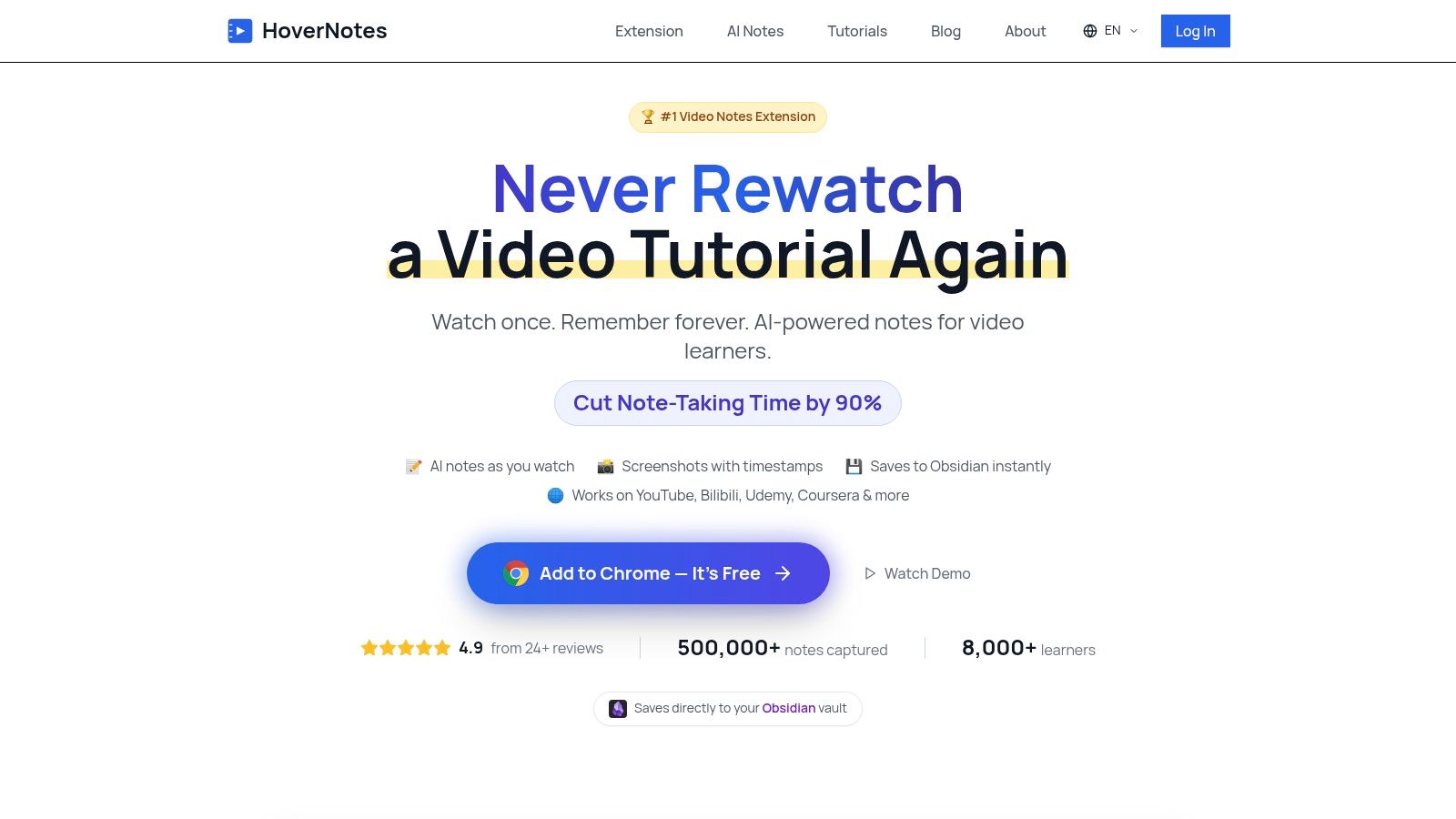
Para estudiantes que aprenden principalmente de videos, HoverNotes es una extensión de Chrome que ve los videos contigo, genera notas con IA y las guarda como Markdown directamente en tu sistema de archivos. Está diseñada para resolver el problema de la retención en el aprendizaje por video: ves una clase de dos horas pero olvidas la mayoría de lo visto una semana después. HoverNotes aborda esto creando materiales detallados y buscables en tiempo real.
Lo que la diferencia es que no solo analiza la transcripción; realmente ve el video cuadro a cuadro. Esto es fundamental para áreas visualmente intensas como STEM o programación. Captura fragmentos de código, diagramas y ecuaciones que aparecen en pantalla, integrándolos directamente en tus notas. Esto significa que tu material de estudio refleja lo que realmente se mostró, proporcionando contexto visual esencial que las herramientas solo con transcripción pierden.
HoverNotes agiliza todo el proceso de aprendizaje desde video, convirtiéndola en una de las mejores aplicaciones para tomar notas para estudiantes que valoran la eficiencia y la propiedad de datos.
Capturas de pantalla con marca de tiempo clicables: Captura un pantallazo del video con un clic. Cada imagen se incrusta en tus notas con una marca de tiempo que puedes clicar para saltar instantáneamente a ese momento exacto en el video. Perfecto para revisar una demostración compleja de código sin tener que buscar sin fin.
Prioridad local y listo para Obsidian: Las notas se guardan como archivos planos en formato Markdown (.md) directamente en tu máquina. Esto permite una integración nativa fluida con Obsidian, Logseq o cualquier editor de texto. Tus notas te pertenecen, están en tu dispositivo y accesibles offline.
Compatibilidad universal de plataformas: Funciona casi en cualquier lugar donde haya un video: Udemy, Coursera, YouTube, portales universitarios e incluso archivos de video locales.
Modo de enfoque: Para combatir distracciones, el modo video coloca el video a un lado y tus notas al otro, bloqueando anuncios y creando un ambiente de estudio limpio.
Compatible con Notion: Las notas pueden copiarse y pegarse directamente en Notion con formato e imágenes intactas, facilitando la integración con un tablero Notion existente.
HoverNotes utiliza un modelo de acceso básico y opciones mejoradas que es fácil de probar.
Acceso básico: Los nuevos usuarios reciben 20 minutos de créditos para generación de notas con IA, sin necesidad de tarjeta. El acceso básico también incluye toma manual ilimitada de notas, capturas con timestamp ilimitadas y acceso al modo enfoque. Confirma las opciones actuales en la página de precios de HoverNotes.
Planes mejorados: Se ofrece capacidad adicional de IA y opciones ilimitadas, con precios regionales mostrados en la página actual de precios de HoverNotes.
Ve el video, no solo la transcripción, capturando contexto visual.
Principalmente una extensión Chrome, por lo que es basada en navegador.
Guarda notas como archivos locales Markdown, ideal para usuarios Obsidian y propiedad de datos.
Se requieren créditos IA para toma automática de notas.
Funciona en casi cualquier sitio con video, no solo YouTube.
Carece de funciones para notas manuscritas.
Capturas con marca de tiempo que facilitan revisar momentos específicos del video.
Ideal para: Estudiantes de campos técnicos, usuarios de Obsidian, autodidactas en plataformas como Coursera y Udemy, y cualquiera que quiera una base de conocimiento permanente y buscable a partir de videos.
Para estudiantes que prefieren notas manuscritas, especialmente en un iPad con Apple Pencil, Goodnotes es una opción líder. Convierte una tablet en un cuaderno digital, ideal para anotar diapositivas, resolver problemas matemáticos o hacer esquemas. Su fortaleza radica en replicar la experiencia de papel y lápiz con beneficios digitales.
Goodnotes maneja bien PDFs. Puedes importar un conjunto de diapositivas de 100 páginas y anotarlas durante una clase, resaltando conceptos y añadiendo notas en los márgenes. El reconocimiento de escritura a mano del sistema hace que tus notas manuscritas sean buscables, una característica clave para encontrar términos específicos en todos tus cuadernos.
Goodnotes usa un modelo de acceso básico y planes mejorados. El acceso básico está limitado a tres cuadernos. Un plan mejorado desbloquea cuadernos ilimitados y sincronización completa multiplataforma. Usuarios de Apple también pueden hacer una compra única para una licencia perpetua solo en dispositivos Apple. Puedes encontrar detalles en la página oficial de precios de Goodnotes.
Excelente para notas manuscritas y usuarios de Apple Pencil.
El acceso básico es muy limitado (3 cuadernos).
Robusta anotación de PDFs para diapositivas.
Sincronización completa y colaboración requieren suscripción.
Búsqueda potente que incluye texto manuscrito.
Las funciones IA son un complemento de pago aparte.
Herramientas de estudio integradas como flashcards.
Exportar a Markdown para usar herramientas como Obsidian no es un proceso limpio.
Consejo práctico: Goodnotes es ideal para asignaturas muy visuales como química, física o anatomía. Si quieres aprender más sobre técnicas de estudio efectivas, puedes encontrar estrategias útiles en cómo tomar notas de estudio.
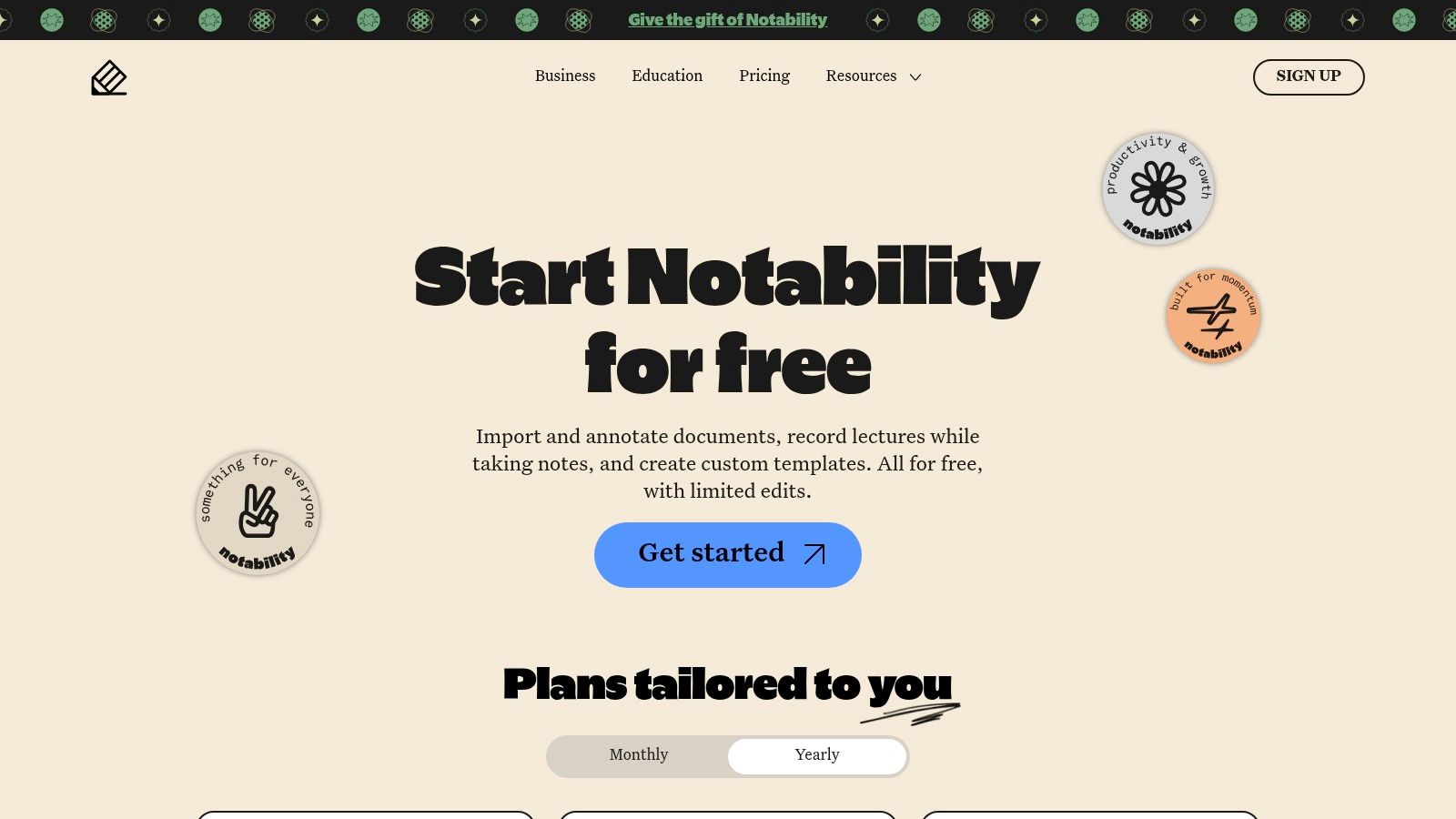
Notability combina notas manuscritas con grabaciones de audio sincronizadas. Esta función revoluciona las clases, permitiéndote tocar cualquier parte de tus notas escritas y escuchar instantáneamente el audio de ese momento exacto. Ofrece una red de seguridad poderosa, mezclando escucha y escritura en una sola experiencia.
La interfaz de la app es simple y rápida. Más allá de la sincronización de audio, Notability soporta anotaciones PDF, notas escritas y herramientas creativas como stickers digitales. Las funciones de IA, como transcripción y resumen en planes superiores, consolidan su posición como centro académico todo en uno para usuarios de iPad.
Notability usa un modelo de suscripciones con opciones básicas y mejoradas. El plan gratuito "Starter" ofrece funciones básicas de toma de notas. Las suscripciones "Plus" y "Pro" desbloquean edición ilimitada, sincronización multiplataforma y capacidades avanzadas de IA. Más detalles en la página oficial de precios Notability.
Excelente función de sincronización de audio para clases.
Funciones avanzadas de IA requieren plan mejorado.
Interfaz simple y rápida.
Experiencia principalmente centrada en Apple.
Generoso plan gratuito inicial.
Exportar a Markdown para Obsidian es engorroso.
Herramientas de estudio incorporadas como flashcards.
Carece de funciones profundas de organización.
Consejo práctico: Usa la grabación de audio de Notability durante clases aceleradas. Enfócate en capturar conceptos y diagramas clave. Más tarde, toca una nota para volver a escuchar la explicación detallada del profesor en ese punto.
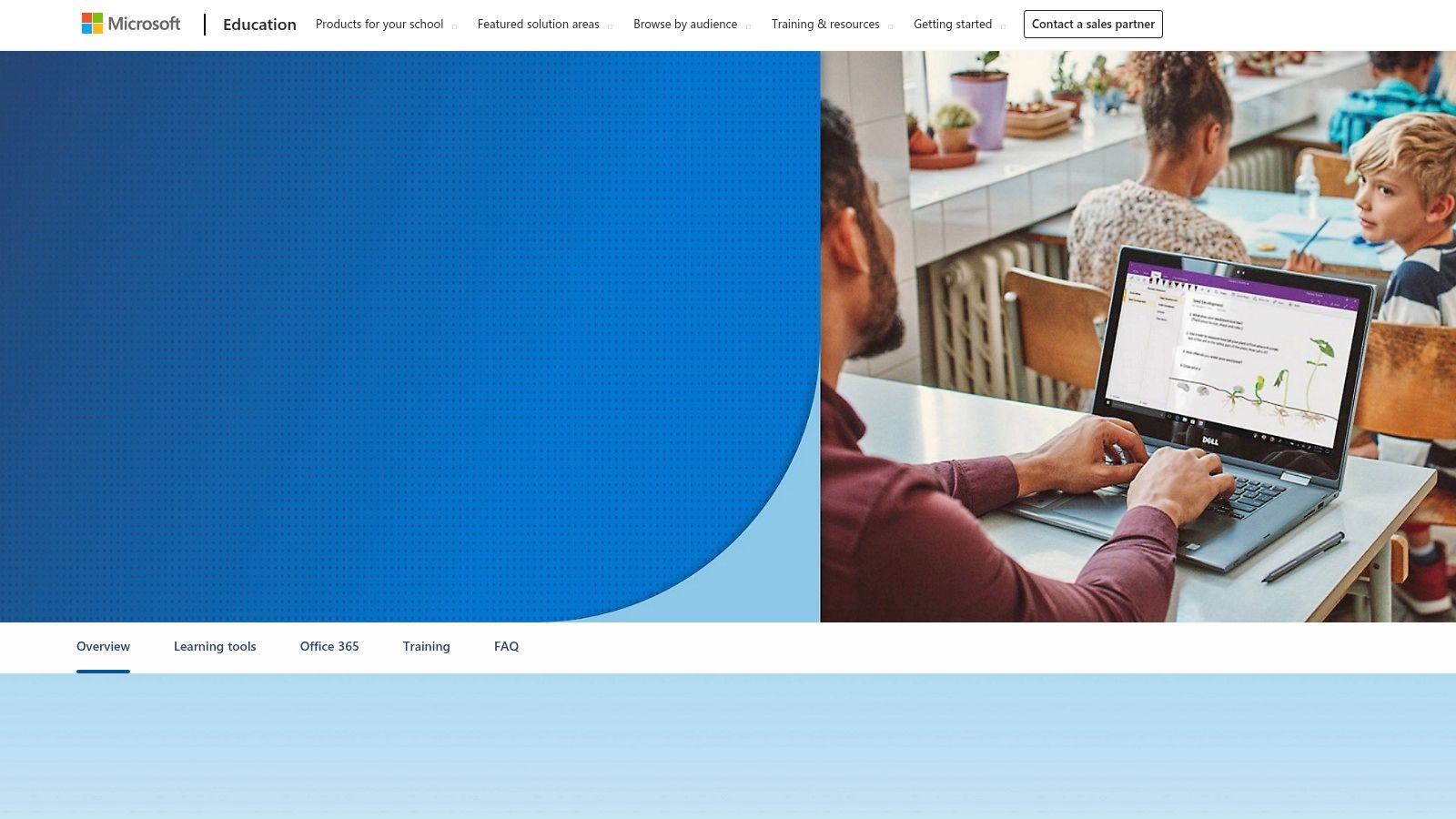
Para estudiantes en el ecosistema Microsoft, OneNote es una potencia, a menudo gratuita con planes escolares de Office 365 Educación. Es una carpeta digital de tres anillos con un lienzo flexible, que permite escribir, dibujar, insertar medios y tipear en cualquier lugar. Esto la hace ideal para organizar proyectos complejos y combinar notas mecanografiadas con diagramas a mano.
La gran ventaja de OneNote es su integración con Microsoft 365. Puedes incrustar documentos de Word, hojas de Excel y diapositivas de PowerPoint directamente en tus notas. Para proyectos en grupo, la función Class Notebook provee un espacio colaborativo, biblioteca de contenido y cuadernos privados para cada estudiante.
La aplicación central de OneNote es gratuita. Muchos estudiantes acceden al paquete completo de Office 365 sin costo por sus escuelas. Puedes verificar tu elegibilidad en la página oficial Microsoft OneNote para Educación.
Disponible sin costo adicional para la mayoría de estudiantes.
Mejor cuando estás totalmente dentro del ecosistema Microsoft 365.
Excelente soporte multiplataforma con sincronización confiable.
Exportar notas a Markdown limpio puede ser difícil.
Potentes funciones colaborativas, especialmente Class Notebook.
El lienzo libre a veces puede sentirse desorganizado.
Fuerte soporte para escritura a mano.
La interfaz puede sentirse anticuada en comparación con apps más nuevas.
Consejo práctico: Usa el controlador de impresión "Enviar a OneNote" de OneNote en Windows para guardar páginas web y PDFs como páginas estáticas en tu cuaderno. Si quieres conocer herramientas que mejoran este proceso para video, echa un vistazo a nuestro post sobre un tomador de notas de conferencias dedicado.
Para estudiantes que quieren un espacio digital todo en uno, Notion combina documentos, bases de datos, wikis y herramientas de gestión de proyectos. Es excelente para organizar desde notas de clase y listas de lectura hasta cronogramas de proyectos grupales en un solo sistema.
La fuerza de Notion es su flexibilidad. Una página simple puede contener notas, imágenes e incrustaciones de video. Esa misma página puede convertirse en una base de datos compleja con propiedades personalizadas, filtros y vistas (como calendario o tablero Kanban). Los estudiantes pueden crear un "tablero" central para toda su vida académica.
Notion usa un modelo de acceso básico y planes mejorados. El acceso básico es generoso pero con algunas limitaciones. Crucialmente, Notion ofrece su Plan Plus gratis a cualquiera con un correo escolar válido. Esto desbloquea bloques ilimitados y cargas de archivo mayores. Aprende más en la página oficial de precios Notion.
Alta flexibilidad para organizar todos los aspectos de la vida estudiantil.
Puede tener una curva de aprendizaje pronunciada.
Potentes funciones de base de datos para información estructurada.
La funcionalidad offline puede ser limitada.
Plan Plus gratuito para estudiantes con excelente valor.
Carece de funciones dedicadas para escritura a mano y anotación de PDFs.
Comunidad vibrante y vasto ecosistema de plantillas.
Puede sentirse más lenta que apps de notas más simples.
Consejo práctico: Usa la función de bases de datos de Notion para crear una lista maestra de tareas para todos tus cursos. Añade propiedades como nombre del curso, fecha de entrega y estado. Para quienes toman cursos en video, un buen flujo de trabajo es clave; conoce uno en nuestra guía sobre pasar de Notion a HoverNotes para tutoriales.
Para estudiantes que ven sus notas como una red interconectada de conocimiento, Obsidian es una solución poderosa a largo plazo. Es una base de conocimiento personal que reside localmente. Construida sobre archivos de texto plano Markdown, Obsidian asegura que poseas tus datos para siempre, siendo una de las mejores opciones para construir un "segundo cerebro" duradero.
La fortaleza central de Obsidian es su filosofía local-first. Tus notas son simplemente carpetas con archivos .md en tu computadora. Al crear enlaces entre notas, construyes un "grafo de conocimiento" que representa visualmente cómo los conceptos se conectan. Esto es invaluable para la investigación, ayudándote a descubrir relaciones entre notas de clase y resúmenes de lectura.
La app central Obsidian es gratuita para uso personal y educativo en Windows, macOS y Linux. Servicios pagos opcionales incluyen Obsidian Sync para sincronización cifrada y Obsidian Publish para transformar notas en sitios web. Encuentra los precios más recientes en la página oficial Obsidian.
Completa propiedad y privacidad de datos con archivos locales Markdown.
Curva de aprendizaje más empinada que apps simples.
Altamente personalizable con vasta biblioteca de plugins.
La app base carece de colaboración en tiempo real.
Gratis para uso personal con sincronización pagada opcional.
Sin soporte nativo para escritura manual; optimizada para teclado.
Excelente para construir una base de conocimiento a largo plazo.
La sincronización requiere plan mejorado o configuración manual.
Consejo práctico: Obsidian sobresale en combinación con herramientas que le alimentan notas Markdown bien estructuradas. Para clases en video, una extensión como HoverNotes es ideal porque guarda notas generadas con IA y pantallazos con marca de tiempo directamente como archivos .md. Esto te permite construir una guía de estudio rica en tu bóveda Obsidian sin esfuerzo manual. Aprende más en esta guía completa para tomar notas de video en Obsidian.
Evernote es un veterano en el espacio digital para toma de notas, funcionando como un "archivo digital." Sobresale en capturar, organizar y encontrar información de páginas web, documentos, imágenes y notas manuscritas. Para estudiantes que manejan múltiples materias y proyectos de investigación, Evernote ofrece un centro centralizado.
Su fortaleza clave siempre ha sido su búsqueda robusta y la extensión para navegador Web Clipper. Los estudiantes pueden recortar artículos o pantallazos de cualquier página web. La función de búsqueda puede encontrar texto escrito o manuscrito dentro de PDFs, documentos Office e incluso imágenes, haciéndola ideal para investigaciones profundas.
Evernote usa un modelo con acceso básico y planes mejorados, pero el acceso básico tiene limitaciones significativas, funcionando más como prueba. Los planes mejorados (Personal, Profesional) desbloquean dispositivos ilimitados, tamaños mayores de notas y acceso offline. Lo mejor es consultar la página oficial de precios Evernote para detalles actuales.
Excelente para captura de investigación web con su Web Clipper.
El acceso básico es muy limitado.
Búsqueda potente entre documentos.
Más caro que muchos competidores.
Ecosistema maduro y confiable.
Carece de herramientas especializadas para estudiantes como flashcards.
Desarrollo activo con nuevas funciones IA.
Exportar a Markdown plano puede ser complejo.
Consejo práctico: Usa Evernote como tu repositorio de investigación. Crea un cuaderno por curso y usa el Web Clipper para guardar artículos y PDFs. Etiqueta notas con palabras clave como "tema_examen" para agilizar la búsqueda. Para más sobre cómo la IA está cambiando la toma de notas, revisa nuestra guía sobre apps modernas de tomadores de notas con IA.
#Las 7 mejores apps para tomar notas de estudiantes — Comparación de características
Excelente: Soporte nativo Obsidian, fácil copiar y pegar a Notion
Acceso básico y planes mejorados (20 min IA gratis), planes mejorados
Tomar notas estructuradas y visuales de cualquier contenido en video (cursos, conferencias).
Goodnotes
Apple-first, algo de soporte Windows/Android
Bueno (PDF, imágenes)
Pobre: No diseñado para exportar a Markdown.
Acceso básico y planes mejorados (3 cuadernos), plan mejorado o compra única
Notas manuscritas, anotación PDF y diagramas en iPad.
Notability
Apple-first, visor web
Bueno (PDF, RTF)
Pobre: No diseñado para exportar a Markdown.
Acceso básico y planes mejorados, plan mejorado para funciones completas
Capturar conferencias con grabaciones de audio sincronizadas para revisión detallada.
Microsoft OneNote
Excelente (todas plataformas)
Pobre (formato propietario, PDF)
Pobre: No se integra con flujos Markdown.
Gratis con la mayoría de cuentas escolares
Organizar materiales escolares dentro del ecosistema Microsoft 365.
Notion
Excelente (todas plataformas)
Bueno (Markdown, CSV)
Bueno: Funciona como sistema alternativo; las notas pueden pegarse.
Plan Plus gratuito con correo escolar
Construir un espacio todo en uno para notas, tareas y gestión de proyectos.
Obsidian
Excelente (escritorio)
Excelente (archivos .md locales)
Nativo: Es un sistema basado en Markdown.
Gratis para uso personal, sync pagado opcional
Construir una base de conocimiento personal e interconectada a largo plazo.
Evernote
Excelente (todas plataformas)
Regular (HTML, ENEX)
Pobre: Exportar a Markdown es complicado.
Acceso básico y planes mejorados (limitados), suscripciones pagas
Recortar páginas web y organizar un archivo digital de investigación.
#Elegir tu herramienta: adapta la app a tu estilo de aprendizaje
La "mejor" app es la que se adapta a tus hábitos de estudio específicos. La herramienta correcta debe sentirse como una extensión de tu pensamiento, no como un sistema complejo adicional. Tu elección ideal depende de algunas preguntas: ¿Cómo aprendes mejor? ¿Dónde vive el contenido de tu curso? ¿Y quién posee tus notas?
Para el aprendiz táctil: Si aprendes escribiendo, especialmente en materias con muchos diagramas o ecuaciones, Goodnotes y Notability son las opciones principales por su integración fluida con stylus.
Para el universitario integrado: Si tu escuela ofrece Microsoft 365, OneNote es una opción robusta y gratuita para organizar notas y colaborar en proyectos.
Para el arquitecto del "segundo cerebro": Estudiantes que construyen un sistema de gestión del conocimiento personal (PKM) encontrarán un hogar en Notion o Obsidian. Notion destaca en bases de datos estructuradas y gestión de proyectos. Obsidian, con su enfoque local-first Markdown, ofrece longevidad y privacidad sin igual.
Una parte significativa de la educación moderna ocurre en pantalla. Las clases en video y cursos en línea presentan desafíos para los tomadores de notas tradicionales. Pausar, tipear y capturar pantallazos es un proceso tedioso que interrumpe tu flujo de aprendizaje.
Aquí una herramienta especializada es necesaria. El problema con el aprendizaje por video es que ver pasivamente conduce a mala retención. La participación activa es clave. Las herramientas diseñadas para video manejan las tareas mecánicas para que puedas enfocarte en absorber el contenido. Por ejemplo, HoverNotes está hecha para esto. No solo analiza la transcripción; ve el video capturando visuales cruciales como diagramas y código. Cada nota se marca automáticamente con el tiempo, permitiéndote volver en un clic al momento exacto en la clase.
Si tu flujo de trabajo incluye horas de video, un tomador de notas dedicado para video es el eslabón que falta. Simplifica el proceso de captura, asegurando que el conocimiento de los videos no se pierda. Las notas se copian limpias en Notion si guardas todo ahí, y si usas Obsidian para aprender, HoverNotes guarda notas directamente en tu bóveda.
Ahora una parte importante del aprendizaje viene del video, y una herramienta especializada puede hacer toda la diferencia. Incluso sin IA, el modo sin distracciones y las capturas en HoverNotes valen la pena para estudiar concentrado. Puedes probarla gratis—20 minutos de créditos IA, sin tarjeta de crédito. Confirma las opciones actuales en la página de precios HoverNotes.
#Qué respalda la investigación sobre el aprendizaje
Unas notas útiles deberían hacer que hagas algo con el material, no simplemente almacenar más texto. El Instituto de Ciencias de la Educación de Estados Unidos recomienda espaciar el aprendizaje en el tiempo, combinar gráficos con explicaciones verbales, usar la recuperación activa y plantear preguntas explicativas profundas (guía práctica). Una revisión revisada por pares de la investigación sobre vídeos educativos también hace hincapié en señalar la información importante, dividir las lecciones en segmentos manejables, dar control a los estudiantes y añadir indicaciones de aprendizaje activo (revisión). Aplicado aquí, eso significa pausar en los límites conceptuales, capturar solo la evidencia visual que necesitas, escribir una pregunta con tus propias palabras y responderla más tarde antes de reproducir de nuevo la fuente. Estas prácticas están basadas en evidencia; un porcentaje universal de retención para una aplicación o flujo de trabajo concretos no lo está.
¿Cansado de tener capturas de pantalla dispersas? Aprende a tomar capturas de pantalla de videos con flujos de trabajo que conectan las imágenes con tus notas y mejoran tu aprendizaje.
Aprende a utilizar el método Cornell para tomar notas en video y mejorar el aprendizaje de YouTube o Coursera. Esta guía ofrece pasos prácticos y plantillas.
Descubre cómo empezar a aprender de videos de manera efectiva si tienes TDAH. Esta guía ofrece estrategias adecuadas para el cerebro que ayudan a la concentración, la toma de apuntes y la retención.