
The Complete Guide to HoverNotes + Obsidian Integration
Transform any video into permanent, searchable knowledge in your vault
See It in Action First
Before diving into the details, watch this 2-minute demo of HoverNotes transforming a YouTube math tutorial into permanent notes in an Obsidian vault:
Key moments: AI capturing complex equations (1:15), multilingual notes (0:45), and seamless Obsidian sync (2:00)
If you're an Obsidian user who learns from videos, you've probably felt this pain: watching an amazing tutorial, taking scattered notes, then never being able to find that crucial insight again when you need it.
HoverNotes solves this by turning any video into searchable study notes that live directly in your Obsidian vault. Here's everything you need to know.
Why Obsidian + HoverNotes Is Perfect
Obsidian's strength: Building connected knowledge graphs from your notes
HoverNotes' strength: Converting video content into linkable study notes
Together: Every video becomes a permanent part of your knowledge system
Instead of videos being isolated learning experiences, they become integrated building blocks in your personal knowledge base.
Quick Setup (2 Minutes)
Follow along with the demo video above to see each step in action
Step 1: Install HoverNotes
- Add the HoverNotes Chrome Extension
- Create your account
- You're ready to go
Step 2: Connect to Obsidian
- Navigate to any video (YouTube, Coursera, Udemy, etc.)
- Click the HoverNotes icon that appears on the video to open the HoverNotes panel
- In the panel, click Connect Vault and choose your Obsidian vault folder (shown at 0:15 in the demo)
- That's it—all future notes save directly to your vault
No plugin, API key or third-party service required. Obsidian doesn't even need to be open: HoverNotes writes the Markdown files straight into the folder you picked. Saving to your vault is free on every plan.
What You'll See
As shown in the demo, you get:
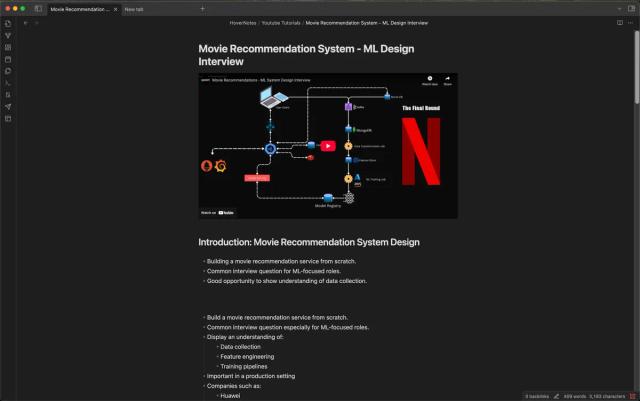
- Video on left, notes on right - Perfect split-screen workflow
- Real-time AI note generation - Watch equations and concepts get captured automatically
- Saves as you go - Notes autosave as markdown files in your vault
- Multilingual support - AI notes in 24 languages
The Basic Workflow
Traditional Obsidian Video Workflow:
1. Watch video
2. Manually take notes in Obsidian
3. Try to remember to add timestamps
4. Struggle to capture visual elements
5. Notes often incomplete or messy
HoverNotes + Obsidian Workflow:
As demonstrated in the video:
1. Navigate to any video
2. Click HoverNotes icon (creates split-screen view)
3. AI watches and generates notes automatically
4. Take screenshots (Ctrl/⌘+K) and timestamps (Ctrl/⌘+J)
5. Add your own insights alongside AI notes
6. Everything autosaves to your Obsidian vault as Markdown
Key advantage: Watch the "magic moment" at 1:15 in the demo where the AI captures a complex mathematical equation that manual note-taking would struggle with.
What Your Notes Look Like
A simplified example; the demo video shows a real note at 2:00
HoverNotes creates properly formatted markdown that plays nice with all your Obsidian features:
What a Saved Note Contains:
Each note is a Markdown file with properties (title, description, author, source, created, tags) at the top. Screenshots go into a hover-notes-images folder in your vault and are embedded with standard Markdown image links, each followed by a timestamp link back to that moment. On paid plans, the AI Notes transcript is saved beside the note in a hover-notes-transcripts folder.
---
title: React Hooks Tutorial - useState Explained
author: JavaScript Mastery
source: https://youtube.com/watch?v=abc123
created: 2026-03-15
tags:
- hover-notes
- youtube.com
---
## Key Concepts
### useState Hook
- Allows functional components to have state
- Returns array: [stateValue, setterFunction]
- State updates trigger re-renders

[00:03:45](https://youtube.com/watch?v=abc123&t=225s)
Your Obsidian Features Still Work:
- Links: add
[[React Hooks]]while you edit to create bidirectional links - Tags: #javascript #react #tutorial
- Backlinks: See all notes referencing this concept
- Graph view: Visualize knowledge connections
- Search: Find any concept across all video notes
Advanced Integration Features
1. Visual Content Capture
See this in action at 1:15 in the demo with the mathematical equation
### Component Lifecycle Diagram

**Timestamp:** [5:45](https://youtube.com/watch?v=abc123&t=345s)

The diagram shows three phases:
- Mounting: Component created
- Updating: Props or state change
- Unmounting: Component removed
2. Code Block Extraction
### useState Example
**Timestamp:** [8:20](https://youtube.com/watch?v=abc123&t=500s)

```javascript
const [count, setCount] = useState(0);

function increment() {
  setCount(count + 1);
}
Key insight: Always use functional updates for dependent state changes.
### 3. Multilingual Learning
*Demonstrated at 0:45 in the video - watch in English, get notes in Chinese*
```markdown
### 数学概念 (Mathematical Concepts)
**原视频:** [YouTube Math Tutorial](https://youtube.com/watch?v=abc123)

AI自动生成的笔记支持中文、韩文、西班牙文等多种语言。
Perfect for international students learning in their second language.
4. Linking to Your Other Notes
HoverNotes doesn't add links to your existing notes by itself. Add [[wikilinks]] as you edit, and Obsidian's backlinks and graph view pick them up:
This builds on [[useState]] and connects to [[useEffect]] for side effects.
Comparison with DIY Solutions
Many Obsidian users cobble together complex workflows with multiple plugins:
DIY Approach:
- Media Extended Plugin: For video embedding
- Templater: For note structure
- Web Clipper: For saving content
- Timestamp Notes: For time linking
- Manual transcription: Copy/paste from YouTube
- Result: 15+ minutes of setup per video
HoverNotes Approach:
- One extension: Handles everything
- One setup step: Connect your vault once
- Visual understanding: Captures what transcripts miss
- Result: Start watching, end with study notes
Best Practices for Video Learning in Obsidian
1. Create a Video Notes Structure
📁 Video Notes/
  📁 Programming/
    📁 React/
    📁 Python/
  📁 Business/
  📁 Design/
2. Use Consistent Tags
Tags: #video-notes #react #hooks #javascript-mastery
3. Link to Existing Notes
This explains the [[State Management]] concept from my Redux notes.
4. Add Your Own Insights
## My Thoughts
This approach is cleaner than class components because...

## Questions to Explore
- How does this compare to Vue's reactivity?
- What are the performance implications?

## Action Items
- [ ] Try building a counter with useState
- [ ] Research useState vs useReducer
Common Use Cases
For Students
# Lecture 5: Organic Chemistry Reactions

**Professor:** Dr. Smith
**Course:** [[CHEM 301]]
**Assignment Due:** [[2024-03-20]]

## Reaction Mechanisms
[Auto-generated notes with chemical diagrams]

## My Study Notes
Need to review [[Nucleophilic Substitution]] before exam.
For Developers
# AWS Lambda Deep Dive

**Source:** [[AWS Training Videos]]
**Technology:** [[Serverless Architecture]]

## Key Learnings
[Auto-generated technical notes]

## Implementation Ideas
Could use this for the [[Project Dashboard]] backend.
For Researchers
# Expert Interview: Climate Change Policy

**Interviewee:** [[Dr. Jane Climate]]
**Research Topic:** [[Carbon Pricing Models]]

## Key Quotes
[Timestamp-linked important statements]

## Research Connections
Links to [[Paris Agreement]] and [[Carbon Tax Analysis]].

Troubleshooting Common Issues
Notes Not Saving to Obsidian?
- Check that the HoverNotes panel says Connected to vault with your vault's name; if not, click Connect Vault (or Change Vault) and pick the folder again
- Make sure you picked the vault folder itself or a folder inside it, so Obsidian can see the files
- Obsidian doesn't need to be running: HoverNotes writes the files directly, and Obsidian shows them the next time it looks at the vault
Formatting Issues?
HoverNotes uses standard markdown—if something looks odd:
- Check your Obsidian theme compatibility
- Ensure you're using a recent version of Obsidian
- Try refreshing the note in Obsidian
Want Different Note Structure?
HoverNotes doesn't have note templates. You can:
- On a paid plan, give AI Notes your own prompt (Custom AI Prompt) to shape what it writes
- Edit the auto-generated notes after creation
- Set up Templater to modify imported notes
- Use find/replace for bulk formatting changes
Advanced Workflows
Learning Path Creation
# React Learning Journey

## Completed
- [[useState Hook Tutorial]] ✅
- [[useEffect Deep Dive]] ✅

## In Progress
- [[Custom Hooks Guide]] 🔄

## Planned
- [[React Context API]]
- [[Redux vs Context]]

## Knowledge Gaps
Need to understand [[React Fiber]] better.
Project-Based Learning
# Building a Todo App - Learning Log

## Architecture Decisions
Based on [[React Best Practices Video]], using:
- [[Functional Components]]
- [[Custom Hooks]] for logic
- [[Local Storage]] for persistence

## Progress Notes
- [[Day 1]]: Setup and basic structure
- [[Day 2]]: Add/delete functionality
- [[Day 3]]: State management patterns

## Video Resources
- [[React Project Tutorial]] - Main guide
- [[State Management Patterns]] - For complex logic
- [[CSS Grid Layout]] - For responsive design
What's Next
An Obsidian plugin for HoverNotes is in private testing; it isn't released yet. You don't need it: the Chrome extension already saves every note straight into your vault, as described above.
Getting Started Today
- Watch the demo: See HoverNotes in action (2 minutes)
- Install HoverNotes: Chrome Extension
- Connect your vault: Follow the setup shown in the video
- Watch any video: We'll handle the rest. The free plan includes 20 minutes of AI Notes and 10 minutes of Live Translate with no card; your own notes, screenshots and saving to Obsidian have no limit
- Build your knowledge: Every video becomes permanent learning
The combination of HoverNotes' AI understanding and Obsidian's knowledge management creates something powerful: video content that becomes part of your thinking, not just your watching.
Ready to transform how you learn from videos? Your future self will thank you for making every video a permanent part of your knowledge base.
Questions about the integration? Join our community or check out more tutorials.