Yes, with limits: NotebookLM (now Gemini Notebook) takes YouTube links and MP4 files but keeps only the speech. How to add any video, visuals included.
By HoverNotes Team•9 min read
Yes, with limits. Gemini Notebook (formerly NotebookLM; Google renamed it in July 2026) accepts public YouTube links and video files such as MP4 up to 200MB, but it keeps only the speech, as a transcript. Slides, code and diagrams shown on screen are dropped, and videos behind a login, like Udemy, Coursera or a university portal, can't be added at all. To keep those, turn the video into notes first.
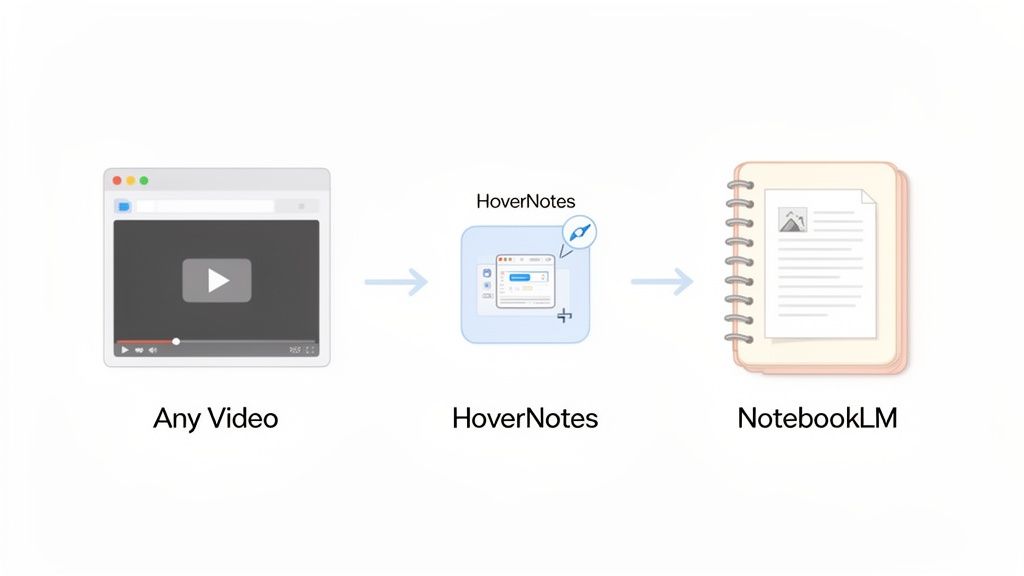
That last step is where HoverNotes comes in: it takes AI notes and timestamped screenshots while you watch any video in your browser, and the notes go into Gemini Notebook as an ordinary source. This guide covers what Gemini Notebook does with each kind of video, then the workflow for everything it can't take directly.
Gemini Notebook doesn't watch videos. Whatever you add, it reads the words: a YouTube link brings in the video's captions, and an uploaded video file is treated as audio and transcribed when you import it. Here's what each option gets you, from Google's help page on sources:
Public YouTube video: paste the link under Add sources. Gemini Notebook keeps the caption transcript. The video needs captions or speech, videos uploaded in the last 72 hours may fail, and the source is removed within 30 days if the video is deleted or made private.
Video file (MP4, AVI, MPEG and others): upload it like an audio file. Gemini Notebook transcribes the speech when you import it and ignores the picture. Each file can be up to 200MB, and a video with no speech won't import.
Course video (Udemy, Coursera, LinkedIn Learning, a university portal): can't be added. The video sits behind a login, and a web link brings in only the page's text.
Screen recording or demo without narration: can't be added usefully, because there's no speech to transcribe.
So the answer to "can Gemini Notebook read videos?" is: it reads what's said in some videos. For a talk or a podcast-style lecture that's often enough. For a coding tutorial, a math lecture or a slide-heavy course, most of what matters is on screen and never makes it in.
#Three-Step Workflow from Any Video to a Gemini Notebook Source
When the video is behind a login, has no captions, or carries its meaning on screen, add your notes instead of the video:
Stage
Action
Key Benefit
1. Capture
Use HoverNotes to take AI notes and screenshots of the video playing in your browser.
Grabs the visual context, like diagrams, charts or code, that a transcript misses.
2. Prepare
Save the notes as a Markdown file, or copy them.
A clean, structured document Gemini Notebook can read.
3. Import
Upload the .md file, or paste the text as a source, in Gemini Notebook.
The video's content is now searchable and ready to question.
#Why Gemini Notebook Needs a Companion for Most Online Videos
Gemini Notebook is powerful because it lets you chat directly with your sources, with citations back to them. Its YouTube support is useful, but it also shows the gap.
Much of the most valuable educational video isn't on public YouTube. It's on Udemy, Coursera, LinkedIn Learning, private university portals and company training sites. Gemini Notebook can't sign in to those for you, and downloading course videos to upload them usually breaks the platform's terms. That isn't a fault of Gemini Notebook; it's how these platforms are built.
Even when Gemini Notebook can take a video, a transcript misses the point of many of them. A wall of text can't hold the diagram drawn on a whiteboard, the line of code on screen, or the chart the speaker is pointing at while saying "as you can see here."
HoverNotes works the other way round. Its AI notes are generated from short clips of the video itself, picture and sound together, so what's on screen ends up in the notes. Screenshots land next to the text they illustrate, each one linked to its moment in the video.
Once you have the HoverNotes Chrome extension installed, open the video you need to learn from: a university lecture, a Udemy course, a YouTube tutorial. For a file on your computer, open it in the free local video note taker, which plays it in your browser with HoverNotes alongside.
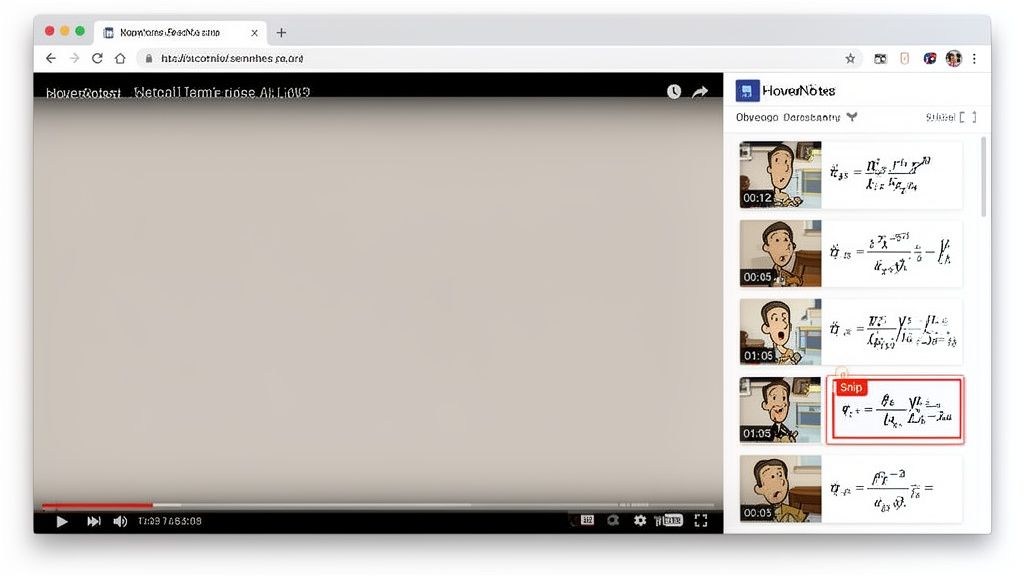
With the video playing, turn on AI notes. HoverNotes writes notes as the video goes, and you can add your own lines and screenshots at any point:
Full-frame screenshots (Ctrl/⌘+K in the HoverNotes panel) are free and unlimited, and each one is linked to its timestamp, so one click takes you back to that moment.
Snips let you capture just one area, like a single formula or a block of code. They're free as well.
Notes language: AI notes can be written in any of 24 languages, so you can watch a lecture in Japanese and have the notes in English.
Markdown files: notes can be saved as plain .md files to a folder on your computer or your Obsidian vault. You own the files; move them, back them up or search them like any other text.
You've captured the video. Now add the notes to Gemini Notebook so you can start asking questions. There are two clean ways to do it.
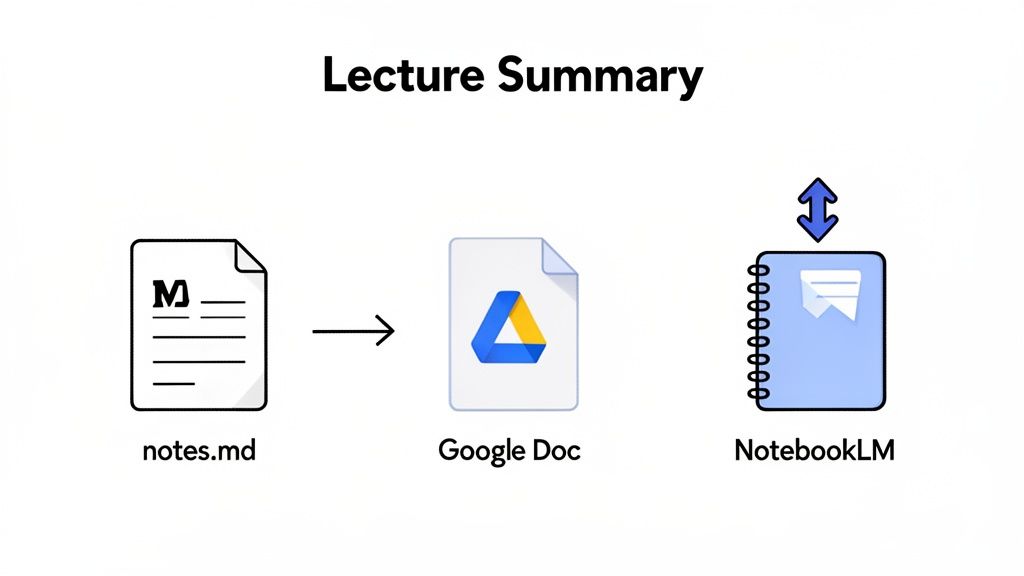
Upload the Markdown file. Gemini Notebook accepts .md files directly: open your notebook, choose Add sources, and upload the file from the folder or vault where HoverNotes saved it. If you'd rather keep sources in Google Drive, upload the file there first and add it from Drive.
Paste the text. Copy the notes from the HoverNotes editor and paste them as a copied-text source, or into a Google Doc that you then add. Headings and lists carry over.
Gemini Notebook reads text from a Markdown file, not the images it links to. When a screenshot carries the point, like a key diagram or a slide, add that image as its own source; Gemini Notebook accepts PNG and JPEG images. Each image counts as a source, and a free notebook holds up to 50 sources (100 to 600 on Google AI Plus, Pro and Ultra).
Pro tip: Before adding the notes, put a clear title and a one-sentence summary at the top, such as the course, the lecture and what it covers. That context gives you sharper answers.
This works the same way for any other AI tool you use. For more ways to work with YouTube in particular, see our guide to turning a YouTube video into notes.
#How to Get the Most From Your Video Notes in Gemini Notebook
Once your notes are a source, you can go well beyond asking for a summary. Because the notes hold what was on screen, with timestamps, you can ask precise questions.
"Explain the concept from the section at 12:40 in plain words."
"Based on the code in my notes, what would this function return for an empty list?"
"Compare the two approaches the lecturer drew on the whiteboard."
"Make a quiz from these notes and my lecture slides."
Add the course's slides, readings and your notes from several lectures to one notebook, and Gemini Notebook answers across all of them, with citations you can check.
No. Gemini Notebook reads text. For a YouTube link it imports the caption transcript, and for an uploaded video file it transcribes the speech. Anything shown on screen but not said, like slides, code or diagrams, isn't included.
Yes. Google renamed NotebookLM to Gemini Notebook on July 16, 2026. It's the same standalone product under a new name, so everything in this guide applies to both.
#Can I add Udemy, Coursera or university lecture videos to Gemini Notebook?
Not directly. Those videos sit behind a login, so Gemini Notebook can't import them, and a web link only brings in the page's text. Take notes on the video with a tool like HoverNotes while you watch, then add the notes as a source.
#Why won't my YouTube video import into Gemini Notebook?
The most common reasons are that the video has no captions or no speech, it was uploaded less than 72 hours ago, it's private, or the link is wrong. Videos you can watch only while signed in won't import either.
#Will this work if the video is in another language?
Yes. In HoverNotes you can choose the language of your notes, so a lecture in Japanese can produce notes in English. Add those notes to Gemini Notebook and you can work with the content entirely in English.
If you have other questions, you'll likely find the answers in our HoverNotes FAQ.
You can try HoverNotes free: the free plan includes 20 minutes of AI Notes and 10 minutes of Live Translate, with no credit card required, and it works on every video site. Screenshots and note-taking work without AI too, with no limit. Current plans are on the HoverNotes pricing page.
Useful notes should make you do something with the material, not merely store more text. The U.S. Institute of Education Sciences recommends spacing learning over time, combining graphics with verbal explanations, using active retrieval, and asking deep explanatory questions (practice guide). A peer-reviewed review of educational video research also emphasizes signaling important information, splitting lessons into manageable segments, giving learners control, and adding active-learning prompts (review). Applied here, that means pausing at concept boundaries, capturing only the visual evidence you need, writing a question in your own words, and later answering it before replaying the source. These practices are evidence-based; a universal retention percentage for one app or workflow is not.