Como Fazer Anotações Eficazes em Cursos Udemy | HoverNotes
Course Platforms7 de janeiro de 2026•Updated: 16 de julho de 2026
Como Fazer Anotações Eficazes em Cursos Udemy
Transforme seus cursos online com um sistema mais inteligente para anotações Udemy. Aprenda a capturar detalhes visuais, manter-se organizado e realmente reter o que você assiste.
Por HoverNotes Team•14 min de leitura
Você já passou por isso. Você maratona um curso Udemy, sente aquela onda de realização, e então, uma semana depois, tudo fica meio confundido. O problema não é o curso; é a lacuna entre assistir e lembrar.
Notas eficazes Udemy preenchem essa lacuna. Elas transformam a visualização passiva numa base de conhecimento permanente e pesquisável, da qual você é dono.
#Por que suas atuais notas Udemy não fixam na memória
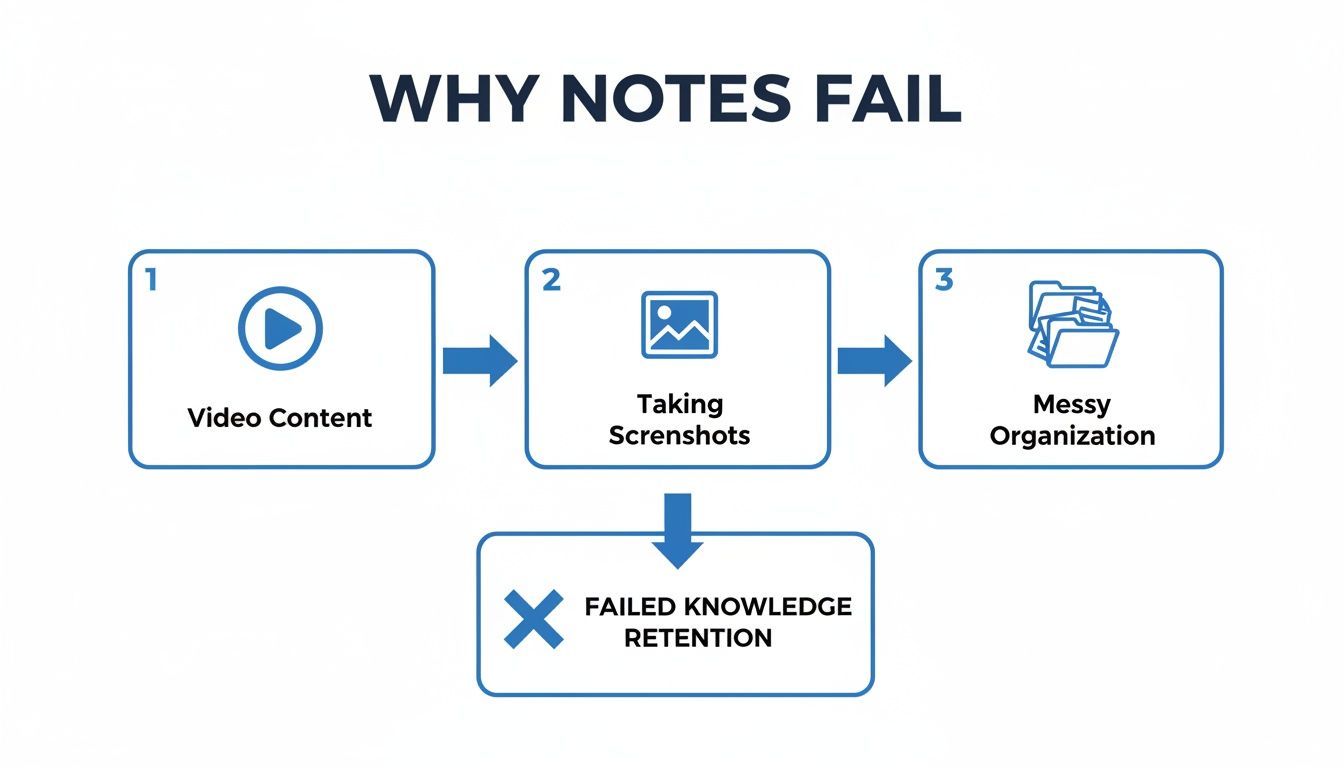
Terminar um curso é uma coisa; incorporar esse conhecimento ao seu conjunto de habilidades é outra. Se seu sistema é uma pasta aleatória de capturas de tela e um arquivo de texto pela metade, você está criando bagunça digital, não construindo conhecimento.
Aprender com vídeos tem um problema de retenção. As pessoas assistem, mas não lembram. Isso geralmente acontece por causa de algumas armadilhas comuns.
Ficar pausando o vídeo, alternando para um editor de texto, digitando e voltando é um malabarismo, não um processo de aprendizado. Fazer anotações manuais enquanto assiste a vídeos é difícil.
Cada vez que você muda de contexto, sua concentração se quebra. Você não está mais pensando no conceito; está apenas tentando acompanhar. É assim que uma aula de 30 minutos vira uma tarefa de 60 minutos, aumentando a chance de desistir das anotações.
Confiar na transcrição do curso parece um atalho inteligente, mas é um desastre para qualquer conteúdo visual. O contexto visual importa. As transcrições deixam de fora informações cruciais como:
Código na tela: A transcrição pode dizer, “Agora vamos refatorar essa função,” mas não mostra o código real. Você perde a sintaxe e a depuração ao vivo.
Diagramas e gráficos: Uma explicação brilhante da arquitetura do sistema em um quadro branco se reduz a um muro de texto sem sentido.
Demonstrações de software: Ver como um expert navega numa interface complexa é o ponto principal. A transcrição não mostra isso.
Confiar em transcrições é como ler a partitura sem nunca ouvir a música. Você entende a estrutura, mas perde a experiência.
Capturas de tela dão sensação de produtividade, mas frequentemente acabam como uma gaveta digital de lixo. Sua área de trabalho se enche de arquivos chamados Screenshot_2024-05-16.png, completamente desconectados das suas notas.
Semanas depois, você vê um arquivo e pensa: “Por que salvei isso?” O real objetivo é montar um sistema onde capturas, timestamps e pensamentos escritos convivam juntos. Isso é parte crucial das melhores práticas para aprendizado online e evita que você seja um espectador passivo.
#Um método mais inteligente para capturar conteúdo Udemy
Se você acabou com a área de trabalho cheia de capturas aleatórias depois de um curso Udemy, vamos consertar isso. Construir um sistema confiável significa passar de transcrever passivamente para capturar ativamente conhecimento para consultar por anos.
Comece antes de apertar o play. Prepare seu espaço digital. Feche abas extras do navegador e dedique uma pasta específica no seu computador ou uma nova base de dados no Notion para o curso. Esse pequeno ritual sinaliza para seu cérebro que é hora de aprender.
Cada método tem prós e contras entre conveniência, retenção e organização.
Método
Prós
Contras
Melhor Para
Caneta e Papel
Ótimo para retenção (conexão motora).
Lento; não é pesquisável; difícil incluir capturas/código.
Aprendizado conceitual com diagramas e mapas mentais.
Notas Integradas do Udemy
Conveniente; timestamps automáticos.
Notas ficam presas na plataforma; formatação limitada.
Lembretes rápidos e descartáveis durante a aula.
Notas Digitais Manuais
Flexível (Word, Notion, etc.); você é dono do conteúdo.
Alto atrito — pausar, digitar e capturar tela o tempo todo.
Alunos disciplinados com sistema robusto de gestão de conhecimento pessoal.
Captura Assistida por IA
Baixo atrito; captura timestamps, capturas e anotações IA.
Precisa de extensão no navegador; depende de ferramenta externa.
Aprendizes eficientes que querem focar no conteúdo, não no processo.
Embora o método manual dê controle, as constantes mudanças de contexto frequentemente fazem as pessoas desistirem. Uma ferramenta automatizada pode fechar essa lacuna.
Consistência é fundamental. Antes de começar, crie um template simples no Obsidian, Notion ou em um arquivo Markdown comum. Isso economiza tempo e torna as notas pesquisáveis.
Seu template pode incluir seções como:
Conceitos-Chave: Lista com tópicos principais.
Trechos de Código/Diagramas: Espaço para capturas de tela.
Percepções Pessoais: Questões, conexões e momentos "aha!".
Ações: Tarefas para praticar ou pesquisar.
Essa estrutura força você a interagir com as informações, não só copiá-las. Se quiser inspiração, explore diferentes métodos de anotação para descobrir o que funciona para você.
Um bom template transforma o fluxo de informações numa base de conhecimento, essencial para construir um segundo cérebro eficaz.
O maior bloqueio é a chatice de pausar, digitar e capturar tela. Isso desmonta seu ritmo. É aí que a IA pode cuidar das anotações para que você foque na compreensão.
Uma ferramenta como HoverNotes é uma extensão Chrome que assiste com você aos vídeos, gera notas com IA e as salva como Markdown direto no seu sistema de arquivos. Funciona em qualquer site com vídeo, capturando screenshots com timestamp e incorporando-as nas suas notas.
Isso resolve o problema ilustrado abaixo — o jeito bagunçado que leva ao fracasso da retenção.
Sem um sistema, você perde o contexto. Para usuários Obsidian, isso é especialmente útil porque os arquivos .md e as imagens são salvos direto no seu cofre — suas notas são suas. Esse método não é só para tomar melhores notas; é para construir um motor confiável de conhecimento. Saiba mais sobre essa filosofia no nosso guia de como construir um segundo cérebro.
Para qualquer curso técnico Udemy — programação, design, análise de dados — um transcript só de texto não funciona. O valor está no que aparece na tela. Se você não pode ver o código, o diagrama ou a configuração da interface, as notas quase não servem.
Você não aprende Python lendo apenas a transcrição de alguém falando sobre código. Precisa ver a sintaxe. É aí que a maioria dos fluxos de trabalho de anotação dá errado. Pausar o tempo todo, tirar captura, salvar e linkar para a nota mata seu ritmo.
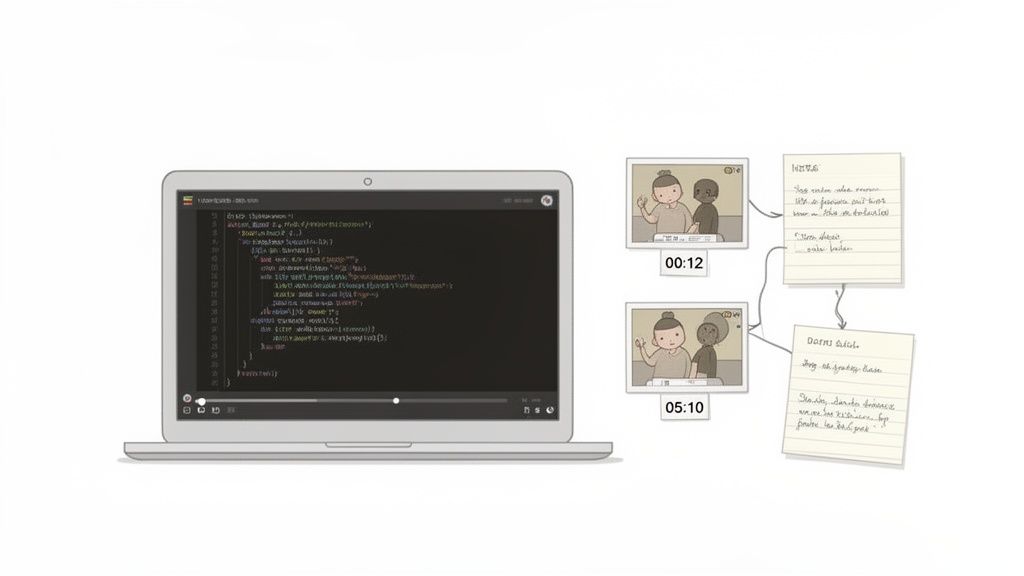
A ferramenta mais eficaz para isso é a captura de tela com timestamp. É um link direto e clicável das suas notas para o momento exato do vídeo.
Imagine revisar suas notas daqui a um mês. Você vê um gráfico complexo, mas não lembra a explicação. Com uma captura com timestamp, basta clicar na imagem, e o vídeo Udemy pula instantaneamente para aquele ponto. Isso economiza horas suando para encontrar detalhes nas aulas.
Cada captura inclui um timestamp clicável — um clique te leva para aquele exato momento. Isso transforma imagens estáticas em um guia de estudo interativo.
Ao contrário de ferramentas que só processam transcrições, HoverNotes assiste ao vídeo para capturar o que aparece na tela. Ele embute essas capturas clicáveis direto nas suas notas enquanto você assiste. Tratamos dessa técnica no nosso guia de como fazer captura de tela no YouTube e outros sites.
Nem sempre você precisa capturar a tela inteira do vídeo. Muitas vezes só precisa de uma parte — um bloco de código, uma fórmula ou um gráfico. É aí que entra o recurso de captura recortada.
Ao invés de pegar a tela toda e depois recortar, você seleciona só a região relevante desde o começo. Isso mantém as notas limpas e focadas.
Para cursos de programação: Capture só a função em discussão.
Para ciência de dados: Capture apenas a visualização específica.
Para tutoriais de design: Pegue exatamente o painel de camadas ou a configuração da ferramenta.
Essa pequena mudança faz uma enorme diferença. Suas notas Udemy ficam densas com informações valiosas e livres de distrações. Quando você consegue converter videoaulas em notas úteis com eficiência, suas sessões de estudo ficam muito mais produtivas.
#Como Organizar suas Notas Udemy no Obsidian e Notion
Capturar boas notas Udemy é metade da batalha. Se suas notas terminam numa gaveta digital bagunçada, não são um ativo duradouro. Onde você guarda as notas é tão importante quanto como você as faz.
Para estudantes sérios, duas plataformas se destacam: Obsidian e Notion. Cada uma tem uma filosofia diferente, mas ambas podem transformar notas dispersas num segundo cérebro pesquisável. O segredo é escolher um sistema e se manter nele.
#O Método Obsidian: Seu Cofre Local de Conhecimento
Obsidian é para quem valoriza a posse dos dados. Baseado em arquivos Markdown (.md) que moram no seu computador — sem formatos proprietários, sem serviços em nuvem segurando suas notas como reféns. O armazenamento local significa que você é dono do seu conhecimento para sempre.
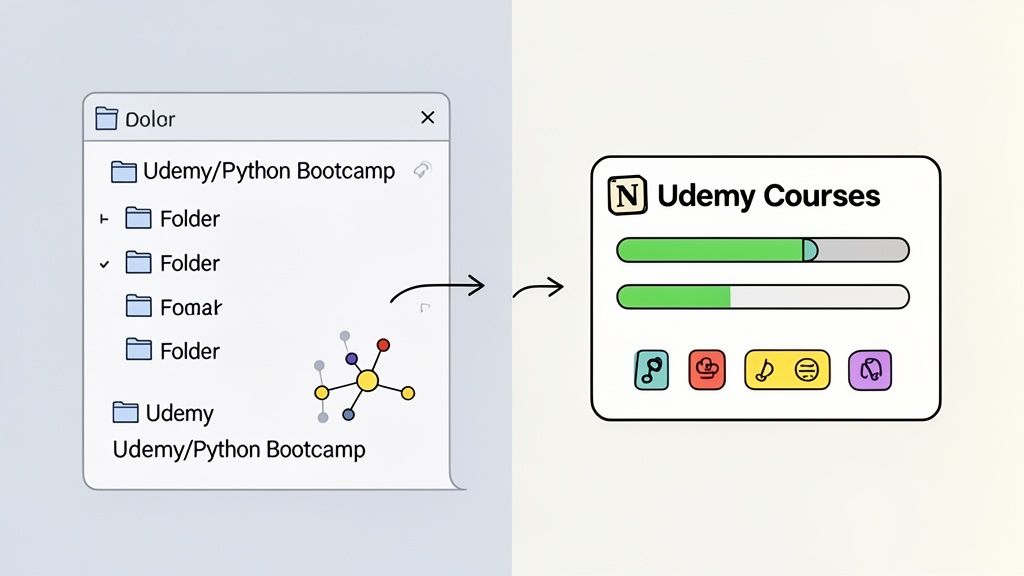
A maneira mais efetiva de gerenciar notas Udemy no Obsidian é com uma estrutura simples de pastas. Crie uma pasta principal como 03-Learning/Udemy/ e adicione subpastas para cada curso.
É aqui que uma ferramenta como o HoverNotes faz a diferença. Ela salva suas anotações geradas por IA e as capturas com timestamp direto no seu sistema de arquivos como arquivos .md. Você pode direcioná-la direto para seu cofre Obsidian, e toda nota de um vídeo Udemy vai parar onde deve.
Você é dono dos arquivos. Pode movê-los, fazer backup, procurar neles — são só Markdown. Esse é o princípio central que torna Obsidian resistente para a gestão de conhecimento a longo prazo.
Para o público Udemy de desenvolvedores e profissionais, cada curso é um investimento. Integrar notas num sistema como Obsidian garante que esse investimento tenha retorno por anos.
Notion foca em bancos de dados estruturados e painéis integrados. Para cursos Udemy, um banco de dados é a ferramenta perfeita.
Crie um banco de dados novo chamado "Cursos Udemy." Cada entrada é uma página representando um curso. Depois, adicione propriedades para acompanhar seu progresso.
Propriedades Essenciais para o Banco de Dados Notion:
Status: Um menu dropdown com opções como Not Started, In Progress, e Completed.
Categoria: Seleção múltipla para temas como Programming, Marketing, ou Design.
Instrutor: Campo de texto simples.
URL: Propriedade de URL que linka de volta para a página do curso.
Enquanto você toma notas, cole-as na página do curso. Como ferramentas como o HoverNotes geram Markdown bem formatado, suas notas copiam limpamente para o Notion com todos os títulos, listas e imagens intactos. Isso transforma cada página de curso num painel abrangente.
#Transformando suas notas em conhecimento duradouro
O objetivo de fazer notas Udemy não é criar um arquivo bonito. É lembrar e usar o que aprendeu. Capturar informação é fácil; transformar isso em conhecimento duradouro acontece depois de fechar o vídeo.
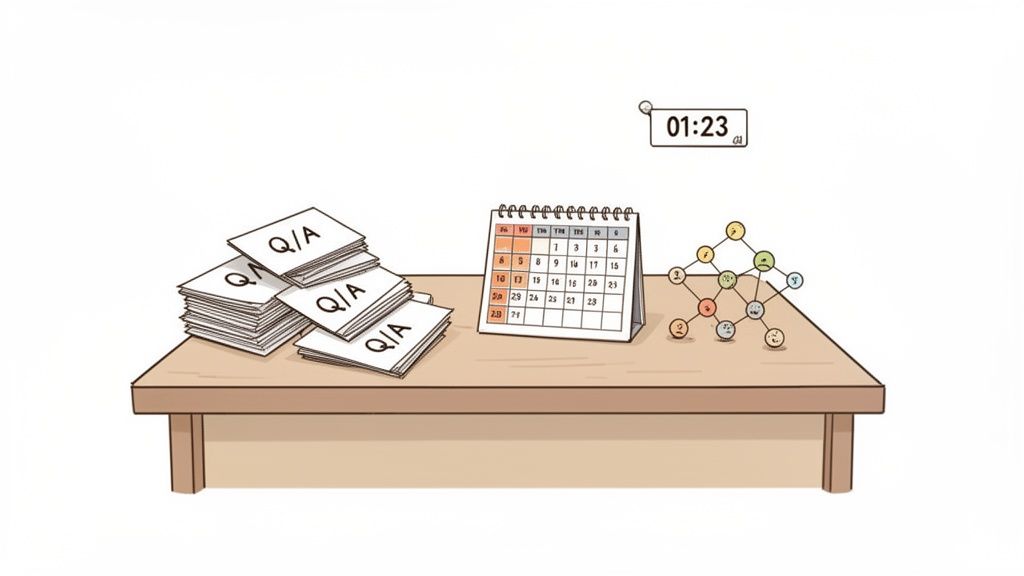
Suas notas são uma ferramenta dinâmica. A forma mais eficaz de usá-las é com recall ativo — puxar informação da sua memória em vez de empurrá-la passivamente.
Em vez de só passar os olhos nas notas, use-as ativamente. Cubra-as e tente explicar em voz alta um conceito-chave.
Explique o "Porquê": Force-se a articular por que uma função funciona daquele jeito, não só que funciona.
Use pistas visuais: Olhe para um print de um diagrama, desvie o olhar e esboce de memória.
Identifique pontos fracos: Os momentos em que hesita são ouro. Eles mostram exatamente onde o entendimento é frágil e o que precisa revisar.
Essa pequena mudança transforma o estudo de uma tarefa passiva em um exercício mental ativo. A diferença na retenção é enorme. Você pode aprofundar essas estratégias no nosso guia de como criar um guia de estudos.
O maior inimigo das revisões consistentes é o atrito. Procurar um trecho de 30 segundos em horas de vídeo é chato. É aí que um sistema inteligente e cheio de contexto de anotações vale ouro.
O recurso de captura com timestamp numa ferramenta como HoverNotes é revolucionário. Um clique na imagem te leva para aquele exato ponto do vídeo. Uma busca que antes levava minutos acaba em segundos.
Só essa função elimina o atrito irritante de encontrar o que precisa, aumentando muito a chance de você fazer revisões rápidas e regulares, que fazem o conhecimento fixar.
Entender de verdade não é colecionar fatos isolados; é entrelaçar informação nova com o que você já sabe. Ao revisar suas notas Udemy, pergunte-se sempre:
Como esse conceito Python se relaciona ao curso de JavaScript que fiz no ano passado?
Já vi esse problema de design antes em meus próprios projetos?
Esse novo fluxo de trabalho pode melhorar um processo no meu trabalho?
Ao fazer essas conexões ativamente, você constrói sabedoria. Suas notas Udemy deixam de ser uma simples transcrição para virar a matéria-prima de uma compreensão profunda que pode aplicar pra resolver problemas reais.
Aqui estão algumas dúvidas comuns sobre como fazer notas Udemy fixarem, com respostas práticas.
#Posso fazer notas de um curso Udemy em outro idioma?
Sim. É aqui que as ferramentas de IA brilham. Você pode assistir um curso técnico em japonês e ter um conjunto completo de notas estruturadas Udemy geradas em inglês para você. Isso derruba barreiras linguísticas e permite aprender com os melhores instrutores do mundo.
#Qual a melhor forma de organizar notas de vários cursos Udemy?
Consistência é o mais importante.
Se você é usuário de Obsidian: Crie uma pasta principal tipo /Udemy Courses no seu cofre. Cada curso novo ganha sua subpasta, como /Complete Python Bootcamp.
Para o público do Notion: Um banco de dados "Cursos" dedicado é o caminho. Cada curso vira uma página onde você guarda notas, resumos e recursos. Use propriedades como "Status" ou "Categoria" para filtrar e ordenar.
#Ferramentas pagas são necessárias para ter boas notas Udemy?
Não são essenciais, mas tornam o processo muito mais eficiente. O jeito antigo implica pausar e alternar de janela constantemente. Esse atrito faz as pessoas pararem de anotar.
Muitas ferramentas liberam ótimo acesso inicial. Algumas extensões permitem anotações manuais ilimitadas, capturas com timestamp e modo vídeo sem distração sem custo. Normalmente só se paga pelos recursos automáticos de IA.
#Como devo capturar trechos de código nas minhas notas?
Use a função de "captura de região" ou "recorte". É o melhor jeito. Isso permite tirar print só do bloco de código, não do player inteiro. Mantém as notas limpas e focadas.
Uma captura visual do código conserva seu contexto — formatação, destaque de sintaxe e ambiente do editor. Ver o código exatamente como o instrutor mostrou é muito mais valioso para revisar.
Se você está criando sua base de conhecimento no Obsidian, o HoverNotes salva notas e capturas de tela como arquivos Markdown limpos direto no seu cofre. Você pode testar grátis — inclui 20 minutos de créditos de IA, sem cartão de crédito. Confira as opções atuais na página de preços HoverNotes.
Pare de esquecer o que você aprende no Coursera. Descubra um fluxo de trabalho prático para criar notas Coursera úteis e pesquisáveis que aumentam a retenção a longo prazo.
Está com dificuldade para fazer anotações em MOOC na Coursera ou edX? Aprenda um método comprovado para organizar, reter e aplicar o conhecimento de cursos longos sem se esgotar.
Transforme suas anotações do LinkedIn Learning de texto passivo em um ativo poderoso para sua carreira. Aprenda fluxos de trabalho práticos para capturar, organizar e utilizar seu conhecimento.