Online Course Note-Taking Best Practices | HoverNotes Blog | HoverNotes
General2025年12月28日
Online Course Note-Taking Best Practices
Discover online learning best practices to boost retention and turn what you watch into lasting knowledge with actionable tips for Udemy, Coursera, and YouTube.
著者 HoverNotes Team•13 分で読める
You spend hours on a detailed Udemy or Coursera course, feeling productive. An hour later, you can barely remember the key steps. This isn't a personal failure—it's the predictable result of passive watching, the default mode for most online video learning. The problem isn't your brain; it's your method.
#Why You Forget Everything You Watch in Online Courses
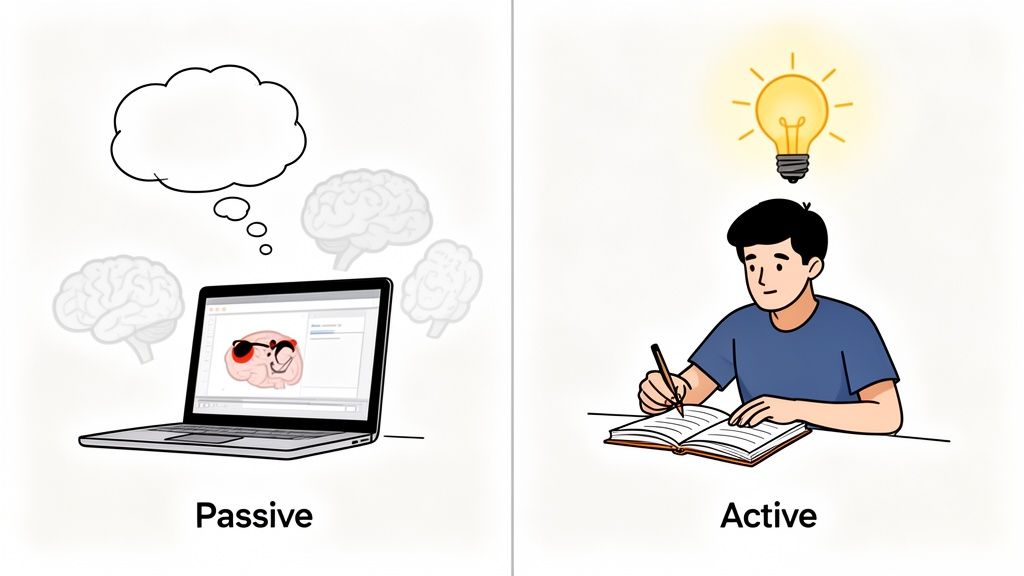
When you just watch a video, your brain slips into entertainment mode. It’s easy to follow along as an instructor explains a concept, but without active engagement, that information never moves from short-term to long-term memory. Video learning has a serious retention problem—people watch, but they don't remember.
This is the classic "illusion of learning." You can binge a whole course on Python, feel like you've absorbed it all, yet draw a blank when you open your code editor. You the concepts, but you can't them. The learning never stuck.
The obvious solution is to take notes, but manual methods are clumsy. Constantly pausing and playing is tedious and breaks your focus. Writing in a notebook while watching is awkward, forcing you to look away from the screen. Snapping screenshots leaves you with a chaotic folder of images stripped of their context.
This friction discourages the very behavior needed to learn. The best practices for online learning must bridge this gap, making active engagement seamless.
The core issue: your brain isn't a passive recording device. To truly learn, you have to engage with the material—summarize it, question it, and connect it to what you already know.
This is where active learning strategies come in. Research shows that retrieval practice—actively trying to recall information—can lead to 20–40 percentage points higher recall on delayed tests compared to just passively re-watching. That's the difference between knowing a subject and just recognizing it. The goal is to find a system that makes this active interaction happen without the hassle. For more on this, you can explore our guide on how to study effectively for exams.
#How to Shift from Passive Viewer to Active Learner
Knowing you need to be an "active learner" is one thing. Doing it is another. You don't need to rebuild your study habits from scratch. It’s about adding small, deliberate actions that force your brain to engage.
The simplest, most effective trick is the 10-minute summary. Don't let a video run on autopilot. Hit pause every 10 minutes and force yourself to summarize the main point in a single sentence, either out loud or typed. This tiny act of retrieval is incredibly powerful for making information stick.
Another practical tip is to maintain a running dialogue with yourself as you watch:
How does this connect to what I learned in the last module?
What's a real-world example of this?
How would I explain this to a beginner?
These questions turn passive viewing into a mental workout.
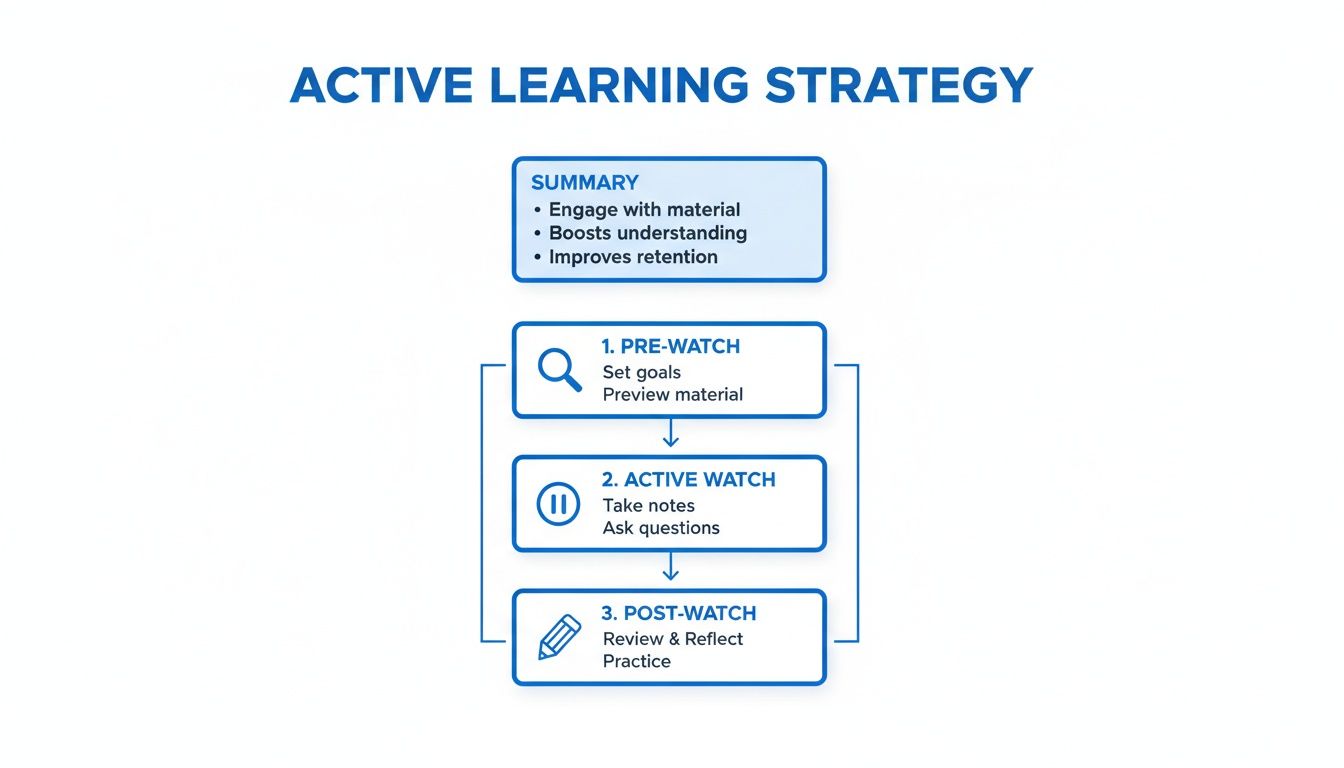
Instead of just hitting play, try this three-part framework for every study session.
Pre-Watch Prime (2 Minutes): Before the video starts, scan your notes from the last session or review the course outline. This primes your brain, giving the new information a framework to latch onto.
Active Watch Phase (The Core Session): Use the 10-minute summary rule and keep asking yourself questions. Your goal is to interact with the material, not just spectate.
Post-Watch Summary (5 Minutes): The moment the video ends, spend five minutes writing down everything you can remember without looking at your notes. It's a pure recall exercise that solidifies what you just learned.
The biggest barrier to these online learning best practices is friction. Juggling windows and fumbling with screenshots is a hassle. This is where a dedicated tool can get the tedious work out of your way so you can focus on learning.
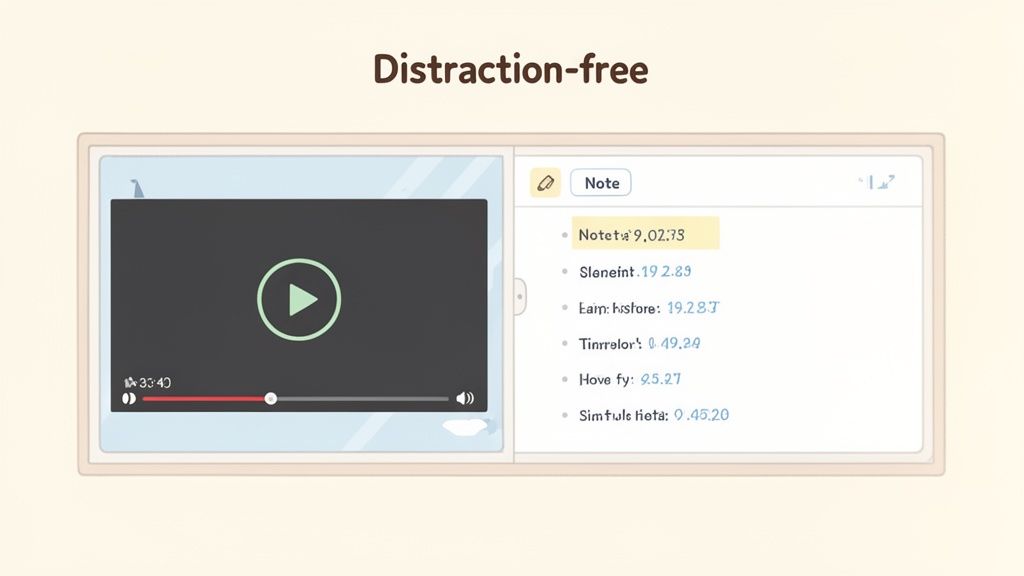
HoverNotes is a Chrome extension that puts your notes right next to the video, creating a clean, distraction-free space. You can grab a specific diagram or code block with a keyboard shortcut. Each screenshot is automatically timestamped; one click takes you right back to that exact moment in the video.
By removing the mechanical friction, it's easier to stay in a state of active engagement. The less you fight your tools, the more mental energy you have for learning.
This structured approach doesn't add more hours; it multiplies the value of the hours you already spend. For more specific strategies, check out our guide on how to learn effectively from Udemy videos.
#Why Your Video Notes Need Visual Context, Not Just Text
If you’ve ever learned code from a video, you know this problem. The instructor says, "Now, adjust the CSS padding here," but a transcript of that line is useless. It misses the real information: the line number, the syntax, the other files open, and the live preview updating on screen. Visual context matters—transcripts miss diagrams, code, and demonstrations.
The text tells you what happened, but the visuals show you how and where.
This gap is the fatal flaw in most note-taking methods for video. Relying on text alone is like trying to build IKEA furniture with instructions that only describe the parts but have no diagrams. For any subject that relies on demonstration—from design courses on Udemy to chemistry lectures on a university portal—visual context is everything.
A huge amount of a video's instructional value is purely visual. Research from eLearning Industry suggests learners who only get transcripts can miss up to 50% of the critical details compared to those with synchronized visuals.
This is why multimodal notes are a core best practice. Your notes shouldn’t be a wall of text. They need to be a rich resource combining your written thoughts with the exact visual moments that sparked them.
The flowchart below shows a simple framework for this, breaking the process down into what you do before, during, and after watching.
This process ensures you engage with the material from multiple angles, strengthening retention.
So, what's the best way to create these rich, visual notes? Manually pausing, taking a screenshot, and pasting it into a document is clunky. The images end up scattered and disconnected from the point in the video you were trying to capture.
This is where a tool built for learning makes a difference. HoverNotes is a Chrome extension that watches the video frame-by-frame. Unlike tools that only parse transcripts, it captures what's actually on screen. You can snip just the code snippet or diagram you need, embedding it directly into your notes.
Every screenshot includes a clickable timestamp—one click returns you to that exact moment in the video.
This transforms your notes from a static summary into an interactive study guide. For those wanting to dig deeper into getting text from videos, our guide on how to get a transcript from a YouTube video offers related strategies.
#Building a Frictionless Note-Taking Workflow for Any Platform
The best learning intentions die from a clumsy workflow. If your system involves juggling a video player, a separate notes app, and a folder of screenshots, you're spending more energy on logistics than learning. The goal is to build a setup that works just as smoothly for a Coursera lecture as it does for a YouTube tutorial or an internal training video.
A truly effective workflow kills the pause-play-rewind cycle. It creates a single, focused environment where the content and your notes live side-by-side.
Consistency is key. You need a system that works anywhere there's a video—course platforms, YouTube, even internal training portals.
This is where a browser-based tool can create a universal learning cockpit. HoverNotes is a Chrome extension that watches videos with you, generates AI notes, and saves them as Markdown directly to your file system.
Its "distraction-free video mode" is a simple game-changer. It puts the video on one side and your note editor on the other, blocking site ads and other distractions so you can focus.
Your learning system should be platform-agnostic. The less you have to think about the tool, the more you can concentrate on the content.
This side-by-side approach also solves the screenshot mess. You can snip just the specific code snippet or diagram you need and embed it directly into your notes.
A frictionless workflow connects your thoughts to the source material with precision. A note saying "important diagram" is useless a week later. But a note with the actual diagram, linked to the moment it appeared? That's a permanent learning asset.
This is where timestamped screenshots are non-negotiable. A good system handles this automatically:
One-click capture: Grab a screenshot with a single click or keyboard shortcut without breaking your rhythm.
Embedded context: The image appears right where it belongs in your notes.
Clickable timestamps: Every screenshot should function as a bookmark, jumping you back to that specific moment in the video.
This feature transforms a flat text file into an interactive study guide.
Your workflow should give you full ownership of your knowledge. Storing notes in a proprietary cloud service means you're just renting access to your own thoughts. A local-first approach is more robust.
When your notes are saved as plain Markdown (.md) files, they are portable and permanent. You can open them in any text editor, back them up, and search them with native tools.
For Obsidian users, this means notes save directly to your vault. For Notion users, a good tool ensures notes copy cleanly with formatting intact. If you're figuring out the right fit, we have a breakdown of the best note-taking apps for students.
#Turning Your Video Notes into a Permanent Knowledge Base
Notes are useless if they disappear into a digital junk drawer. The real goal of learning from online courses isn't to pass a quiz—it's to build a personal, searchable knowledge base that grows with every video you watch. This is about creating a permanent library of everything you've learned.
Owning your knowledge in an open format like Markdown (.md) is a game-changer. When your notes are trapped in a specific app's cloud, your knowledge could vanish if that platform shuts down. A local-first approach means you own your knowledge forever.
Think of a system like Obsidian as a private "second brain" that lives on your machine. The workflow is simple: as you learn from a video, you capture notes and visuals, and they get saved as plain text files directly into your Obsidian vault.
Because they are just files on your computer, you own them completely. You can back them up, search them, and move them anywhere. It's a fundamental shift away from relying on cloud services you don't control.
Your knowledge should be a personal asset, not a temporary entry in a company's database. You own the files. Move them, back them up, grep them—they're just Markdown.
This workflow transforms scattered notes into an integrated knowledge system. Over time, you can link a note from a Python tutorial to a concept from a data science course, building a web of interconnected ideas. To go deeper, check out our guide on how to create a knowledge base.
#A Practical Workflow for Obsidian and Notion Users
Here's how to make this seamless:
Capture Rich, Visual Notes: As you watch a video on YouTube, Coursera, or a local file, use a tool that captures both your thoughts and on-screen visuals. The ability to snip a specific code block is far more useful than grabbing the whole screen.
Save Directly as Markdown: Your notes, with embedded, timestamped screenshots, should save directly as .md files. A tool like HoverNotes saves notes as .md files directly to your Obsidian vault; no proprietary format or sync service is needed.
Link and Organize: Once in Obsidian, the real work begins. Link key concepts to other notes, tag them by topic, and embed them into broader summaries. A note on "JavaScript Promises" can now be directly linked to your notes on "Asynchronous Programming."
For Notion users, the process is just as straightforward. A well-designed capture tool ensures your notes—with formatting, headings, and images—copy cleanly into a Notion page.
This isn't just about being organized. It’s about building a searchable knowledge asset you control, ensuring the time you invest in learning pays off for years.
Use spaced repetition. Review notes within 24 hours, then again after 3 days, one week, and one month. This fights the natural "forgetting curve" and locks knowledge into long-term memory. When you review, use active recall: try to explain the concepts from memory before looking at your notes.
#Is it better to take notes by hand or on a computer?
Writing by hand can aid conceptual understanding, but for video learning, digital is the clear winner. It's the only way to directly link your notes to the video's visual context with clickable, timestamped screenshots. This is crucial for learning complex, visual topics like coding or design.
#What's the single best way to remember what I watch?
Combine active note-taking with immediate application. Simply transcribing what an instructor says is a recipe for forgetting.
Instead, follow this two-step habit:
Pause and Rephrase: After a key concept, stop the video. Put the idea into your own words. As you do, grab a screenshot of the on-screen action for visual context.
Apply It Instantly: Open your code editor and write the code. If it’s a design technique, try to replicate it.
This tight loop of recall and practice is the most reliable way to make new knowledge your own.
Notes copy cleanly into Notion if that's where you keep everything. If you use Obsidian for learning, HoverNotes saves notes directly to your vault. You can try it free—20 minutes of AI credits, no credit card required. Learn more at https://hovernotes.io.
Learn how to make a study guide from video lectures with AI workflows, Markdown templates, and visual screenshots to boost retention and streamline studying.
Discover how personal knowledge management software can organize your video learning. Explore practical workflows for students using PKM tools like Obsidian.
Learn how to take study notes that boost retention and understanding. Discover practical methods for lectures, textbooks, and modern video learning workflows.