How to build a video learning knowledge base in Obsidian | HoverNotes Blog | HoverNotes
General2025年12月21日
How to build a video learning knowledge base in Obsidian
Learn how to create a knowledge base in Obsidian that turns passive video watching into active learning. A practical guide to vault setup and note-taking.
著者 HoverNotes Team•16 分で読める
If you've spent hours watching educational videos only to forget the key points a week later, you're not alone. Learning from video has a serious retention problem. Watching feels productive, but the information rarely sticks.
To build a real knowledge base from that content, you need a system—not a messy folder of scattered notes, but a deliberate process for capturing, organizing, and connecting ideas into a library that you own and control completely.
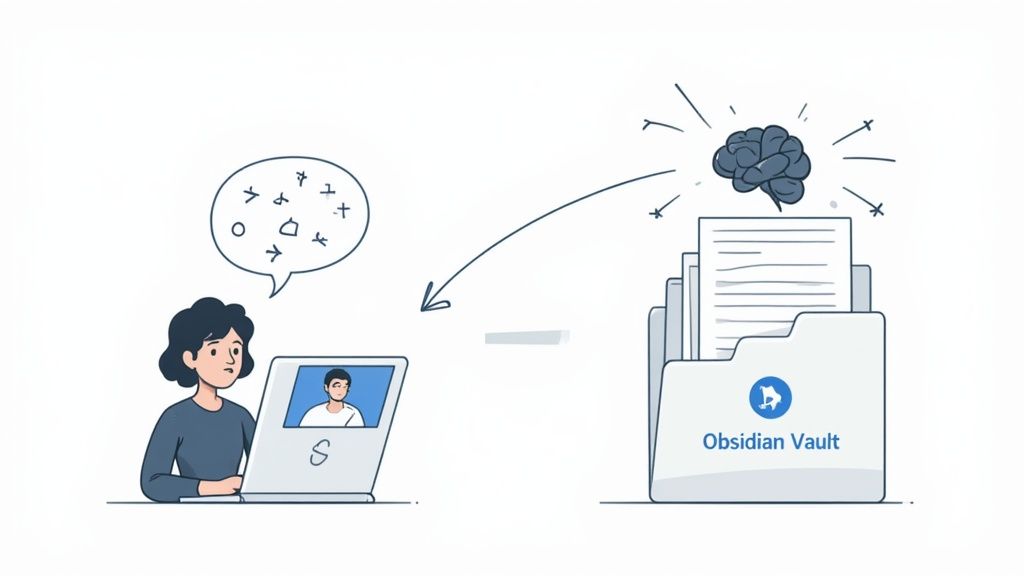
Passive consumption leads to poor retention. Watching a tutorial feels like progress, but without active engagement, that information evaporates. A structured knowledge base transforms fleeting video content into a permanent, searchable asset.
The old way of taking notes from videos is full of friction. You’re constantly juggling windows, pausing to type, or snapping screenshots that end up lost on your desktop without context.
Broken Focus: The constant pausing and playing kills your concentration.
Lost Visual Context: Text notes completely miss crucial visuals—the diagrams, the code on screen, or the presenter's slides. Transcripts alone are useless for this.
Disorganized Information: Your notes are scattered in different formats and locations, making them impossible to find and use later.
This friction is why so many of us give up. The right system is designed to tear down these barriers.
The answer is building a structured, local-first knowledge base with a tool like Obsidian. Unlike cloud services that can change or disappear, a local-first system saves your notes as plain Markdown files right on your computer. This principle of data ownership is critical for long-term learning.
The goal is to build an interconnected library of everything you've learned. You own the files. You can back them up, search them with your computer's own tools, and be confident they'll still be readable in 20 years, no matter what happens to a specific app.
This isn’t just a personal productivity hack; it's a practical application of a major professional trend. The global knowledge base software market is expected to hit USD 21.94 billion by 2030, all driven by the need for centralized, searchable information. You can dig into more insights on this market growth over at Research and Markets. By building your own system, you’re applying a professional-grade strategy to your own learning.
A good knowledge base starts with a smart structure, not a digital junk drawer. Taking a few minutes to design your Obsidian vault's layout will save you from chaos down the road. The goal is a system that's simple enough to maintain but flexible enough to grow with you.
A common mistake is over-engineering with dozens of nested folders. This just creates friction. Instead, start with a high-level framework that cleanly separates different types of information.
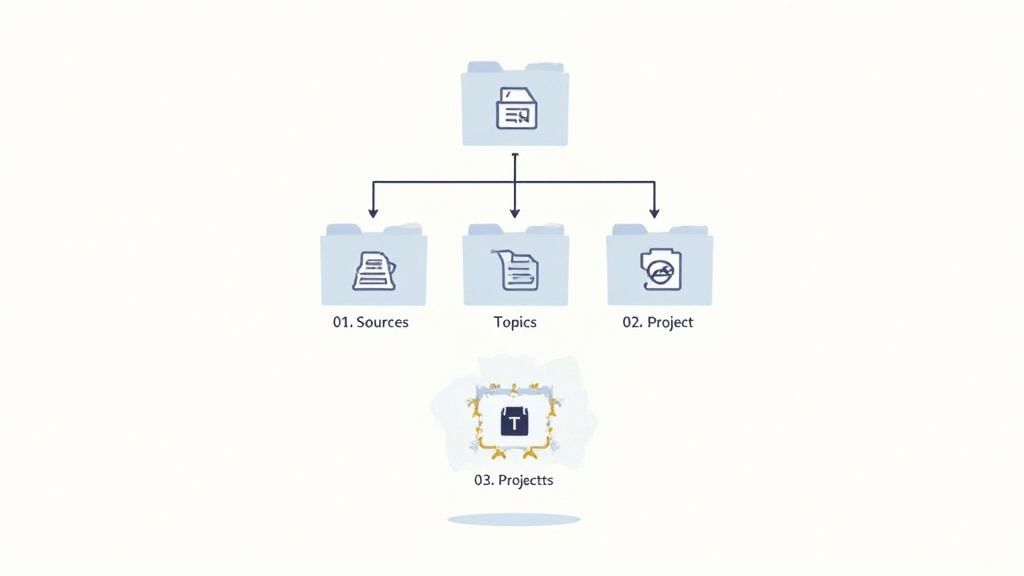
For a video-centric knowledge base, a three-folder system works remarkably well. It separates your raw material from your processed knowledge and your actionable projects. This clear distinction means you always know exactly where a new note should go.
Here’s the basic setup:
01_Sources: Your digital inbox. Every time you capture notes from a new video, the Markdown file lands here first. You can add subfolders for platforms (YouTube, Coursera) or specific creators if you want.
02_Topics: The heart of your knowledge base. It contains your permanent, evergreen notes on specific subjects. Notes from 01_Sources get processed, synthesized, and then moved here as standalone topic notes (e.g., Python Decorators.md or Cognitive Biases.md).
03_Projects: For notes tied to specific, time-bound goals, like Thesis Research or AWS Certification Prep. These notes will almost always link back to the foundational knowledge in your 02_Topics folder.
This structure isn't set in stone. The key is to separate the origin (Sources), the distilled concepts (Topics), and the application (Projects). It’s a simple system that keeps your vault clean and functional as it scales.
To make this more concrete, here’s a sample structure for your Obsidian vault.
#Sample Obsidian Vault Structure for Video Learning
This table shows a practical folder structure to organize notes from various video sources and link them by topic.
Folder Name
Purpose and Contents
Example File
00_Templates
Stores predefined templates for different note types.
Video Source Note Template.md
01_Sources
Inbox for raw, unprocessed notes from videos.
Sources/YouTube/How a CPU Works.md
02_Topics
Contains permanent, refined notes on specific subjects.
Topics/Computer Science/CPU Architecture.md
03_Projects
Notes for active projects and goals.
Projects/Build a PC/Component Selection.md
04_Resources
Holds attachments like images, PDFs, and diagrams.
Resources/Images/cpu-diagram.png
This layout provides a clear path for information to flow from raw capture to refined knowledge and finally to active application.
This approach is powerful for video-based learning because notes from videos are often messy at first. They tend to follow the speaker's conversational flow, not a neat, logical structure. Your 01_Sources folder gives you a dedicated place to dump this raw output without cluttering your core library.
This workflow aligns perfectly with tools built for direct Obsidian integration. HoverNotes, for instance, is a Chrome extension that watches videos with you, generates AI notes, and saves them as Markdown directly to your file system. You can configure it to save your captures directly into the 01_Sources folder, making the process frictionless.
Then, once a week, you can go through your 01_Sources folder and do the real work of learning: pulling out key concepts, creating new topic notes in 02_Topics, and linking everything together. This two-step process—capture then process—is how you turn passive video watching into durable knowledge. Your folder structure is the foundation that makes it a sustainable habit.
Okay, you've designed a structure for your Obsidian vault. Now, how do you get the good stuff from a video into a note? This is where good intentions fall apart. The constant dance of pausing the video, switching to your notes, and typing furiously shatters your concentration.
This friction is why learning from video feels clunky and why most of us end up with half-finished, useless notes. You get pulled out of the learning flow so many times that you either miss the big picture or just give up entirely.
A lot of people think, "I'll just grab a transcript!" But transcripts have a huge blind spot: they miss everything visual.
A transcript can't show you that critical line of code, the complex diagram the instructor is pointing to, or the chart full of data. When you come back to your notes later, that missing visual context makes the text almost meaningless. If you want a deeper dive, our guide on how to transcribe a YouTube video breaks down exactly where simple text falls short.
To build a knowledge base that works, you need a workflow that captures both the spoken words and the on-screen visuals—without torpedoing your focus.
What if a tool could watch the video alongside you, intelligently grabbing the key points as you go? Unlike tools that just skim the transcript, HoverNotes actually watches the video frame-by-frame. This allows it to understand what's shown, not just what's said, capturing crucial visual information and weaving it directly into your notes.
The goal is to transform a frustrating, manual chore into an automatic, streamlined process. It's not just about getting notes; it's about getting rich, context-aware notes that are instantly useful in your Obsidian vault, all without breaking your learning rhythm.
This changes the dynamic. Instead of obsessing over the mechanics of note-taking, you can give your full attention to understanding the material, confident that the important details are being saved for you.
The real magic happens when this capture process feeds directly into the vault structure we planned. Here's what that looks like:
Direct-to-Vault Capture: You can tell HoverNotes to save new notes straight into your 01_Sources folder. The moment you finish a video, the complete, formatted Markdown file is already in your vault.
Timestamped Screenshots: See a perfect diagram? One click grabs a screenshot. Every screenshot includes a clickable timestamp. Clicking it takes you straight back to that exact moment in the video.
Visuals in Context: Screenshots are embedded right where they belong within the notes, giving you vital visual reference. You can even use a snip capture feature to grab just the specific part of the screen you need.
You Own Your Data: Because HoverNotes saves standard .md files directly to your machine, it fits perfectly with Obsidian's local-first philosophy. Your notes belong to you. Move them, back them up, grep them—they're just Markdown.
This seamless process eliminates the friction that kills most video learning workflows. Your knowledge base starts to grow naturally, with every video adding a rich, permanent, and visually-indexed note to your collection.
Raw notes are a great start, but their real value appears when you start connecting ideas. A folder of Markdown files is just a filing cabinet; a network of linked concepts is a true knowledge base. This is where you graduate from capturing information to the real craft of knowledge synthesis.
It's this process that transforms your vault into a genuine "second brain." You'll find yourself navigating your own thoughts organically, stumbling upon insights that were locked away in isolated notes from different courses.
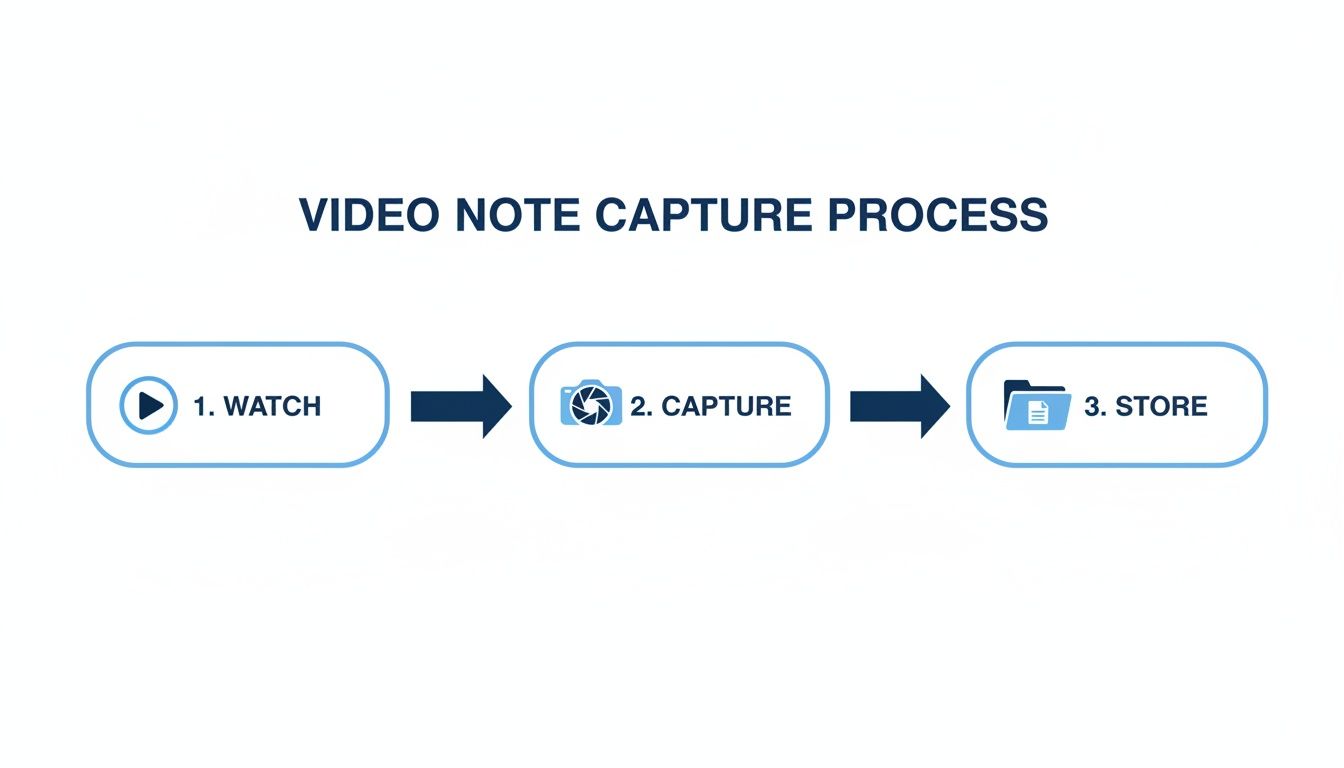
Here’s a quick visual of how that initial capture process looks.
This simple workflow—watch, capture, store—is the essential first step. Once a note is in your vault, you can begin tagging and linking.
A good tagging system brings order to the chaos without becoming a chore. For video learning, it’s helpful to think in terms of two types of tags: status tags and topic tags.
Status Tags: These are your workflow tags, like a to-do list for each note. A note you just saved might get a #status/inbox tag. After you’ve reviewed it and linked it up, you can flip it to #status/processed.
Topic Tags: These are about discoverability. This is how you classify the content of the note. Get specific. Instead of a generic #python tag, go for nested tags like #topic/python/decorators or #topic/marketing/seo. This makes finding what you need a breeze as your vault grows.
This two-tag system keeps your workflow clean. You can immediately see which notes need your attention (#status/inbox) and effortlessly pull up everything you know on a specific subject (#topic/computer-science/algorithms).
Tags are great for broad categories, but the real wizardry in Obsidian is bi-directional linking. When you create a link from Note A to Note B (by typing [[Note B]]), Obsidian automatically knows that Note B is linked back to Note A. This simple feature creates a powerful, interconnected web of your knowledge.
This is the core of building a second brain. You're no longer looking at one isolated note on CPU architecture. You're linking it directly to your notes on operating systems, your thoughts on Moore's Law, and a project where you're building a new PC. Each link you forge deepens your own understanding.
This practice is effective because it mirrors how our brains work—through association. By manually creating these connections, you're reinforcing what you've learned and building a personalized web of knowledge. We dig deeper into this in our guide on turning a YouTube video into notes, where the focus is on creating actionable, linkable content from the start.
This approach of building a self-service, interconnected knowledge base isn't just a personal productivity hack; it's transforming industries. Research shows well-designed self-service content can deflect up to 60% of routine support tickets. Companies are pouring money into AI and semantic search to make these systems smarter. You can see more on this trend at Mordor Intelligence. By building your own system, you’re applying the same principles that large organizations use to manage their collective intelligence.
A personal knowledge base is a living garden, not a stone monument. If you just dump notes into it and walk away, you’ll come back to a messy digital attic that’s more overwhelming than helpful.
To keep it from turning into a digital junkyard, you need a few simple, sustainable habits. This isn't about adding another chore; it’s about regular upkeep that turns a collection of files into a reliable, long-term asset.
The single most effective habit is the weekly review. Block out 30 minutes once a week—Sunday evening works well—to go through the new notes in your 01_Sources folder.
This is your dedicated time to think about what you’ve captured. For each new note, ask yourself:
What are the one to three big ideas here?
Does this connect to something I already know?
What tags make sense for this?
As you answer, summarize the key points, link to other relevant notes, and add your tags. Once a note is processed, move it from your "inbox" to your 02_Topics library. This ritual ensures nothing falls through the cracks and transforms raw information into durable knowledge. Using an AI note taker app for the initial capture can make this review process incredibly efficient.
Your system will—and should—evolve. The perfect folder structure from January might feel clunky by June. That's not a failure; it’s a sign your understanding is getting more nuanced.
Don't be afraid to periodically look at your folders and tags. If a tag like #python has ballooned to include hundreds of notes, that’s a signal it’s time to get more specific. You might break it down into nested tags like #python/async or #python/data-science.
Refactoring your system isn't a chore; it's part of the learning process. The whole point is to have a structure that mirrors your current understanding. This is one of the biggest strengths of using plain Markdown files in a tool like Obsidian.
Finally, let’s talk about keeping your work safe. The beauty of a local-first system is that you own your data. The flip side is that you’re responsible for it. Thankfully, backing it up is easy.
Your entire knowledge base is just a folder of text files.
Cloud Sync: Use a free service you already have, like Google Drive, Dropbox, or OneDrive, to automatically sync your vault folder. Set it and forget it.
External Drive: Once a month, drag and drop your entire vault folder onto an external hard drive or a USB stick.
That’s it. This protects your hard-won knowledge from hardware failure or a coffee spill. You’ve invested time building a valuable asset; spending five minutes to back it up is a smart investment.
As you start building a video knowledge base, a few practical questions almost always pop up. Let's get them answered.
#Can I Use This System with Notion Instead of Obsidian?
Absolutely. While I'm a big fan of Obsidian for its local-first, "you-own-your-data" approach, the core workflow here is universal. The most important part is getting high-quality, structured notes out of the video and into your system of choice.
Tools like HoverNotes are designed to be copy-paste friendly for exactly this reason. You can pull detailed notes, complete with embedded and timestamped screenshots, from any video and drop them straight into a Notion page. All the formatting comes with it.
The trade-off is ownership. With Obsidian, those raw Markdown files are yours, sitting on your machine. With Notion, your data lives in their cloud. Both are valid choices—it just depends on how much you value local control over your knowledge.
#How Do I Handle Videos on University Portals or Internal Company Sites?
This is a classic problem. Many note-taking tools only work with big platforms like YouTube, leaving you stuck with private content. The trick is to find a tool that works on the video player itself, not the website's backend.
HoverNotes, for instance, runs as a Chrome extension that interacts directly with the HTML video element in your browser. This means it doesn't care if the video is on a password-protected university portal, a corporate training site, or even a local video file you've dragged into a Chrome tab. It just works.
This gives you a single, reliable workflow for all your video learning, no matter where it's hosted.
#Is an AI Note-Taker Really Necessary, or Can I Do This Manually?
You don't need AI, but it solves the single biggest point of friction in video learning: the constant stop-start-rewind-type cycle that shatters your focus. The goal isn't just to get notes; it's to lower the cognitive load so your brain is free to understand the material.
You can absolutely take notes manually. In fact, you could use a tool like HoverNotes with the AI turned off and still get huge benefits from its distraction-free viewing mode and easy, timestamped screenshots. The AI is simply there to automate the first, tedious capture step.
Think of it as an efficiency play. Let the tool handle the transcription and visual capture so you can focus on connecting the concepts.
If you use Obsidian for learning, HoverNotes saves notes directly to your vault. You get 20 minutes of free AI credits on signup to see which workflow feels right for you—no credit card required. You can try it for free at hovernotes.io.
Discover how personal knowledge management software can organize your video learning. Explore practical workflows for students using PKM tools like Obsidian.
Learn how a study guide maker transforms video lectures into actionable notes. This guide covers setup, capture, and integrating notes into your workflow.