Obsidian Ghi chú Video: Hướng Dẫn Thiết Lập Toàn Diện
Xây dựng một hệ thống ghi chú video hiệu quả Obsidian để thu thập, tổ chức và ghi nhớ nhiều hơn từ các khóa học trực tuyến. So sánh các plugin, tiện ích mở rộng và quy trình làm việc.
Bởi HoverNotes Team•19 phút đọc
Việc ghi chú video trong Obsidian tạo nên sự khác biệt giữa việc xem video và xây dựng một cơ sở tri thức vĩnh viễn, có thể tìm kiếm được. Thách thức nằm ở việc thu hẹp khoảng cách giữa nội dung video thoáng qua và kho lưu trữ ưu tiên cục bộ của bạn, biến hàng giờ hướng dẫn thành những hiểu biết mà bạn thực sự sở hữu.
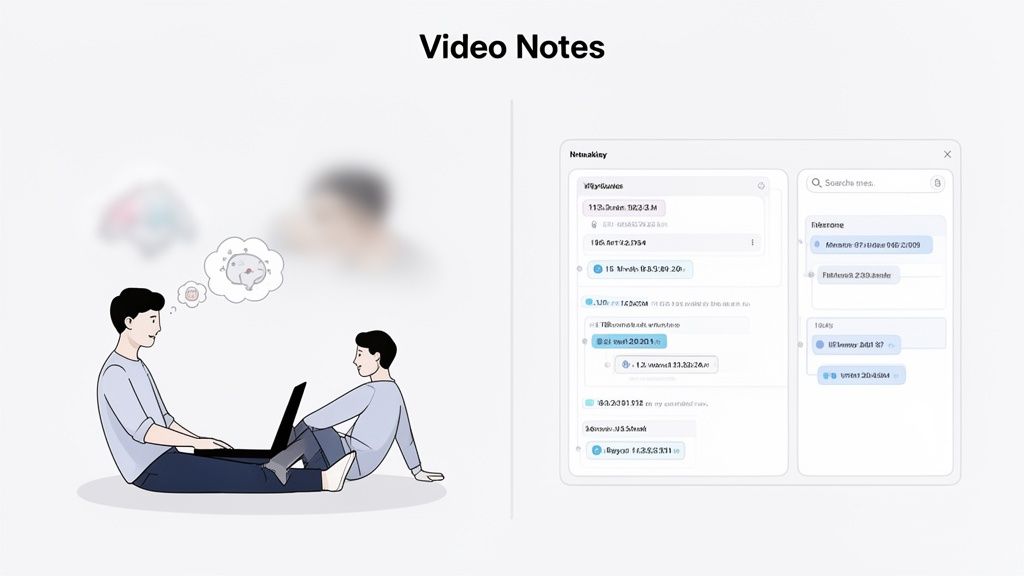
Chúng ta đều từng trải qua điều đó. Bạn xem một bài giảng dài hai tiếng trên YouTube hoặc một khóa học Udemy và cảm thấy mình đã học thật nhiều. Một tuần sau, đa số thông tin đó đã biến mất. Đây chính là vấn đề cốt lõi của việc xem thụ động—nó tạo ra cảm giác học nhưng không xây dựng được kiến thức bền vững.
"Giải pháp" phổ biến là ghi chú thủ công thường còn tệ hơn. Bạn liên tục phải tạm dừng và tua lại, vội vàng gõ trong một cửa sổ khác. Bạn chụp ảnh màn hình các sơ đồ hoặc đoạn mã, nhưng chúng lại bị đặt rời rạc trong thư mục desktop, tách biệt khỏi các ghi chú mà chúng lẽ ra phải minh họa. Việc liên tục chuyển đổi ngữ cảnh này làm bạn mất tập trung và giết chết đà học. Việc vừa viết trên sổ tay vừa xem màn hình thật bất tiện, là rào cản thật sự.
Thất bại lớn nhất của hầu hết các phương pháp ghi chú là mất ngữ cảnh hình ảnh. Bản chuyển ngữ cho bạn biết nội dung đã nói, nhưng lại bỏ qua những gì đã được trình bày. Những thao tác chuột tinh tế trong hướng dẫn phần mềm, dòng mã được làm nổi bật cụ thể, hay công thức trên bảng trắng—tất cả những thông tin quan trọng đó đều bị mất. Hình ảnh rất quan trọng.
Giá trị thực sự đến từ việc kết nối những hiểu biết đã ghi lại với nguồn hình ảnh gốc. Một hệ thống hiệu quả cho ghi chú video cần giữ được liên kết này, cho phép bạn quay lại đúng khoảnh khắc một khái niệm được giải thích trên màn hình.
Sự phát triển của học tập qua video đã tạo nên nhu cầu về công cụ tốt hơn. Đây là lý do các plugin Obsidian như Media Notes trở nên phổ biến, với hơn 21,978 lượt tải, và vì sao các phần mở rộng như HoverNotes đã có hơn 8,000+ lần cài đặt Chrome.
Không giống các công cụ chỉ phân tích bản ghi, một số công cụ hiện đại theo dõi từng khung hình video để tạo ghi chú, giống như một con người. Điều này giúp bắt được ngữ cảnh hình ảnh mà công cụ chỉ dùng bản ghi không thể thấy. HoverNotes là một phần mở rộng Chrome làm được điều này, xuất mọi thứ dưới dạng tệp Markdown thuần túy, dễ dàng thả vào kho Obsidian của bạn. Bạn có thể xem thêm dữ liệu về độ phổ biến của plugin tại Obsidian Stats.
Mục tiêu không chỉ là ghi chú. Mà là tạo ra một hệ thống tích hợp, nơi học video trở thành phần chảy vào cơ sở tri thức vĩnh viễn của bạn. Đối với người dùng Obsidian nghiêm túc, điều này có nghĩa phải tìm ra quy trình làm việc lưu ghi chú dưới dạng các tệp Markdown sạch, lưu trên máy—có cả ảnh chụp màn hình có dấu thời gian liên kết trở lại video. Ghi chú là của bạn. Bạn có thể tìm hiểu cách ghi lại hiệu quả ghi chú video trong hướng dẫn chi tiết của chúng tôi.
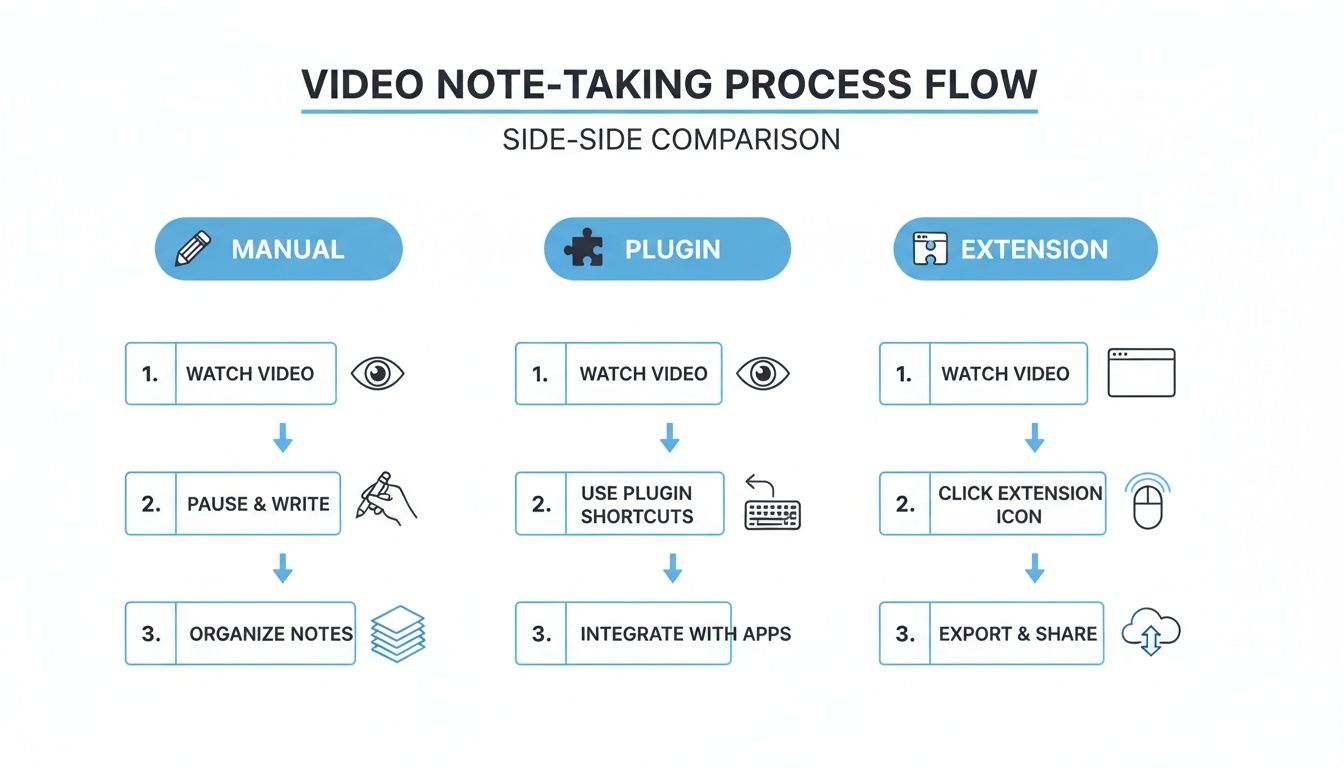
Vậy làm thế nào để bạn đưa ghi chú video vào Obsidian? Bạn có vài lựa chọn, và cách tiếp cận đúng phụ thuộc vào cách bạn học và mức độ khó chịu bạn chấp nhận được. Phần lớn quy trình thuộc ba nhóm. Hiểu được ưu nhược điểm của từng cách là chìa khóa để xây dựng một hệ thống mà bạn thực sự dùng.
Hãy xem xét ưu nhược thực tế của từng phương pháp.
Đây là cách mặc định: video phát ở một bên, ghi chú Obsidian mở ở bên kia. Bạn xem, gõ, tạm dừng, chụp màn hình, lưu tệp, rồi kéo vào ghi chú.
Điểm hấp dẫn là bạn hoàn toàn kiểm soát được. Thực tế là quy trình này rất tẻ nhạt và nhiều trở ngại. Việc liên tục tạm dừng, chuyển đổi ứng dụng và quản lý tệp làm bạn mất tập trung. Tệ hơn nữa, ghi chú và ảnh màn hình của bạn bị tách rời với timeline video, khiến bạn khó tìm lại ngữ cảnh gốc sau này.
Bước tiếp theo của nhiều người là plugin Obsidian như Media Notes. Các công cụ này cho phép bạn nhúng trình phát video ngay trong một ghi chú bằng cách dán URL từ các trang như YouTube hoặc Vimeo. Đây là một bước tiến lớn trong việc tập trung, khi mọi thứ nằm trong một cửa sổ duy nhất.
Tuy nhiên cách này cũng có nhược điểm. Plugin thường chỉ hỗ trợ cụ thể một vài nền tảng và có thể bị lỗi khi những trang đó nâng cấp mã nguồn. Quan trọng hơn, bạn vẫn phải gánh toàn bộ công việc nặng nhọc—gõ tay, tạm dừng, cố gắng ghi lại dấu thời gian. Chúng chỉ tích hợp trình phát, không tự động hóa việc ghi chú.
Lựa chọn thứ ba là phần mở rộng trình duyệt giúp ghi chú trong lúc bạn xem trên bất kỳ trang nào—Udemy, Coursera, YouTube hoặc thậm chí cổng riêng của đại học. Các công cụ như HoverNotes hiển thị bảng ghi chú ngay cạnh video.
Cách này tạo bước nhảy vọt về hiệu quả và tương thích. Chỉ một cú nhấp (hoặc phím tắt), bạn có thể chụp màn hình có dấu thời gian rồi thả vào ghi chú. Công cụ tốt còn dùng AI tạo ghi chú bằng cách thu thập cả lời nói và chữ hiện trên màn hình. Khi xong, ghi chú lưu dưới dạng file .md sạch, thẳng vào kho Obsidian của bạn.
"Ghi chú được lưu dưới dạng file .md thẳng vào kho Obsidian của bạn, không dùng định dạng độc quyền hay dịch vụ đồng bộ nào—ghi chú là của bạn."
Nhược điểm là quá trình ghi chú ban đầu xảy ra ngoài Obsidian. Nhưng với nhiều người, triết lý "ghi ngay, sắp xếp sau" này ít làm gián đoạn học tập hơn nhiều. Bạn có thể học cách tổ chức ghi chú theo Phương pháp Cornell cho ghi chú video trong hướng dẫn khác của chúng tôi.
Bảng dưới đây so sánh ba cách trên. Hãy suy nghĩ xem bạn coi trọng điều gì nhất—kiểm soát tuyệt đối, không gian làm việc thống nhất, hay tốc độ thuần khiết?
Phương pháp
Ưu điểm
Nhược điểm
Phù hợp với
Quy trình thủ công
Kiểm soát hoàn toàn định dạng, không phí phần mềm thêm.
Rất chậm, nhiều cản trở, không liên kết timeline video.
Video ngắn hoặc người dùng cần kiểm soát tuyệt đối.
Plugin Obsidian
Video và ghi chú trong cùng một cửa sổ, tích hợp tốt.
Hạn chế hỗ trợ trang web, phụ thuộc bảo trì plugin.
Người dùng học chủ yếu trên YouTube muốn môi trường đóng gói.
Phần mở rộng trình duyệt
Hoạt động trên mọi trang, ảnh chụp có dấu thời gian, tự động AI.
Ghi chú ban đầu thực hiện ngoài Obsidian.
Người học coi trọng tốc độ, hiệu quả, và linh hoạt nền tảng.
Hệ thống tốt nhất là cái loại bỏ được nhiều trở ngại nhất. Với đại đa số người học từ nhiều nguồn video, sự linh hoạt của phần mở rộng trình duyệt là khó có đối thủ.
Hệ thống ghi chú video tốt nhất là hệ thống loại bỏ tối đa trở ngại. Việc nhập tệp thủ công hay copy-paste text tạo ra các bước nhỏ làm bạn dễ bỏ cuộc. Giải pháp là quy trình trực tiếp vào Obsidian.
Khi thiết lập, ghi chú của bạn sẽ tự động nằm đúng chỗ, loại bỏ các bước trung gian khó chịu. Chìa khóa là phần mở rộng trình duyệt có thể ghi tệp trực tiếp vào máy tính. Bạn chỉ cần trỏ vị trí lưu của phần mở rộng vào một thư mục trong kho Obsidian, tạo cầu nối liền mạch từ trình duyệt đến cơ sở tri thức của bạn.
Đầu tiên, bạn cần biết kho Obsidian nằm ở đâu trên máy. Đây là đường dẫn file cục bộ tới thư mục chứa ghi chú.
Để tìm:
Mở Obsidian.
Ở góc dưới bên trái, nhấp vào biểu tượng chuyển đổi kho (hình cánh cửa kho).
Đưa chuột lên kho của bạn, nhấp menu ba chấm, chọn "Hiện kho trong trình duyệt hệ thống" (hay "Show in Finder" trên Mac).
Cửa sổ trình duyệt file sẽ mở ra vị trí kho của bạn. Đây chính là đường dẫn bạn cần. Trên Windows, nó có thể trông như C:\Users\YourName\Documents\Obsidian\MyVault.
Khi đã có đường dẫn kho, bạn có thể kết nối trình duyệt với Obsidian. Trong hướng dẫn này, chúng ta sẽ dùng HoverNotes, một phần mở rộng Chrome có thể xem video cùng bạn, tạo ghi chú AI, và lưu chúng dưới dạng tệp Markdown trực tiếp vào máy.
Sau khi cài, vào phần cài đặt của extension, tìm tùy chọn "Vị trí lưu mặc định". Dán đường dẫn kho của bạn ở đó.
Mẹo nhỏ: hãy tạo một thư mục riêng trong kho dành cho các bản ghi này, ví dụ như VideoNotes. Điều này giúp phân tách ghi chú thô và ghi chú đã hoàn thiện, vĩnh viễn. Đường dẫn cuối cùng có thể như .../MyVault/Resources/VideoNotes. Thiết lập đường dẫn đó và xong. Từ giờ, mọi ghi chú lưu đều xuất hiện ngay như một tệp .md mới trong thư mục này.
Bạn thấy đấy, cách dùng phần mở rộng đưa thẳng ghi chú vào kho, rất trực tiếp và nhanh gọn.
Bây giờ hãy tìm một video bất kỳ trên nền tảng nào—YouTube, Coursera, Udemy hay bản ghi bài giảng. Khởi động phần mở rộng và để nó tạo ghi chú. Bạn có thể thêm suy nghĩ của riêng mình hoặc dùng công cụ cắt để chụp ảnh một sơ đồ hay đoạn mã cụ thể.
Không giống công cụ chỉ dùng phân tích transcript, HoverNotes theo dõi video để ghi lại chính xác những gì đang hiện trên màn hình. Khi hoàn tất, nhấn lưu.
Ghi chú, bao gồm các bổ sung của bạn và ảnh chụp màn hình có dấu thời gian, được lưu thẳng trong thư mục kho dưới dạng tệp Markdown gọn gàng. Khi mở Obsidian, nó đã có sẵn rồi.
Phương pháp "ghi ngay, sắp xếp sau" này giúp bạn thoải mái tập trung vào video, biết rằng điểm chính đang được lưu lại với định dạng mà bạn hoàn toàn sở hữu. Bạn có thể tìm hiểu sâu hơn về kết nối HoverNotes và Obsidian trong hướng dẫn tích hợp đầy đủ của chúng tôi. Mỗi ảnh chụp đều có dấu thời gian có thể nhấp—một cú nhấp sẽ đưa bạn trở lại chính xác khoảnh khắc trong video.
Việc đẩy ghi chú vào kho chỉ là bước đầu. Để biến dữ liệu thô thành kiến thức bền vững, bạn cần một hệ thống. Thiếu nó, kho của bạn dễ trở thành ngăn kéo kỹ thuật số hỗn độn. Mục tiêu là kết nối những hiểu biết mới vào hệ tri thức đã có.
#Dùng thẻ và siêu dữ liệu để nhanh chóng thêm ngữ cảnh
Thẻ là cách nhanh nhất để thêm ngữ cảnh cho ghi chú. Hệ thống thẻ đơn giản, nhất quán giúp bạn tìm ngay mọi thứ liên quan tới chủ đề, nguồn hoặc dự án.
Bắt đầu với vài thẻ trọng tâm cho mỗi ghi chú video:
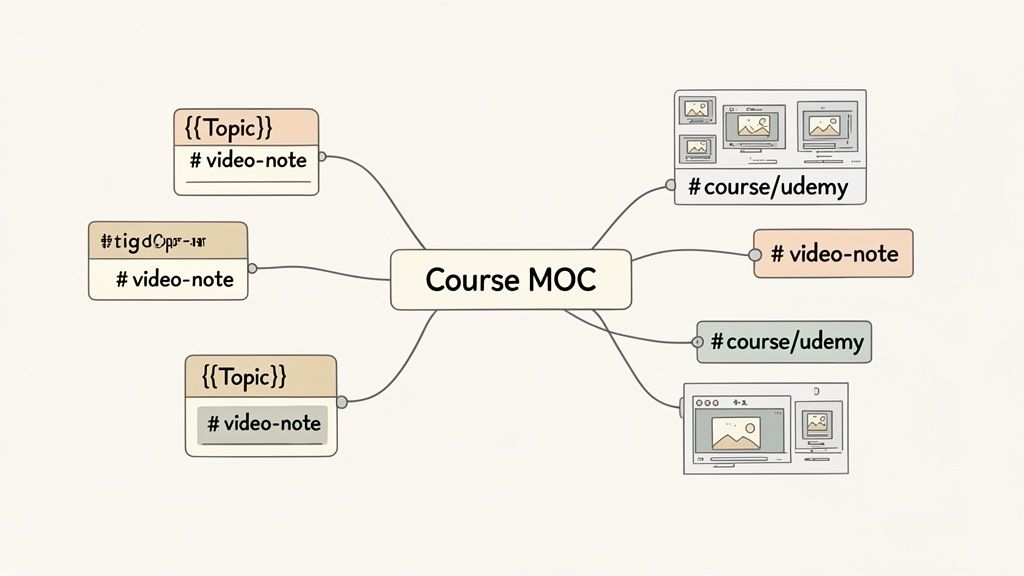
#video-note: Thẻ tổng quan để xem tất cả ghi chú từ video.
#source/youtube hoặc #source/udemy: Xác định cụ thể nguồn thông tin.
#course/aws-certification: Dành cho một series hay khóa học trực tuyến, tạo thẻ riêng để nhóm tất cả ghi chú bài giảng liên quan.
Dùng thẻ lồng nhau như source/youtube tạo nên hệ thống phân cấp gọn gàng để tìm kiếm mà không cần cấu trúc thư mục cứng nhắc.
Đây là sức mạnh thật sự của Obsidian: tạo các liên kết hai chiều giữa các ghi chú. Khi xem lại ghi chú video, hãy chủ động tìm cơ hội liên kết khái niệm với các ghi chú khác bằng cú pháp [[wiki-link]].
Ví dụ, nếu video nhắc đến "JavaScript bất đồng bộ" và bạn đã có ghi chú về chủ đề đó, hãy liên kết nó: [[asynchronous JavaScript]]. Nếu chưa có, việc tạo liên kết sẽ sinh ra ghi chú chờ, nhắc bạn định nghĩa khái niệm đó sau.
Thói quen đơn giản này biến tập hợp ghi chú rời rạc thành một cơ sở tri thức thực thụ. Mỗi liên kết mới buộc bạn nhìn nhận các thông tin mới nối với kiến thức cũ thế nào, giúp bạn hiểu sâu hơn.
Khi làm một khóa học video nhiều phần, tạo một trung tâm liên kết đến từng ghi chú bài giảng riêng lẻ. Điều này thường gọi là Bản đồ nội dung (MOC).
Hãy coi MOC như mục lục do bạn tự xây dựng. Tạo ghi chú mới, ví dụ như [[AWS Certification Course MOC]], rồi liệt kê và liên kết đến từng ghi chú video trong khóa theo thứ tự. Điều này cho bạn cái nhìn tổng thể về chương trình, dễ dàng ôn lại. Bạn có thể học thêm kỹ thuật này trong hướng dẫn cách tạo cơ sở tri thức của chúng tôi.
Một trong những tính năng hữu ích nhất của quy trình ghi chú video tốt là ảnh chụp màn hình có dấu thời gian để nhấp được. Trong Obsidian, các hình ảnh này trở thành cổng tương tác dẫn trở lại tài liệu gốc.
Khi xem lại ghi chú mà quên chi tiết, chỉ cần nhấp vào ảnh. Công cụ như HoverNotes sẽ mở video gốc và nhảy ngay đến khoảnh khắc chính xác đó. Điều này khắc phục khoảng cách giữa tóm tắt và video nguồn, giúp bạn không phải mất công tua timeline để tìm đoạn nhỏ.
Khi đã thiết lập hệ thống nhập ghi chú video vào Obsidian, bạn có thể làm nó nhanh và thông minh hơn. Một vài tự động hóa nhỏ giúp giảm bớt công việc thủ công, để bạn tập trung vào nội dung, không phải kỹ thuật ghi chú.
Mục tiêu là giảm thiểu gánh nặng nhận thức trong quá trình học. Mỗi giây dành cho việc đặt tên file hay gán thẻ là một giây bạn không tiêu hóa nội dung.
Tính năng mẫu trong Obsidian thực sự thay đổi cuộc chơi. Dùng plugin Mẫu lõi hoặc plugin cộng đồng mạnh hơn Templater, bạn có thể tự động thêm cấu trúc và siêu dữ liệu nhất quán cho mỗi ghi chú video. Thay vì gõ đi gõ lại cùng một thông tin, mẫu sẽ điền sẵn giúp bạn.
Một mẫu ghi chú video đơn giản có thể bao gồm:
URL nguồn: Chỗ dành cho link video.
Kênh/Người tạo: Để theo dõi nguồn.
Ngày lưu: Dùng biến động như {{date}} tự điền tự động.
Thẻ: Ngay lập tức thêm #video-note và có thể thẻ #review.
Điều này đảm bảo mọi ghi chú đều bắt đầu với nền tảng sạch và có tổ chức. Khi một tệp Markdown mới xuất hiện trong kho, bạn chỉ cần chạy một lệnh để áp dụng mẫu.
Liên tục chuyển từ chuột sang bàn phím làm mất tập trung. Ghi chú từ video nhanh, bạn cần phím tắt. Công cụ như HoverNotes sinh ra là dành cho điều này. Bạn có thể gán phím tắt cho các hành động chính, điều khiển toàn bộ quy trình mà không cần rời tay khỏi bàn phím.
"Phím tắt cho phép bạn chụp ảnh màn hình và điều hướng mà không làm gián đoạn dòng chảy công việc."
Tạo phím tắt tùy chỉnh cho các tác vụ như:
Chụp toàn màn hình.
Chụp một vùng cụ thể trên màn hình (ví dụ đoạn mã hoặc sơ đồ).
Chuyển đổi chế độ video không gây xao nhãng.
Phát, tạm dừng, điều chỉnh tốc độ video.
Nhớ động tác bạn xây dựng sẽ mang lại lợi ích ngay. Bạn không còn phải nghĩ nhiều về công cụ mà tập trung hoàn toàn vào nội dung. Kết hợp với AI đảm nhiệm ghi chú, bạn chỉ cần tập trung vào hiểu bài. Bạn có thể khám phá các ứng dụng ghi chú AI để xem chúng phù hợp thế nào trong hệ thống ưu tiên cục bộ, điều khiển bằng bàn phím.
#Một vài câu hỏi thường gặp về ghi chú video trong Obsidian
Khi hoàn thiện quy trình, thường có vài câu hỏi được đặt ra.
#Tôi có thể thực sự ghi chú từ video trên các trang như Coursera hay Udemy không?
Có. Dù một số plugin Obsidian chuyên dụng cho YouTube, phần mở rộng trình duyệt tốt hoạt động trên mọi nền tảng. Công cụ như HoverNotes được thiết kế để dùng trên bất kỳ trang web có trình phát video. Nghĩa là bạn có thể dùng cùng quy trình cho khóa học Coursera, bài hướng dẫn Udemy, lớp học LinkedIn Learning, hay cổng khép kín của trường đại học. Nơi nào có video, nó đều hoạt động.
#Sự khác biệt thật sự giữa plugin và phần mở rộng là gì?
Điều này phụ thuộc vào nơi công cụ hoạt động.
Một plugin Obsidian chạy trong kho của bạn. Bạn dán URL video vào ghi chú, nó nhúng trình phát. Mọi thứ gói gọn trong một cửa sổ.
Một phần mở rộng trình duyệt chạy trong trình duyệt của bạn. Nó cho phép bạn ghi chú trong lúc xem video trên trang gốc, rồi lưu tệp Markdown hoàn chỉnh trực tiếp vào kho Obsidian.
Phần mở rộng thường mang lại tính linh hoạt cao hơn, làm việc trên nhiều trang web hơn, và có các tính năng như chế độ xem video không làm xao nhãng mà plugin không có được.
#Làm sao để tôi ghi lại hình ảnh như sơ đồ hay mã code?
Việc miêu tả sơ đồ phức tạp hay đánh lại mã rất chậm và dễ sai. Giải pháp tốt nhất là dùng công cụ chụp ảnh màn hình có dấu thời gian. Khi thấy công thức hay đoạn mã quan trọng, bạn nhấn phím nóng.
Một quy trình hiệu quả sẽ nhúng ảnh chụp màn hình đó trực tiếp vào ghi chú Markdown của bạn. Tốt hơn nữa, khi nhấp ảnh trong Obsidian bạn sẽ trở lại đúng khoảnh khắc trong video, cung cấp ngữ cảnh hình ảnh quan trọng mà chữ viết không thể thay thế.
#Ghi chú của tôi có được lưu ở định dạng mở không?
Điều này là không thể thương lượng với ai coi trọng sở hữu dữ liệu. Hãy ưu tiên các công cụ lưu ghi chú dưới dạng file Markdown (.md) thuần túy. Điều này giúp kiến thức của bạn không bị khóa trong ứng dụng độc quyền và có thể sử dụng lâu dài. Công cụ ưu tiên cục bộ lưu trực tiếp tệp trên máy. Bạn sở hữu file đó. Di chuyển, sao lưu, tìm kiếm chúng—chỉ là tệp Markdown bình thường. Ghi chú là của bạn, mãi mãi.
Nếu bạn dùng Obsidian để học, HoverNotes lưu ghi chú thẳng vào kho dưới dạng file Markdown sạch. Tính năng ảnh chụp màn hình có dấu thời gian một mình cũng giúp bạn tiết kiệm hàng giờ xem lại. Bạn có thể dùng thử miễn phí—20 phút tín dụng AI, không cần thẻ tín dụng, tại https://hovernotes.io. Kiểm tra các lựa chọn hiện tại ở trang giá HoverNotes.
Tìm hiểu cách tạo cơ sở tri thức trong Obsidian giúp chuyển trải nghiệm xem video thụ động thành học tập chủ động. Hướng dẫn thực tiễn về cách thiết lập kho lưu trữ và ghi chú.
Khám phá những plugin obsidian tốt nhất cho việc học năm 2026. Một bộ công cụ đầy đủ bao gồm ghi hình video, lặp lại giãn cách, dataview và excalidraw dành cho sinh viên.
Xây dựng một quy trình làm việc hiệu quả cho ghi chú Obsidian YouTube của bạn. Tìm hiểu cách nắm bắt, sắp xếp và liên kết kiến thức từ video để thực sự ghi nhớ những gì bạn xem.