Otter AI alternative for students (free options) | HoverNotes Blog | HoverNotes
General2025年12月24日
Otter AI alternative for students (free options)
Confused about the Otter AI cost? We break down the pricing plans, free tiers, and hidden fees for students to find the best value for video learning.
著者 HoverNotes Team•11 分で読める
Otter.ai is built for transcribing business meetings. But what is the actual Otter AI cost for a student trying to take notes from a video lecture? Otter's pricing is designed for professional teams, not individual learners on a budget. This means you often pay for features you don't need, like team management, while missing tools critical for learning from video, like capturing diagrams or code on screen.
Watching a video lecture isn't like listening to a meeting. You need to connect what you see with what you hear. A simple transcript misses the point. Manually pausing to take screenshots and type notes is tedious and breaks your focus.
This guide breaks down Otter.ai's plans, limits, and pricing to help you see if it fits your study workflow. We'll look at what you get, what you don't, and why a tool built for learning might be a better, more cost-effective option for platforms like YouTube, Coursera, or your university's lecture portal.
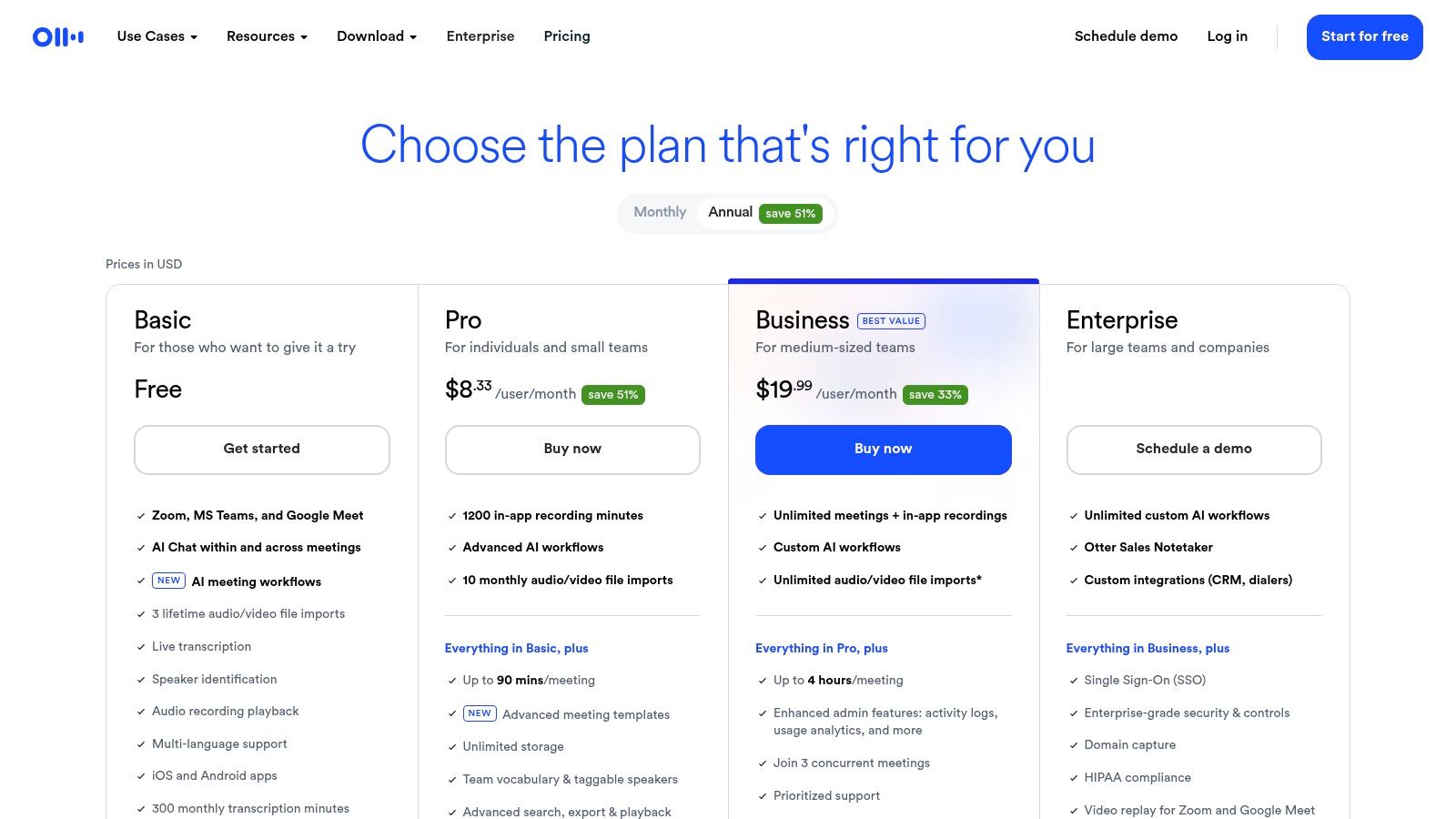
The most reliable place to check the Otter AI cost is its official pricing page. It lists the Basic (Free), Pro, Business, and Enterprise plans, so you can directly compare features.
The free plan is very limited: 300 transcription minutes per month and only 30 minutes per conversation. This is often not enough for a single one-hour lecture. Paid plans increase these limits but are priced per user, which adds up quickly for a student budget. The features are heavily skewed toward business meetings (e.g., assigning action items, syncing with Salesforce), not academic study.
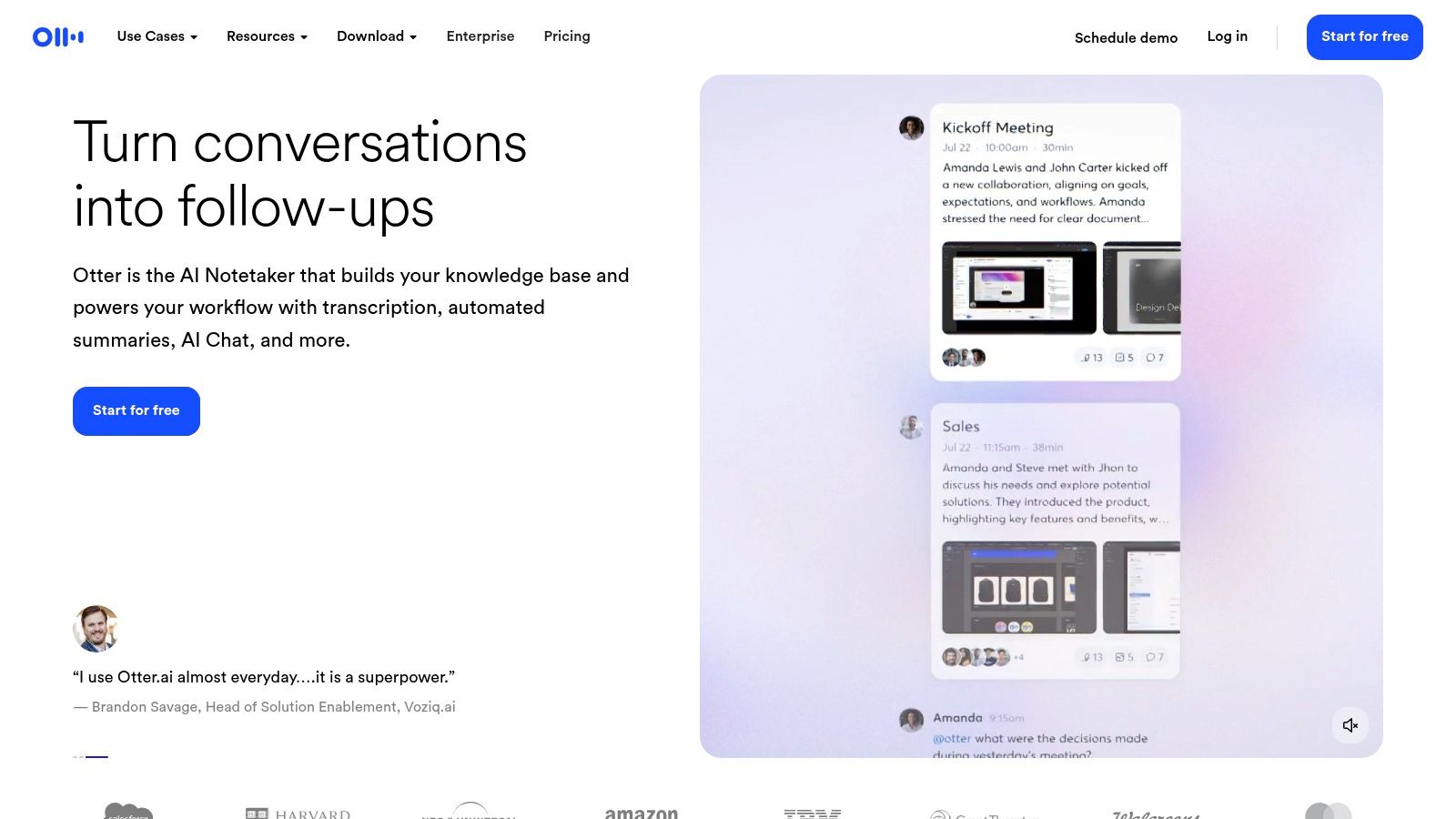
The official Otter.ai homepage focuses on its core use case: AI notes for business meetings. It highlights features like automated summaries and AI Chat for meetings. It’s a good place to sign up for the free Basic plan to test the transcription quality.
While the site showcases integrations with Zoom and Microsoft Teams, it doesn't mention learning platforms like Coursera or Udemy. This reinforces that its primary focus is corporate, not educational. The problem for learners is that a video is more than just audio; a transcript alone misses crucial on-screen information. You need a tool that can "see" the video.
Test the Free Plan: Sign up and upload a short audio file to see how it works. This is the best way to determine if its transcription accuracy meets your needs before paying.
Note the Focus: The homepage makes it clear Otter is for meetings. If you're a student, you're trying to fit a square peg into a round hole. You may need a different kind of AI note taker app.
Check Integrations: If you primarily use Zoom or Google Meet, the integrations might be useful. If you learn from pre-recorded videos, they're irrelevant.
#3. Apple App Store – Otter Transcribe Voice Notes
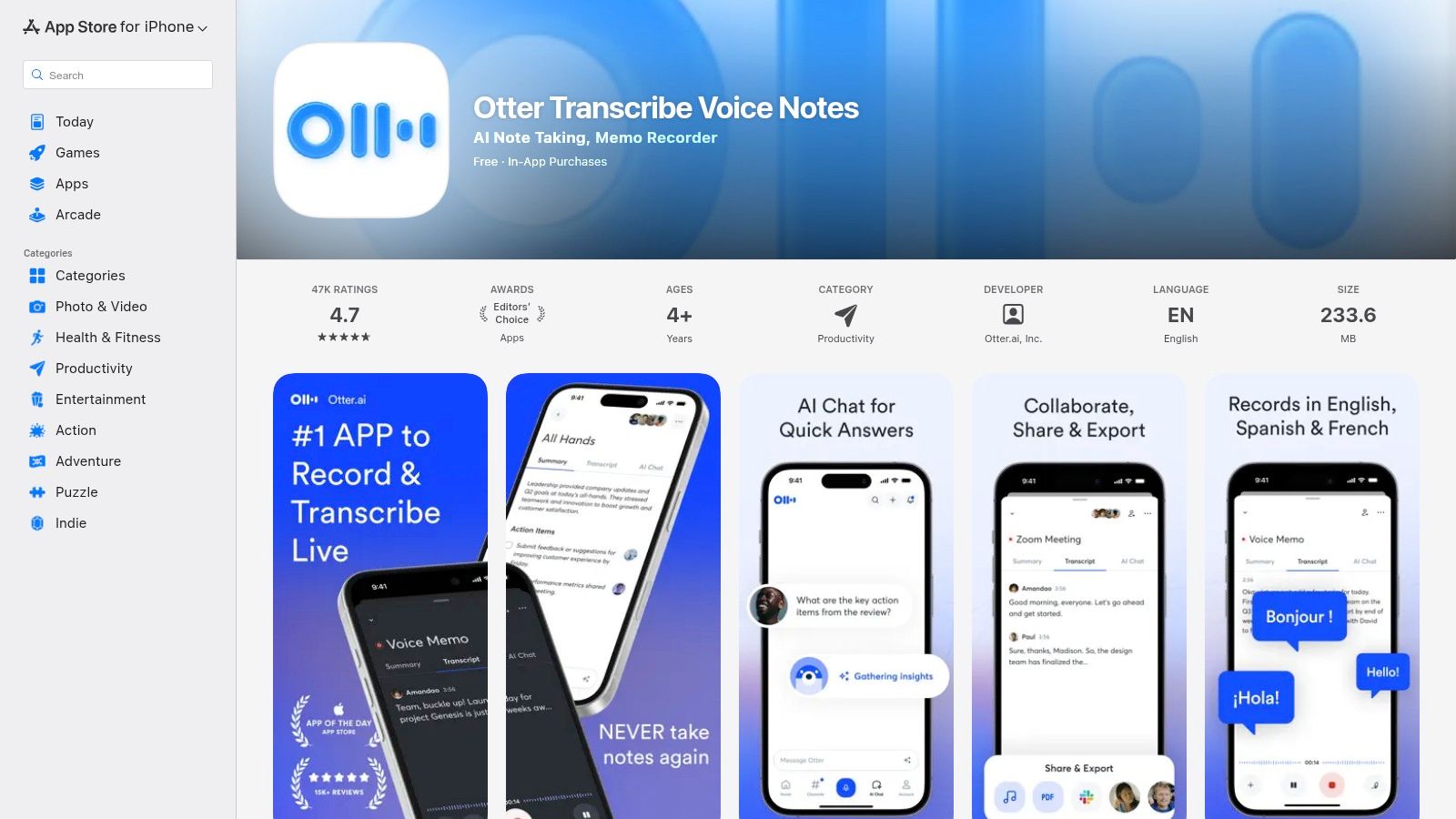
For Apple users, the App Store is a convenient way to subscribe. You can pay using your Apple ID, and all your subscriptions are managed in one place in your iOS settings. This is useful if you record in-person lectures on your iPhone.
The App Store listing shows the otter ai cost for in-app purchases and subscription terms. While convenient for mobile recording, it doesn't solve the core problem for video learning—the lack of visual context. The mobile app is just an audio recorder and transcript viewer. It's a good mobile lecture note taker for audio-only situations but doesn't help with video content.
Convenient Billing: Paying via the App Store is simple and secure if you're in the Apple ecosystem.
Centralized Management: It’s easy to track renewals and cancel from your iPhone's settings.
Price Check: Prices on the App Store can sometimes be higher than on the official website due to Apple's commission. Always compare before subscribing.
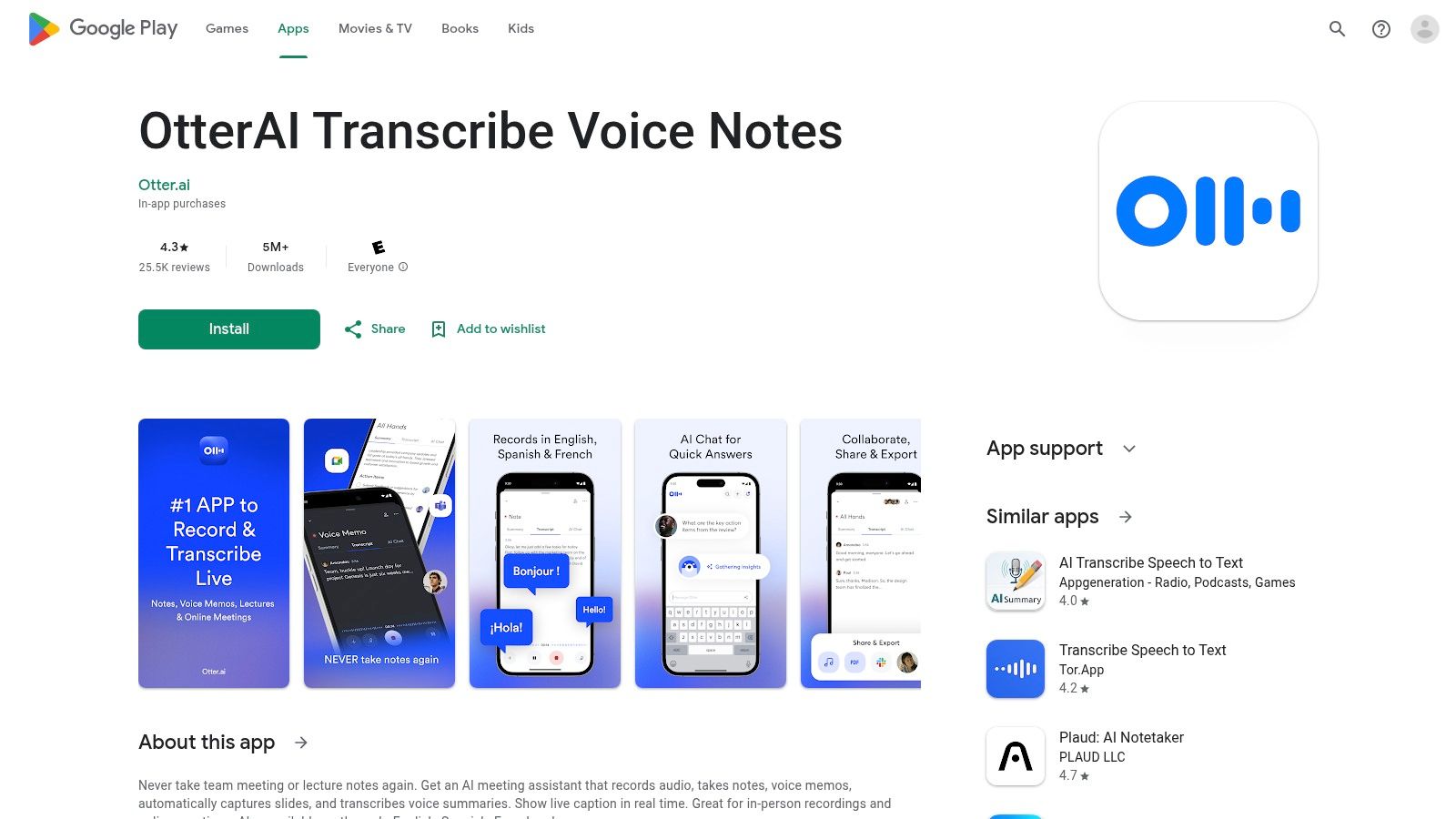
For Android users, the Google Play store offers a similar experience. You can install the app and manage your subscription through your Google account. It's practical for recording audio on an Android device.
The Google Play page shows in-app purchase prices, user ratings, and data safety information. Managing the Otter AI cost is straightforward, using the payment method linked to your Google account. However, like the iOS app, this is for audio recording. It doesn't help you take notes from video tutorials on your laptop or desktop, which is where most students do their learning.
#5. Chrome Web Store – Otter.ai: Record & Transcribe Meetings
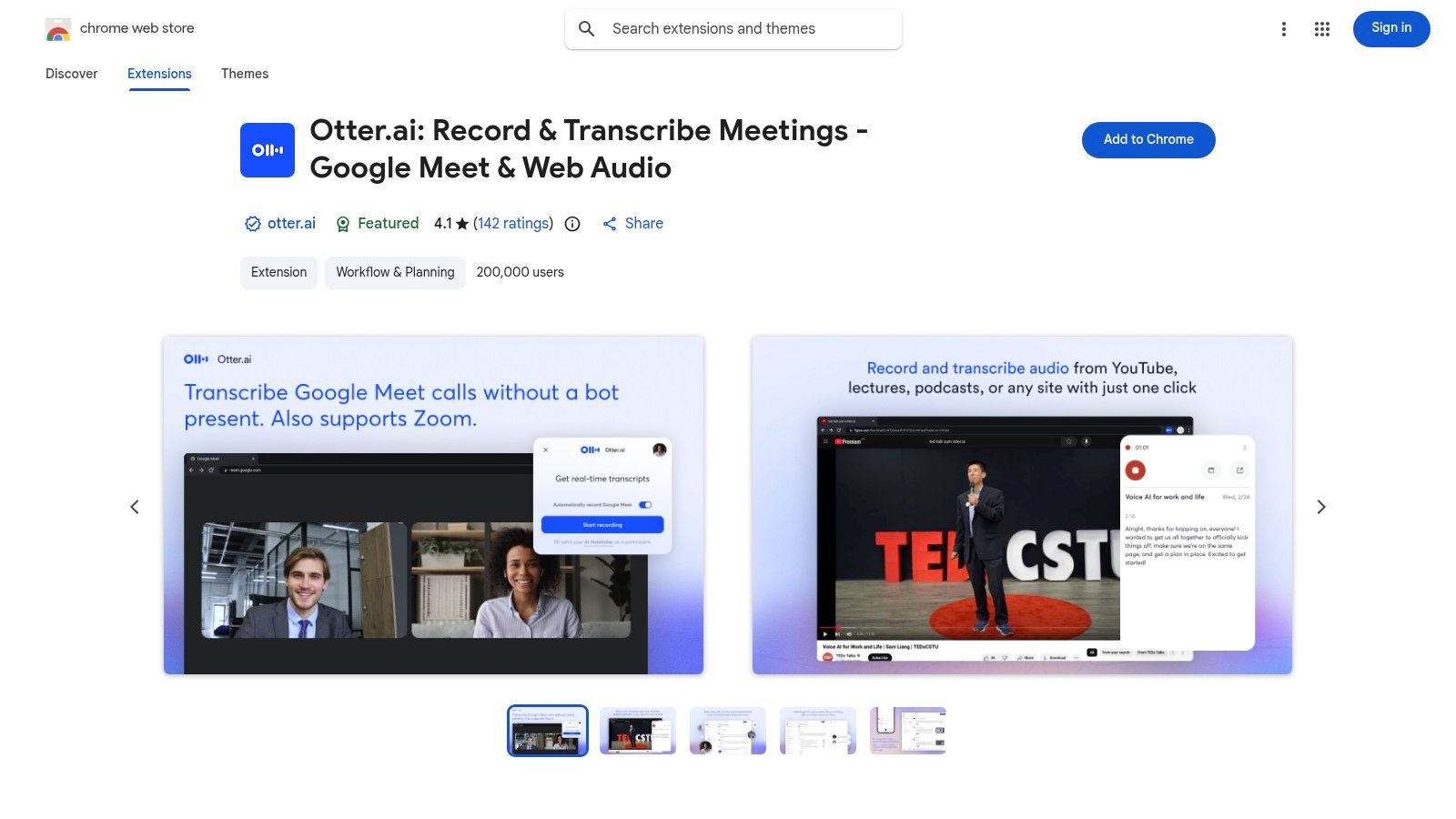
The Otter.ai Chrome extension is designed to transcribe meetings directly from your browser in platforms like Google Meet or Zoom. It links to your Otter account, and any usage consumes your monthly minute allowance.
This extension is built for live meetings, not for watching pre-recorded video. It captures tab audio, but it doesn't see what's on the screen. For a student watching a coding tutorial, the transcript might capture the speaker saying "change this variable," but it won't capture the actual code being shown. This makes the notes incomplete and less useful for studying. Even if you want to transcribe a YouTube video, you miss the visual half of the content.
It's Not Free: The extension is free to install, but using it costs transcription minutes from your Otter plan. The free plan's limits still apply.
Live Audio Only: It's for transcribing live audio from a browser tab. It is not designed for taking notes from recorded video content on sites like Udemy or YouTube.
Incomplete Notes: Without screenshots, you lose all visual context, which is often the most important part of a video lecture or tutorial.
Third-party review sites like G2 offer an unfiltered look at the Otter AI cost and value from real users. G2 consolidates verified reviews and presents pricing in a simple table, which is useful for a quick comparison.
The most useful feature is comparing Otter.ai to alternatives side-by-side. Reading reviews from other students or individual users can reveal practical limitations not mentioned in marketing materials, like transcription accuracy with accents or the frustration of hitting minute limits. This helps frame the cost against real-world performance for your specific use case, not just a list of features.
Filter Reviews: Look for reviews from users in academia or education to see how it performs in a learning context. You’ll quickly see that it’s reviewed as a meeting tool.
Compare Alternatives: Use G2 to find tools specifically designed for students or video note-taking and compare their features and pricing against Otter.
Verify Pricing: G2's pricing information can be outdated. Always confirm the current cost on the official Otter.ai website.
#7. TechRadar – What is Otter.ai? Pricing and plan breakdown
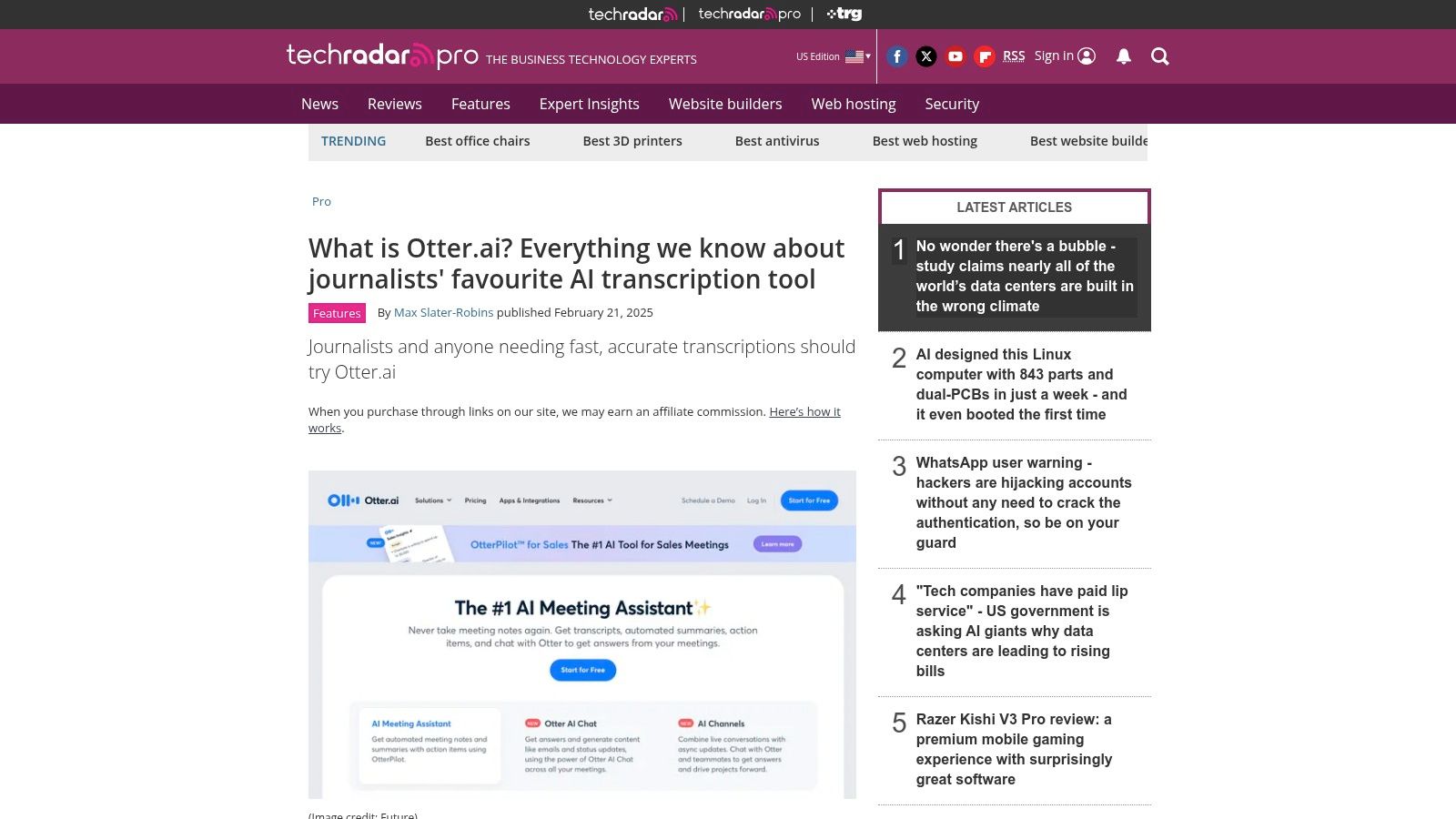
Tech news sites like TechRadar provide concise summaries of the Otter AI cost. These articles are good for a quick overview of the differences between the Basic, Pro, and Business plans without getting lost in feature lists.
These guides often explain key limitations, like the per-meeting duration cap, which is a critical factor for students. They provide context on Otter's intended use case—meetings—which helps clarify why it might not be the best fit for learning from video. While helpful for a high-level summary, these articles can become outdated, so always double-check the details on the official site.
The real Otter AI cost for a student is paying for a business meeting tool when you need a learning tool. Otter is excellent for transcribing who said what in a meeting. But learning from video is different. Retention plummets when you just passively watch. You need to actively engage with the material, and that means capturing both what is said and what is shown.
A transcript can't capture a line of code, a diagram on a whiteboard, or a step in a software tutorial. For that, you need a tool that watches the video with you.
For students, especially those using tools like Obsidian or Notion, the right tool should:
Capture Visuals: Take timestamped screenshots of the video and embed them directly in your notes. Click a screenshot to jump back to that exact moment.
Work Everywhere: Function on any video platform—YouTube, Udemy, Coursera, university portals, and even local video files.
Let You Own Your Data: Save notes as local, plain Markdown (.md) files. Your knowledge shouldn't be locked in a proprietary cloud service. You should own your notes forever.
Be Built for Learning: Offer features like a distraction-free viewing mode that puts the video and your notes side-by-side, blocking ads and other clutter.
Choosing the right tool is about investing in a better learning process. Instead of paying for enterprise features you'll never use, find a tool designed to solve the actual problem of learning from video content.
The real otter ai cost for a student is paying for a meeting tool when what you need is a learning companion. If you learn from video and value owning your notes, try HoverNotes. It's a Chrome extension that watches videos with you, generates AI notes, and saves them as Markdown directly to your file system. Unlike tools that only parse transcripts, HoverNotes watches the video to capture what's actually on screen. You can try it free—you get 20 minutes of AI credits on signup, no credit card needed.
Explore Otter AI plans to see if they fit your goals. Learn why video learning requires a different approach and compare top alternatives built for students.
Learn the best ways to screen capture from YouTube for your study notes. This guide covers manual methods, browser tools, and how to organize captures.
Learn how to make a study guide from video lectures with AI workflows, Markdown templates, and visual screenshots to boost retention and streamline studying.