A Complete Workflow for Obsidian YouTube Notes | HoverNotes Blog | HoverNotes
General2026年1月23日
A Complete Workflow for Obsidian YouTube Notes
Build a powerful workflow for your Obsidian YouTube notes. Learn how to capture, organize, and link video knowledge to actually remember what you watch.
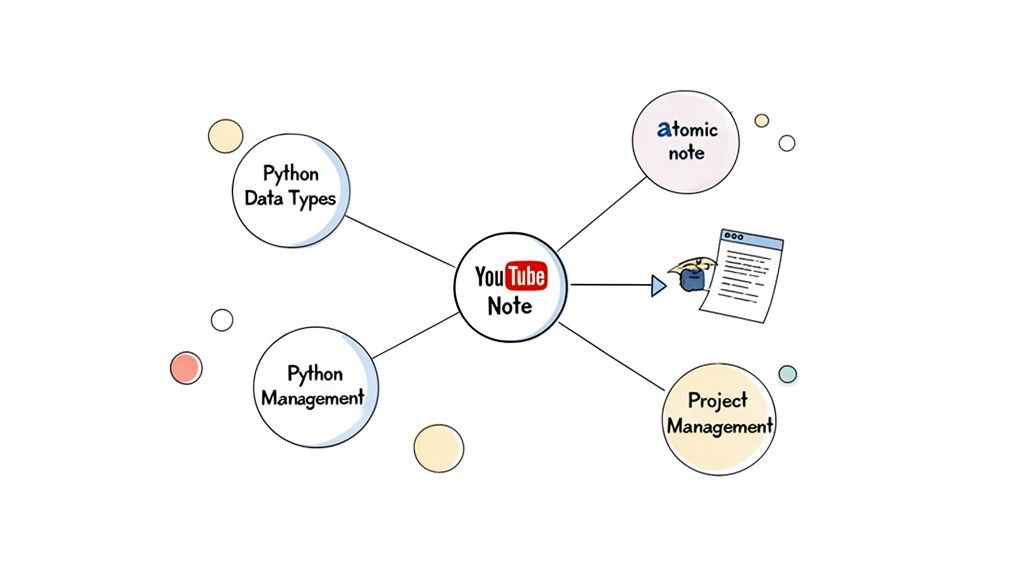
Taking effective Obsidian YouTube notes requires a three-step system: Capture notes and timestamped screenshots frictionlessly into Markdown files. Process these raw notes in an Inbox folder by applying a template, summarizing in your own words, and moving them to a permanent Sources folder. Finally, Link the new note to existing concepts in your Obsidian vault ([[Python]], [[Project Management]]) to build a connected knowledge graph. This turns passive watching into active learning.
Taking good Obsidian YouTube notes boils down to a simple, repeatable system: capture effortlessly, process consistently, and link intelligently. Manually pausing a video, frantically typing, and grabbing screenshots is frustrating. It kills your focus and leaves you with a mess of disconnected notes.
The goal isn't just to write things down; it's to create a system where you can actually absorb the video's content while a tool handles the mechanical parts, like taking screenshots and formatting.
#The 3-Stage Workflow for YouTube Notes in Obsidian
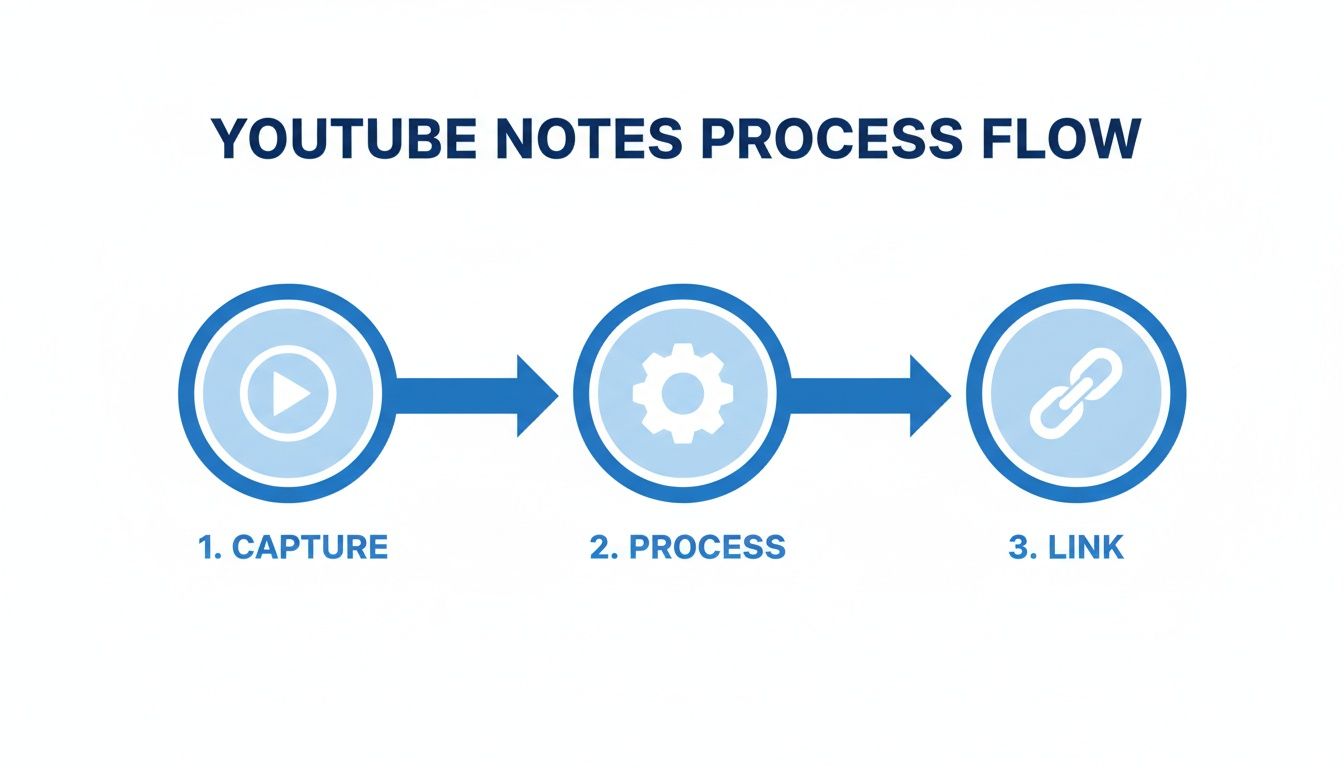
A solid workflow for turning video content into lasting knowledge has three core stages. This simple but powerful process is the key to creating useful obsidian youtube notes that you'll actually come back to.
Here's the flow:
This path—from raw capture to processed and linked knowledge—is the foundation for turning passive watching into an active learning session. Without some form of active note-taking, you forget most of what you watch. Constantly pausing and playing is tedious, and screenshots end up scattered across your desktop with no connection to your notes.
Capture: Get information out of the video and into your system with as little friction as possible. The trick is to capture rich context—not just text, but visuals and clickable timestamps, too.
Process: Raw notes are messy. Processing is where you clean them up, add metadata using a template, and rephrase key ideas in your own words. This is where real understanding happens.
Link: This is where Obsidian's power shines. By linking your new video note to existing concepts in your vault, you weave it into your broader knowledge graph, making it exponentially more valuable.
With a proper system, your retention can jump significantly. The key is reducing the friction of capture. You can improve your notes just by learning how to add timestamps to YouTube links.
#Manual vs. Automated YouTube Note-Taking in Obsidian
Let's be practical: the manual way of doing this is a pain. Juggling windows, pausing, typing, and screenshotting is a recipe for distraction. An automated workflow, on the other hand, lets you stay in the flow of learning.
Here’s a direct comparison:
Task
Manual Method (The Pain)
Automated Workflow (The Gain)
Capturing Text
Pause video, switch to Obsidian, type or copy/paste transcript.
One click captures AI-generated notes or transcripts.
Grabbing Screenshots
Pause video, use a snipping tool, save the image, drag it into Obsidian.
One click grabs a screenshot with a clickable, embedded timestamp.
Adding Timestamps
Note the time, switch to Obsidian, manually type the timestamp.
Timestamps are added automatically to every note and screenshot.
Formatting Notes
Manually format everything with Markdown (headers, bullets, etc.).
Notes are pre-formatted as clean Markdown files (.md).
Maintaining Focus
Constantly context-switching between the video and your notes.
Stay focused on the video; the tool handles the capture.
The difference isn't just about saving seconds; it's about changing the experience from a tedious chore to a seamless learning process.
This is where a tool like HoverNotes, a Chrome extension that watches videos with you, generates AI notes, and saves them as Markdown directly to your file system, makes a difference. Instead of manually transcribing, you get AI-generated notes with embedded, timestamped screenshots ready to go. The notes save as .md files directly to your Obsidian vault, no proprietary format or sync service needed—your notes belong to you.
The biggest reason people fail at taking notes from YouTube is the workflow itself. It’s a chaotic mess of pausing, rewinding, Alt-Tabbing over to your notes, typing something, then trying to find your place in the video again. It kills your focus.
Real learning requires immersion. That constant context-switching is the enemy of immersion.
The point is to grab high-fidelity information from the video without derailing your train of thought. This means your capture method has to be fast, simple, and rich with context. You’re not just snagging bits of text; you're documenting what you see—like a code snippet on the screen or a diagram being drawn.
Many tools just rip the audio transcript from a video. That's better than nothing, but it misses a huge piece of the puzzle. A transcript can’t show you the slide with the key statistics, the line of code that’s causing an error, or the specific part of the interface being demonstrated. Visual context matters.
Unlike tools that only parse transcripts, HoverNotes watches the video to capture what's actually on screen. For those just starting out, a good guide on YouTube to text transcription can be a helpful primer, but visual context is where the real power lies.
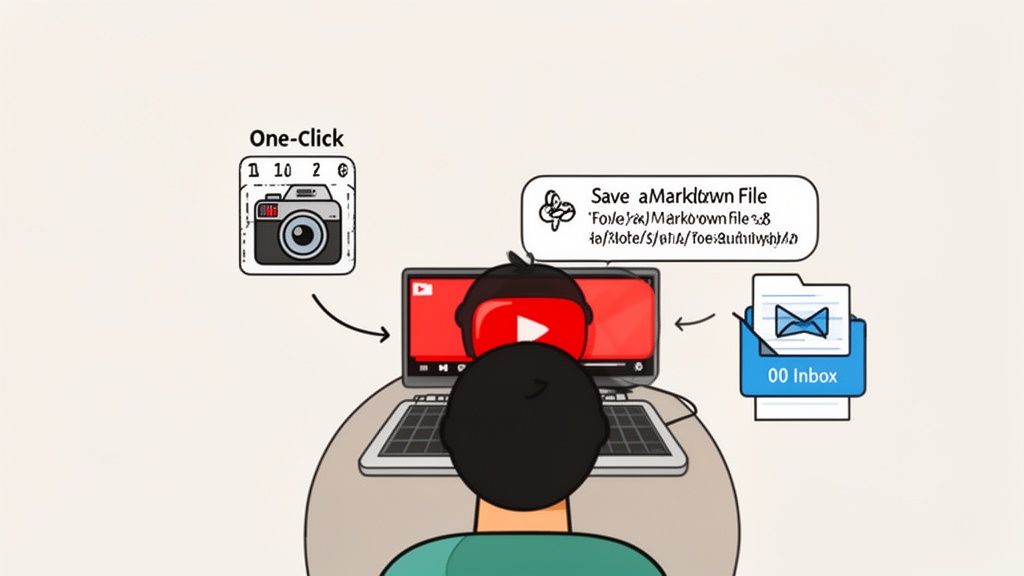
Imagine you're watching a coding tutorial, and the instructor has a complex function on the screen. Instead of the old routine—pause, open a snipping tool, save the file, drag it into Obsidian—you just hit a hotkey.
A timestamped screenshot of that exact code block instantly appears in your notes. Later, when you're reviewing, you can click that image and jump right back to that precise moment in the video. This is what frictionless capture feels like.
This same principle works for any kind of visual information:
Diagrams and flowcharts in a business lecture.
Formulas and equations in a math tutorial.
Specific frames from a historical documentary.
This method solves the scattered screenshot problem. Gone are the days of a desktop folder cluttered with capture-1.png files. Now, your visuals are embedded directly within your notes, right where they belong. The final Markdown file—saved directly to your Obsidian vault—is a complete, context-rich record of your learning session. You own the files. Move them, back them up, grep them—they're just Markdown. If you want to dive deeper into this workflow, check out our guide on taking better tutorial notes.
#Structuring Your Obsidian Vault for Video Knowledge
A folder overflowing with random Markdown files isn't a knowledge base. It's a digital junk drawer. To make your Obsidian YouTube notes work for you, you need a simple, reliable structure. Without a system, all those insights you capture will become a chaotic mess you can't navigate.
The point is to have a predictable place for new notes to land and a clear path to turn them into permanent, interconnected knowledge.
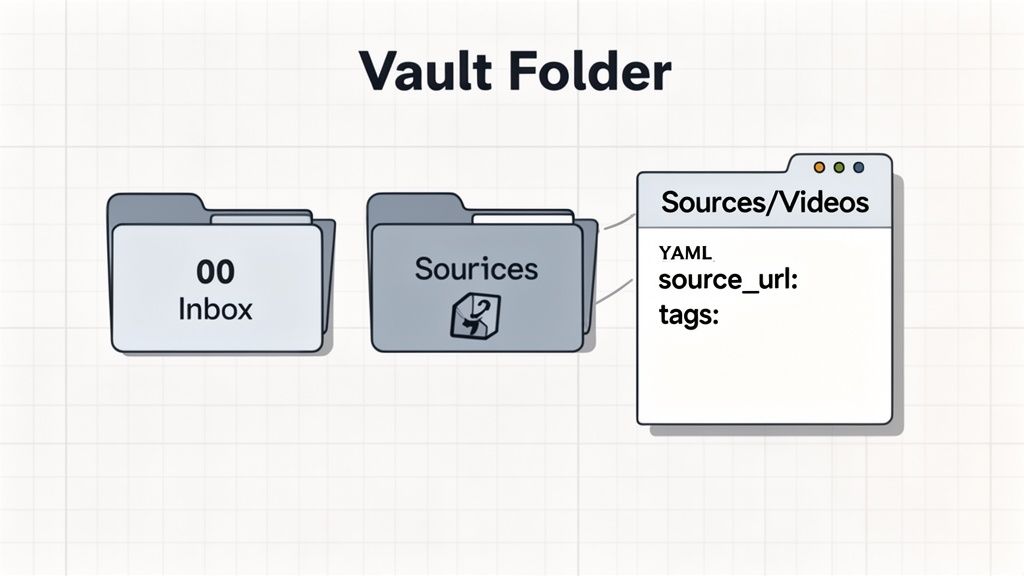
You don't need a complex folder hierarchy. A simple two-folder system works incredibly well for processing knowledge from videos.
00 Inbox This is the landing zone for every raw capture. When you use a tool like HoverNotes, you set it to save every new .md file directly here. Its only job is to hold unprocessed material, keeping the rest of your vault clean.
10 Sources/Videos Once you’ve reviewed, cleaned up, and linked a note from your inbox, it graduates to this folder. Think of this as your permanent library of processed video intelligence.
This setup keeps your main workspace tidy and gives you a clear to-do list right in your inbox.
Your system doesn’t have to be perfect. Consistency is what matters. A simple structure you actually stick with beats a complex one you abandon.
According to data from obsidianstats.com, systematic approaches like this are why usage of note-taking plugins has surged, with some power users managing thousands of video notes efficiently.
Consistency begins with a template. By using a standard format for every video note, you guarantee that you capture the same crucial metadata every time. This makes your notes searchable, filterable, and more powerful down the road.
Here's a practical Markdown template to get you started. Save this in a Templates folder in your vault.
This template uses YAML frontmatter to store key details like the source_url and channel. The tags field is essential for organization, and the created date helps you track your workflow. Adopting a structured format like this is a fundamental step in building a useful personal knowledge base. If you're curious about the bigger picture, you can learn more about creating a knowledge base here.
#Processing and Linking Your Notes for True Learning
Capturing a note is just the first step. A folder full of raw files is no better than a cluttered downloads folder. The real learning, the kind that sticks, happens when you process those notes. This is the critical step that turns passive information into active knowledge, transforming a digital filing cabinet into a true second brain.
The goal is simple: review, rephrase, and connect. When you force yourself to summarize key ideas in your own words, you engage with the material on a much deeper level. This one act dramatically boosts retention.
Your workflow for processing Obsidian YouTube notes should become a consistent ritual. As soon as a new note from a tool like HoverNotes lands in your 00 Inbox, process it.
Here’s a practical way to handle it:
Review and Refine: Scan the AI-generated summary and takeaways. Does it capture the essence of the video? Clean up any clunky phrasing and bold the most important sentences.
Summarize in Your Own Words: This is the non-negotiable part. Below the AI summary, add a new section called "My Summary." Write one or two sentences explaining the core idea as if you were teaching it to someone.
Extract Atomic Concepts: While reviewing, look for standalone ideas. If a video on Python functions mentions [[lambda expressions]], turn that term into a link. This creates a placeholder for a new, "atomic" note dedicated to that single concept.
This process transforms a static record of a video into an active node in your knowledge graph. The note stops being just "notes on that one YouTube video" and becomes a launchpad for new connections.
Building out this web of networked thoughts is what makes long-term learning possible. If you want to go deeper on this philosophy, we've laid out a full methodology on how to build a second brain.
Linking is where Obsidian's magic happens. A note is only as valuable as its connections to everything else you know. When processing a new YouTube capture, your main job is to connect this new piece of information to your existing knowledge.
Was it a tutorial on CSS Flexbox? Link it back to your main [[CSS]] note.
A video essay on historical economics? Connect it to your notes on [[The Great Depression]] and [[Keynesian Economics]].
Watching a developer conference talk about a new JavaScript framework? Link it to [[Web Development]] and [[JavaScript Libraries]].
Every link you create strengthens your personal web of knowledge. You're building pathways that your future self can follow to rediscover insights and spot patterns you would have otherwise missed. Over time, your Obsidian YouTube notes stop being isolated files and become deeply integrated pieces of your knowledge base.
Once you've nailed down a reliable workflow, you can add some real power to your system. These techniques will boost your efficiency and open up new ways to learn, especially with complex or international content.
If you're serious about Obsidian, the Dataview community plugin is non-negotiable. It turns your vault into a personal database by letting you query notes based on their metadata.
Because we set up that consistent YAML template earlier, you can now create a "Video Notes Dashboard" that automatically updates itself. Here are two queries to get you started: a master index of all processed video notes and a "to-do" list of unprocessed notes in your inbox.
TABLE channel, author
FROM "10 Sources/Videos"
SORT file.ctime DESC
Pop this query into a new note, and it will generate a sortable table of every note inside your Sources/Videos folder. It grabs the channel and author fields right from your YAML frontmatter, creating an instant overview of your knowledge.
Every time you reach for the mouse, you introduce a tiny bit of friction into your workflow. Power users live by keyboard shortcuts because they eliminate these small delays that break focus.
Keyboard shortcuts let you screenshot and navigate without breaking your flow. The goal is to make capture so seamless it feels like an extension of your thoughts, not an interruption.
Why limit your learning to English? Some of the most insightful tutorials and lectures aren't in English. But trying to manually translate notes is a nightmare.
Multi-language AI tools are a massive asset here. You can watch a video in its native language and have a tool generate complete, accurate notes in your preferred language. Imagine watching a Japanese tutorial on graphic design and getting a full set of notes in English, complete with perfectly timed screenshots. Watch a Korean lecture and get notes in Spanish — the AI handles translation automatically. This capability unlocks a universe of learning material.
If you're looking to build this into your setup, exploring an Obsidian video plugin can be a great way to enhance these kinds of advanced workflows.
#Common Questions About Obsidian YouTube Workflows
Once you have a system in place, the real-world questions pop up. Here are some of the most common ones.
Yes. The workflow is platform-agnostic. The point is to avoid tools that lock you into just one site.
The capture-process-link workflow works perfectly on any video platform. A good browser extension like HoverNotes doesn't care if the video is on YouTube, Udemy, or Coursera. It works anywhere there's a video—course platforms, YouTube, even internal training portals.
Your process doesn't change:
Capture notes and screenshots into a clean Markdown file.
Drop it into your Obsidian 00 Inbox.
Process and link it just like any other source.
The only difference is the source_url in your metadata will point to a Coursera lesson instead of a YouTube video.
#How Do I Handle Very Long Videos or a Multi-Part Series?
For a single long video (e.g., a 3-hour lecture), stick with one main note but use clear headings to break the content down into logical topics. Your timestamped links will be your best friend here, letting you jump to the exact moment a new section begins.
For a multi-part series, like a 20-part coding bootcamp, the answer is a "Map of Content" (MOC). Create a central hub note called [[Advanced Python Course MOC]]. Inside, simply create a list that links out to each individual video note from the series. This keeps the course structure intact and gives you a high-level overview.
#What if I Prefer Taking My Own Notes Instead of Using AI?
That's perfectly fine; this workflow is still for you. The real power here isn't just about AI summaries; it's about having your notes and the video in one focused, distraction-free environment.
Many tools are designed for manual note-takers first. For example, HoverNotes lets you switch to a clean editor to type your own notes alongside the video. Don't want AI? Just use the editor, screenshots, and video controls—they're free. You still get the features that matter most, like distraction-free viewing and one-click timestamped screenshots, without ever touching the AI.
The core workflow is identical: capture your own thoughts into a Markdown file, send it to your inbox, and then process it in Obsidian.
#Is It Better to Have One Giant File or Separate Files?
For a networked-thought tool like Obsidian, the answer is almost always to create one separate, atomic note per video.
Think of each video as a distinct source. Giving it its own file allows you to link to it with precision from other concepts in your vault. If you dump all your video notes into one massive file, you lose that granularity. It's the digital equivalent of throwing all your books into one giant box instead of shelving them properly.
By creating one note per video, you can then use tags (like #source/video) and a Dataview query to pull up all your video notes in one place whenever you need a consolidated view. It’s the best of both worlds: clean, atomic notes and a powerful, unified dashboard.
If you're looking for a tool that nails the capture part of this workflow, HoverNotes saves notes as clean Markdown files directly to your Obsidian vault. The timestamped screenshot feature alone can save you hours of rewatching. You can try it for free on hovernotes.io—20 minutes of AI credits are included, no credit card required.
Discover how personal knowledge management software can organize your video learning. Explore practical workflows for students using PKM tools like Obsidian.
Discover online learning best practices to boost retention and turn what you watch into lasting knowledge with actionable tips for Udemy, Coursera, and YouTube.