How to Take Notes on LinkedIn Learning Courses | HoverNotes Blog | HoverNotes
General2026년 1월 10일
How to Take Notes on LinkedIn Learning Courses
Transform your LinkedIn Learning notes from passive text into a powerful career asset. Learn practical workflows to capture, organize, and use your knowledge.
작성자 HoverNotes Team•15 분 읽기
If you're taking LinkedIn Learning notes, you're not just studying—you're building a permanent career asset. Watching courses is easy, but remembering what you learned is hard. The real value comes from creating a personal, searchable library of your learnings, ready to pull up for a job interview or to solve a problem at work.
#Why Your LinkedIn Learning Notes Matter More Than You Think
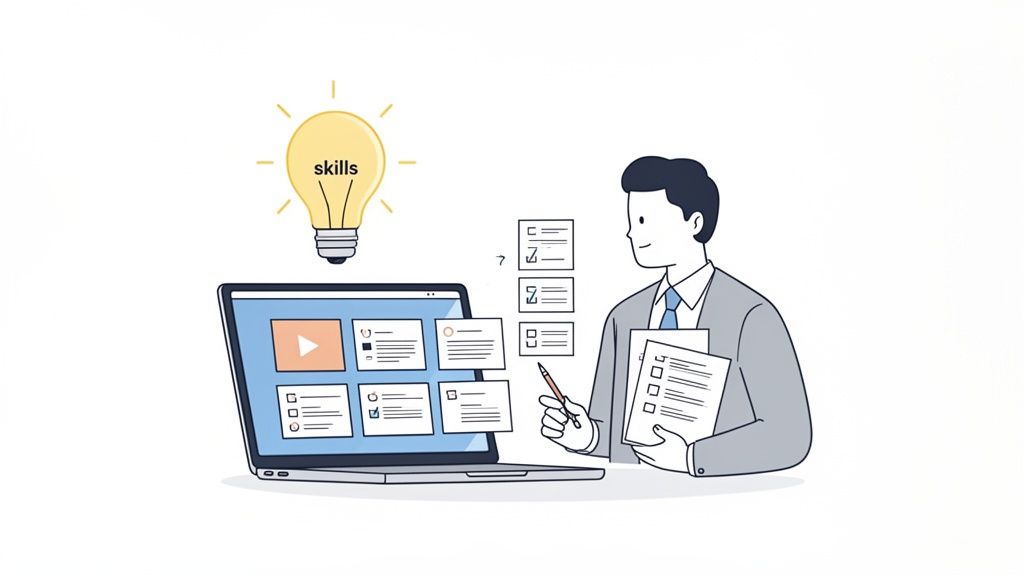
LinkedIn Learning is a direct pipeline to the skills employers are hiring for right now. Many professionals get access through their company, making it a key tool for career development.
This is where you learn the skills tied to your next promotion or job offer.
Simply by taking structured notes, you shift from passively watching to actively learning. Most people don't do this, which gives you a significant advantage. Your notes become proof of your commitment to growth and a tangible career asset.
Stop thinking of notes as homework. They are raw material for your career. When you're prepping for an interview, you can instantly review key concepts on a specific skill instead of scrubbing through hours of video. When a challenge pops up at work, your organized knowledge base is the first place you look.
This is how it works in practice:
Interview Prep: Quickly refresh your memory on technical details, project management frameworks, or key industry terms you learned months ago.
On-the-Job Performance: Need that specific code snippet or formula you saw in a course? It's right there in your notes, accessible in seconds. No more hunting through video timelines.
Skill Demonstration: Your notes are the perfect source material to write a blog post or build a small project, showing what you know.
LinkedIn now tracks over 44,000 skills, and its learning platform is one of the main ways professionals are acquiring them. This means your learning activity can directly shape how you appear to recruiters.
Ultimately, your LinkedIn Learning notes are the backbone of your personal knowledge base. We've written a guide on this concept, which you can read here: how to build a second brain. This isn't just about finishing a course; it's about owning your professional development.
Most people grab whatever's familiar for taking notes on a LinkedIn Learning course: the platform's built-in notebook, a physical notepad, or a separate digital document. Each method feels productive, but has hidden flaws that sabotage long-term retention.
Let's be practical about their limitations.
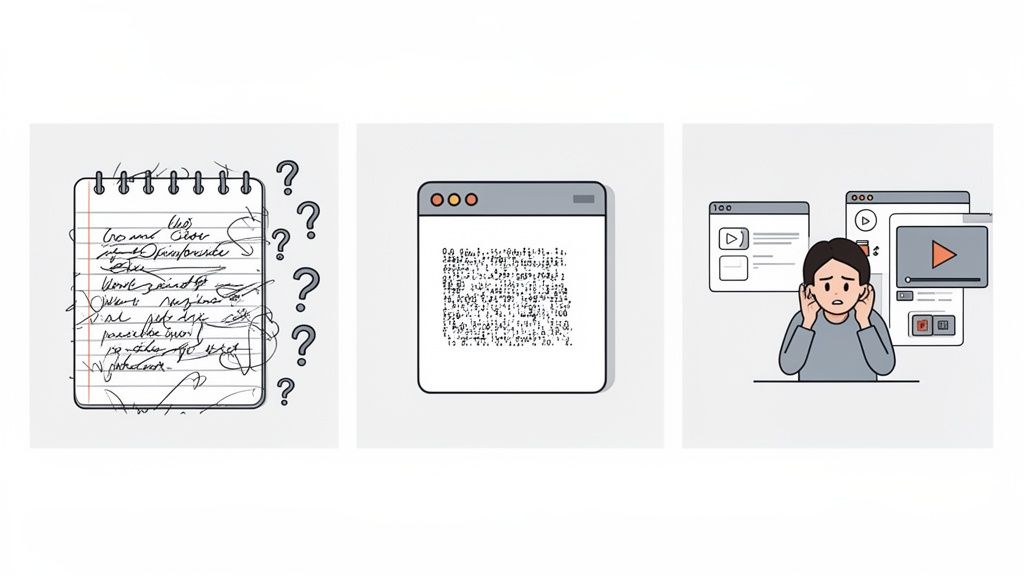
The built-in notebook is convenient, but it's a trap. All your knowledge gets locked on the platform, behind a login. You get minimal formatting and no easy way to pull your notes into a personal knowledge system. You're renting your insights, not owning them.
Then there's pen and paper. It can be satisfying to write things down, but those notes are unsearchable. Trying to capture a complex code snippet or a detailed diagram by hand is slow and frustrating, leaving you with gaps in your notes.
The most common digital approach—keeping a separate document open—is the worst for killing focus.
The workflow is a mess. You pause the video, alt-tab to your notes, type, then switch back... only to realize you missed the next point while typing. So you rewind. This constant window juggling turns a learning session into a tedious chore. You spend more energy managing windows than absorbing information.
This fragmentation is a huge barrier to real learning. Your screenshots live in one folder, your text notes in another, and neither is tied to the video content.
The core problem is that the visual context is lost. A line of text about a "critical growth trend" is meaningless without the chart that was on screen at that moment.
Some people try to solve this by grabbing a transcript. But that approach creates its own problems.
A transcript is a wall of text. It misses everything visual—the slides, the diagrams, the instructor's on-screen demonstration. Much of the value in a video course comes from what is shown, not just what is said. A simple transcript of a YouTube video often isn't enough to capture the real knowledge.
A better system keeps the video and your notes in a single, focused space. HoverNotes, a Chrome extension that watches videos with you, generates AI notes, and saves them as Markdown, puts your notes in a side panel right next to the video. Unlike tools that only parse transcripts, HoverNotes watches the video to capture what's actually on screen.
This lets you embed timestamped screenshots directly into your notes. Click any screenshot to jump back to that exact moment in the video. This integrated approach solves the context-switching problem and helps you build a truly useful set of LinkedIn Learning notes.
The fix is to stop juggling windows and integrate your learning space. A better system keeps the video and your notes in a single, focused environment. This is where you shift from just transcribing to actively understanding.
Here's what this looks like. You're watching a LinkedIn Learning video to learn new software. Instead of alt-tabbing to a separate app, you could use a tool like HoverNotes. It puts the video and a notes editor side-by-side into one clean view.
This immediately kills the constant need to switch tabs—a major distraction. The video plays on one side, your notes live on the other. No more "recommended for you" clutter. Just the content and your workspace.
The biggest time-sink in note-taking is manually typing what the instructor says. A modern workflow offloads this to AI. As the video plays, the tool can generate a structured outline, spot key concepts, and pull out important information automatically.
This frees you up to do the real work: adding your own insights, questions, and connections. The AI provides the scaffold, and you build on it. For instance, when an instructor mentions a concept, you can jot down, "This connects to the framework from last week's project meeting." That's a much higher-value activity than just typing.
Any note-taking method that relies only on audio completely ignores what's on screen. What about the complex diagram, the lines of code being written, or the software demonstration?
A transcript might tell you the instructor is "adjusting the key parameters," but it can't show you which parameters or what the result looked like. This visual context is often the most critical part of the lesson.
An integrated workflow solves this by letting you capture the screen directly within your notes.
Timestamped Screenshots: With one click, you can grab a screenshot of the video frame. This screenshot is timestamped. If you ever need to review that moment, you click the image and it jumps you straight back to that point in the video.
Snip Capture: Sometimes you just need to capture a specific code block, a single formula, or one part of a chart. A 'snip' feature lets you select just that region, inserting it cleanly into your notes.
This approach ensures your LinkedIn Learning notes are rich with the visual context that makes them useful for review. You’re no longer left with text-only notes that feel disconnected from what was actually shown. We've talked before about how crucial this is in our guide on taking better video notes.
Taking great notes is only half the battle. If your insights end up scattered across random files or trapped inside a platform's notebook, their value plummets. The goal is to turn your LinkedIn Learning notes into a permanent, searchable part of your brain. This is where a personal knowledge management (PKM) system like Obsidian or Notion is essential.
How you save your notes is a critical choice. Many tools lock you into their own format. For anyone who values privacy and long-term ownership of their data, that's a dealbreaker. You need a system that puts you in control.
If you use Obsidian, the ideal workflow is saving notes as plain Markdown (.md) files directly to your machine. This is about ownership. When your notes are simple text files in a folder you control, they belong to you. Forever.
This is why a tool like HoverNotes is built to be local-first. It saves your LinkedIn Learning notes directly into your Obsidian vault. You own the files. Back them up, move them, search them with any tool. No cloud service is holding your knowledge hostage.
Once your notes are in your PKM, connect them to your professional goals. A simple but effective way to start is by tagging each note by skill.
Instead of a random file name, you get this:
#python-data-analysis
#agile-project-management
#public-speaking-fundamentals
This tagging system transforms your notes from isolated documents into a connected web of knowledge. When prepping for a data analyst interview, you can instantly pull up every note tagged with #python-data-analysis. That’s more powerful than trying to remember which course you learned a concept in six months ago.
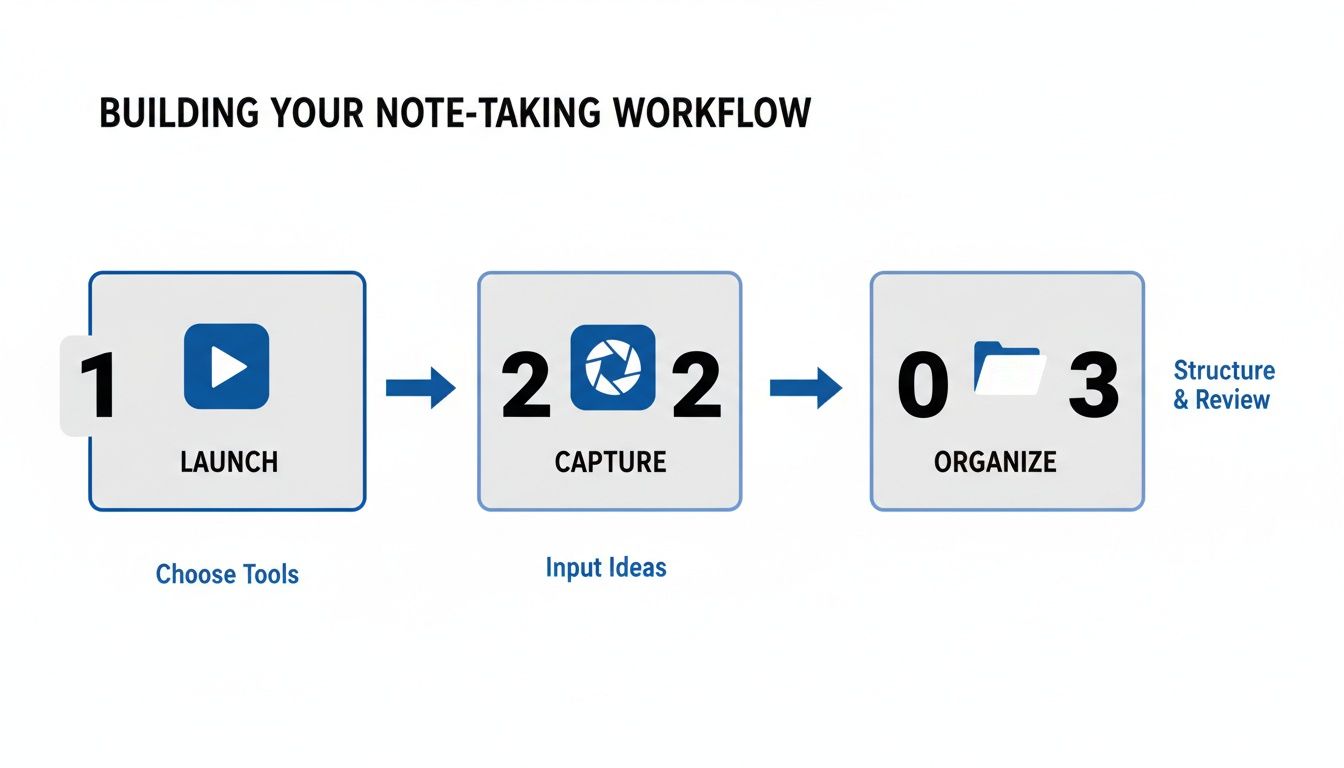
This workflow is a three-step process: Launch, Capture, and Organize.
As you can see, organizing is as vital as capturing. It's the step that turns raw information into a structured, personal library.
If you're a Notion user, your workflow can be just as powerful. While not every tool has a direct API integration, a good note-taking app lets you copy and paste your notes cleanly. HoverNotes, for example, ensures all your headings, bullet points, and embedded screenshots transfer over with their formatting intact.
You can set up a Notion database to track your learning. To make your notes pay off, it helps to apply proven knowledge management best practices. By creating a deliberate system from the start, you build a solid foundation for continuous improvement.
Now, let's make that learning actually do something for you.
Taking great notes is the first step. The goal is to turn that knowledge into action. Think of your notes as an active toolkit for your career, not a dusty archive. They bridge the gap between watching a course and confidently applying what you've learned.
One of the biggest payoffs happens under pressure. You have an interview in an hour for a role that needs a skill you learned six months ago.
Instead of re-watching hours of video, you pull up your organized notes. In five minutes, you scan key takeaways, review critical diagrams, and refresh your memory. You walk into that interview ready to speak confidently about concepts and processes. This is where your note-taking efforts prove their immediate worth.
Beyond interviews, your notes are a resource for day-to-day problem-solving. You hit a wall on a project and vaguely remember a few LinkedIn Learning courses that touched on the solution.
This is where you create a "synthesis note" in your PKM. You’re not just reviewing; you're connecting dots. Pull a key idea from a project management course, a code snippet from a Python tutorial, and a diagram from a data visualization class. By combining them into a single document, you're creating a new solution tailored to your specific challenge. This is where deep, lasting learning happens.
Your collection of detailed, visual notes is also the perfect launchpad for a small portfolio project or a blog post. You've already done the hard work of structuring the information and capturing the essential visuals.
Writing a blog post from your notes does two things. First, it forces you to understand the material well enough to teach it. Second, it publicly demonstrates your expertise. It's proof you can do more than just watch; you can comprehend and communicate complex ideas.
The core idea is simple: your notes are not just for remembering; they are for doing. They transform abstract knowledge into tangible career assets.
The value also shows up in small ways. Ever found yourself scrubbing through a video timeline trying to find one specific chart for a meeting? Having timestamped screenshots in a tool like HoverNotes saves you from that headache. Those minutes add up.
Our guide on turning a YouTube video to notes has other strategies that work for LinkedIn Learning, too. The goal is to build a system where every minute spent learning creates a lasting asset you can pull up and use instantly.
When you start taking notes seriously on LinkedIn Learning courses, a few questions always come up.
Let's dig into the most common ones.
#Can I Export My Notes Directly from LinkedIn Learning?
Technically, yes. LinkedIn Learning has a built-in notebook that lets you export notes as a basic text file or PDF.
But the export is bare-bones. It strips out formatting and, more importantly, severs the connection to the video. You lose all clickable timestamps that would take you back to a specific moment, and you don't get any images. It’s a dead document.
This is why many people look for a better way—one that captures notes in a useful format like Markdown from the start. That way, your notes are immediately ready for tools like Obsidian or Notion without cleanup.
#What's the Best Way to Grab Visuals like Charts or Code?
Capturing visuals from a video is where most note-taking methods fail. Fumbling with manual screenshots is slow, and they end up in a random folder, disconnected from your written notes.
The most effective way is to use a tool that embeds timestamped screenshots right into your notes. For example, HoverNotes lets you hit a hotkey to grab the full screen or use a "snip" feature to select just a specific chart, code block, or diagram.
Every screenshot includes a clickable timestamp. One click, and you're back to that exact moment in the video. This is a game-changer for reviewing complex visual info without scrubbing through the timeline.
You preserve the context, which is often more important than the transcript alone.
#How Can AI Actually Help with Taking Notes on Courses?
AI can drastically cut down on the grunt work of note-taking, freeing you to focus on understanding the material. Instead of just transcribing, a smart AI tool can generate a structured summary, pull out key concepts, and create chapter-by-chapter outlines.
But not all AI is created equal. A basic transcription service just listens to the audio. A more advanced tool designed for learning actually analyzes what's happening on the screen. This means it can generate more relevant notes, including descriptions of diagrams or a step-by-step breakdown of a demonstration.
You're no longer just transcribing what the instructor says; you're starting with an AI-generated foundation and adding your own insights on top. It’s about augmentation, not just automation.
#Do I Need a Paid LinkedIn Subscription for This to Work?
No. The note-taking strategies and tools discussed here work with any version of LinkedIn Learning you have access to, whether it's a personal subscription or provided by your company or school.
As long as you can play the video in your web browser, a Chrome extension like HoverNotes can sit alongside it and work. The only thing that matters is having access to the video content; the note-taking process is independent of your subscription type.
If you're an Obsidian user and want to keep your LinkedIn Learning notes organized and stored locally, HoverNotes saves them directly to your vault as clean Markdown files. You can try it for free—you get 20 minutes of AI credits to start, with no credit card required. Find out more at https://hovernotes.io.
Discover online learning best practices to boost retention and turn what you watch into lasting knowledge with actionable tips for Udemy, Coursera, and YouTube.
Discover the best methods for PDF to Markdown conversion. Our guide covers powerful tools, handling complex files, and integrating notes into your workflow.
Learn how to create a knowledge base in Obsidian that turns passive video watching into active learning. A practical guide to vault setup and note-taking.