How to Turn a PDF into Usable Markdown Notes | HoverNotes Blog | HoverNotes
General2025年12月26日
How to Turn a PDF into Usable Markdown Notes
Discover the best methods for PDF to Markdown conversion. Our guide covers powerful tools, handling complex files, and integrating notes into your workflow.
著者 HoverNotes Team•13 分で読める
Converting a PDF to Markdown isn't a technical chore; it's an act of liberation. It breaks your documents out of a static, unsearchable format and turns them into flexible, plain-text files you can actually use for learning and research.
PDFs are great for preserving a final layout, like a resume or a published report. But for building knowledge, they're a dead end. You can't easily search across a folder of PDFs, connect ideas between documents, or pull out a quote without a frustrating copy-paste battle.
Markdown, on the other hand, is just text. It’s lightweight, universal, and ready for action.
Imagine a library where every book is shrink-wrapped. You can see the covers, but you can't open them to connect the ideas inside. That’s a folder of PDFs. Converting them to Markdown is like unwrapping every single book.
That dense academic paper or clunky technical manual suddenly becomes a living part of your knowledge base.
Here's why this matters for serious learners:
You Actually Own It: Markdown files aren't locked into proprietary software like Adobe Acrobat. They’re just text. You can open them with hundreds of free apps today, and you'll still be able to open them 50 years from now.
Instant Searchability: Ever tried to find one specific sentence inside a folder of 100 PDFs? It’s a nightmare. With Markdown, you can use system-wide search or simple command-line tools to find anything across your entire library in seconds.
Plays Well with Others: Markdown is the native language of modern knowledge tools like Obsidian, Logseq, and Notion. Once converted, your documents can be linked, tagged, and woven into a larger web of ideas.
Future-Proof Your Knowledge: Technology changes, but plain text is forever. It’s the most stable, reliable format for storing information you want to keep. No more worrying about file compatibility issues.
By making this switch, you’re turning static archives into dynamic assets. This is a core principle behind effective personal knowledge management software. Your library stops being a digital graveyard and starts becoming an interconnected, living network of ideas.
Not all PDFs are created equal. The online tool that perfectly handles a text-only document will butcher a multi-column academic paper filled with tables and charts. Picking the right approach saves you hours of manual cleanup.
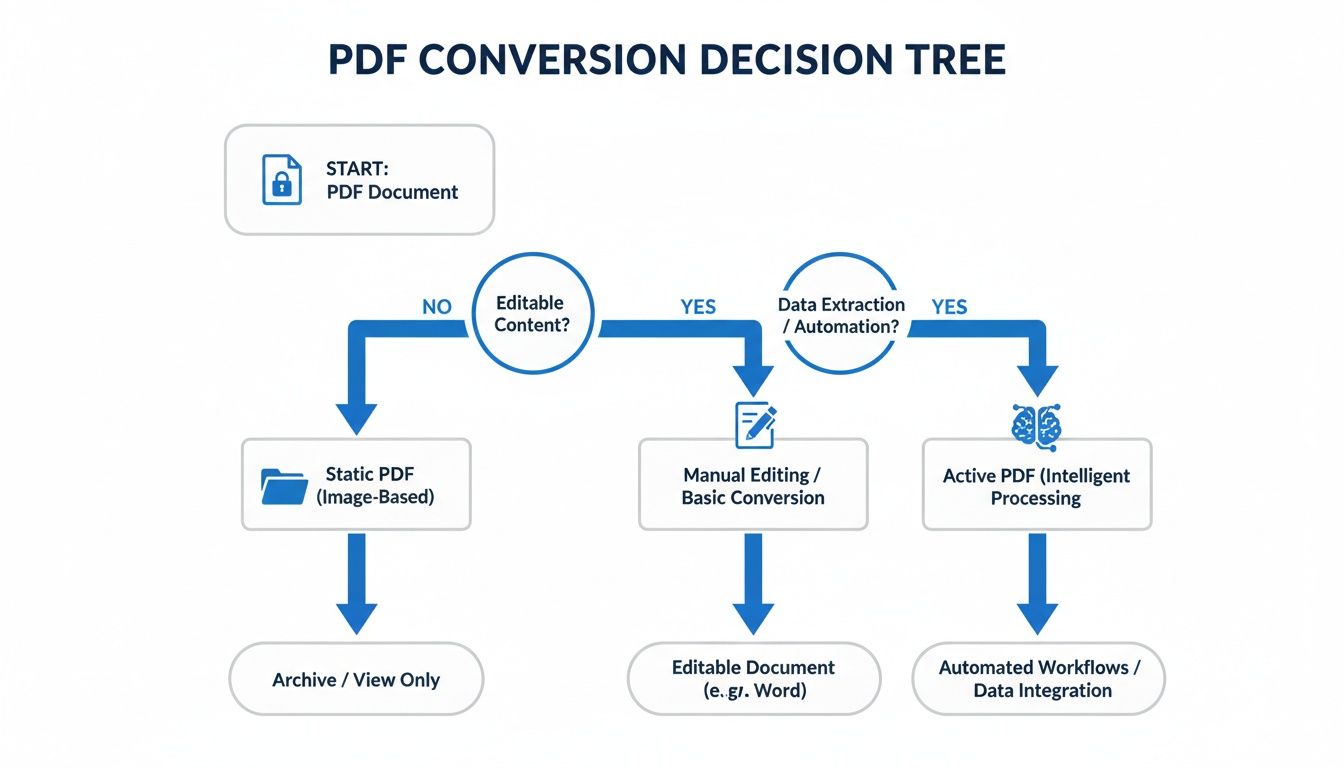
The choice boils down to two things: the type of PDF you have, and what you need to do with it. This quick decision tree can help you match your document to the right strategy.
The flowchart gets to the heart of it: are you doing a quick, one-off conversion, or are you trying to pull a complex document into an active knowledge system like Obsidian?
Your options for turning a PDF into Markdown fall into one of three buckets, each with trade-offs between speed, accuracy, and privacy.
Online Converters: These are websites where you upload a PDF and it spits back a Markdown file. They're fast and require no installation, making them great for quick, non-sensitive documents. The huge catch? You're uploading your data to a third-party server. That's a deal-breaker for anything personal or confidential. The quality can also be a gamble with tricky layouts.
Command-Line Tools (like Pandoc): For anyone who values control, automation, and total privacy, command-line tools are the way to go. A tool like Pandoc runs entirely on your local machine, meaning your files never leave your computer. It gives you precise control over the output, handling everything from citations to complex tables. It takes a little setup, but the repeatable, high-quality results are worth it for anyone who deals with documents regularly.
OCR-Based Solutions: What if your "PDF" is just a collection of images, like a scanned textbook? Standard converters will fail completely. This is where Optical Character Recognition (OCR) comes in. OCR tools scan the images, identify the characters, and reconstruct the text. Modern OCR is surprisingly good with clear, typed documents. It's the most intensive method, but it's the only one that works for image-based PDFs.
To make the choice clearer, here's a quick side-by-side comparison.
This table breaks down the most common methods, highlighting their strengths, weaknesses, and ideal use cases.
Method
Best For
Pros
Cons
Online Converters
Quick, simple, non-sensitive documents.
Extremely fast, no setup needed, very easy to use.
Major privacy risks, inconsistent quality, struggles with complex layouts.
Command-Line (Pandoc)
Power users, developers, and anyone needing privacy and control.
Runs locally (private), highly accurate, scriptable for automation.
Requires installation and learning basic commands.
OCR Tools
Scanned documents, images of text, and non-selectable PDFs.
The only way to extract text from images.
Can be slow, accuracy depends on image quality, often requires cleanup.
There's no single "best" tool—only the best tool for the job.
Picking the right tool is the first step toward building a digital library you can actually use, a core principle behind many of the best note-taking apps for students. Matching the method to the document from the start guarantees a much cleaner conversion.
For those who value privacy, control, and repeatable results, command-line tools are the best option for converting PDFs to Markdown. Online converters are fast, but they mean uploading your files to someone else's server. With a tool like Pandoc, the entire process stays on your machine.
This approach is perfect for developers, academics, and anyone who needs a solid, offline workflow. It's a "do it once, do it right" method you can script to batch-process entire folders of documents. While it takes a few minutes to set up, the precision and security you get are unbeatable.
Pandoc is often called the Swiss Army knife of document conversion for good reason. It’s a powerful, open-source tool that can read and write dozens of formats.
Once installed, the basic command to convert a PDF to Markdown is simple. Open your terminal and run this:
pandoc my-document.pdf -o my-document.md
That one line tells Pandoc to take my-document.pdf as the input and create a Markdown file called my-document.md. You now have a clean, text-based version of your original file, ready for your notes app.
The open-source community is always pushing what's possible with local processing. Newer tools like Marker can process complex, multilingual documents at speeds 4x faster than many cloud-based parsers, all while keeping image and table quality high.
The real power of Pandoc is its flexibility. You can add "flags" to the basic command to handle complex documents with images, tables, and citations that trip up simpler tools. For more complex setups, check out our tutorials on setting up advanced workflows.
Here are a few practical examples:
Handling tables: If the default table conversion looks messy, you can specify a more robust parsing engine with a flag like --pdf-engine.
Extracting images: Pandoc can attempt to pull images out of the PDF and save them in a separate folder.
Managing citations: For academic papers, it can parse bibliographies and format them correctly in Markdown, saving you a massive headache.
By piecing together a few simple commands, you can build a completely private and automated system for turning your entire PDF library into a searchable, interconnected knowledge base.
This is where most automated pdf to markdown converters fall apart.
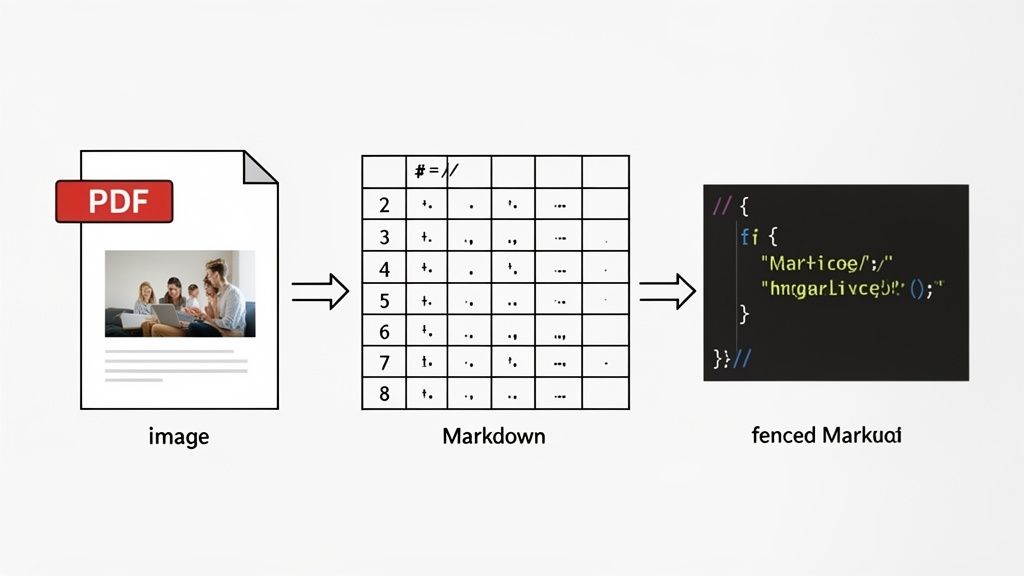
A simple text document is one thing. But real-world PDFs—academic papers, technical manuals, or reports—are packed with images, complex tables, and code snippets. A basic conversion tool will turn these into an unreadable mess.
The root of the problem is that PDFs don’t understand content structure; they only care about visual placement. To a PDF, an image isn't "embedded" in the text—it's just a visual object painted at specific coordinates. It's the same challenge you face when learning from video: a simple transcript misses all the crucial context from a diagram or code block on screen. Taking notes from video is hard because you're constantly pausing to capture these visual details.
To get a usable Markdown file, you need a plan for each type of complex content. This usually means combining automated extraction with some manual cleanup.
For Images: Your best bet is a two-step process. First, use a PDF tool to extract all images into a separate folder. Then, as you clean up the Markdown file, link to them with the standard `` syntax. This is similar to how you might capture and organize visuals from a video, a process we cover in our guide on how to screen capture from YouTube.
For Tables: Tables are notoriously tricky. A powerful command-line tool like Pandoc does a good job of guessing the structure, but you should expect to manually fix some of the pipe | characters and column alignment. For incredibly complex tables, it's often faster to just take a screenshot and embed it as an image.
For Code Blocks: Most converters will spit out code as plain, unformatted text, losing all the indentation and syntax highlighting. The fix is to manually wrap the extracted text in Markdown's fenced code blocks (using three backticks ```) and add the language identifier (like python).
Top AI-powered solutions now claim over 95% accuracy on complex documents, a massive leap from the 50-60% from free online tools that mangle headings and tables. This performance comes from training on thousands of challenging, real-world PDFs. You can see a great review of different PDF to Markdown converters on blazedocs.io.
A perfect, one-click conversion for a complex PDF is still rare. Always budget time for manual tidying to make sure the final Markdown document is clean, correct, and actually useful.
You’ve successfully pulled your content out of a PDF and into clean Markdown. But a folder full of disconnected .md files isn’t a knowledge base—it’s just a digital junk drawer. The real value comes when you turn those files into a connected, searchable part of your brain inside a tool like Obsidian.
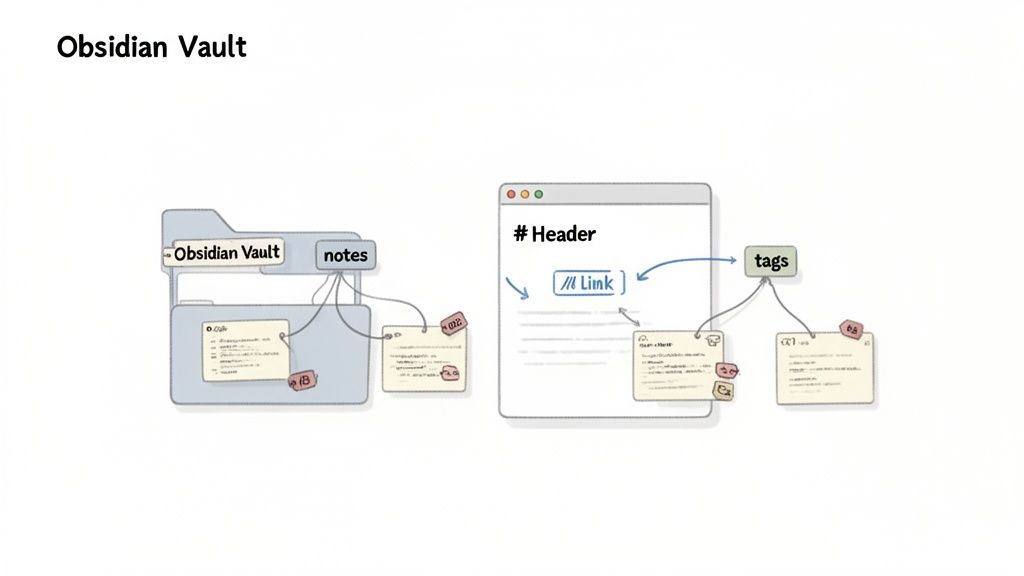
First, just drag and drop your new Markdown files into your Obsidian vault folder. Since Obsidian is built on plain text files, they’ll show up immediately. This local-first approach is key; your knowledge stays on your machine, where it belongs.
Once inside your vault, the raw text needs structure to become useful. The goal is to create connections that mirror how you think.
A simple three-step workflow works well:
Create a Source Note: For every document, create a central note (e.g., [[Paper - The Future of AI.md]]). This becomes the home for metadata like the author, publication date, and a quick summary of why you saved it. All your detailed notes then link back to this single source.
Tag for Broad Categories: Add tags like #AI, #research, or #project-hydra. Tags are for high-level organization, letting you instantly pull up everything related to a topic, no matter where the files are in your vault.
Connect Ideas with WikiLinks: This is where your knowledge graph comes alive. As you review the converted text, wrap key concepts in Obsidian’s [[]] syntax. This simple act turns a static document into an active node in your web of ideas.
You own the files. Move them, back them up, grep them—they’re just Markdown. This level of ownership is why so many serious learners build their knowledge bases on local-first tools.
This process transforms a basic pdf to markdown conversion into a powerful workflow for building knowledge. And if you're pulling insights from videos, some tools can automate this for you. For instance, HoverNotes integrates with Obsidian to save timestamped, media-rich notes directly as Markdown files into your vault. The notes belong to you from the moment they are created.
By linking, tagging, and structuring, you're not just storing information. You're building a resilient, interconnected library that gets more valuable over time.
Yes, but this requires a tool with a strong Optical Character Recognition (OCR) engine. A normal PDF converter sees a handwritten page as just one big image.
The success of the conversion depends on how clear the handwriting is. Specialized OCR apps give you the best shot, but you should plan on doing some manual cleanup. For scanned documents with clean, typed text, modern OCR is surprisingly accurate.
This is the most frustrating part of PDF conversion. The problem isn't the converter; it's the PDF. PDFs don't store tables as neat rows and columns. They just store a visual arrangement of lines and text placed at specific coordinates. Most converters are just guessing at the structure, which is why they so often get it wrong.
AI-powered tools are much better at looking at the visual layout and correctly guessing the table structure.
Command-line tools like Pandoc can sometimes work miracles, but you might need to tweak commands to get it right.
Honestly, for really complex tables, the fastest fix is often to just take a screenshot of the table and embed it as an image in your Markdown.
#What's the Best Free Tool for a Quick Conversion?
For a single, simple, text-only document, a free online converter is fast because there's nothing to install. The trade-off is privacy—you're uploading your file to someone else's server.
If you want reliable, high-quality, and completely private conversions, the best free option is a local tool like Pandoc. It takes a little time to set up, but it runs entirely on your own machine. Your documents never leave your computer.
Once you get the hang of it, you get total control, better results, and you can even write simple scripts to batch-convert dozens of files at once. For anyone doing this regularly, the initial time investment pays for itself quickly.
If you find yourself converting lots of documents to improve your learning workflow, you might also be struggling with retaining information from videos. HoverNotes is a Chrome extension that watches videos with you, generates AI notes, and saves them as Markdown directly to your file system. You can try it free — 20 minutes of AI credits, no credit card required.
Discover how personal knowledge management software can organize your video learning. Explore practical workflows for students using PKM tools like Obsidian.
Learn how to create a knowledge base in Obsidian that turns passive video watching into active learning. A practical guide to vault setup and note-taking.