Scarica video e sottotitoli YouTube per lo studio offline | HoverNotes
General15 dicembre 2025•Updated: 16 luglio 2026
Scarica video e sottotitoli YouTube per lo studio offline
Impara metodi pratici per salvare i video YouTube e i sottotitoli per lo studio offline, rispettando i permessi della piattaforma e il copyright.
Di HoverNotes Team•17 min di lettura
Scaricare un video YouTube con i suoi sottotitoli è un metodo semplice per creare una libreria di apprendimento mirata e fruibile offline. Ti permette di studiare ovunque, evita le distrazioni della piattaforma e ti aiuta a costruire una raccolta personale di conoscenze di cui sei davvero proprietario.
#Perché Scaricare Contenuti YouTube per un Apprendimento Mirato
Lo streaming di video educativi da YouTube è comodo, ma non è pensato per uno studio approfondito. La piattaforma è progettata per l'engagement, non per la concentrazione intensa. Ogni video è affiancato da una barra laterale piena di raccomandazioni invitanti, contenuti in autoplay e annunci che interrompono la concentrazione.
Per chi prende sul serio l'apprendimento, questo ambiente rappresenta un problema.
Scaricando i contenuti, riprendi il controllo. Si trasforma l’esperienza da una visione passiva a una sessione di studio attiva e concentrata.
Quando scarichi un video, lo estrai dal caotico ecosistema del web. Niente più video consigliati che ti trascinano in un tunnel senza fine. Niente pop-up pubblicitari che interrompono spiegazioni complesse. Niente sezioni commenti che deviano il tuo flusso di pensiero.
Rimani solo tu e il materiale. Questo è essenziale per il lavoro profondo che porta a una vera memorizzazione delle informazioni.
Una connessione internet affidabile non è sempre garantita. Che tu stia studiando durante il tragitto, in viaggio, o usando il Wi-Fi instabile di una caffetteria, i buffering e le cadute di connessione possono compromettere il ritmo. Avere i file localmente significa poter studiare bene in aereo, in metropolitana o durante un’interruzione di internet senza perdere il filo.
Questo è particolarmente importante per chi studia lingue e deve analizzare frasi specifiche fotogramma per fotogramma. Mettere in pausa, riavvolgere e esaminare i sottotitoli è un’esperienza molto più fluida con un file locale rispetto a un lettore streaming che cerca costantemente di bufferizzare.
Il contenuto su internet è fragile. I video vengono cancellati, i canali spariscono, le piattaforme cambiano le regole. Se stai costruendo una base di conoscenza personale in uno strumento come Obsidian, affidarsi a link web è una ricetta per il disastro. La tua collezione selezionata di informazioni potrebbe sparire da un giorno all'altro.
Possedere i propri materiali di apprendimento è un principio fondamentale per chi prende sul serio la conoscenza. Scaricando un video con i suoi sottotitoli, crei un asset permanente, locale e prima di tutto tuo. Appartiene a te, per sempre, qualsiasi cosa accada online.
Scaricando, costruisci la tua biblioteca privata e premium—senza pagare un abbonamento mensile.
#Confronto tra Metodi per Scaricare Video e Sottotitoli
Hai a disposizione tre principali modalità per scaricare video YouTube e i loro sottotitoli. Ognuna ha pro e contro, da quelle veloci e semplici a quelle potenti e precise.
La scelta dello strumento giusto dipende dal tuo obiettivo. Stai solo scaricando un singolo video per un volo? Oppure sei uno studente che costruisce una libreria offline permanente di contenuti educativi? Esaminiamo le opzioni.
È spesso la prima tappa. Trovi un sito, incolli l’URL YouTube e clicchi "Download." Veloce e senza installazioni, sembra perfetto per un’operazione occasionale.
Ma questa comodità spesso ha un prezzo. Questi siti sono spesso pieni di pop-up aggressivi, pulsanti di download fuorvianti e tracker. Nel peggiore dei casi possono veicolare malware. Se tieni alla tua privacy, usarli spesso diventa frustrante.
Ideale per: Scarichi occasionali e non critici quando ti serve un video subito e sei disposto a superare qualche ostacolo digitale.
Le estensioni per browser rappresentano una via di mezzo valida. Vivono nel browser e spesso aggiungono un pulsante "scarica" direttamente sulla pagina YouTube. Niente più copia e incolla dei link in altre schede—un flusso di lavoro molto più fluido.
Il problema? Qualità e sicurezza variano moltissimo. Nel Web Store Chrome ci sono molte opzioni, ma alcune smettono di funzionare quando YouTube aggiorna il layout, altre vengono abbandonate dagli sviluppatori e alcune possono raccogliere più dati di quanto vorresti. Trovare una buona estensione richiede un po’ di ricerca. Abbiamo preparato una lista delle migliori estensioni Chrome per la produttività che privilegia la sicurezza.
Ideale per: Chi scarica video regolarmente e preferisce un’interfaccia grafica. È un buon compromesso tra comodità e potenza se trovi un’estensione affidabile.
Per l'apprendente serio, l’archivista digitale o chi vuole il controllo totale, gli strumenti da linea di comando sono la scelta migliore. In particolare, yt-dlp—un fork del noto youtube-dl—è lo standard d’oro. È gratuito, open-source e attivamente mantenuto.
Certo, c’è una curva di apprendimento. Userai il terminale digitando comandi invece di cliccare pulsanti. Ma il potere che ottieni in cambio è notevole.
Con yt-dlp puoi:
Scaricare intere playlist o canali con un singolo comando.
Specificare qualità video, formato e codec audio.
Scaricare con affidabilità tutti i file dei sottotitoli disponibili, inclusi quelli generati automaticamente.
Automatizzare i download con semplici script.
Poiché funziona localmente, eviti tutti gli annunci, i tracker e le problematiche di privacy dei servizi online. È il metodo più potente e privato disponibile.
Ideale per: Studenti dedicati e knowledge worker che costruiscono una biblioteca offline seria. Se pensi di scaricare contenuti regolarmente, il tempo investito per imparare yt-dlp è ben speso.
Per aiutarti a decidere, ecco un rapido confronto di vantaggi, svantaggi e usi ideali per ciascun metodo.
Pieno di pubblicità, rischi per la sicurezza, opzioni limitate.
Download rari e occasionale quando serve comodità.
Estensioni Browser
Comodo, integrato nel browser.
Qualità e sicurezza variabili, possono rompersi con gli aggiornamenti.
Chi scarica spesso e preferisce un’interfaccia grafica.
yt-dlp (CLI)
Controllo massimo, download batch, automazione, privato.
Curva di apprendimento più ripida, uso del terminale.
Studenti seri, archivisti e utenti avanzati.
Lo “strumento migliore” dipende dalle tue esigenze. Per un uso casuale può bastare un sito o un’estensione. Ma per costruire una base di conoscenza duratura, niente batte il controllo di uno strumento da linea di comando.
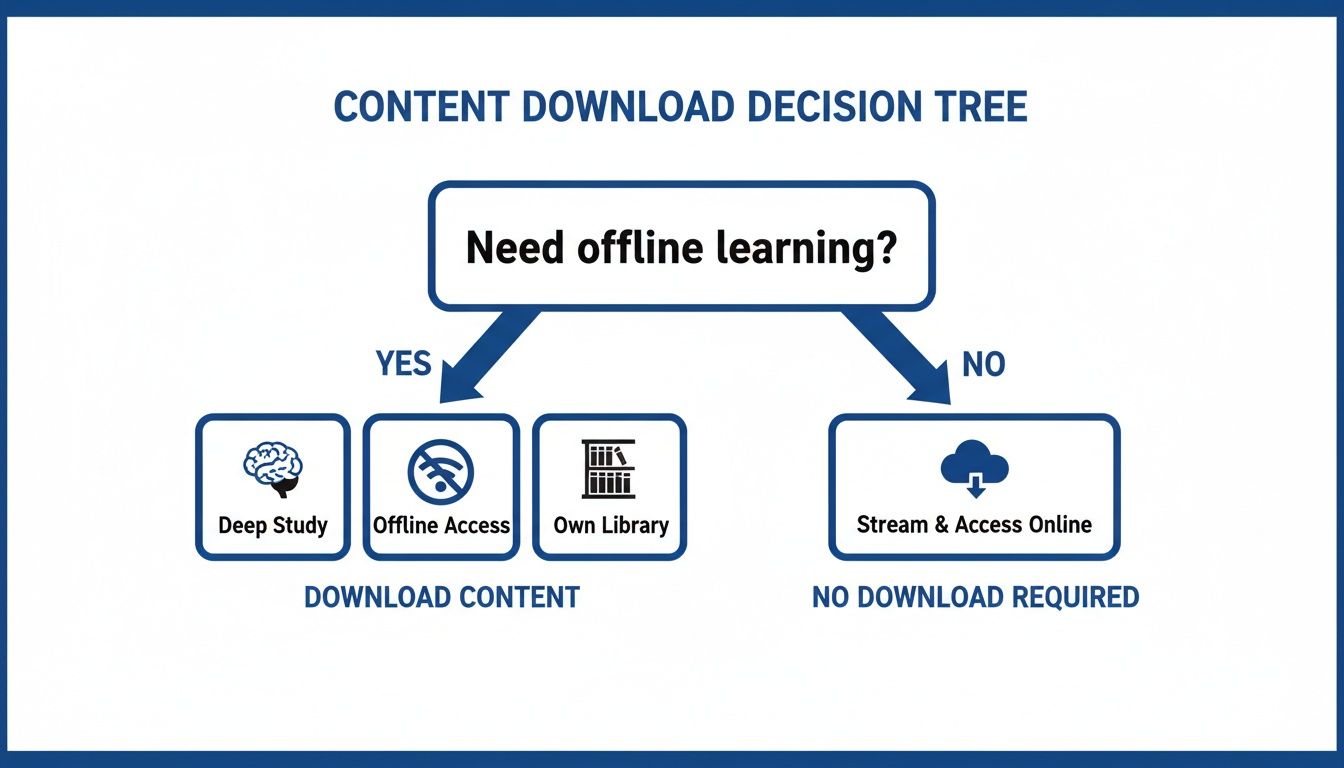
Questo albero decisionale ti aiuta a visualizzare quando il download passa da una semplice comodità a una parte essenziale del tuo processo di studio.
Per un apprendimento consapevole e profondo—dove concentrazione, revisione e accesso permanente sono critici—scaricare non è solo un’opzione gradita. È parte fondamentale della routine di studio.
Se sei pronto a superare gli strumenti web per un controllo massimo, yt-dlp è la scelta migliore. È uno strumento da linea di comando che ti offre un controllo preciso sull’intero processo di download.
Non farti intimidire dalla parte “linea di comando”. Le basi sono semplici e una volta configurato avrai un flusso di lavoro potente e affidabile. Questa guida ti aiuterà a installarlo e a lanciare i comandi essenziali per scaricare video e sottotitoli.
Mettere in funzione yt-dlp è un’operazione rapida e da fare una volta sola. Il procedimento varia leggermente a seconda del sistema operativo.
Per Windows: Il modo più semplice è scaricare il file yt-dlp.exe dalla pagina ufficiale delle release su GitHub di yt-dlp. Salvalo in un posto facile da ricordare, come una cartella Tools nella tua directory utente. Da lì lancerai i tuoi comandi.
Per macOS e Linux: Se usi Homebrew (macOS) o un package manager standard di Linux, l’installazione si fa con un singolo comando. Apri il tuo Terminale e usa brew install yt-dlp su macOS. Su Linux usa un comando simile a sudo apt-get install yt-dlp, che può variare in base alla distribuzione.
Una volta installato, apri il prompt dei comandi (Prompt dei comandi o PowerShell su Windows, Terminal su macOS/Linux) e sei pronto.
Qui yt-dlp dà il meglio per gli studenti seri. Hai un controllo preciso su quali sottotitoli scaricare, ottimo per chi studia le lingue o vuole creare trascrizioni ricercabili per appunti.
Per prima cosa, verifica quali lingue di sottotitoli sono disponibili per un video con il flag --list-subs.
yt-dlp --list-subs "VIDEO_URL"
Questo comando non scarica nulla. Mostra solo una tabella con tutte le tracce di sottotitoli disponibili, i loro codici lingua (es. en per inglese, es per spagnolo) e se sono create manualmente o generate automaticamente.
Una volta noto il codice lingua, puoi scaricare i sottotitoli insieme al video.
Comando Chiave per i Sottotitoli: I flag più comuni sono --write-subs per ottenere un file di sottotitoli creato manualmente e --sub-lang per specificare la lingua. Per i sottotitoli in inglese, il comando è:
yt-dlp --write-subs --sub-lang en "VIDEO_URL"
Scaricherai il video e un file separato .srt o .vtt con i sottotitoli in inglese. La maggior parte dei lettori multimediali come VLC rilevano e mostrano automaticamente i sottotitoli durante la riproduzione.
Se il video non ha sottotitoli umani, molti creatori si affidano ai sottotitoli automatici di YouTube. Puoi scaricarli con il flag --write-auto-subs.
yt-dlp --write-auto-subs --sub-lang en "VIDEO_URL"
Questo è molto utile quando i sottotitoli ufficiali non esistono. Tuttavia, sappi che i sottotitoli auto-generati possono essere inaccurati, soprattutto con termini tecnici o accenti. Sono utili ma non vanno presi come trascrizioni perfette. Per altre idee su come lavorare con contenuti YouTube, dai un’occhiata alla nostra guida per sfruttare al massimo i tutorial YouTube.
Con questi comandi base puoi creare un flusso di lavoro efficiente per costruire una libreria offline di materiali di studio. Puoi scaricare un video, prendere i sottotitoli in più lingue e persino archiviare intere playlist con un solo comando. L’affidabilità di yt-dlp ti permette di passare meno tempo a combattere con siti complicati e più tempo a imparare.
È una competenza fondamentale per chi costruisce un sistema personale di gestione delle conoscenze che parte dal locale. Avere sia il video sia il file di testo sul tuo computer garantisce che le risorse di apprendimento siano permanenti, private e sempre disponibili.
Quindi, hai scaricato un video YouTube e i suoi sottotitoli. Ora hai due file: un video (come .mp4) e un file di testo (un .srt o .vtt). Questi sono i tuoi materiali grezzi. Con un po' di lavoro, puoi trasformarli in un sistema di studio interattivo.
Per prima cosa, vediamo come mostrare i sottotitoli. File come SRT (SubRip Text) e VTT (WebVTT) sono semplici file di testo che associano parole parlate a timestamp, indicano al lettore video quale testo mostrare e quando.
La maggior parte dei lettori multimediali moderni, come il affidabile VLC, gestisce questo automaticamente. Basta che il video e il file dei sottotitoli abbiano esattamente lo stesso nome e siano nella stessa cartella.
Per esempio:
Quantum_Physics_Lecture_1.mp4
Quantum_Physics_Lecture_1.srt
Riproduci il video e i sottotitoli dovrebbero apparire. Questo è un grande vantaggio per l’apprendimento offline, specialmente per chi studia lingue e può ora mettere in pausa per analizzare una frase senza buffering.
#Trasformare i Sottotitoli in una Trascrizione Ricercabile
Qui diventa utile per costruire una base di conoscenza. Un file di sottotitoli è essenzialmente una trascrizione con timestamp. Se elimini i timestamp, ottieni testo semplice da inserire in qualsiasi app per prendere appunti come Obsidian o Notion.
Una versione testuale completa e ricercabile di una lezione è uno strumento potente. Improvvisamente puoi usare Ctrl+F per trovare il momento esatto in cui il professore ha menzionato "Principio di Indeterminazione di Heisenberg" o copiare una definizione chiave direttamente nei tuoi appunti.
Questo trasforma un video di un’ora da una scatola nera non ricercabile a un documento interrogabile. Se vuoi esplorare altri metodi, puoi approfondire come trascrivere un video YouTube per i tuoi appunti.
Ma c’è un limite significativo nel basarsi solo sul testo.
#Perché le Trascrizioni Mancano il Contesto Visivo
Una trascrizione ti dice cosa è stato detto. Non dice cosa è stato mostrato. Per la maggior parte dei contenuti educativi — dalle lezioni di programmazione a quelle di chimica — le immagini sono importanti quanto le parole.
Considera questi scenari comuni in cui una trascrizione non basta:
Tutorial di Programmazione: Il testo non catturerà il codice digitato sullo schermo o i messaggi di errore nel terminale.
Lezioni di Scienze: Non mostra la struttura chimica disegnata sulla lavagna né il diagramma animato che spiega la mitosi cellulare.
Demo Software: Non vedrai quale voce di menu è stata cliccata o la casella di controllo selezionata in un pannello impostazioni.
Affidarsi solo alla trascrizione è come assemblare un mobile con istruzioni senza diagrammi. Hai le parole, ma perdi il contesto cruciale. Questo ti costringe a tornare al video e avanti e indietro per trovare la parte visiva necessaria.
Un sistema di apprendimento ideale combina la ricercabilità del testo con il ricco contesto visivo. Potresti farlo manualmente — mettendo in pausa il video per fare screenshot, poi cercando di organizzare quelle immagini e abbinarle agli appunti. Ma è un processo lungo e inefficiente.
Strumenti più intelligenti possono automatizzare questo. Per esempio, HoverNotes è un’estensione Chrome che ti accompagna nella visione dei video, genera note con AI e le salva come Markdown direttamente nel tuo file system. Diversamente da strumenti che trattano solo le trascrizioni, HoverNotes guarda il video per catturare cosa appare sullo schermo.
Quando l’AI identifica un concetto chiave, non si limita a scriverlo; cattura anche uno screenshot con timestamp del diagramma, del codice o della slide rilevante. Questo incorpora il contesto visivo direttamente nei tuoi appunti. Ogni screenshot include un timestamp cliccabile che ti riporta esattamente a quel momento nel video.
Questo flusso di lavoro risolve il problema degli appunti disconnessi e degli screenshot sparsi, creando un unico asset di apprendimento ricco e di cui sei proprietario. Solo la funzione dello screenshot con timestamp può farti risparmiare ore di rivedere tutto il video.
Prima di iniziare a costruire la tua libreria offline, è importante comprendere le regole. Non si tratta di tecnicismi legali, ma di essere un utente responsabile che rispetta i creatori.
La distinzione fondamentale è uso personale versus ridistribuzione. Pensalo come un libro di testo che compri per una classe. Puoi evidenziarlo e scrivere appunti sui margini per tuo beneficio. Quello che non puoi fare è fotocopiarlo tutto e distribuirlo. Lo stesso principio vale qui.
Scaricare una lezione per guardarla offline o prendere i suoi sottotitoli per esercitarsi con una lingua rientra generalmente nell’uso educativo personale. Si va oltre il limite quando inizi a condividere, ricaricare o mostrare pubblicamente quel contenuto.
I Termini di Servizio ufficiali di YouTube sono chiari: non dovresti scaricare contenuti a meno che YouTube non fornisca un pulsante o link di "download" esplicito. È una regola generale pensata per proteggere la proprietà intellettuale dei creatori.
Tuttavia, la realtà è più sfumata, soprattutto considerando il concetto di "fair use".
#Il Principio del Fair Use per lo Studio Personale
Il fair use è un principio legale che consente l’uso di materiale protetto da copyright senza permesso in certe circostanze, specialmente per insegnamento, studio o ricerca.
Punto Chiave: Per uno studente o autodidatta, scaricare un video educativo pubblico per uno studio privato e prendere appunti spesso rientra in un’area grigia tendente all’uso personale equo (fair use). Stai trasformando il contenuto per uno scopo educativo nuovo che non danneggia la capacità del creatore di monetizzare il proprio lavoro.
Gli elementi critici sono il tuo intento e l’ambito. Il tuo obiettivo è privato, non commerciale ed educativo. Non sei in concorrenza col creatore, ma stai solo approfondendo il loro materiale.
Per essere certo di agire in modo etico, segui alcune semplici abitudini, che ti permettono di rispettare chi crea contenuti mentre migliori il tuo apprendimento.
Mai Ricaricare o Ridistribuire: Questa è la regola più importante. Non condividere i file video scaricati né caricarli su altre piattaforme. La copia scaricata è solo per te.
Attieniti ai Contenuti Pubblici: Scarica solo video già pubblici. Non cercare di aggirare paywall o accedere a video privati senza permesso.
Supporta i Creatori Quando Puoi: Se apprezzi il lavoro di un creatore, mostrarglielo. Metti like ai suoi video, iscriviti al canale o supportalo con una membership o Patreon, se disponibile.
Dai Priorità a Privacy e Sicurezza: Molti siti di download di terze parti sono pieni di pubblicità, pop-up e tracker. Usare uno strumento che funziona localmente sul tuo computer, come yt-dlp, è un modo molto più sicuro per proteggere i tuoi dati. Qualsiasi strumento tu usi dovrebbe rispettare la tua privacy di default, come spiegato nei nostri stessi termini di servizio HoverNotes.
Seguendo questi principi, puoi costruire la tua base di conoscenza offline rispettando lo sforzo che i creatori dedicano ai loro contenuti.
La maggior parte degli strumenti validi, come yt-dlp, ti permette di elencare tutti i sottotitoli disponibili. Da lì scegli solo il codice lingua che ti interessa. È prezioso per chi studia lingue e vuole ascoltare in una lingua e leggere in un'altra.
#Qual è la Differenza Reale tra Sottotitoli Manuali e Automatici?
I sottotitoli manuali sono creati da un essere umano (di solito il creatore), mentre quelli automatici sono generati dall’AI di riconoscimento vocale di YouTube.
La differenza di qualità è significativa. I sottotitoli manuali sono quasi sempre precisi e temporizzati correttamente. Quelli automatici spesso contengono errori, specialmente con accenti, parlato veloce o terminologia tecnica. Sono meglio di niente, ma non si possono considerare perfetti. Verificali sempre in base all’audio.
#I Sottotitoli Scaricati Non Sono Sincronizzati. Come Lo Risolvo?
È un problema comune e risolvibile.
Puoi usare software gratuiti per regolare la sincronizzazione. Raccomando Subtitle Edit per Windows o Aegisub per utenti Mac/Linux. Entrambi permettono di applicare uno scostamento temporale semplice. Puoi spostare tutti i sottotitoli in avanti di 1,5 secondi (o quanto serve) per sincronizzarli perfettamente con l’audio.
Bisogna fare molta attenzione. Alcuni sono ok, ma molti sono pieni di pop-up aggressivi, pulsanti di download ingannevoli e persino malware. Inoltre, condividono dati sulle tue abitudini di vista.
Se pensi di scaricare video più di una volta, uno strumento da linea di comando come yt-dlp è una scelta molto più sicura. Funziona sul tuo computer, mantiene privata la tua attività e sicuro il tuo sistema. L’installazione iniziale è un piccolo prezzo per una tranquillità a lungo termine.
Se stai costruendo una libreria di conoscenze in Obsidian, organizzare manualmente appunti video e screenshot è faticoso. HoverNotes cattura screenshot con timestamp e genera note AI da qualsiasi video, salvandole come file Markdown puliti direttamente nella tua vault. Puoi provarlo gratuitamente su hovernotes.io.
Scopri come apprendere più velocemente e ricordare meglio con strategie comprovate e supportate dalla scienza per il richiamo attivo, la presa di appunti e routine di studio efficienti.
Crea un sistema potente para notas de cursos en línea, desde la captura y organización hasta la revisión a largo plazo, y nunca olvides lo que aprendes.
Hai difficoltà a prendere appunti nei corsi MOOC su Coursera o edX? Scopri un metodo collaudato per organizzare, memorizzare e applicare le conoscenze acquisite in corsi lunghi senza esaurirti.