Руководство по эффективному обучению с помощью видео при наличии СДВГ | HoverNotes
Learning29 декабря 2025 г.•Updated: 16 июля 2026 г.
Руководство по эффективному обучению с помощью видео при наличии СДВГ
Узнайте, как эффективно учиться по видео, если у вас СДВГ. Это руководство предлагает стратегии, дружественные мозгу, для концентрации, ведения заметок и запоминания.
Автор HoverNotes Team•17 мин чтения
Если у вас СДВГ, обучение по видео — это не вопрос того, чтобы заставить себя сосредоточиться сильнее. Речь идет о том, чтобы перестать быть пассивным зрителем и стать активным участником. Это значит отказаться от длительных занятий в пользу коротких, сосредоточенных отрезков, использовать инструменты для блокировки отвлечений и вести записи так, чтобы связывать увиденное с тем, что вы изучаете.
Общие советы не работают, потому что они не учитывают особенности мозга при СДВГ — ему нужна новизна и стимуляция, чего стандартная видео-лекция обычно не дает. Постоянное нажимание паузы и воспроизведения для ручных записей утомляет, а быстрые пометки в тетради часто теряют визуальный контекст того, что показывалось на экране.
Почему ваш мозг сопротивляется при обучении по видео
#
Случалось ли вам смотреть двухчасовое видео с курса, а потом понять, что вы ничего не запомнили? Вы не сломаны. Классический совет «просто сосредоточься» бесполезен, ведь он игнорирует нейробиологию СДВГ.
Проблема не в отсутствии желания учиться; это борьба с регулированием внимания и поддержанием уровня дофамина. Обычная видео-лекция — односторонний монолог. Для мозга, который живет взаимодействием и мгновенной обратной связью, такой формат мучительно скучен, из-за чего вы смотрите, но не запоминаете.
Давайте разберем частые проблемы и их решения, дружественные мозгу.
Типичные проблемы при обучении видео у людей с СДВГ
Типичная проблема
Решение, дружественное мозгу при СДВГ
«Я отключаюсь и постоянно перематываю назад.»
Делите занятия на «микро-спринты» по 15-20 минут с четкими целями.
«Рекомендованные видео постоянно отвлекают меня.»
Используйте инструменты блокировки отвлечений и «Режим фокуса», чтобы скрыть цифровой шум.
«Мои заметки — неразборчивая каша.»
Ведите мультимодальные заметки — сочетайте скриншоты с временными отметками и краткий текст для фиксации визуального контекста.
«Пауза для записи заметок убивает мой ритм.»
Позвольте ИИ делать заметки за вас, чтобы вы могли сосредоточиться, или используйте горячие клавиши для фиксации мыслей без остановки видео.
«Я никогда не возвращаюсь к своим заметкам.»
Планируйте сессии активного воспоминания для проверки знаний, а не простого перечитывания заметок.
Эти решения — не случайные советы, а стратегии, разработанные специально для уникального устройства вашего мозга.
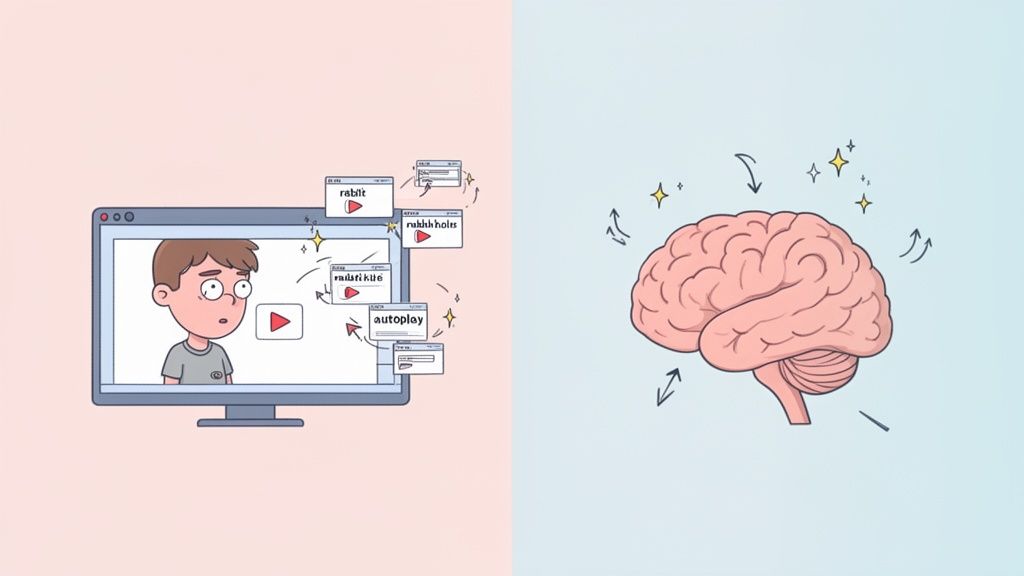
Ваш мозг устроен так, что постоянно ищет что-то более интересное. Как только видео замедляется, ваше внимание уносится прочь. И вот вы уже открываете новую вкладку.
Это не «недостаток характера», а предсказуемый рефлекс поиска дофамина. Печально известная «YouTube кроличья нора» — прямой следствие недостаточно стимулирующей учебной среды.
Это порочный круг:
Вы запускаете видео с хорошими намерениями.
Контент замедляется, и вовлеченность резко падает.
Мозг, жаждущий дофамина, цепляется за новый стимул — рекомендованное видео, уведомление, что угодно.
Вы теряете место, чувствуете вину и перематываете назад, укрепляя ощущение, что учиться по видео — это тяжкий труд.
Этот цикл и делает пассивный просмотр таким сложным. Связь между экранным временем и СДВГ сложна; исследование в Великобритании показало, что без активных стратегий обучения способность запоминать сильно снижается.
Традиционные заметки зачастую только усугубляют проблему.
Постоянные переходы между видео и тетрадью убивают поток. Частая смена контекста разрушает концентрацию, заставляя 30-минутное видео казаться двухчасовым марафоном. Попытки печатать заметки в одном окне при просмотре в другом разбивают внимание.
В итоге вы получаете страницу текста, отделённого от визуального контекста видео.
Ваши заметки превращаются в транскрипт того, что было сказано, но теряется как — диаграмма на экране, конкретный фрагмент кода или визуальный шаг в уроке. Транскрипты не передают диаграммы, код и демонстрации. Без этой визуальной привязки заметки почти бесполезны для воспоминаний.
Вот где теряется информация. Связь между тем, что вы видите, и тем, что вы пишете нарушается. В итоге у вас цифровая мусорка из разбросанных скриншотов и текстовых файлов, а не настоящая база знаний. Записывать заметки во время просмотра помогает сильно улучшить запоминание, но делать это нужно правильно. Это основной принцип наших советов о том, как эффективно готовиться к экзаменам.
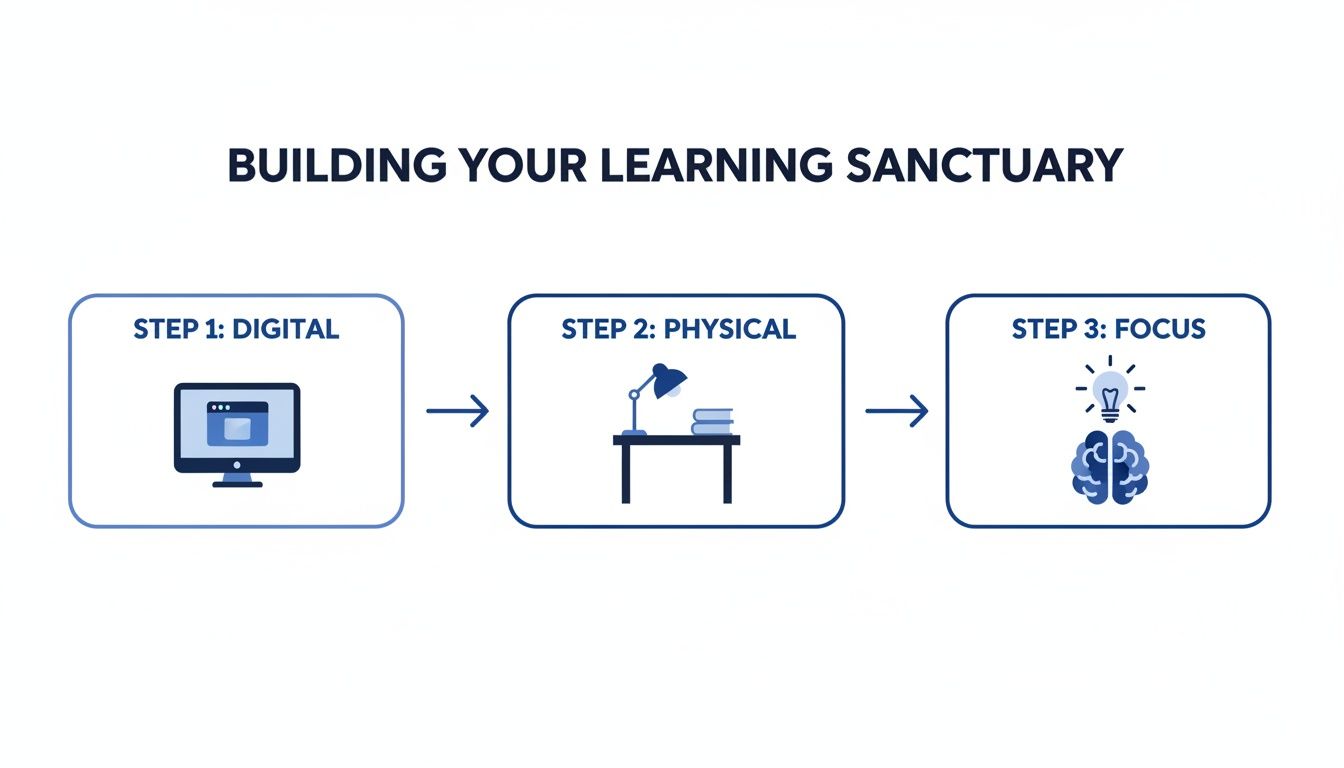
#Создание пространства для обучения без отвлечений
Перед тем как нажать «воспроизвести», ваша среда — это все.
Пытаться учиться в месте, устроенном для отвлечений, — всё равно что плыть против течения: сила воли кончится еще до начала видео. Задача — создать пространство, и физическое, и цифровое, где сосредоточенность — путь наименьшего сопротивления.
Речь не просто о закрытии нескольких вкладок. Это построение отдельного убежища, где обучение — единственное, что на повестке дня.
Ваш браузер, скорее всего, главный источник отвлечений. Бесконечные рекомендации и алгоритмические боковые панели созданы, чтобы уводить вас в сторону. Нужно возвести цифровую стену между вашим учебным пространством и остальным.
Простая и эффективная стратегия — создать отдельный профиль браузера только для учебы. Держите его чистым — только необходимые закладки и расширения. Такая изоляция предотвратит проникновение визуального шума в учебное время.
Для более жесткой блокировки подойдут инструменты, которые активно изменяют веб-страницу.
Главная идея — полностью убрать искушение. Вместо того чтобы тратить ментальную энергию на игнорирование отвлекающей миниатюры, создайте среду, где этой миниатюры просто нет.
Вот почему мы встроили режим видео без отвлечений в HoverNotes — расширение Chrome, которое помогает смотреть видео, генерирует заметки с помощью ИИ и сохраняет их как Markdown прямо в вашей файловой системе. Одним кликом оно убирает весь интерфейс YouTube — рекомендации, комментарии и рекламу. Видео оказывается рядом с чистым местом для заметок. Хаотичная страница превращается в сосредоточенное учебное пространство. Больше инструментов вы найдете в нашем руководстве по лучшим расширениям Chrome для студентов.
Ваше физическое пространство требует такого же продуманного подхода. Сенсорная зона с минимальным числом неожиданных прерываний уменьшает потерю концентрации. Речь не о стерильной лаборатории, а об управлении теми входящими сигналами, с которыми мозгу предстоит справляться.
Подумайте об этих простых изменениях:
Правильное освещение: Если возможно, поставьте стол так, чтобы попадал естественный свет. Если нет — используйте направленную настольную лампу, которая уменьшает нагрузку на глаза и усталость.
Контроль шума: Шумоподавляющие наушники — классика не случайно. Лоу-фай музыка, белый шум или бинауральные ритмы создают устойчивый аудиофон, заглушая резкие звуки.
Все необходимое под рукой: Держите на столе бутылку с водой, ручку и маленький блокнот. Чем меньше нужно вставать, тем меньше шансов потерять поток мыслей.
Настройка окружающей среды — это не просто лайфхак продуктивности. Это прямое решение проблем исполнительных функций, связанных с СДВГ.
Наука подтверждает это. Систематический обзор более чем 34 000 участников показал, что структурированные цифровые инструменты значительно улучшают внимание и визуальное восприятие. Хотя пассивный просмотр видео ухудшает концентрацию, специально созданная среда с минимальными отвлечениями поддерживает вашу способность сосредоточиться. Полный обзор исследования доступен в материале о цифровых методах при СДВГ для более глубокого понимания.
Создавая такую среду, вы перекладываете задачу «оставаться внимательным» с мозга на окружение. Это высвобождает когнитивные ресурсы для действительно важного — понимания содержимого видео.
Итак, вы создали свое учебное убежище. Теперь — главная задача: просмотр видео.
Если у вас СДВГ, сидеть на часовой лекции — пытка. Это путь к провалу. Секрет в том, чтобы перестать быть пассивным зрителем и стать активным участником.
Во-первых, забудьте про марафонские сессии. Ваш мозг к ним не приспособлен. Думайте в режиме коротких, интенсивных всплесков.
Модифицированная техника Помодоро отлично подходит. Попробуйте 20-минутные сфокусированные спринты с 5-минутными перерывами. Это учитывает ограничения мозга и управляет нагрузкой. Короткие спринты держат вас в тонусе, а перерывы дают необходимый сброс дофамина. Встаньте, потянитесь, выпейте воды — сделайте что-то физическое, прежде чем снова погрузиться в учебу.
#Управляйте скоростью воспроизведения под свой мозг
Станьте мастером управления скоростью. Когда видео идет слишком медленно, это приглашение для ума отвлечься. Не бойтесь ускорять воспроизведение.
Для уже знакомых концепций увеличьте скорость до 1.25x или 1.5x — такого темпа достаточно, чтобы удержать внимание. Но если столкнулись с сложной диаграммой или плотным кодом, замедлите до 0.75x. Цель — постоянно подстраивать темп видео под скорость обработки вашего мозга. Это помогает сохранять вовлеченность.
Управляя цифровым пространством, физическим окружением и ментальным фокусом, вы создаете зону активного вовлечения, а не пассивного потребления.
Здесь часто все рушится. Постоянное нажатие паузы, воспроизведения и перематывания, чтобы вручную печатать заметки, убивает ваш рабочий процесс. Это разрушает концентрацию и удваивает время обучения с 20 до 40 минут. Записывать в тетрадь во время просмотра тоже плохо — внимание делится ещё сильнее.
Вы должны сделать процесс фиксации информации максимально плавным.
Настоящая задача не просто писать заметки; важно захватить визуальный контекст без разрыва потока обучения. Текст типа «важная диаграмма» бесполезен без самой диаграммы.
Здесь необходим инструмент, созданный специально для этой задачи. HoverNotes, например, позволяет вести заметки прямо рядом с плеером. Вместо постоянных пауз вы нажимаете горячую клавишу и моментально делаете скриншот с временной меткой нужной диаграммы, слайда или кода. Этот скриншот сразу добавляется в заметки, прочно связанный с конкретным моментом видео.
#Комбинируйте текст и визуальные элементы для лучшего запоминания
Этот подход принципиально отличается от написания дословного транскрипта. Вы создаёте насыщенный мультимодальный документ, отражающий, как вы учитесь.
Вот как это выглядит на практике:
Видите сложную формулу? Захватите только эту часть экрана и добавьте в заметки.
Слышите ключевое определение? Кратко изложите его в тексте под захваченным изображением.
Нужно запомнить визуальный процесс? Делайте скриншот каждого этапа в один клик.
Каждый скриншот сопровождается кликабельной временной меткой. Хотите освежить память? Один клик — и вы на нужном месте в видео. Ваши заметки перестают быть простым текстом и превращаются в динамическое, интерактивное пособие. Демонстрацию этой методики вы найдете в нашем руководстве по превращению видео YouTube в заметки.
Такой активный подход — контроль скорости, работа спринтами, захват визуальной информации без прерывания — это секрет эффективного обучения по видео при СДВГ.
#Создаем второй мозг, который действительно работает
Просмотр видео — лишь начало. Истинная ценность — уметь запоминать и использовать изученное спустя недели. Вот где большинство систем не подходит для мозга с СДВГ. Папка с разбросанными заметками и скриншотами — это не система, а цифровой хаос, который вы вряд ли откроете.
Ответ — создание «второго мозга», персональной системы знаний, которой можно доверять. Речь не о большем количестве заметок, а о формировании связанной, поисковой сети ваших идей. Традиционные линейные заметки в этом плане ужасны. Там всё теряется, нет контекста, и найти нужную мысль почти невозможно.
Нужна динамичная система, построенная в инструменте управления персональными знаниями (PKM) вроде Obsidian или Notion. Они позволяют связывать идеи в сеть, которая отражает принцип мышления человеческого мозга — не линейный, а ассоциативный подход.
Это меняет правила игры при обучении по видео на платформах вроде YouTube, Udemy, Coursera или университетских порталах. Представьте, что вы смотрите урок по Python, и преподаватель объясняет сложную функцию. Раньше вам приходилось постоянно прерывать, записывать услышанное, воспроизводить, пропускать что-то, перематывать назад и снова...
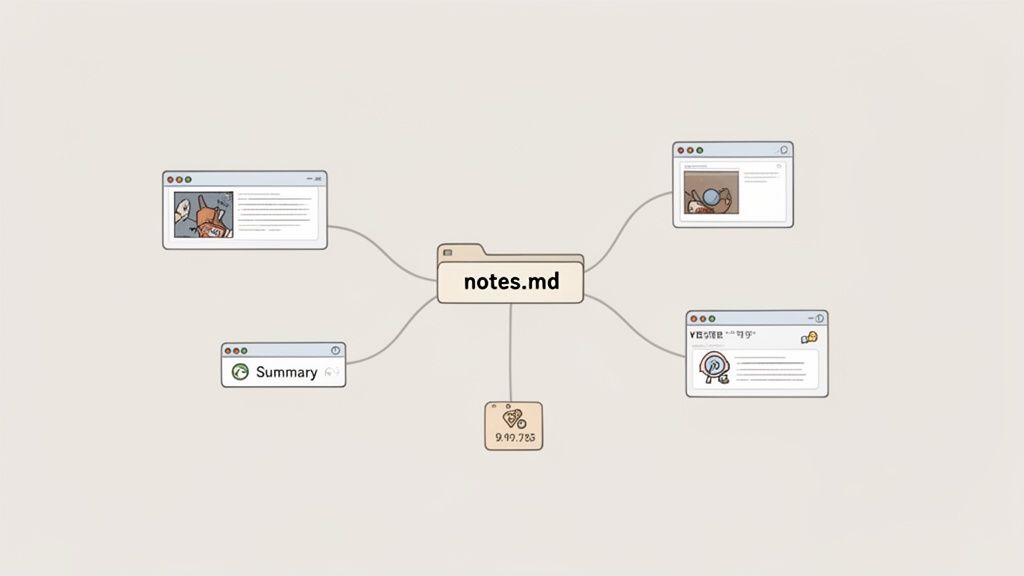
Теперь представьте: во время объяснения вы в один клик делаете скриншот с отметкой времени кода с помощью инструмента вроде HoverNotes. Через мгновение ИИ создает краткое резюме того, что делает этот код. Весь пакет — визуал, объяснение и временная метка — сохраняется напрямую в вашем хранилище Obsidian как аккуратный файл Markdown. В отличие от инструментов, работающих только с транскриптами, HoverNotes «смотрит» видео и фиксирует происходящее на экране.
Вы только что превратили мимолетный момент видео в постоянный, легко доступный кусочек знаний.
#Сравнение методов ведения заметок для обучающихся с СДВГ
Метод
Плюсы для СДВГ
Минусы для СДВГ
Лучше всего подходит для
Линейные заметки (например, Word)
Просты, знакомы, требуют минимальной подготовки.
Превращаются в «стену текста», сложно найти нужное, нет связей, легко потеряться.
Быстрые, одноразовые заметки для одной сессии.
Ментальные карты
Очень наглядные, нелинейные, позволяют видеть связи между идеями.
Могут быть загроможденными и сложными, менее эффективны для детальных текстовых заметок.
Понимание общих концепций и структуры курса.
Метод Корнелла
Структурированный формат, стимулирующий активное воспоминание через резюме и подсказки.
Жесткая структура может казаться ограничивающей и утомительной.
Академические лекции и формальные презентации.
Скриншоты с отметками времени
Фиксируют точный визуальный контекст, низкий порог к действию, прямая связь с исходным видео.
Могут создавать беспорядок без организации, требуют инструмента для управления.
Уроки программирования, технические демонстрации и пошаговые руководства.
ИИ-помощник (HoverNotes)
Автоматизирует резюме, захватывает визуальные элементы с отметками времени, снижает нагрузку, позволяя сосредоточиться.
Зависимость от технологии, возможность пропуска нюансов в резюме ИИ.
Сложные или плотные видео, где ручное ведение заметок тяжело.
Лучший метод объединяет визуальную силу скриншотов с организационными возможностями PKM, создавая систему, которая работает в унисон с вашим мозгом, а не против него.
Формат заметок так же важен, как и их содержание. Когда ваши заметки сохраняются локально в формате Markdown (.md), вы навсегда становитесь владельцем своих знаний. Они не завязаны на закрытый облачный сервис, который может изменить цены или закрыться.
Вы владеете файлами. Перемещайте, создавайте резервные копии, ищите по ним — это просто Markdown. Этот принцип владения данными огромен. Ваш второй мозг принадлежит вам, хранится на вашем компьютере и не требует интернет-соединения для работы. Ваши заметки — ваши.
Это простое изменение превращает разбросанные знания из видео в нечто осязаемое. Для более глубокого изучения этой философии посмотрите наше руководство о том, как создать второй мозг. Главная идея — ваша система знаний должна быть устойчивой, приватной и под вашим контролем.
Большинство методов ведения заметок не справляются, потому что теряют весь визуальный контекст. Транскрипт расскажет, что было сказано, но пропустит диаграмму, ключевые данные с слайда или демонстрацию кода. Для визуальных учеников — а это многие с СДВГ — это огромный пробел.
Эффективный второй мозг должен улавливать визуальную информацию и связывать её напрямую с заметками. Вот почему функции вроде скриншотов с временными метками настолько ценны.
Для программирования: Захватывайте точный участок кода, а не только устное описание.
Для лекций: Делайте скриншоты слайда с важной диаграммой именно в тот момент, когда профессор её объясняет.
Для уроков: Захватывайте визуал каждого этапа сложного процесса.
Поскольку каждый скриншот снабжен кликабельной временной меткой, вы всегда в один клик попадаете в нужный момент видео. Заметки превращаются из пассивного хранилища в интерактивный портал к оригинальному источнику. Повторение уже не рутинное дело, а активный процесс открытия.
Эта система разработана с учётом того, как мозг при СДВГ учится лучше всего: визуально, ассоциативно и с минимальными препятствиями.
Просмотр видео — лишь половина дела. Если у вас нет четкого плана повторения, вы льёте воду в дырявое ведро. Мы все знакомы с «кривой забывания» — резким падением памяти о новой информации. Для мозга с СДВГ задача — найти способ повторения без ощущения монотонного мучения.
Просто перечитывать заметки — один из наименее эффективных способов учиться. Это кажется продуктивным, потому что мозг узнает слова и дает ложное чувство уверенности. Но это не укрепляет нейронные связи. Чтобы знания закрепились, нужен активный вызов воспоминаний.
Речь о том, чтобы заставить мозг вспоминать информацию без подсмотра. Это как тренировать мышцу — именно усилие делает её сильнее.
Вместо пассивного просмотра превратите заметки в динамичный, легкий в использовании инструмент повторения. Цель — сделать процесс вовлекающим и укрепляющим знания.
Вот практический план:
Используйте резюме ИИ как подсказки. Читайте сгенерированное ИИ резюме раздела заметок. Затем закройте глаза и попытайтесь объяснить этот концепт своими словами вслух, как если бы преподавали.
Используйте скриншоты как карточки. Есть скриншот с диаграммой или кодом с отметкой времени? Закройте заметки под ним и объясните, что показывает изображение и почему это важно. Потом раскройте заметки и проверьте себя.
Кликайте по меткам времени. Если застряли, не бросайте. Кликните по временной метке на скриншоте — это вернет вас к нужному моменту видео для быстрого и насыщенного контекста обновления.
Этот подход превращает скучное повторение в серию мини-вызовов, удерживая мозг в тонусе.
Вам не нужно выделять огромные блоки времени на повторение. Регулярность важнее интенсивности. Простой, гибкий график, основанный на интервальном повторении, гораздо эффективнее и удобнее для мозга с СДВГ.
Цель — прерывать процесс забывания в ключевые моменты. Повторять по 5-10 минут с интервалами намного эффективнее, чем один двухчасовой марафон спустя неделю.
Простой график, который хорошо работает, — это модель 1-3-7:
День 1: Проведите быструю сессию активного воспоминания в течение 10 минут в первые 24 часа после просмотра видео. Это самый важный момент для борьбы с первичным забыванием.
День 3: Еще 5-10 минут повторения тех же заметок. Теперь информация восстанавливается быстрее.
День 7: Последнее короткое повторение. Помогает перевести знания из краткосрочной памяти в долговременную.
Технологические инструменты вселяют надежду для учеников с СДВГ, особенно с ростом онлайн-обучения на платформах вроде Udemy и Coursera. Известно, что неструктурированное онлайн-обучение сопровождается высоким уровнем отсева, но инструменты с визуальной обратной связью — например, просмотр заметок со скриншотами по клику — помогают преодолеть эту проблему. Исследования технологий визуального внимания подтверждают, что мультимодальные заметки способны превратить пассивный просмотр видео в мощную и удобную базу знаний. Подробный метаанализ доступен здесь.
Превращая заметки в активный инструмент и следуя простому графику повторений, вы делаете изученное постоянной частью своего арсенала. Можно пойти дальше и научиться создавать учебные пособия из видео заметок. Функция скриншотов с метками времени экономит часы на повторном просмотре.
#Часто задаваемые вопросы об обучении по видео при СДВГ
Даже при хорошем плане обучение по видео с СДВГ может быть сложным. Разберем популярные трудности и практические решения.
#Как перестать отвлекаться на рекомендации YouTube?
YouTube создана, чтобы затягивать вас в кроличью нору, так что бороться с алгоритмом силой воли — путь к разочарованию. Нужно менять окружение до начала просмотра.
Самый простой способ — использовать инструмент с режимом без отвлечений. Например, «Видео режим» HoverNotes скрывает боковые панели YouTube, комментарии и рекомендованные видео. Он превращает хаотичную страницу в чистое учебное пространство с видео и заметками. Также работают расширения браузера, блокирующие ленту YouTube. Главное — убрать искушение еще до того, как мозг за него зацепится.
#Что делать, если не могу позволить себе платный инструмент для заметок?
Вы можете организовать всё бесплатно. Главный принцип — сделать обучение активным процессом, и это ничего не стоит.
Используйте таймер по технике Помодоро. Ручное разделение экрана на видео с одной стороны и простой текстовый редактор вроде Блокнота или Google Документов с другой. Это требует больше подготовки, но печатать собственные заметки с временными пометками (например, «14:32 – объяснен основной концепт») намного лучше, чем пассивно смотреть.
Многие инструменты доступны на базовом уровне бесплатно. В HoverNotes вы можете пользоваться редактором заметок, делать скриншоты с метками времени и применять режим без отвлечений без оплаты. ИИ-функции есть в платных планах, но можно построить эффективный рабочий процесс и без них. Не хотите ИИ? Используйте просто редактор, скриншоты и управление видео — они бесплатны.
#Я делаю заметки, но никогда к ним не возвращаюсь. Как это исправить?
Это распространенная ловушка. Обычно значит, что ваши заметки — это цифровая «кладбище», а не система, которую вы используете. Решение двойное: назначайте короткие сессии повторения и практикуйте активное воспоминание, а не пассивное перечитывание.
Не просто пролистывайте заметки. Закройте их и устно перескажите основные идеи по памяти. Используйте скриншоты как карточки — смотрите на диаграмму и объясняйте, что она показывает до проверки заметок. Ваши заметки должны быть отправной точкой вовлечения, а не конечной остановкой информации.
Самое сильное изменение — сохранять заметки напрямую в систему, которую вы уже активно используете. Если вы работаете с Obsidian постоянно, ваши видео заметки тоже должны храниться там. Они сохраняются как .md файлы прямо в вашем хранилище Obsidian. Когда заметки видны в вашем ежедневном потоке, вы с большой вероятностью будете их перечитывать и связывать с другими идеями.
#Помогает ли ускорение видео действительно лучше сосредоточиться при СДВГ?
Для многих с СДВГ — да. Медленное видео воспринимается как недостаточно стимулирующее, приглашая ум отвлечься. Увеличение скорости до 1.25x или 1.5x помогает удержать мозг в активном режиме, приближая темп восприятия к его природной скорости обработки.
Но это не панацея. При сложных или новых темах возможно придется замедлиться до 0.75x для более глубокого усвоения. Лучший способ — экспериментировать и найти свою «золотую середину» — достаточно быстро, чтобы удерживать внимание, но не настолько, чтобы терять понимание.
Если вы используете Obsidian или Notion для организации обучения, HoverNotes может стать мостом между видео и упорядоченными заметками. Он сохраняет все в аккуратных Markdown файлах на вашем компьютере, с скриншотами по временным меткам, которые возвращают к нужному моменту видео. Заметки удобно копируются в Notion, если вы там храните всё. Можете попробовать HoverNotes бесплатно — при регистрации дают 20 минут бесплатных AI кредитов, без кредитной карты.
Узнайте, как делать учебные заметки, которые помогают лучше запоминать и понимать материал. Откройте для себя практические методы для лекций, учебников и современных видеоуроков.
Узнайте, как использовать метод Корнелла для создания заметок по видео, чтобы улучшить обучение на YouTube или Coursera. Это руководство предлагает практические шаги и шаблоны.