Перестаньте забывать то, что изучаете на Coursera. Узнайте практический метод работы с заметками Coursera, который помогает создавать полезные и легко поддающиеся поиску записи для улучшения долговременного запоминания.
Автор HoverNotes Team•10 мин чтения
Вы были в такой ситуации. Прошли специализацию Coursera, идеально справились с итоговым проектом и добавили сертификат в LinkedIn. Но через пару недель знания кажутся размытыми. Отдалёнными.
Это не ваша личная ошибка, а проблема процесса. Просматривать видео-лекции, как сериал на Netflix, делая пару заметок, — верный способ почти всё забыть. Видеобучение страдает от низкой удерживаемости — люди смотрят, но не запоминают.
#Почему большинство заметок по Coursera не работают
Курсы Coursera — это настоящий поток информации. Один модуль может содержать часы плотных лекций, сложные схемы и важные строки кода. Пытаться пассивно "впитывать" всё — всё равно что пытаться поймать дождь в напёрсток.
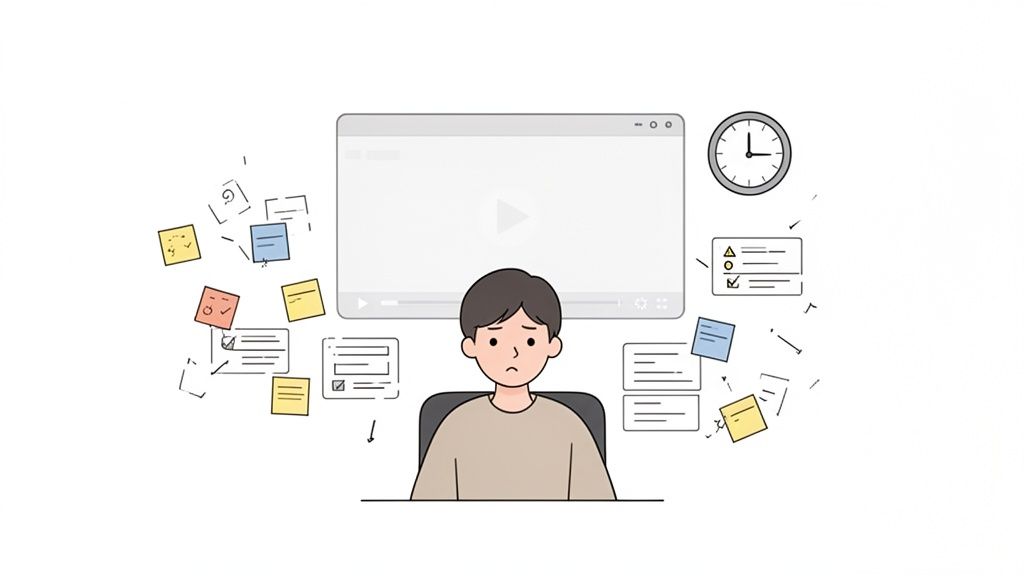
Эта иллюстрация многое объясняет. Вы тонете в куче вкладок и видео, с усиливающимся ощущением, что ничего не усваивается.
Главный враг — трение. Ручное записывание заметок во время просмотра видео тяжело. Постоянная пауза и воспроизведение надоедают, скриншоты разбросаны и никак не связаны с заметками. Это отвлекает ваше внимание от лекции.
Разберёмся с распространёнными методами.
#Сравнение популярных способов ведения заметок по Coursera
В этой таблице показаны компромиссы, на которые мы обычно идём, часто жертвуя долгосрочной усвояемостью ради кратковременного удобства.
Лёгкие пути ведут к плохим результатам. Более ручные методы эффективнее, но создают трение, мешающее учёбе.
Вот почему эти методы не срабатывают:
Ловушка "пауза-игра": Пытаться печатать заметки во время воспроизведения видео — кошмар. Вы всё время ставите на паузу, пытаетесь быстро записать, затем перематываете назад, потому что что-то пропустили. Внимание разбивается.
Хаос с скриншотами: Делать скриншоты кажется продуктивным, но это ловушка. Они превращаются в беспорядочную кучу файлов на рабочем столе. "Screenshot-193.png" ничего не рассказывает о самом понятии.
Иллюзия расшифровки: Полагаться на транскрипты — серьёзная ошибка. Транскрипты фиксируют слова, но упускают всю визуальную составляющую — как преподаватель указывает на схему, выделяет код или показывает технику. Визуальный контекст очень важен.
Цель не просто переписывать лекцию, а создать постоянную, поискпоисковую базу знаний, связывающую то, что вы видели, с тем, что вы слышали. Научиться вести заметки с лекций, которые действительно работают, — значит превратиться из пассивного зрителя в активного ученика. Ваши заметки Coursera становятся бесполезными, как только процесс мешает обучению.
Профессиональный сертификат Coursera — это марафон. Сваливать все заметки по шести курсам в один огромный документ — значит получить неразбериху. Нужно строить систему с первого дня. Цель — создать личную, взаимосвязанную базу знаний, а не кладбище случайных файлов.
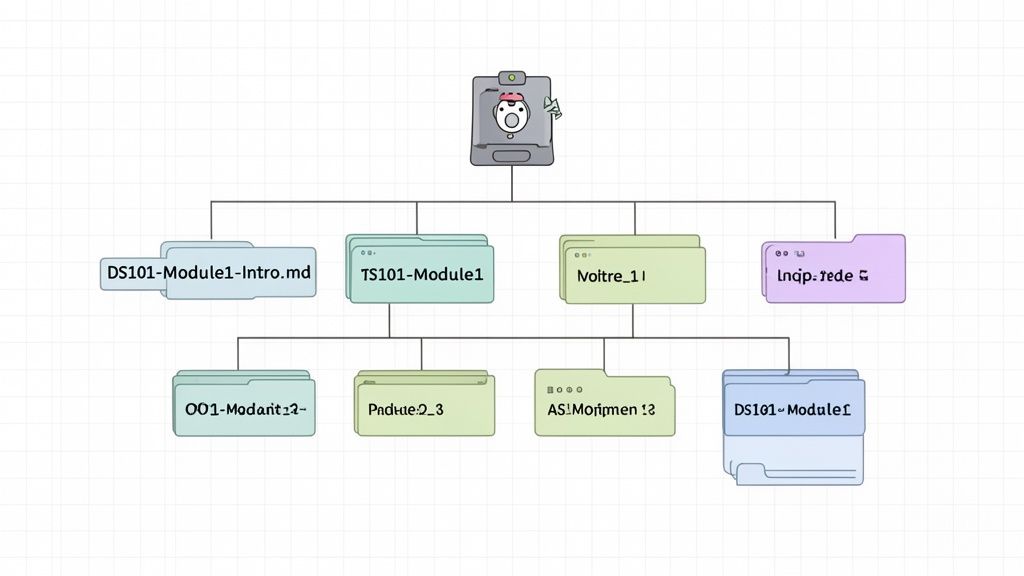
Далее применяйте единый формат для имен заметок по каждой лекции. Это важно для удобного поиска. Хороший формат: [CourseCode]-[Week#]-[LectureTitle].md
Разберём его:
[CourseCode]: короткий уникальный идентификатор курса (например, GDA-01).
[Week#]: номер недели или модуля (например, W1).
[LectureTitle]: короткое описательное название лекции.
Настоящее имя файла будет выглядеть так: GDA-01-W1-The-World-of-Data.md.
Сохраняя заметки как обычные Markdown (.md) файлы, вы обеспечиваете их долговечность. Локальный формат означает, что знания всегда остаются вашими. Вы можете переносить, копировать, искать их командной строкой — они ваши, а не заблокированы в закрытом облачном сервисе.
Такая система меняет ваши заметки. В инструменте вроде Obsidian вы связываете понятия между лекциями и курсами. Представьте, что лекция из Курса 3 ссылается на концепцию из Курса 1. Вы создаёте прямую ссылку: [[GDA-01-W2-Understanding-Bias]]. Так формируется сеть взаимосвязанных идей, превращая ваши заметки в настоящий второй мозг. Этот процесс превращает ваши инвестиции в сертификат Coursera в постоянный, поискпоисковый актив.
#Захват визуального контекста из технических курсов
В технической специализации Coursera — будь то дата-сайенс, программирование, инженерия — транскрипт теряет половину смысла. Главное — момент, когда преподаватель выделяет код, указывает на схему или разбирает визуализацию данных. Учиться только по текстовым заметкам — всё равно что изучать географию без карт.
Разрыв между услышанным и увиденным — серьёзное препятствие. В заметках может быть «как видно в этом резюме модели», а самого резюме на экране нет. Эта проблема особенно актуальна в быстро меняющихся областях.
Заметки должны фиксировать и «что» (объяснение), и «где» (визуальный элемент). Без этого они неполные.
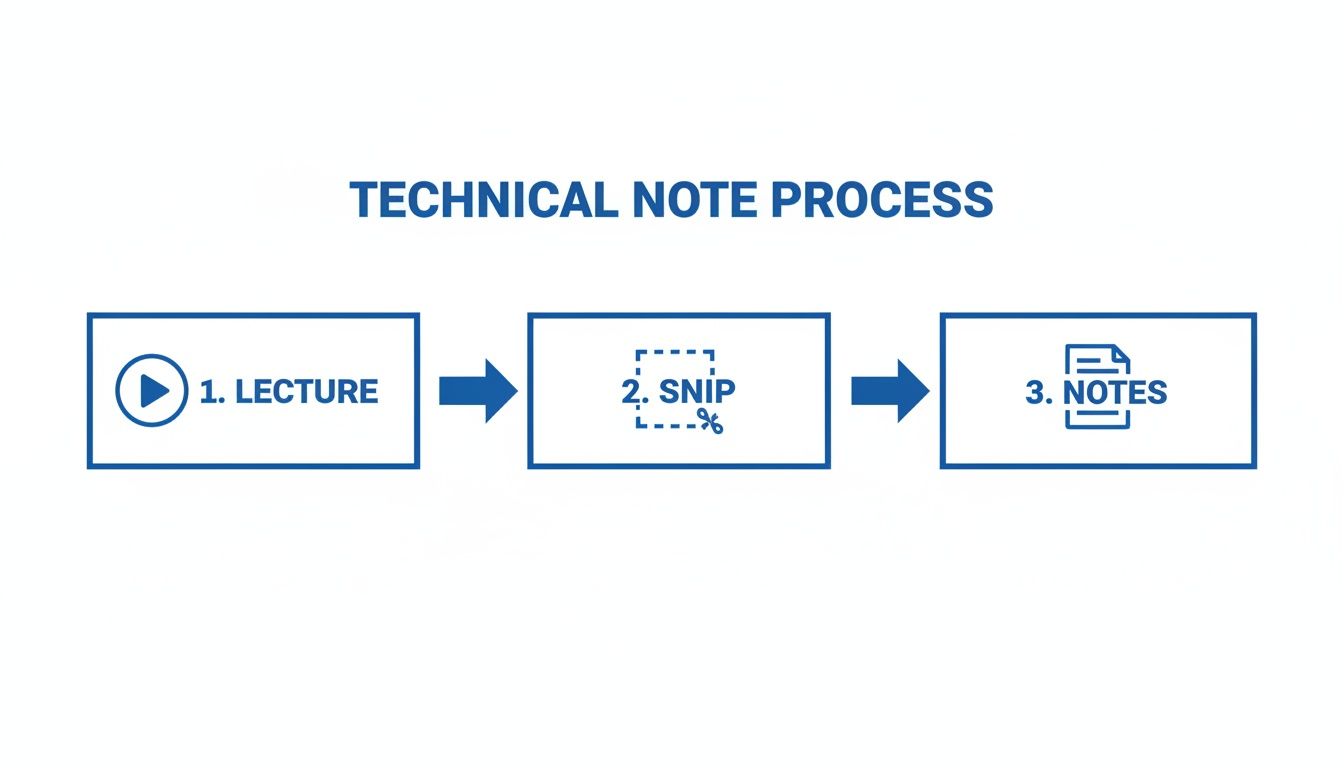
Лучший способ делать полезные технические заметки — встроить визуальные доказательства рядом с текстом. Ручной метод — пауза, скриншот, вставка — слишком утомителен.
Более плавный рабочий процесс — использовать инструмент, созданный для этой задачи. HoverNotes — расширение Chrome, которое смотрит видео вместе с вами, генерирует AI-записи и сохраняет их как Markdown прямо в файловую систему. В отличие от инструментов, парсящих только транскрипты, HoverNotes отслеживает видео для захвата именно того, что показано на экране.
Это решает проблему визуального контекста:
Отмеченные по времени скриншоты: каждый снимок экрана имеет кликабельную отметку времени — один клик возвращает к точному моменту в видео.
Целенаправленные вырезки: можно выделить только нужный кусок кода или схему и вставить чистое, сфокусированное изображение прямо в заметки.
Это превращает ваши заметки из плоского документа в динамичное, визуальное учебное пособие. Для дополнительных техник в нашем руководстве по захвату экрана с YouTube есть советы для почти любой видеоплатформы. Встраивая такие визуальные якоря, вы ускоряете и улучшаете повторение сложных тем.
#Пусть автоматизация ведёт заметки, а вы сосредотачивайтесь на обучении
Пытаться одновременно смотреть сложную лекцию, понять её и писать детальные заметки — это путь к перегрузке мозга. Ваш разум пытается справиться с тремя задачами сразу и не справляется.
Вот тут на помощь приходит автоматизация. AI может вести заметки за вас, пока вы сосредоточены на понимании. Вместо транскрибирования вы становитесь редактором, сосредоточенным на более важном — усвоении материала. Рабочий процесс простой: позволить AI зафиксировать лекцию, а затем вы просматриваете, добавляете мысли и связываете новые идеи с уже известным.
Визуальные вырезки и структурированные заметки напрямую извлекаются из лекции, создавая богатый учебный ресурс.
Инструмент вроде HoverNotes смотрит видео вместе с вами, создавая структуру с ключевыми моментами и скриншотами с отметками времени. Он работает на любых видео — учебные платформы, YouTube, даже внутренние порталы обучения. Для лекций, где в основном речь, можно использовать AI-сервисы транскрипции аудио, превращающие речь в поисковый текст. Это освобождает ваш ум для размышлений, а не механического переписывания.
Ваша главная задача смещается от захвата информации к её осмыслению. Вы можете задавать вопросы и проводить связи — настоящая работа в обучении. Этот метод объединяет скорость автоматизации с глубиной человеческого обзора. Наше руководство по использованию AI-приложения для заметок подробно описывает этот процесс. Даже без AI режим без отвлечений и скриншоты стоят того.
#Ваши заметки, ваши инструменты: рабочий процесс Obsidian и Notion
Заметки полезны, только если они там, где вы думаете. Папка с раскиданными файлами — просто мусор. Волшебство происходит, когда знания интегрированы в повседневные инструменты.
#Сила локального (local-first) рабочего процесса Obsidian
Для сообщества Obsidian владение данными критично. Ваши знания не должны оставаться в облаке. Поэтому важен подход local-first.
Когда заметки сохраняются как обычные Markdown (.md) файлы прямо на вашем компьютере, они принадлежат вам. Это основной принцип таких инструментов, как HoverNotes, которые сохраняют заметки прямо в файловую систему.
Прямо в ваш хранилище: сохраняйте .md файл — с текстом и скриншотами с отметками времени — прямо в ваше хранилище Obsidian.
Истинная собственность: это обычные текстовые файлы. Их можно бэкапить, искать через командную строку, и можно быть уверенным, что их можно будет прочитать через 20 лет.
Мгновенное связывание: как только заметка в вашем хранилище, вы можете связывать концепции: ссылаться на новый термин из машинного обучения в заметке проекта или уже существующей статье.
Это меняет взгляд на ваши заметки. Они превращаются в постоянный, растущий актив. Вы владеете файлами. Можете переносить, бэкапить, grep их — это просто Markdown.
Если Notion — ваш центр управления, вам нужен беспрепятственный поток работы. Хотя Notion не локальный, как Obsidian, перенос заметок Coursera в него прост.
Используйте инструмент, который сразу генерирует хорошо структурированные заметки. Когда заметки уже отформатированы с заголовками, списками и встроенными изображениями, они легко переносятся. Например, заметки, созданные HoverNotes, разработаны для удобного копирования и вставки.
Выделите всю заметку — с форматированным текстом и скриншотами — и вставьте её прямо на страницу Notion. Всё работает без заморочек, без долгой переформатировки и загрузки изображений по одному. Это даёт локальную защиту заметок для безопасности, используя при этом мощные базы данных Notion для обучения.
Ответы на популярные вопросы об ведении заметок для специализаций Coursera.
#Какой формат лучше всего использовать для заметок Coursera?
Markdown (.md). Это обычный текст, который будет актуален и удобен для переноса в будущем. Он прекрасно сочетается с инструментами вроде Obsidian, позволяя создать библиотеку знаний прямо на вашем компьютере. Вы владеете своими заметками навсегда. Они не заточены под закрытое приложение, которое может закрыться. Даже если используете Notion, сначала обязательно создайте локальную Markdown копию.
#Можно ли делать заметки по видео Coursera на других языках?
Да, и это серьёзное преимущество. Учиться по корявым авто-переводам субтитров — неудобно. Лучше использовать AI-инструмент, который умно обрабатывает перевод. Например, HoverNotes может смотреть лекцию на оригинальном языке, скажем, японском, и создавать структурированные заметки уже на вашем языке, например, на английском. Это не просто расшифровка, AI понимает контекст и даёт связные заметки, открывая доступ к большему количеству курсов.
#Что лучше — писать заметки вручную или цифровым способом?
Хотя письмо от руки помогает запоминать, это непрактично для скорости и технической сложности большинства курсов Coursera. В бумажный блокнот не вставить скриншот с кодом.
Для онлайн-обучения лучше цифровые заметки:
Поиск по тексту: находите любую тему по всей специализации за секунды.
Организация: легко структурируйте и связывайте заметки для многокурсных сертификатов.
Интеграция: вставляйте скриншоты, куски кода и ссылки.
Часто лучше гибридный подход. Позвольте AI захватывать текст и визуалы, а вы включайтесь активно, добавляя собственные аннотации и вопросы в цифровом виде. В нашем руководстве по ведению учебных заметок есть другие методы.
#Как лучше организовать заметки для многокурсного сертификата?
Чистая структура папок обязательна. Начните с главной папки сертификата (например, «Google UX Design Certificate»). Внутри создайте нумерованные подпапки для каждого курса (например, «01 - Foundations of UX Design»), чтобы сохранить порядок.
Затем придерживайтесь именования вроде [Week#]-[Lecture-Title].md. В инструменте Obsidian вы можете использовать теги (например, #user-personas, #figma) и обратные ссылки, чтобы связывать связанные темы между курсами, создавая взаимосвязанную карту всех изученных знаний.
Если вы используете Obsidian для управления Coursera заметками, HoverNotes сохраняет их как чистые Markdown файлы прямо в ваше хранилище. Функция со скриншотами с отметками времени экономит часы повторного просмотра. Можете попробовать бесплатно: 20 минут AI и без кредитной карты. Актуальные условия смотрите на странице цен HoverNotes.
Полезные заметки должны заставлять вас что-то делать с материалом, а не просто сохранять больше текста. Институт педагогических наук США рекомендует распределять обучение во времени, сочетать графику с устными объяснениями, использовать активное воспроизведение и задавать глубокие объяснительные вопросы (практическое руководство). Рецензируемый обзор исследований образовательного видео также подчеркивает важность выделения ключевой информации, разделения уроков на удобные для усвоения сегменты, предоставления учащимся контроля и добавления подсказок для активного обучения (обзор). На практике это означает: делать паузу на границах понятий, фиксировать только те визуальные доказательства, которые вам нужны, формулировать вопрос своими словами, а позже отвечать на него перед повторным просмотром источника. Эти практики основаны на доказательствах; универсальный процент удержания материала для одного приложения или рабочего процесса — нет.
Преобразите свои онлайн-курсы с помощью более умной системы для заметок Udemy. Узнайте, как фиксировать визуальные детали, сохранять порядок и действительно запоминать то, что смотрите.
Испытываете трудности с ведением заметок в MOOC на Coursera или edX? Узнайте проверенный способ организации, запоминания и применения знаний из длительных курсов без выгорания.
Преобразите свои заметки из LinkedIn Learning из пассивного текста в мощный карьерный ресурс. Изучите практические методы для сбора, организации и использования своих знаний.