YouTube Videonotizen vs. Transkript: Wo liegt der Unterschied?
Entdecken Sie die Grenzen eines einfachen Transkripts YouTube Videos zum Lernen. Erfahren Sie, warum visueller Kontext und KI-gestützte Notizen für echtes Behalten unverzichtbar sind.
Von HoverNotes Team•10 Min. Lesezeit
Ein Transkript von einem YouTube-Video zu holen, wirkt wie ein cleverer Lerntrick. Du erhältst alle gesprochenen Wörter übersichtlich zum Nachlesen, ohne das ganze Video erneut anschauen zu müssen. Aber dieser Ansatz hat einen riesigen Nachteil: Er übersieht komplett, was auf dem Bildschirm passiert.
Eine Textwand kann dir kein komplexes Diagramm zeigen, während es gerade gezeichnet wird. Sie kann nicht die genaue Codezeile erfassen, die ein Moderator hervorhebt. Sie kann keine subtile körperliche Technik vermitteln, die demonstriert wird. Video-Lernen hat ein Behalteproblem – und wenn du dich nur auf Text verlässt, wird es noch schlimmer.
#Warum bei deinem YouTube-Video-Transkript die Hälfte der Geschichte fehlt
Video ist dazu gemacht, zu zeigen, nicht nur zu erzählen. Wenn du die visuelle Ebene entfernst und dich nur auf ein Transkript verlässt, entsteht eine massive Informationslücke. Das gilt besonders für technische Tutorials, wissenschaftliche Erklärungen oder jede Art von Inhalt, bei dem die Bilder wahrscheinlich wichtiger sind als der Kommentar.
Stell dir vor, du willst eine neue Softwarefunktion lernen. Würdest du lieber eine Textbeschreibung haben oder eine Bildschirmaufnahme des tatsächlichen Ablaufs sehen? Das Transkript gibt dir das „Was“, lässt aber das „Wie“ und „Warum“ weg, die nur auf dem Bildschirm sichtbar sind. Das führt zu typischen Frustrationen:
Unvollständige Informationen: Wichtige Bildschirmaktionen, die nicht laut ausgesprochen wurden, gehen verloren.
Kontextmangel: Eine Erklärung eines Diagramms wird abstrakt, wenn die visuelle Verankerung fehlt.
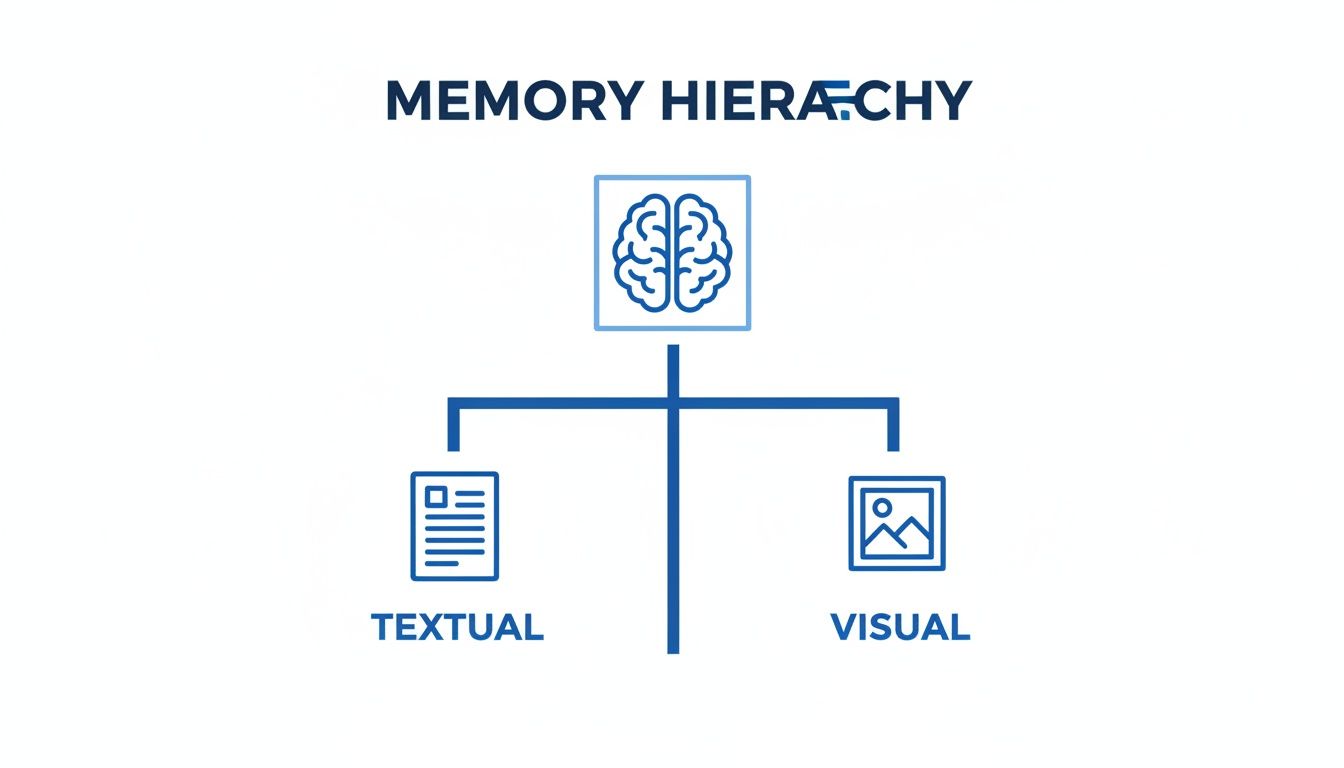
Schlechte Behaltensleistung: Unser Gehirn verbindet Worte mit Bildern. Wie wir bereits festgestellt haben, ist das ein grundlegendes Problem beim Videolernen – reiner Text ist viel schwerer abrufbar.
Ein Transkript kann dir sagen, dass der Moderator auf „den wichtigsten Teil des Graphen“ zeigte, aber es kann dir nicht zeigen, welcher Teil das genau war. Versuche, solche Notizen später zu verstehen, sind reine Vermutungen.
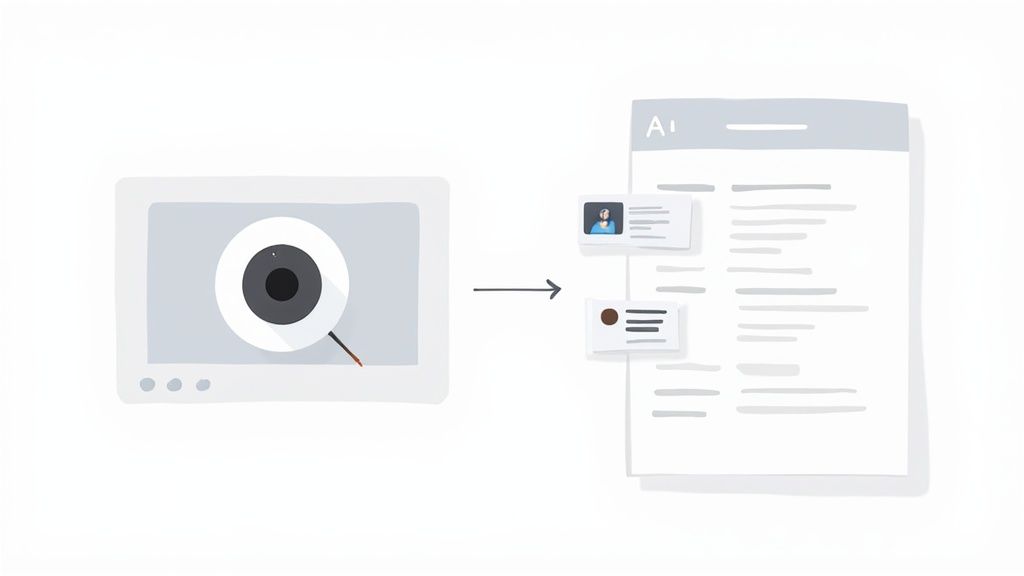
Deshalb sind Tools, die nur das Transkript eines Videos auswerten, von Hause aus limitiert. Sie sind blind gegenüber dem, was du siehst. Im Gegensatz dazu analysiert ein Tool wie HoverNotes das Video Bild für Bild, so wie ein Mensch es tun würde. Dadurch kann es zeitgestempelte Screenshots wichtiger Diagramme, Codeausschnitte und Schlüsselmomente erfassen und direkt in deine Notizen einbetten. So bleibt der entscheidende visuelle Kontext erhalten, der effektives Video-Lernen ausmacht.
#Transkript-Tools vs. Frame-für-Frame-Videoanalyse
Wenn du Informationen aus einem YouTube-Video ziehst, fallen die Tools, die du benutzt, in zwei Lager. Dieser Unterschied ist entscheidend, um Notizen zu erstellen, die du wirklich behalten und später nutzen kannst.
Auf der einen Seite hast du transkriptbasierte Tools. Sie sind schnell und einfach – sie verbinden sich mit YouTube und ziehen die automatisch generierten Untertitel. Aber hier ist der Knackpunkt: Sie sind grundsätzlich blind. Sie verarbeiten nur Audio, weshalb sie alles verpassen, was tatsächlich auf dem Bildschirm passiert. Alle wichtigen Diagramme, Codeausschnitte und Live-Demonstrationen bleiben ihnen komplett verborgen.
Auf der anderen Seite hast du die Frame-für-Frame-Videoanalyse. Diese Tools sehen das Video an, statt es nur zu hören. Sie verarbeiten die visuellen Daten jedes Einzelbildes, um zu verstehen, wann etwas Wichtiges auf dem Bildschirm erscheint.
Hier macht ein Tool wie HoverNotes, eine Chrome-Erweiterung, die KI-Notizen erzeugt, den Unterschied. Im Gegensatz zu Tools, die nur Transkripte auswerten, schaut HoverNotes das Video an und erfasst, was wirklich auf dem Bildschirm passiert.
Das erzeugt zwei grundlegend verschiedene Ergebnisse:
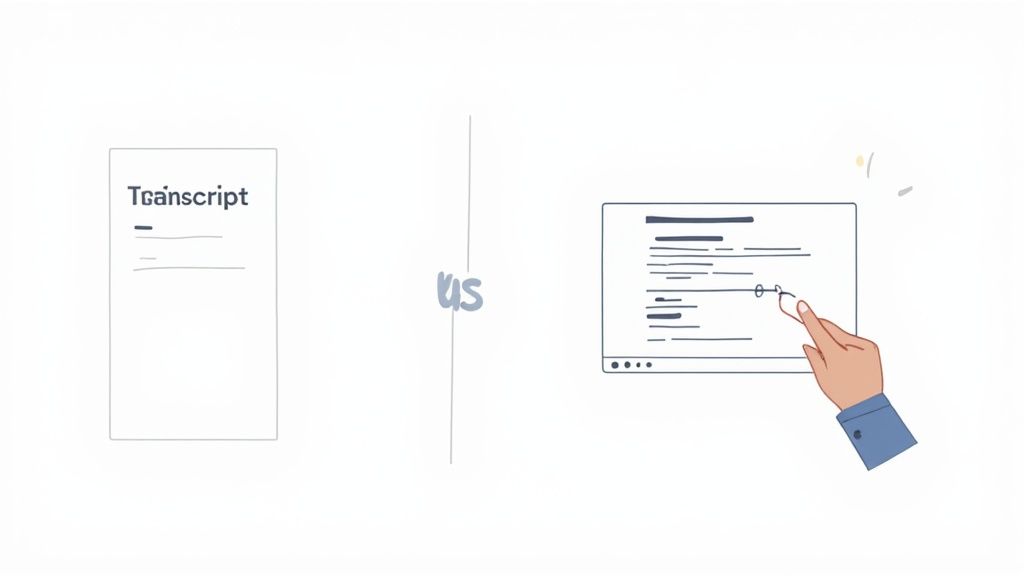
Ein Transkript-Tool gibt dir eine flache Textwand, oft voller Fehler durch automatische Untertitelung und völlig losgelöst von jeglichem visuellen Kontext.
Ein Videoanalyse-Tool wie HoverNotes liefert strukturierte Notizen mit eingebetteten Schlüsselfotos genau an der Stelle, wo sie hingehören.
Denk daran, wie unser Gehirn arbeitet. Wir verarbeiten Informationen sowohl durch das, was wir hören, als auch durch das, was wir sehen.
Versuchst du, nur mit einem einfachen YouTube-Transkript zu lernen, bekommst du nur die halbe Wahrheit. Für eine tiefere technische Auseinandersetzung findest du in unserem Leitfaden, wie man richtig ein YouTube-Video transkribiert.
Der vielleicht nützlichste Vorteil dieses visuellen Ansatzes sind die zeitgestempelten Screenshots. Jedes Bild, das aufgenommen wird, ist nicht nur ein statisches Foto; jeder Screenshot enthält einen anklickbaren Zeitstempel – ein Klick bringt dich genau zu dem Moment zurück. Das ist die ultimative Brücke zwischen deinen Notizen und dem Originalvideo.
Um den Unterschied klar zu machen, hier, was jedes Tool leisten kann und was nicht. Das eine ist für einfache Textextraktion gebaut, das andere für tiefes, kontextuelles Verständnis.
Funktion
Nur Transkript-Tools
Frame-für-Frame-Analyse-Tools (z. B. HoverNotes)
Primäre Eingabe
Audiospur (automatische Untertitel)
Visuelle Frames + Audiospur
Codeausschnitte
Werden komplett übersehen oder fehlerhaft im Text dargestellt
Werden perfekt in Screenshots erfasst
Diagramme & Charts
Komplett unsichtbar
Werden als klare, zeitgestempelte Bilder aufgenommen
Bildschirmtext
Nur erfasst, wenn er laut ausgesprochen wird
Wird visuell erkannt und extrahiert
Kontext
Niedrig; nur eine Textwand
Hoch; Notizen sind mit bestimmten visuellen Momenten verknüpft
Genauigkeit
Fehleranfällig durch automatische Untertitelung
Hohe visuelle Genauigkeit; Text wird durch Sichtbarkeit verifiziert
Ausgabe
Reiner Text (.txt) oder Untertitel (.srt)
Multimodale Notizen mit Text, Bildern und Links
Letztlich hängt die Wahl des richtigen Tools von deinem Ziel ab. Wenn du nur eine grobe Textdatei willst, reicht ein Transkript-Tool vielleicht aus. Willst du aber wirklich komplexe Informationen aus einem Video lernen und behalten, ist ein Tool mit visueller Analyse nicht nur besser – es ist unverzichtbar.
#Wie KI passives Zuschauen in aktives Lernen verwandelt
Seien wir ehrlich: Notizen aus einem Video machen ist mühsam. Du drückst ständig Pause, spulst zurück, um etwas nachzuholen, und versuchst, deine kritzeligen Gedanken mit einem chaotischen Ordner voller Screenshots zu verbinden. Genau dieses ineffiziente Vorgehen wollen moderne KI-Tools verbessern.
Stell dir ein KI-Tool vor, das die Inhalte für dich anschaut. Es produziert nicht einfach eine Textwand; es erstellt eine strukturierte Zusammenfassung und zieht automatisch Screenshots von wichtigen Dingen – Diagramme, Codeausschnitte und Präsentationsfolien. Die KI übernimmt das Notieren, damit du dich auf das Verstehen konzentrieren kannst.
#Von statischem Text zu einem interaktiven Lernführer
Der eigentliche Wert liegt nicht nur im Erfassen von Bildern. Es geht darum, wie sie in deine Notizen eingebunden werden. Die KI platziert diese Visuals genau dort, wo sie hingehören – im exakten Moment ihres Auftauchens im Video.
Diese einfache Veränderung verwandelt ein flaches Transkript eines YouTube-Videos in einen dynamischen, interaktiven Lernführer. Das macht es möglich:
Zeitgestempelte Screenshots: Jeder Screenshot ist ein klickbarer Link. Ein Klick und du bist sofort an genau dieser Stelle im Video. Kein mühsames Suchen mehr im Zeitstrahl.
Gezieltes Ausschneiden: Du kannst genau das wichtigste Stück des Bildschirms auswählen – eine Formel, eine Codezeile – und es direkt in deine Notizen einfügen.
Automatisierte Zusammenfassungen: Die KI liefert dir einen schlüssigen Überblick als erste Basis, den du dann mit eigenen Gedanken erweitern kannst. Mehr dazu erfährst du in unserer detaillierten Analyse, wie ein KI-Videozusammenfasser dein Lernen massiv beschleunigen kann.
Indem KI Text mit zeitgestempelten Bildern verbindet, schließt sie endlich die Lücke, die reine Transkript-Tools hinterlassen. Deine Notizen sind nicht mehr nur das, was gesagt wurde – sie zeigen auch das, was zu sehen war, und bewahren so den visuellen Kontext, der für echtes Verstehen entscheidend ist.
Diese Tools übernehmen die mühsamen Notizaufgaben. Das verschafft dir Zeit, dich auf das Wesentliche zu konzentrieren: den Stoff zu erfassen und wirklich zu behalten.
#Eine persönliche Wissensbasis aufbauen, die du wirklich besitzt
Notizen zu machen dient nicht nur dazu, eine Prüfung zu bestehen; es geht darum, eine Bibliothek deines Wissens aufzubauen. Für ernsthafte Lernende, die Wert auf Privatsphäre und Kontrolle legen – besonders in der Obsidian-Community – ist es nicht nur ein Feature, sondern die ganze Philosophie, seine Daten wirklich zu besitzen.
Die meisten Cloud-Tools speichern deine Notizen für dich, sperren sie aber in proprietäre Formate. Wenn der Dienst eingestellt wird oder die Preise steigen, wird dein Wissen quasi als Geisel gehalten. Das ist der fundamentale Unterschied zwischen Miete einer Wissensbasis und echtem Besitz.
Der Local-First-Ansatz dreht dieses Modell um. Anstatt dass deine Daten auf einem Firmenserver liegen, speicherst du sie lokal auf deinem Gerät. Das hat mehrere große Vorteile:
Du besitzt sie für immer: Deine Notizen sind nicht an ein Abo gebunden. Sie sind einfach Dateien auf deinem Computer.
Privatsphäre ist Standard: Ohne verpflichtende Cloud-Synchronisation verlassen deine Notizen dein Gerät nicht, außer du entscheidest dich dafür.
Zukunftssicheres Format: Plain Text und Markdown (.md) sind universell. Sie werden auch in Jahrzehnten auf jedem Gerät lesbar sein.
Genau für diesen Workflow wurde ein Tool wie HoverNotes entwickelt. HoverNotes ist eine Chrome-Erweiterung, die Videos mit dir anschaut, KI-Notizen generiert und sie als einfache Markdown-Dateien direkt im Dateisystem deines Computers speichert.
Notizen werden als .md-Dateien direkt in deinem Obsidian-Tresor gespeichert, kein proprietäres Format oder Synchronisationsdienst – deine Notizen gehören dir. Du kannst sie verschieben, sichern, durchsuchen – sie sind einfach Markdown.
Wenn du Obsidian nutzt, kann HoverNotes Notizen direkt in deinen Tresor speichern. Für Notion-Nutzer lassen sich Notizen nahtlos in Notion kopieren, falls du dort alles aufbewahrst. Deine Wissensbasis lebt dort, wo du sie willst, nicht dort, wo eine Firma es dir vorgibt.
#Ein praktischer Workflow für visuelle Video-Notizen
Theorie ist gut, aber ein wiederholbarer Workflow macht Lernen nachhaltig. Hier ein einfacher Prozess, um reichhaltige, visuelle Notizen aus jedem Online-Video zu machen – egal ob Vorlesung auf YouTube, Kurs auf Udemy oder Coursera, ein Video auf dem Uni-Portal oder eine lokale Datei auf deinem Rechner.
Dabei geht es nicht ums passive Anschauen. Es geht darum, das Erlebnis in eine aktive Lerneinheit zu verwandeln.
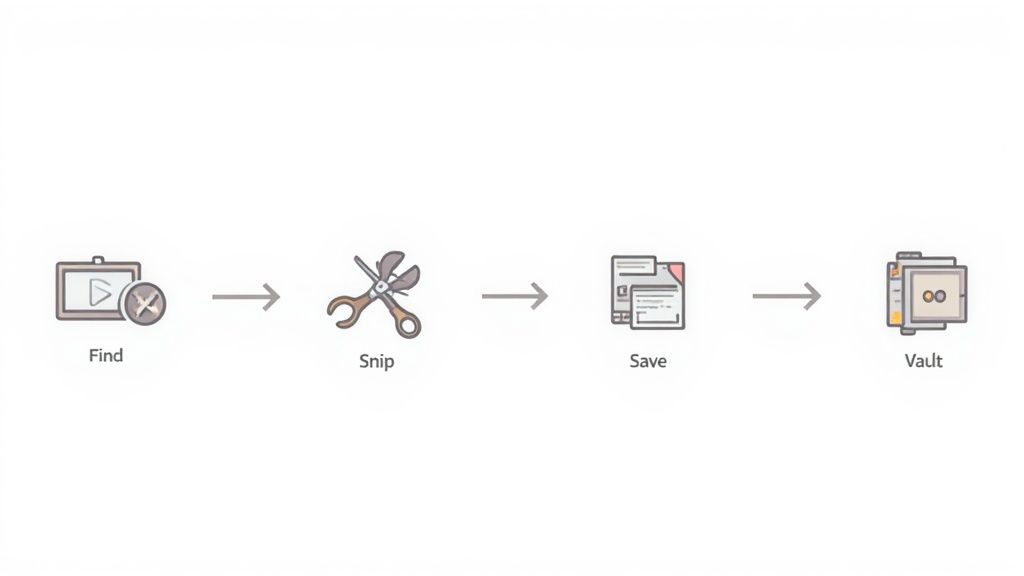
Finde dein Video: Öffne die Vorlesung, das Tutorial oder Kursvideo, das du lernen möchtest. Es funktioniert überall, wo es ein Video gibt.
Aktiviere den Fokusmodus: Ich nutze dafür ein Tool wie HoverNotes. Der Videosmodus zeigt das Video auf einer Seite und einen sauberen Notizbereich auf der anderen, blockiert Anzeigen und Vorschläge, damit du dich besser konzentrierst.
Generiere oder tippe los: Lass die KI eine erste Notizfassung erstellen oder beginne einfach selbst zu tippen. Den Editor kannst du auch ohne KI nutzen – der Editor, Screenshots und Videosteuerung sind kostenlos.
Schneide Visuals während des Anschauens aus: Das ist der große Vorteil. Wenn ein wichtiges Diagramm, eine Codezeile oder eine Folie auftaucht, nutzt du eine Tastenkombination oder klickst auf einen Button zum Ausschneiden. Es wird genau der relevante Bildausschnitt erfasst und direkt in deine Notizen eingefügt.
Kontrolliere deine Markdown-Datei: Wenn du fertig bist, hast du eine saubere .md-Datei. Sie enthält deine getippten Notizen, strukturierte Zusammenfassungen und jeden eingefangenen Screenshot – jeweils mit einem anklickbaren Zeitstempel.
Speichere dein Wissen: Ziehe die Datei direkt in deinen Obsidian-Tresor oder kopiere den Inhalt in Notion. Deine Video-Einsichten sind jetzt ein dauerhafter, durchsuchbarer Teil deiner Wissensbibliothek.
Dieser Prozess ist auf Fokus, Effizienz und Datenbesitz ausgelegt. Du machst nicht nur Notizen; du baust ein wiederverwendbares Asset auf, über das du in unserem Guide zum Thema Study Guide Maker mehr erfahren kannst.
Allein die Zeitstempel-Screenshot-Funktion in HoverNotes spart dir Stunden an erneutem Ansehen. Du kannst es kostenlos ausprobieren – 20 Minuten KI-Credits, keine Kreditkarte nötig. Aktuelle Angebote findest du auf der HoverNotes-Preisseite.
Hör auf, zu vergessen, was du dir ansiehst. Erfahre, wie du jedes YouTube-Video in Notizen umwandelst und eine durchsuchbare, langfristige Wissensdatenbank aufbaust, die du wirklich besitzt.
Entdecken Sie, wie Sie effektiv Bilibili-Notizen aus Bildungsmaterialien erfassen, übersetzen und strukturieren können. Verwandeln Sie passives Zuschauen in aktives Lernen.
Erfahren Sie praktische Methoden, um YouTube Videos und Untertitel zum Offline-Lernen zu speichern und dabei Plattform-Berechtigungen sowie Urheberrechte zu respektieren.