Cách Ghi Chú trên Coursera (mà bạn thực sự sẽ dùng đến) | HoverNotes
General12 tháng 12, 2025•Updated: 16 tháng 7, 2026
Cách Ghi Chú trên Coursera (mà bạn thực sự sẽ dùng đến)
Khám phá cách ghi chú trên Coursera (mà bạn thực sự sẽ sử dụng) với một hệ thống thực tiễn để thu thập, tổ chức và ghi nhớ kiến thức từ các bài giảng video.
Bởi HoverNotes Team•26 phút đọc
Bí quyết để có những ghi chú bạn thực sự sử dụng là xây dựng một hệ thống chủ động, chứ không chỉ là một kho lưu trữ thụ động. Điều này nghĩa là chuẩn bị không gian ghi chú của bạn trước khi bạn nhấn phát, lấy ngữ cảnh hình ảnh kèm thời gian bằng các ảnh chụp màn hình trong lúc nghe giảng, và xem lại ghi chú ngay sau đó để củng cố kiến thức.
#Tại sao hầu hết ghi chú Coursera lại kết thúc trong nghĩa trang số
Bạn đăng ký một khóa học Coursera với tinh thần hào hứng và sẵn sàng học tập. Bạn mở một tài liệu hoặc sổ tay mới, quyết tâm ghi lại mọi khái niệm quan trọng.
Ba tuần sau, động lực ban đầu đã biến mất. Ghi chú của bạn trở thành một mớ hỗn độn với những câu chưa hoàn chỉnh, ảnh chụp màn hình lung tung chiếm đầy màn hình, và các gạch đầu dòng lúc ban đầu có vẻ hợp lý nhưng giờ thì chẳng còn ý nghĩa gì.
Đây không phải là lỗi cá nhân; đó là lỗi của hệ thống. Chính định dạng học qua video khiến việc ghi chú hiệu quả trở nên khó khăn. Bạn bị mắc kẹt trong vòng xoay pause-phát tua lại liên tục, cố gắng gõ ý chính trong khi một sơ đồ phức tạp đang diễn ra trên màn hình. Chính sự khó khăn này khiến hầu hết ghi chú bị bỏ dở.
#Sai lầm của người “sưu tầm” trong học tập trực tuyến
Chúng ta ai cũng từng như vậy. Đó là cái bẫy gọi là “sai lầm của người sưu tầm” — niềm tin sai lầm rằng chỉ vì đã lưu giữ được một mẩu thông tin thì đã thực sự học được nó. Lưu một slide hay đánh dấu một video trông thì có vẻ hiệu quả, nhưng thực ra là cách để tránh khối lượng công việc tư duy cần thiết để hiểu thật sự.
Vấn đề thật sự là mọi người xem các khóa học video như đang xem TV, nhưng để ghi nhớ lâu dài, bạn cần phải tương tác một cách chủ động. Những ghi chú rải rác chỉ là biểu hiện bề ngoài của vấn đề sâu xa hơn.
Những khó khăn này có thể nghe rất quen thuộc:
Chu kỳ Pause-Phát-Tua Lại: Việc liên tục phải dừng video để gõ ghi chú khiến bạn mất tập trung và phá vỡ mạch bài giảng.
Thiếu ngữ cảnh hình ảnh: Ghi chú chỉ bằng văn bản của bạn không thể nắm bắt được sơ đồ quan trọng vừa được giảng viên vẽ hay đoạn mã họ làm nổi bật. Bản ghi lại lời nói không thể hiện được những gì đang có trên màn hình.
Ảnh chụp màn hình bị lộn xộn: Việc chụp màn hình thì dễ, nhưng các ảnh đó lại nằm trong một thư mục lộn xộn, không liên kết với ghi chú hay dấu thời gian video mà chúng thuộc về.
Hệ thống phân mảnh: Ghi chú của bạn ở một ứng dụng, ảnh chụp màn hình ở nơi khác, còn video thì bị khóa trong nền tảng Coursera. Mọi thứ đều không được kết nối.
Sự rời rạc này không chỉ làm cho ghi chú khó dùng mà còn gần như không thể học được từ chúng. Bạn có thể mất hàng giờ xem bài giảng mà chẳng có được kết quả gì đáng kể. Hướng dẫn của chúng tôi về các vấn đề cốt lõi của học qua video đi sâu vào những thách thức này.
Vấn đề không phải là thiếu cố gắng. Mà là thiếu một quy trình làm việc thiết kế riêng để đáp ứng yêu cầu học từ video.
Một buổi học tốt bắt đầu trước khi bạn nhấn nút phát. Bật một bài giảng Coursera mà không có kế hoạch giống như cố gắng nấu một món ăn phức tạp mà không chuẩn bị nguyên liệu trước — sẽ rối rắm, chậm chạp và kết quả cuối cùng sẽ kém chất lượng.
Dành năm phút để thiết lập một hệ thống đơn giản, dễ lặp lại là cách loại bỏ những cản trở đó. Mục tiêu không phải là tạo ra một thứ phức tạp gồm nhiều ứng dụng; mà chỉ đơn giản là tạo ra một không gian rõ ràng, cố định để lưu giữ ghi chú của bạn. Hành động đơn giản này làm não bộ của bạn nhận biết rằng đã đến lúc tập trung.
#Chọn nơi làm “tổ ấm” của bạn: Obsidian hay Notion?
Ứng dụng ghi chú là phòng thí nghiệm kỹ thuật số của bạn. Những ứng dụng tốt nhất cho phép bạn kết nối ý tưởng giữa các khóa học và chủ đề khác nhau. Dù có rất nhiều lựa chọn, Obsidian và Notion là hai lựa chọn phổ biến nhất dành cho những người học nghiêm túc. Để xem tổng quan rộng hơn, hãy tham khảo hướng dẫn của chúng tôi về các ứng dụng ghi chú tốt nhất cho sinh viên.
Bạn nên chọn cái nào?
Với người dùng Obsidian, ưu điểm chính là quyền sở hữu và bảo mật ưu tiên cục bộ. Ghi chú của bạn chỉ là các file Markdown đơn thuần trên máy tính của bạn. Bạn sở hữu chúng, mãi mãi.
Tạo một thư mục mới trong kho Obsidian của bạn. Một thư mục phổ biến là 03 - COURSES.
Bên trong thư mục đó, tạo một thư mục con cho khóa học cụ thể, ví dụ như Machine Learning Specialization.
Cuối cùng, tạo một file Markdown mới cho từng bài giảng. Một cách đặt tên đơn giản như 01 - Introduction to Machine Learning.md là rất phù hợp.
Với người dùng Notion, sức mạnh nằm ở các cơ sở dữ liệu có cấu trúc và các tính năng cộng tác.
Tạo một trang cấp cao mới có tên Coursera Dashboard.
Bên trong trang đó, tạo một cơ sở dữ liệu mới (chế độ xem Bảng là khởi đầu tốt).
Thêm các thuộc tính để theo dõi tiến trình: Course Name (Chọn), Module (Văn bản), Lecture Title (Tiêu đề), và Status (Chọn: Chưa bắt đầu, Đang tiến hành, Hoàn thành).
Quá trình chuẩn bị này mất chưa đến năm phút, nhưng lợi ích rất lớn. Bạn đã trả lời được câu hỏi “ghi chú này nằm đâu?” – một câu hỏi thường làm bạn chùng bước giữa chừng khi đang nghe giảng.
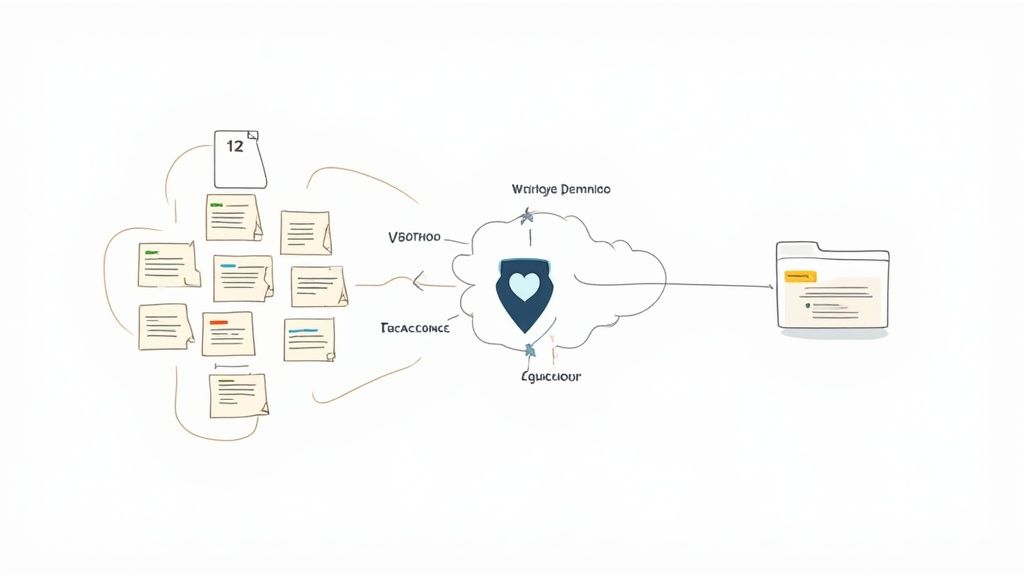
Nơi làm “tổ ấm” của bạn dùng để tổ chức kiến thức sau khi bạn đã học. Nhưng bạn vẫn cần một cách hiệu quả để chuyển ý tưởng từ video vào hệ thống của mình. Liên tục phải pause, alt-tab, gõ, và chụp màn hình khiến bạn mất tập trung.
Đây là lúc công cụ ghi chú chuyên biệt phát huy tác dụng. Nó là cầu nối kết nối trình phát video Coursera với ghi chú của bạn. HoverNotes là một tiện ích Chrome mở rộng giúp bạn xem video cùng, tạo ghi chú AI và lưu trực tiếp dưới dạng Markdown trên hệ thống tập tin của bạn. Nó có thể tự động hóa quy trình ghi chú.
Đối với người dùng Obsidian, đây là sự kết hợp hoàn hảo. Ghi chú được lưu dưới dạng các file .md trực tiếp vào kho Obsidian của bạn. Không có định dạng độc quyền hay dịch vụ đồng bộ—ghi chú thuộc về bạn.
Chìa khóa là tách riêng hành động ghi lại với hành động tổ chức. Hãy để công cụ ghi chú xử lý việc ghi lại để bạn tập trung vào việc hiểu nội dung.
Cách tiếp cận chủ động này rất hiệu quả. Nghiên cứu của Coursera phát hiện ra rằng 94% người dùng AI Coach của họ cải thiện việc ghi nhớ bằng cách đơn giản hóa khái niệm, từ đó tăng mức độ tương tác lên tới 45%. Điều cốt lõi là biến việc xem thụ động thành một buổi học tích cực. Bạn có thể xem thêm chi tiết trong báo cáo đầy đủ về kết quả học tập của Coursera.
#Kỹ thuật thực tế để ghi chú video một cách chủ động
Được rồi, bạn đã thiết lập hệ thống. Giờ là lúc nhấn nút phát. Đây là đoạn biến thời gian xem thụ động thành một buổi học chủ động.
Mục tiêu không chỉ là chép lại lời giảng của người hướng dẫn. Bạn cần ghi lại toàn bộ ngữ cảnh: các sơ đồ họ vẽ, đoạn mã trên màn hình, và những suy nghĩ của chính bạn khi chúng phát sinh.
Sai lầm lớn nhất của người học là coi bài giảng video như podcast. Rất nhiều thông tin quan trọng trên Coursera mang tính hình ảnh thuần túy. Một giảng viên giải thích mô hình học máy bằng cách phác thảo cây quyết định, hay một lập trình viên gỡ lỗi trực tiếp — những thứ này sẽ không thể hiện được qua bản ghi văn bản thông thường.
Đấy là lý do vì sao các phương pháp ghi chú cổ điển dễ thất bại. Bạn liên tục phải dừng lại để vẽ thô sơ một sơ đồ, hoặc phải chụp toàn màn hình rồi lại để ảnh đó thất lạc trên desktop, chẳng liên quan gì tới ghi chú. Bạn cần một cách ghi lại bằng chứng hình ảnh và nhúng nó ngay chỗ thích hợp.
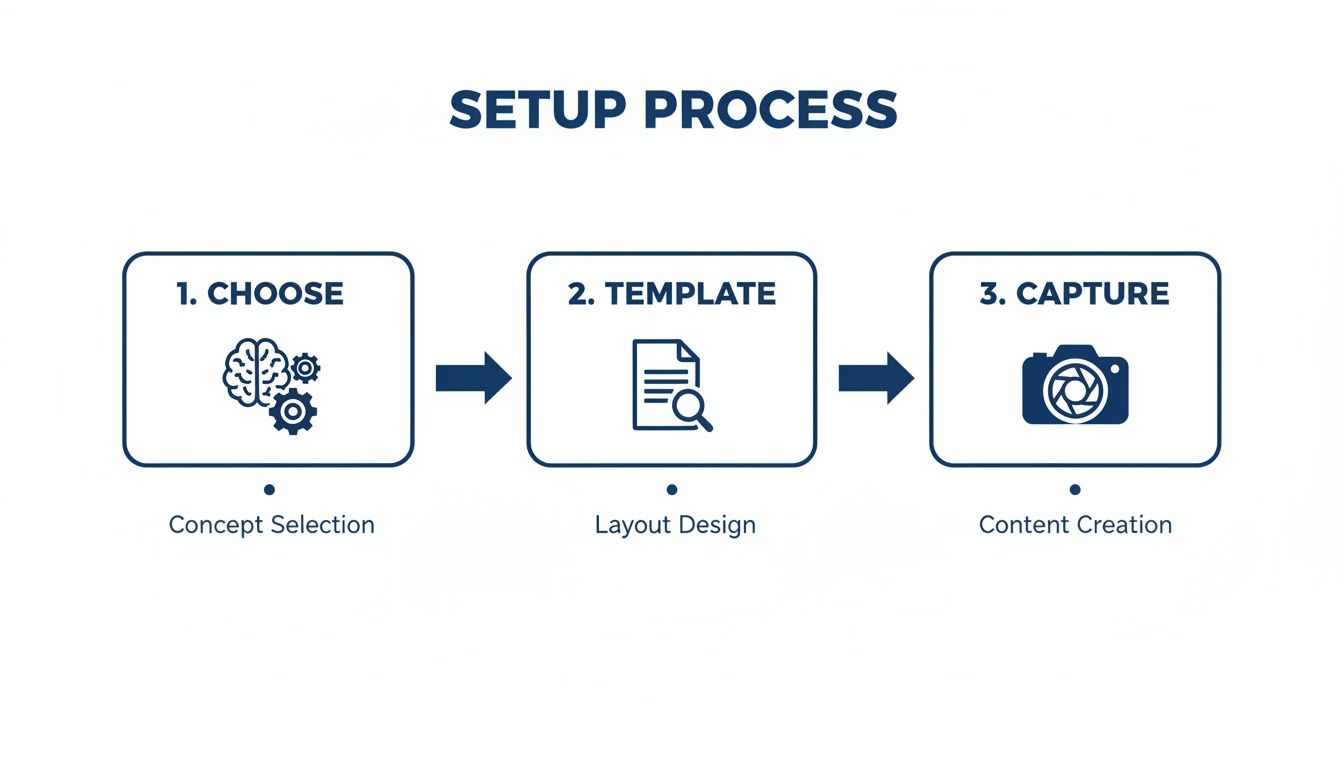
Quy trình ba bước đơn giản dưới đây cho thấy chuẩn bị trước giúp việc ghi chú thời gian thực trở nên trơn tru hơn.
Khi bạn đã có khái niệm và bố cục sẵn sàng, bạn có thể tập trung vào việc ghi lại thông tin thay vì loay hoay với công cụ.
#Ghi lại nhiều hơn so với chỉ phiên âm với hỗ trợ hình ảnh
Mục tiêu của bạn không phải tạo một bản ghi nguyên văn. Một bản ghi nguyên văn có thể gây mất tập trung, làm chìm những hiểu biết quan trọng trong biển chữ. (Nếu bạn muốn tận dụng tốt bản ghi, chúng tôi có hướng dẫn về cách phiên âm video YouTube hiệu quả).
Giá trị thật sự đến từ việc chọn lọc những khoảnh khắc quan trọng. Một công cụ thiết kế riêng cho học qua video sẽ là thay đổi cuộc chơi ở đây. Ví dụ, HoverNotes là một tiện ích mở rộng Chrome hoạt động trên mọi trang web có video và cho phép bạn chụp ảnh màn hình chỉ với một cú nhấp chuột.
Nhưng đây là điểm then chốt: khác với chụp ảnh màn hình thông thường, mỗi lần ghi lại đều tự động kèm theo dấu thời gian.
Chỉ cần một lần nhấp vào ảnh chụp đó trong ghi chú của bạn là bạn có thể quay lại đúng khoảnh khắc đó trong video Coursera. Tính năng này giúp bạn tiết kiệm cả giờ đồng hồ thay vì phải tua đi tua lại để tìm sơ đồ cụ thể đó.
Bạn thậm chí có thể dùng tính năng "chụp cắt" để chỉ lấy phần liên quan trên màn hình — một công thức hay một đoạn mã — thay vì chụp toàn bộ khung hình video. Những đoạn hình ảnh nhỏ này sẽ được tự động đưa vào ghi chú, giúp bạn có ngữ cảnh ngay lập tức.
Cố gắng gõ từng điểm chính trong khi xử lý một chủ đề phức tạp là công thức gây quá tải nhận thức. Bạn không thể làm tốt cả hai cùng lúc.
Đây chính là nhiệm vụ hoàn hảo dành cho trợ lý AI. Hãy để AI làm phần tóm lược hoặc đề cương cơ bản. Điều này giúp bạn tập trung suy nghĩ phản biện.
Dưới đây là cách tiếp cận hỗn hợp và thực tiễn:
Tạo ghi chú AI: Khi video chạy, để công cụ như HoverNotes tạo bản tóm tắt có cấu trúc và các điểm chính. Khác với các công cụ chỉ xử lý transcript, HoverNotes xem video để ghi lại chính xác những gì xảy ra trên màn hình.
Ghi chú trực tiếp: Trong khi AI làm việc, thêm suy nghĩ của bạn. Dùng các thẻ đơn giản như [Q] để đánh dấu câu hỏi hoặc [!] cho các nhận định. Ví dụ: [Q] Why did he use a recursive function here instead of a simple loop?
Ghi lại hình ảnh quan trọng: Ngay khi giảng viên hiển thị sơ đồ quan trọng, dùng phím tắt để chụp ảnh màn hình kèm thời gian.
Phương pháp này giúp bạn tận dụng hiệu quả AI mà không mất đi sự tham gia chủ động của cá nhân. AI tạo nền tảng, còn những ghi chú và hình ảnh do bạn cung cấp sẽ biến bản tóm tắt chung chung thành tài liệu học tập mạnh mẽ.
Ghi chú của bạn không nên chỉ là bản ghi lại lời giảng viên. Chúng nên phản ánh quá trình suy nghĩ của bạn. Một trong những kỹ thuật học hiệu quả nhất là ghi lại các câu hỏi xuất hiện trong đầu bạn ngay khi chúng phát sinh.
Bất cứ khi nào một khái niệm cảm thấy mơ hồ hoặc kích thích một ý tưởng mới, hãy viết xuống.
“Tại sao tốc độ học lại được đặt cụ thể là 0.01?”
“Điều này liên quan thế nào đến khái niệm gradient descent từ Module 2?”
“Tôi có thể áp dụng chính xác kỹ thuật này vào dự án hiện tại không?”
Những câu hỏi này biến ghi chú của bạn từ một kho dữ liệu thụ động thành một không gian làm việc chủ động. Chúng trở thành danh sách việc cần làm khi bạn xem lại bài giảng, giúp bạn lấp đầy các khoảng trống kiến thức và kết nối thông tin mới với tri thức đã có.
Tất cả đều dẫn đến cùng một kết luận: hệ thống học của bạn cần hỗ trợ bạn một cách chủ động, không chỉ ghi lại những gì bạn nghe.
Việc xem video chỉ là bước khởi đầu. Phần giúp chuyển thông tin từ trí nhớ ngắn hạn thành trí nhớ dài hạn bền vững diễn ra sau khi bạn đóng tab Coursera.
Đây cũng là lúc nhiều người bỏ cuộc. Họ kết thúc bài giảng với cảm giác hài lòng rồi chuyển sang việc khác. Những ghi chú còn mới để đó bụi phủ, và kiến thức thì phai nhạt. Giá trị thực sự nằm ở một buổi ôn tập ngắn và có chủ ý ngay sau bài giảng.
Không phải dành hàng giờ để tạo bản tóm tắt hoàn hảo. Chỉ là một thói quen 15 phút buộc não bạn thao tác với nội dung thêm lần nữa. Việc xử lý chủ động này mới giúp kiến thức bám sâu.
Quy trình sau buổi học của bạn cần nhanh gọn và đều đặn. Mục tiêu là sự tương tác, không phải sự hoàn hảo. Một quy trình đơn giản, dễ lặp lại mà bạn thực sự làm, bao giờ cũng hiệu quả hơn hệ thống phức tạp mà bạn chỉ dùng nửa vời.
Dưới đây là danh sách kiểm tra đơn giản:
Duyệt nhanh (5 phút): Ngay khi bài giảng kết thúc, đọc lướt lại ghi chú. Không cần phân tích sâu. Chỉ để não bạn tái tiếp xúc với các khái niệm chính, sơ đồ, và những câu hỏi bạn đặt ra. Đây là cách làm nóng tư duy.
Giải thích bằng lời (5 phút): Giờ chọn một hoặc hai ý quan trọng nhất. Giải thích lại bằng lời của bạn, như đang dạy một người bạn. Đây là phiên bản đơn giản của Kỹ thuật Feynman, rất hữu hiệu để giúp bạn biết mình chưa hiểu chỗ nào.
Kết nối các điểm (5 phút): Bước cuối là dệt thông tin mới này vào bức tranh tổng thể trong đầu bạn. Hỏi bản thân: "Khái niệm [[Gradient Descent]] này liên quan thế nào đến những gì tôi học về [[Linear Regression]]?" Đây là cách bạn xây dựng mạng lưới kiến thức thật sự chứ không chỉ là một đống thông tin rời rạc.
Thói quen đơn giản này là công cụ nhân bội hiệu quả học tập. Nó biến việc ghi chú từ hành động thụ động ghi lại thành quá trình hoạt động để hiểu sâu.
Hệ thống Quản lý Tri thức Cá nhân (PKM) của bạn, dù là Obsidian hay Notion, là nơi quy trình sau buổi học trở nên sống động. Đây là cách bạn biến những ghi chú lộn xộn thành một kho tri thức có thể tìm kiếm và gắn kết.
Với người dùng Obsidian, [[wikilinks]] là siêu năng lực của bạn. Khi xem lại ghi chú, hãy bắt đầu liên kết các thuật ngữ chính với các ghi chú khác trong kho của bạn.
Giảng viên có nhắc đến [[Stochastic Gradient Descent]]? Hãy liên kết nó với ghi chú nền tảng bạn đã có về [[Gradient Descent]].
Có khái niệm nào làm bạn nhớ đến điều gì bạn đã đọc? Tạo link chỗ trống placeholder cho [[Book - Thinking, Fast and Slow]] và kết nối nó.
Mỗi liên kết là một mũi tên gia tăng sự hiểu biết và xây dựng mạng lưới ý tưởng liên kết phong phú. Dần dà, kho của bạn trở thành wiki cá nhân hiện thị trực quan mối quan hệ giữa các khái niệm.
Với người dùng Notion, thế mạnh là các mối quan hệ cơ sở dữ liệu. Nếu đã thiết lập cơ sở dữ liệu khóa học tổng thể, bạn có thể dùng thuộc tính liên kết để nối các ghi chú bài giảng mới.
Ví dụ bạn có thể tạo thuộc tính Related Lectures để liên kết ghi chú hiện tại với khái niệm nền tảng từ module trước. Điều này giúp xây các đường dẫn rõ ràng, dễ theo dõi khi học tập.
Một cách hay để thực hành là áp dụng phương pháp Cornell cho ghi chú kỹ thuật số. Khi xem lại, chia ghi chú thành phần tín hiệu, ghi chú chính và phần tóm tắt. Những dấu thời gian bạn chụp có thể ở cột “tín hiệu”. Sau khi ôn tập, tóm tắt toàn bộ bài giảng trong vài câu trong phần tóm tắt. Bạn có thể xem thêm dữ liệu về cách người học Coursera đạt mục tiêu.
Hành động tóm tắt này buộc bạn xử lý nội dung ở mức độ sâu hơn.
Bạn thậm chí có thể biến ghi chú thành cẩm nang học nhanh sau khi kết thúc một module. Nếu muốn một phương pháp có cấu trúc hơn, hãy tham khảo hướng dẫn về cách xây dựng quy trình tạo cẩm nang học tập hiệu quả. Mục tiêu là biến ghi chú thành công cụ học tập chủ động, không chỉ là kho lưu trữ thụ động.
#Biến ghi chú Coursera thành kho tri thức bền vững
Điều quan trọng khi ghi chú trên Coursera là mục tiêu thực sự không chỉ là qua bài kiểm tra cuối. Mà là xây dựng một thư viện kiến thức cá nhân lâu dài, có thể tìm kiếm, và ngày càng có giá trị theo thời gian. Bạn không chỉ thu thập dữ kiện; bạn đang tạo ra một bộ não thứ hai.
Nền tảng của tài sản lâu dài này phụ thuộc vào định dạng. Các định dạng độc quyền là bẫy. Chúng khóa kiến thức quý giá của bạn bên trong một ứng dụng cụ thể, và nếu ứng dụng đó biến mất thì ghi chú cũng trở thành con tin.
Đó là lý do tại sao văn bản thuần túy, cụ thể là Markdown (.md), lại mạnh mẽ đến vậy. File Markdown là chuẩn bảo tồn cho tương lai. Bất cứ trình soạn thảo văn bản nào trên bất kỳ máy tính nào cũng có thể mở chúng được, hôm nay hay 20 năm sau. Bạn sở hữu chúng hoàn toàn.
Ý tưởng về quyền sở hữu này là triết lý cốt lõi phía sau các công cụ ưu tiên cục bộ như Obsidian. Khi bạn kết hợp công cụ như vậy với phương pháp ghi chú tôn trọng dữ liệu của bạn, bạn tạo ra cầu nối liền mạch giữa học trực tuyến và kho tri thức cá nhân.
Ví dụ, HoverNotes được xây dựng riêng cho quy trình này. Nó lưu ghi chú do AI tạo ra, ảnh chụp màn hình, và ghi chú trực tiếp lên máy tính của bạn dưới dạng file .md gọn gàng. Không có đồng bộ đám mây phức tạp hay thuê bao phải duy trì chỉ để truy cập công sức của chính bạn. File là của bạn. Di chuyển, sao lưu, hay tìm kiếm đều dễ dàng vì chúng chỉ là file Markdown bình thường.
Đối với người nào nghiêm túc xây dựng kho tri thức bền vững trên Obsidian, quy trình trực tiếp đến kho là điều thiết yếu. Nó loại bỏ những vướng mắc export hay copy-paste, biến việc học Coursera thành phần tự nhiên của mạng lưới kiến thức của bạn ngay từ đầu.
Cách tiếp cận ưu tiên cục bộ này đảm bảo thời gian bạn đầu tư vào học sẽ mang lại lợi ích lâu dài nhiều năm sau.
Một thư viện ghi chú vô dụng nếu bạn không thể tìm được khi cần. Một vài thói quen tổ chức đơn giản tạo ra sự khác biệt lớn. Bạn không cần hệ thống phức tạp, chỉ cần một hệ thống nhất quán.
Gắn thẻ nhất quán: Ở cuối mỗi ghi chú, thêm vài thẻ liên quan. Với khóa học Python, bạn có thể dùng #python, #datascience, và #machinelearning. Điều này giúp tìm các ghi chú liên quan dễ dàng sau này.
Ghi chú nguyên tử: Giữ mỗi ghi chú tập trung vào một khái niệm duy nhất. Thay vì một file lớn cho cả module, hãy tách nhỏ. Tạo các ghi chú nhỏ, tập trung cho các chủ đề như "Gradient Descent", "Activation Functions", hoặc "Overfitting".
Bản đồ nội dung (MOCs): Trong Obsidian, một MOC là ghi chú như bảng mục lục cho chủ đề lớn hơn. Bạn có thể tạo ghi chú [[Data Science MOC]] và liên kết đến tất cả các ghi chú nguyên tử từ nhiều khóa Coursera khác nhau.
Những kỹ thuật này biến một thư mục chứa file thành mạng lưới ý tưởng có thể điều hướng và liên kết. Nếu bạn mới làm quen, hướng dẫn của chúng tôi về cách chọn phần mềm quản lý tri thức cá nhân phù hợp là nơi bắt đầu tuyệt vời.
Bạn không đơn độc. Khi người học cố xây dựng hệ thống ghi chú nghiêm túc cho các khóa Coursera, một số cản ngại chung xuất hiện. Hãy cùng giải quyết chúng.
#Làm sao để ghi chú Coursera mà không phải ngừng video liên tục?
Đây là vấn đề lớn nhất. Không gì phá hỏng sự tập trung nhanh hơn việc dừng rồi lại chơi, dừng lại rồi chơi liên tục. Nó biến việc học thành gánh nặng.
Bí quyết là tách riêng hành động ghi lại với hành động xử lý.
Thay vì phải pause để gõ mọi chi tiết, bạn cần cách ghi dấu những khoảnh khắc quan trọng chỉ với một cú nhấp hoặc tổ hợp phím. Điều này cho phép bài giảng chạy liền mạch trong khi bạn đánh dấu những phần cần thiết.
Ảnh chụp màn hình có dấu thời gian: Thấy sơ đồ quan trọng, công thức hay đoạn mã? Chụp lại ngay. Công cụ như HoverNotes được thiết kế cho việc này — mỗi ảnh chụp kèm dấu thời gian có thể nhấp, giúp bạn quay lại đúng khoảnh khắc đó trong video.
AI cho bản nháp đầu tiên: Việc ghi chép lại rất chán nản. Hãy để trợ lý AI tạo bản tóm tắt hoặc đề cương cơ bản trong lúc xem. Điều này giúp bạn tập trung thêm suy nghĩ và liên kết cá nhân thay vì chỉ làm người gõ.
Mục tiêu là duy trì trạng thái tập trung học liền mạch. Bạn có thể sắp xếp, tổ chức và viết lại tất cả sau trong buổi xem lại.
#Định dạng nào tốt nhất để lưu ghi chú Coursera của tôi?
Với ghi chú bạn muốn giữ và dùng nhiều năm, văn bản thuần túy Markdown (.md) là lựa chọn vô đối.
Tại sao? Vì đó chỉ là văn bản đơn giản. Nó không bị khóa vào bất kỳ ứng dụng hay hệ sinh thái độc quyền nào. Một file Markdown bạn tạo hôm nay vẫn dễ đọc trên bất kỳ máy nào dù 10 hay 20 năm sau. Không cần thuê bao, không lo định dạng lỗi thời.
Đây là nguyên tắc cốt lõi của bất cứ ai dùng công cụ Quản lý Tri thức Cá nhân (PKM) ưu tiên cục bộ như Obsidian. Kiến thức của bạn không bị giam giữ trong đám mây của người khác; nó nằm trong một thư mục đơn giản trên máy của bạn. Bạn sở hữu nó.
Ghi chú của bạn trở thành tài sản lâu dài và có thể tìm kiếm. Bạn có thể sao lưu, chuyển máy, và đọc offline mà không lo hãng nọ thay đổi điều khoản hay đóng dịch vụ.
Ghi chú AI là điểm khởi đầu tuyệt vời, nhưng là kết thúc tồi tệ. Chúng xuất sắc trong việc làm công việc nặng nhọc — tạo đề cương có cấu trúc, rút ra các thuật ngữ chính, và tóm tắt bài giảng. Điều này tiết kiệm thời gian đáng kể.
Nhưng học hiệu quả đòi hỏi bạn phải vận động trí óc. Bạn phải vật lộn với ý tưởng một cách cá nhân.
Quy trình hiệu quả nhất là kết hợp:
Để AI tạo ghi chú nền tảng.
Khi video chạy, thêm nhận định của bạn — trực giác, câu hỏi, và liên kết.
Chụp ảnh màn hình các hình ảnh quan trọng mà AI thường bỏ qua.
Trong buổi xem lại sau bài giảng, diễn giải lại tóm tắt của AI bằng lời của bạn.
Cách này kết hợp được sự tiện lợi của tự động hóa với xử lý tư duy sâu sắc giúp ghi nhớ thật lâu.
Nếu bạn dùng Obsidian để học, HoverNotes lưu ghi chú trực tiếp vào kho của bạn dưới dạng file Markdown gọn gàng, có thể dùng thử miễn phí với 20 phút tín dụng AI ban đầu, không cần thẻ tín dụng. Kiểm tra tùy chọn cập nhật trên trang giá HoverNotes.
Những ghi chú hữu ích nên khiến bạn làm điều gì đó với tài liệu, chứ không chỉ đơn thuần lưu trữ thêm văn bản. Viện Khoa học Giáo dục Hoa Kỳ khuyến nghị phân bổ việc học theo thời gian, kết hợp hình ảnh với phần giải thích bằng lời, sử dụng phương pháp chủ động truy hồi kiến thức, và đặt những câu hỏi giải thích sâu (practice guide). Một tổng quan bình duyệt về nghiên cứu video giáo dục cũng nhấn mạnh việc làm nổi bật thông tin quan trọng, chia bài học thành các phần dễ quản lý, trao quyền kiểm soát cho người học, và thêm các gợi ý học tập chủ động (review). Áp dụng vào đây, điều đó có nghĩa là tạm dừng ở các ranh giới khái niệm, chỉ ghi lại bằng chứng trực quan bạn cần, viết một câu hỏi bằng lời của chính mình, rồi sau đó trả lời câu hỏi ấy trước khi phát lại nguồn. Những thực hành này có cơ sở bằng chứng; còn một tỷ lệ ghi nhớ phổ quát cho một ứng dụng hay quy trình làm việc cụ thể thì không.
Khó khăn khi ghi chú MOOC trên Coursera hoặc edX? Học một quy trình đã được chứng minh để tổ chức, ghi nhớ và áp dụng kiến thức từ các khóa học dài mà không bị mệt mỏi.
Khám phá plugin video obsidian tốt nhất cho quy trình làm việc của bạn. Chúng tôi so sánh các lựa chọn hàng đầu để ghi chú theo thời gian từ YouTube, Udemy và video cục bộ.
Ngừng quên những gì bạn học trên Coursera. Khám phá quy trình làm việc thực tế để tạo ra những ghi chú Coursera hữu ích, có thể tìm kiếm, giúp tăng cường khả năng ghi nhớ lâu dài.