Лучшие расширения Chrome для обучения по видео | HoverNotes
General10 декабря 2025 г.•Updated: 16 июля 2026 г.
Лучшие расширения Chrome для обучения по видео
Практичная подборка лучших расширений Chrome для продуктивности. Для студентов, разработчиков и всех, кто учится и хочет лучше концентрироваться, быстрее осваивать новое и успевать больше.
Автор HoverNotes Team•20 мин чтения
Смотрите часы видеоуроков, но с трудом вспоминаете, что именно изучили? Вы не одиноки. У видеообучения есть проблема с удержанием знаний: мы смотрим, но информация не закрепляется. Интернет-магазин Chrome полон расширений для «продуктивности», однако большинство из них не решает эту конкретную и критически важную задачу для студентов, тех, кто учится самостоятельно, и специалистов, работающих со знаниями.
Это руководство поможет отделить полезное от лишнего. Мы собрали практичный список расширений Chrome, которые делают обучение по видео эффективнее и результативнее. Здесь вы найдете инструменты для более качественных заметок, управления воспроизведением и блокировки отвлекающих факторов. Цель не в том, чтобы смотреть больше, а в том, чтобы лучше учиться на том, что вы смотрите.
Каждое расширение в этом списке решает реальную проблему. Мы разберем, что оно делает, кому подходит, а также его практические плюсы и минусы. Рассмотрим инструменты, которые помогают фиксировать не только то, что говорят, но и то, что : фрагменты кода, схемы и демонстрации на экране, которые одни только расшифровки не передают. Перейдем к инструментам, которые помогут превратить пассивный просмотр в активное обучение.
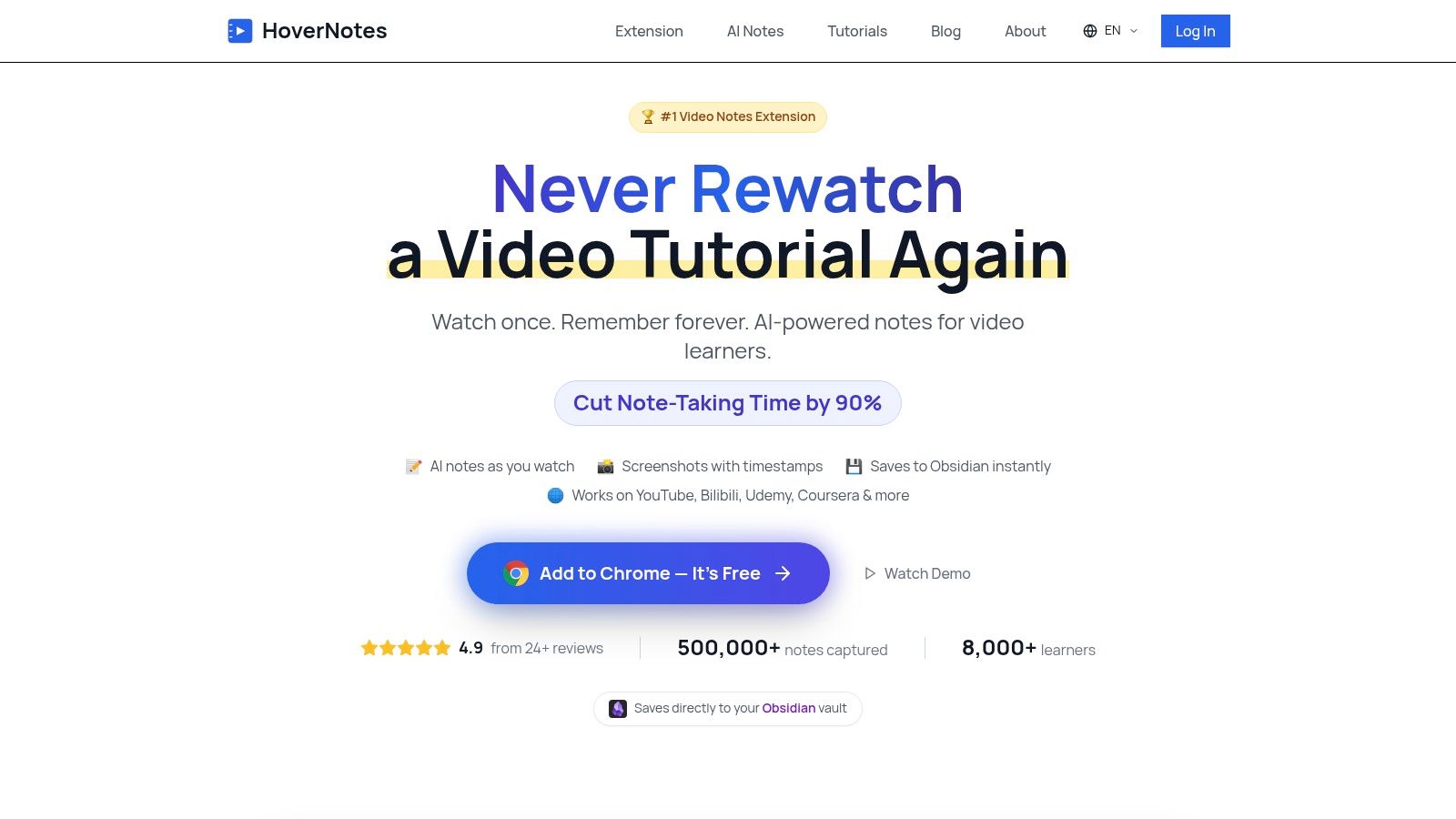
Делать заметки по видео вручную неудобно: приходится постоянно ставить на паузу, перематывать назад и пытаться сохранять скриншоты, которые потом оказываются разбросанными и вырванными из контекста. HoverNotes — это расширение Chrome, которое смотрит видео вместе с вами, создает заметки с помощью ИИ и сохраняет их в формате Markdown прямо в вашу файловую систему. Оно создано, чтобы решить проблему удержания знаний, сделав ведение заметок максимально простым.
В отличие от инструментов, которые лишь анализируют расшифровки, HoverNotes смотрит видео кадр за кадром — почти как человек. Благодаря этому он улавливает визуальный контекст, который пропускают инструменты, работающие только с текстом: схемы, код на экране и демонстрации, что особенно важно для технических тем.
Рабочий процесс здесь хорошо продуман. У каждого скриншота есть кликабельный таймкод: один клик — и вы возвращаетесь ровно к тому моменту в видео. «Видеорежим» блокирует рекламу на сайте и размещает заметки прямо рядом с контентом, чтобы вы могли сосредоточиться. Для пользователей Obsidian это идеальный вариант. Заметки сохраняются как файлы .md прямо в ваше хранилище Obsidian, так что ваши знания навсегда остаются у вас. Кроме того, заметки корректно копируются в Notion с сохранением форматирования. Даже без ИИ вы можете бесплатно пользоваться редактором и инструментами для скриншотов. Вы можете начать работу с расширением HoverNotes Chrome; базовый доступ дает 20 минут ИИ-кредитов без необходимости указывать банковскую карту. Актуальные варианты проверьте на странице цен HoverNotes.
Ключевые возможности:
Визуальный ИИ-анализ: Смотрит видео, чтобы фиксировать код, схемы и другие визуальные элементы на экране.
Локальный подход Markdown: Сохраняет заметки как файлы .md прямо на ваш компьютер — идеально для Obsidian или Logseq.
Скриншоты с таймкодами: Нажмите на любой скриншот, чтобы вернуться к точному моменту в видео.
Поддержка видео везде: Работает везде, где есть видео: на учебных платформах вроде Udemy и Coursera, в YouTube и даже с локальными видеофайлами.
Режим без отвлечений: Скрывает рекламу и размещает видео и ваши заметки рядом друг с другом.
Плюсы
Минусы
Улавливает визуальный контекст, который пропускают расшифровки только по аудио.
Сообщают о небольших неудобствах UX, например иногда приходится заново выбирать путь к хранилищу Obsidian.
Локальные файлы Markdown означают, что данные принадлежат вам. Облачная синхронизация не требуется.
Активное использование ИИ может упираться в лимиты бесплатных или младших тарифов.
Скриншоты с таймкодами экономят часы повторного просмотра материалов.
Некоторые пользователи сообщают о редких дублирующихся разделах в заметках, созданных ИИ.
Работает на любом сайте с видео, а не только на нескольких крупных платформах.
Нет визуального маркера на временной шкале видео, который показывал бы уже зафиксированные моменты.
Редактор, скриншоты и режим без отвлечений доступны бесплатно без использования ИИ.
#2. Интернет-магазин Chrome — подборка для продуктивности
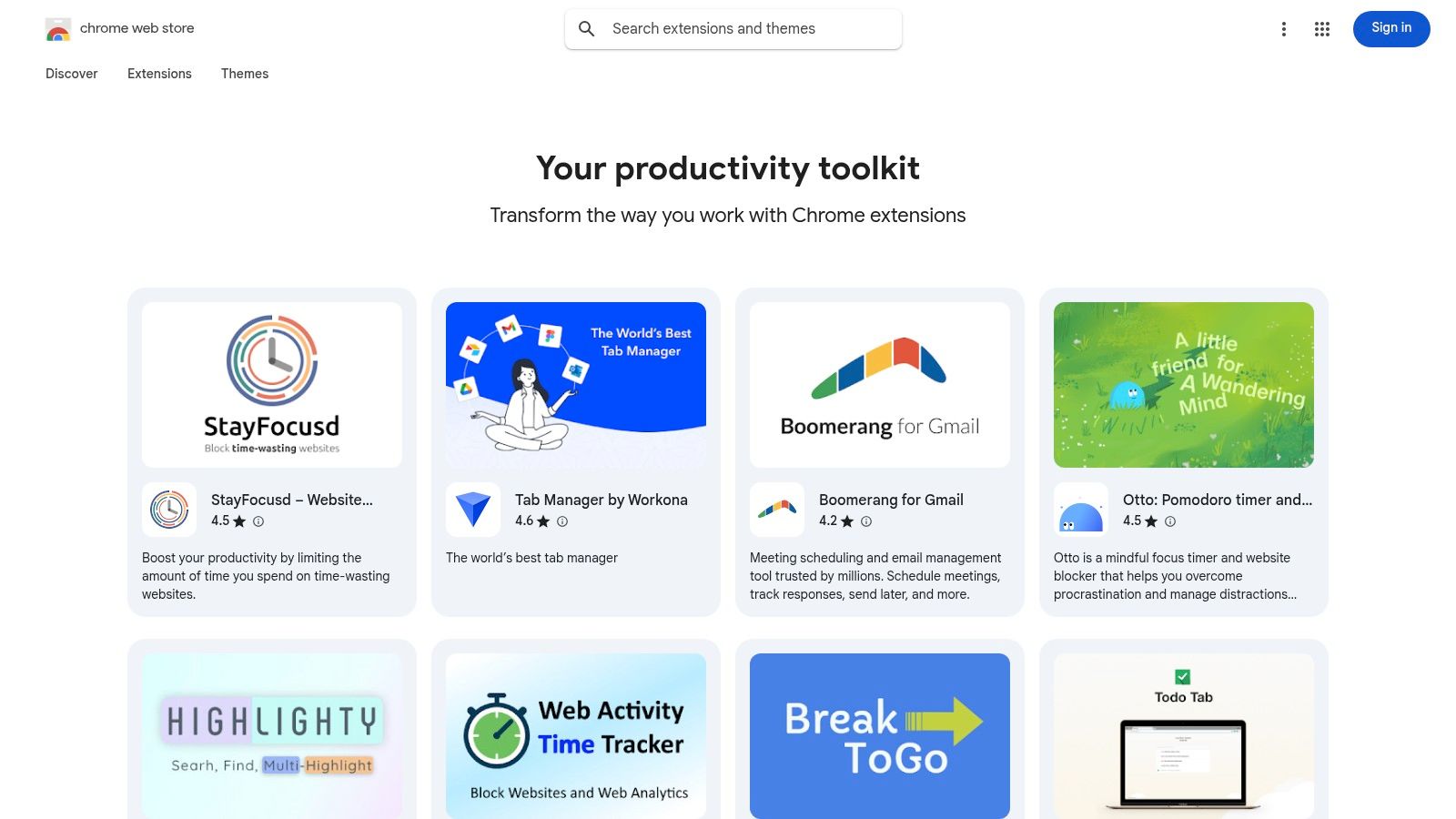
Прежде чем переходить к отдельным расширениям, лучшее место для начала любого поиска — первоисточник: официальный Интернет-магазин Chrome от Google. Это самый безопасный и прямой способ найти инструменты для видеообучения и продуктивности. Магазин показывает важные данные — количество пользователей, оценки, даты последнего обновления и запрашиваемые разрешения, — что помогает оценить качество и безопасность инструмента.
Особенно полезна редакционная подборка платформы «Ваш набор инструментов для продуктивности»: в ней собраны рекомендованные редакцией расширения для концентрации, управления задачами и других целей. Хотя огромное количество вариантов может сбивать с толку и требует внимательной проверки, чтобы не нарваться на похожие клоны, этот магазин остается главным и самым безопасным центром поиска. Для студентов и тех, кто учится всю жизнь, начинать отсюда — значит получить доступ к широкому выбору инструментов.
Идеально для
Студентов, специалистов и всех, кто хочет расширить возможности браузера для обучения.
Ключевая особенность
Подборки и подробные метаданные, помогающие оценить безопасность и качество расширений.
Плюсы
Самый безопасный источник установки, огромный выбор, подробные отзывы и оценки пользователей.
Минусы
Качество разных карточек может сильно отличаться; нужен внимательный просмотр, чтобы не нарваться на клоны или устаревшие инструменты.
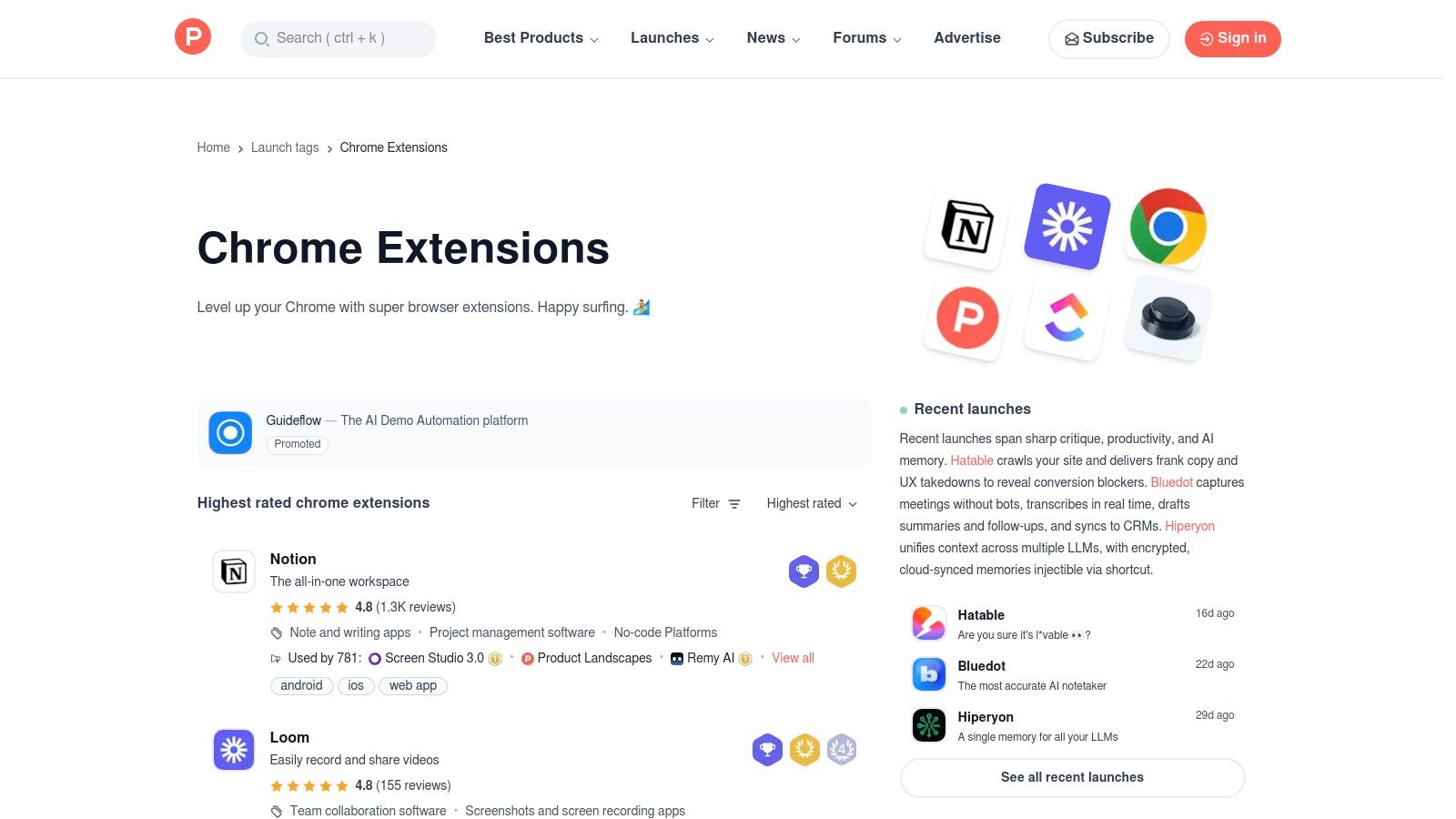
Если Chrome Web Store — это устоявшаяся библиотека, то Product Hunt — место, где раньше всего находят новое и интересное. Это платформа, построенная вокруг сообщества: разработчики представляют здесь свои свежие инструменты, в том числе множество инновационных расширений Chrome для обучения, еще до того как они становятся широко известны. Поэтому здесь особенно удобно находить необычные инструменты, решающие узкие задачи.
Главная ценность — в реальной обратной связи: голосах и комментариях. Часто можно напрямую пообщаться с создателями и увидеть, что заинтересовало ранних пользователей. Хотя сама платформа не является источником установки (она ведет в Web Store), это лучшее место для поиска перспективных новых инструментов для сосредоточенной работы и управления знаниями, особенно для тех, кто скептически относится к маркетинговому шуму и предпочитает подтверждение со стороны сообщества.
Идеально для
Ранних пользователей и учащихся, которые ищут инновационные или недавно запущенные расширения.
Ключевая особенность
Голоса и комментарии сообщества, которые помогают заметить перспективные новые инструменты и получить раннюю обратную связь.
Плюсы
Отлично подходит для поиска новых и независимых инструментов продуктивности, есть возможность напрямую взаимодействовать с создателями.
Минусы
Это не магазин напрямую; представленные продукты могут быть менее зрелыми или все еще находиться в бета-версии.
#4. G2 – подборки/гайды «Лучшие расширения Chrome»
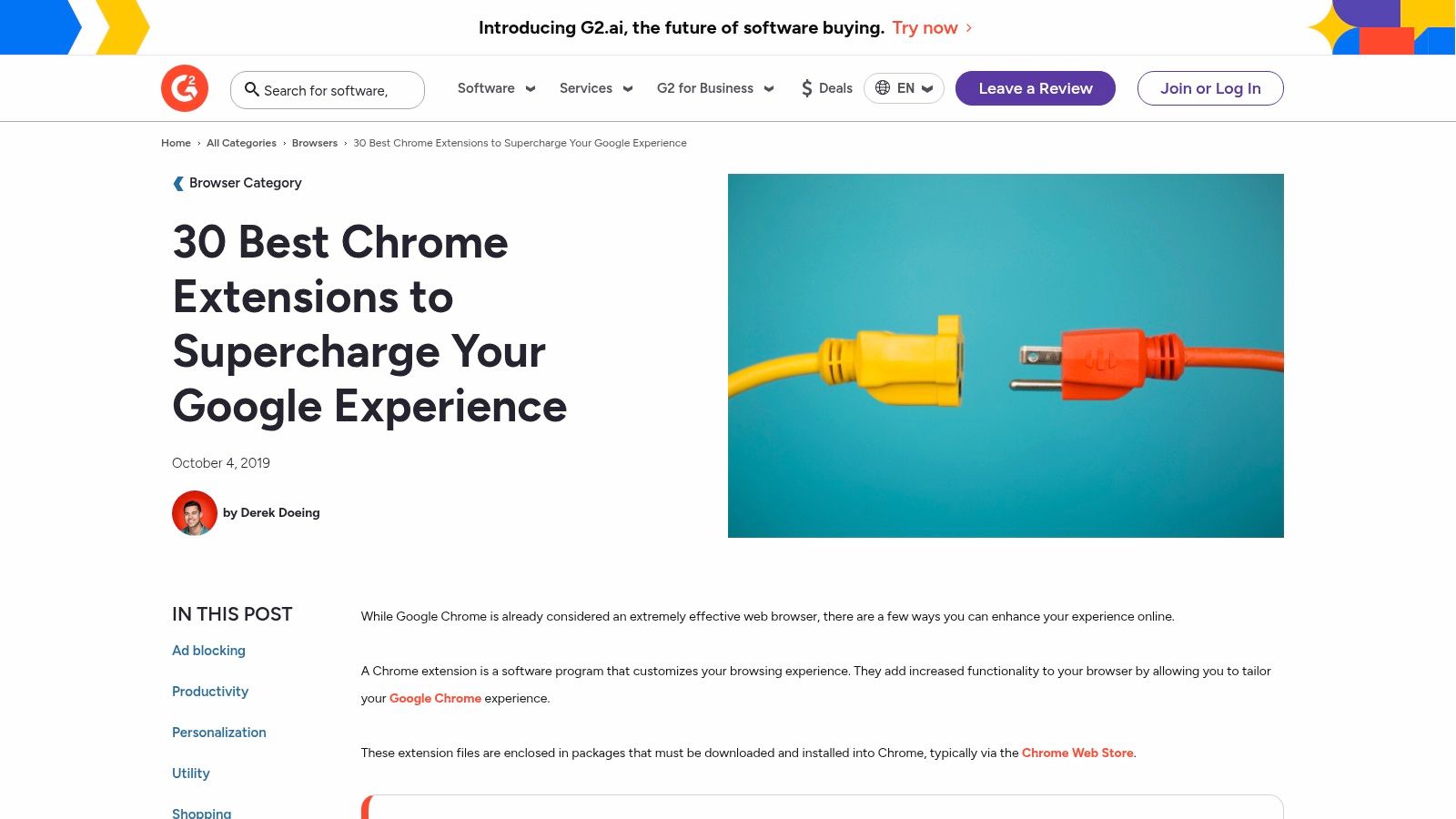
Для тех, кто ценит доверие, основанное на отзывах коллег, G2 — хороший ресурс для поиска расширений продуктивности. В отличие от обычного магазина приложений, платформа G2 подает рекомендации через призму бизнес-сценариев и агрегированных отзывов проверенных специалистов. Это помогает понять, как инструмент работает в реальных условиях.
Их редакционные гайды, например "30 лучших расширений Chrome", группируют инструменты по функциям — таким как управление вкладками или блокировка сайтов, — поэтому легко найти решения для конкретных проблем. Хотя списки рассчитаны на бизнес-аудиторию, многие инструменты продуктивности не менее полезны для студентов и тех, кто учится самостоятельно. Главный недостаток в том, что информация иногда отстает от последних обновлений продуктов, поэтому лучше использовать G2 для первичного отбора, а затем переходить в официальный Chrome Web Store.
Идеально для
Специалистов, команд и всех, кто хочет оценивать инструменты на основе отзывов бизнес-пользователей.
Ключевая особенность
Редакционные обзоры и гайды, подкрепленные агрегированными данными из проверенных пользовательских отзывов.
Плюсы
Дает бизнес-ориентированную оценку надежности, удобная категоризация по подкатегориям продуктивности.
Минусы
Информация может отставать от последних версий продуктов и меньше ориентирована на индивидуальных учащихся.
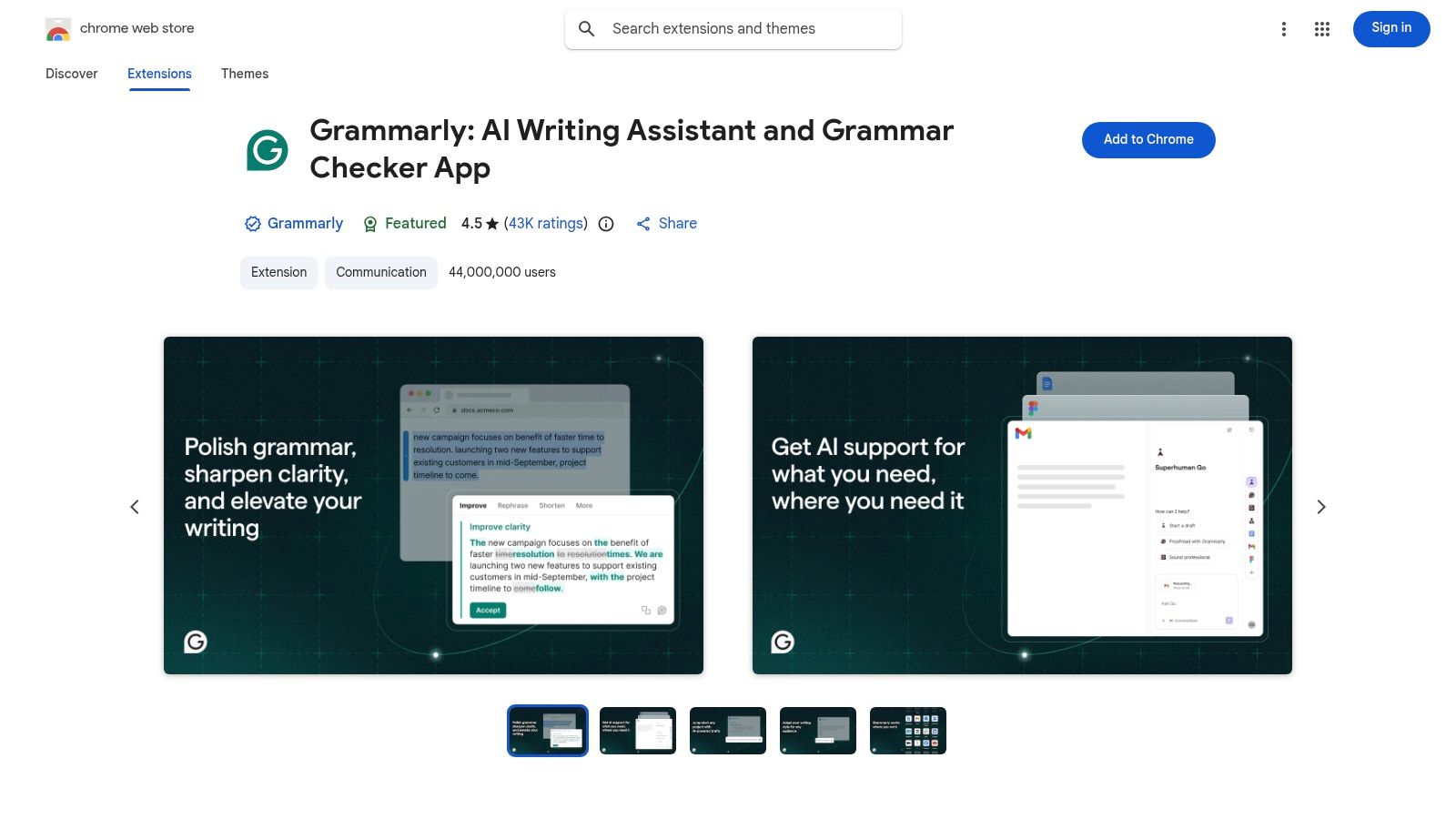
Для всех, кто работает с текстом — от конспектов лекций до эссе и электронных писем, — Grammarly является незаменимым инструментом. Он выходит далеко за рамки обычной проверки орфографии, предлагая в реальном времени рекомендации по грамотности, ясности и тону. С ним ваша коммуникация становится более выверенной и эффективной без постоянной ручной вычитки. Он легко интегрируется с множеством сайтов, где вы делаете заметки или пишете тексты, включая Notion и Google Docs.
Расширение дает подсказки прямо там, где вы печатаете, что существенно экономит время. Базовый доступ уже достаточно хорош для выявления распространенных ошибок, а премиум-планы открывают такие возможности, как генеративный ИИ для черновиков и переписывания текста, продвинутая настройка тона и проверка на плагиат. Для учащихся, которые создают базу знаний на основе видеоконтента, Grammarly помогает делать заметки понятными и хорошо написанными.
Идеально для
Студентов, специалистов, авторов и всех, кому нужно создавать понятные и безошибочные тексты онлайн.
Ключевая функция
Подсказки на базе ИИ в реальном времени по грамматике, орфографии, стилю и тону прямо в браузере.
Плюсы
Отличные подсказки в редакторе на множестве сайтов, сильный базовый доступ, простота использования.
Минусы
Самые полезные функции доступны только в расширенном плане; для анализа текста на странице требуются широкие разрешения.
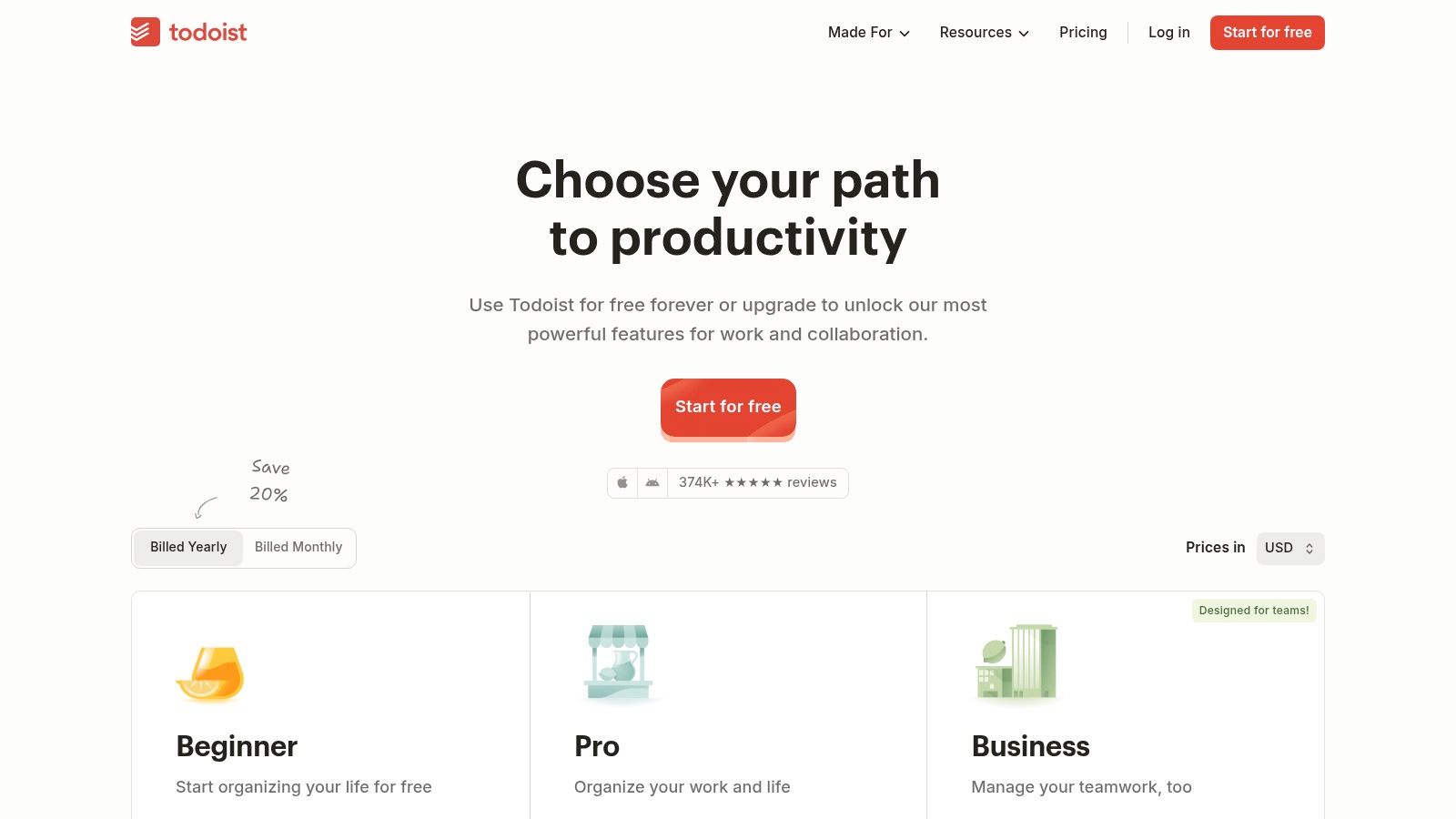
Todoist — надежный менеджер задач, а его браузерное расширение во многом определяет его полезность. Оно отлично справляется с фиксацией задач в тот момент, когда они появляются. Расширение позволяет в два клика добавлять сайты как задачи или выделять любой текст на странице и сразу отправлять его во входящие на потом. Так браузер становится полноценной частью вашей системы планирования.
Его сильная сторона — простота. Функция Quick Add понимает естественный язык, поэтому ввод "Watch machine learning lecture every Tuesday #Coursera" автоматически создает повторяющуюся задачу в нужном проекте. Для студентов, которые ведут несколько видеокурсов и следят за сроками заданий, такой мгновенный захват задач бесценен. Хотя продвинутые функции вроде напоминаний требуют перехода на расширенные планы, базовые возможности отлично подходят для организации учебного расписания.
Идеально для
Студентов, специалистов и всех, кому нужна система для фиксации и организации задач прямо из интернета.
Ключевая функция
Quick Add с распознаванием естественного языка и возможность мгновенно превратить любой сайт или текст в задачу.
Плюсы
Быстрое и беспрепятственное добавление задач, чистый интерфейс и приложения на всех платформах.
Минусы
Такие базовые функции, как напоминания, требуют расширенных планов.
Loom делает запись экрана простой и быстрой. Вместо того чтобы писать длинное письмо или назначать встречу, вы можете одним кликом записать экран, камеру и микрофон и сразу поделиться ссылкой. Такой рабочий процесс идеально подходит для коротких обучающих роликов, вопросов по технической проблеме или обратной связи по визуальным материалам.
Платформа упрощает весь процесс — от записи до публикации: размещает видео, предоставляет комментарии и уведомления. Это делает ее мощным инструментом для наглядного объяснения сложных тем. Базовый доступ вполне функционален, но продвинутые возможности вроде ИИ-сводок доступны только на более высоких тарифах. Для учащихся, которым нужно создавать собственный видеоконтент или сотрудничать с учебными группами, Loom — практичный выбор. Для автоматического анализа уже существующих видео стоит рассмотреть специализированный ИИ-суммаризатор видео.
Идеально для
Удаленных команд, преподавателей, студентов и всех, кому нужно быстро давать визуальную обратную связь или объяснения.
Ключевая функция
Запись экрана, камеры и микрофона в один клик с мгновенным созданием ссылки для отправки.
Плюсы
Чрезвычайно быстрый путь от записи к отправке, отлично подходит для асинхронной коммуникации, широко используется.
Минусы
Продвинутые функции редактирования и ИИ доступны только на более дорогом плане; расширение предназначено именно для Chrome.
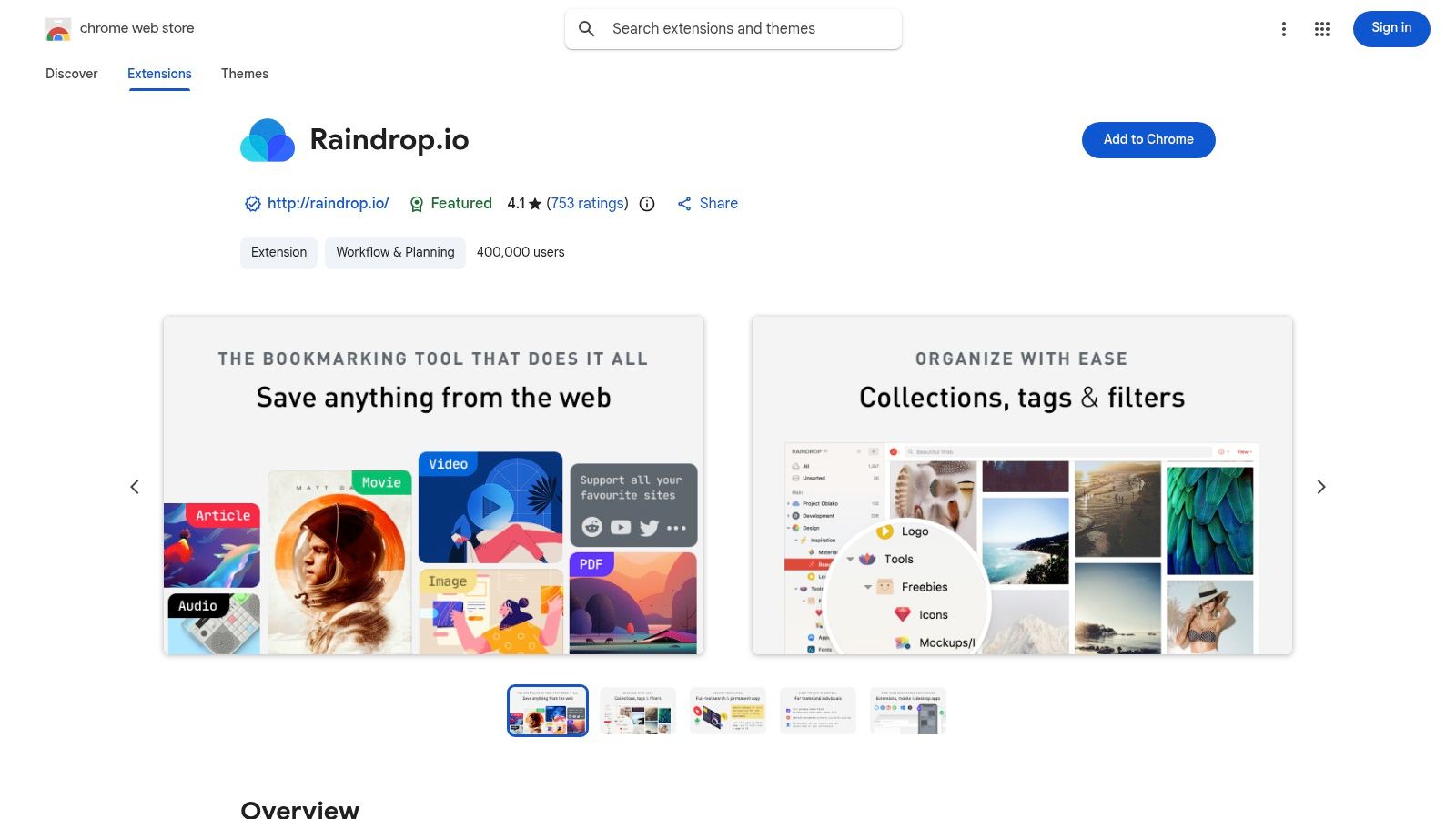
Raindrop.io превращает обычную закладку в часть личной системы знаний. Вместо хаотичного списка он предлагает визуально упорядоченную библиотеку, куда можно сохранять статьи, видео, PDF-файлы и изображения, встречающиеся в процессе обучения. Мощная система тегов и коллекций превращает сохраненные ссылки в удобную для поиска и тщательно собранную базу данных для исследований и долгосрочных проектов.
Боковая панель расширения позволяет открывать и сохранять материалы, не покидая текущую вкладку. Также есть интеграция выделений и аннотаций, чтобы фиксировать ключевые идеи. Хотя Raindrop.io особенно силен в сборе ресурсов, в сочетании со специализированным инструментом для заметок по видео он дает более полноценный учебный процесс. Полнотекстовый поиск по всем сохраненным материалам, включая текст внутри PDF и веб-страниц, делает поиск всего, что вы когда-либо сохраняли, очень эффективным.
Идеально для
Исследователей, студентов и всех, кто создает долгосрочную личную базу знаний на основе веб-контента.
Ключевая функция
Продвинутая организация с коллекциями, тегами, фильтрами и полнотекстовым поиском по всем сохраненным материалам.
Плюсы
Отличная синхронизация между платформами, визуально приятный интерфейс, мощные инструменты поиска и организации.
Минусы
Базовые возможности вроде постоянных копий страниц и вложенных коллекций требуют доступа Pro.
#9. Instapaper – сохранение материалов для чтения позже
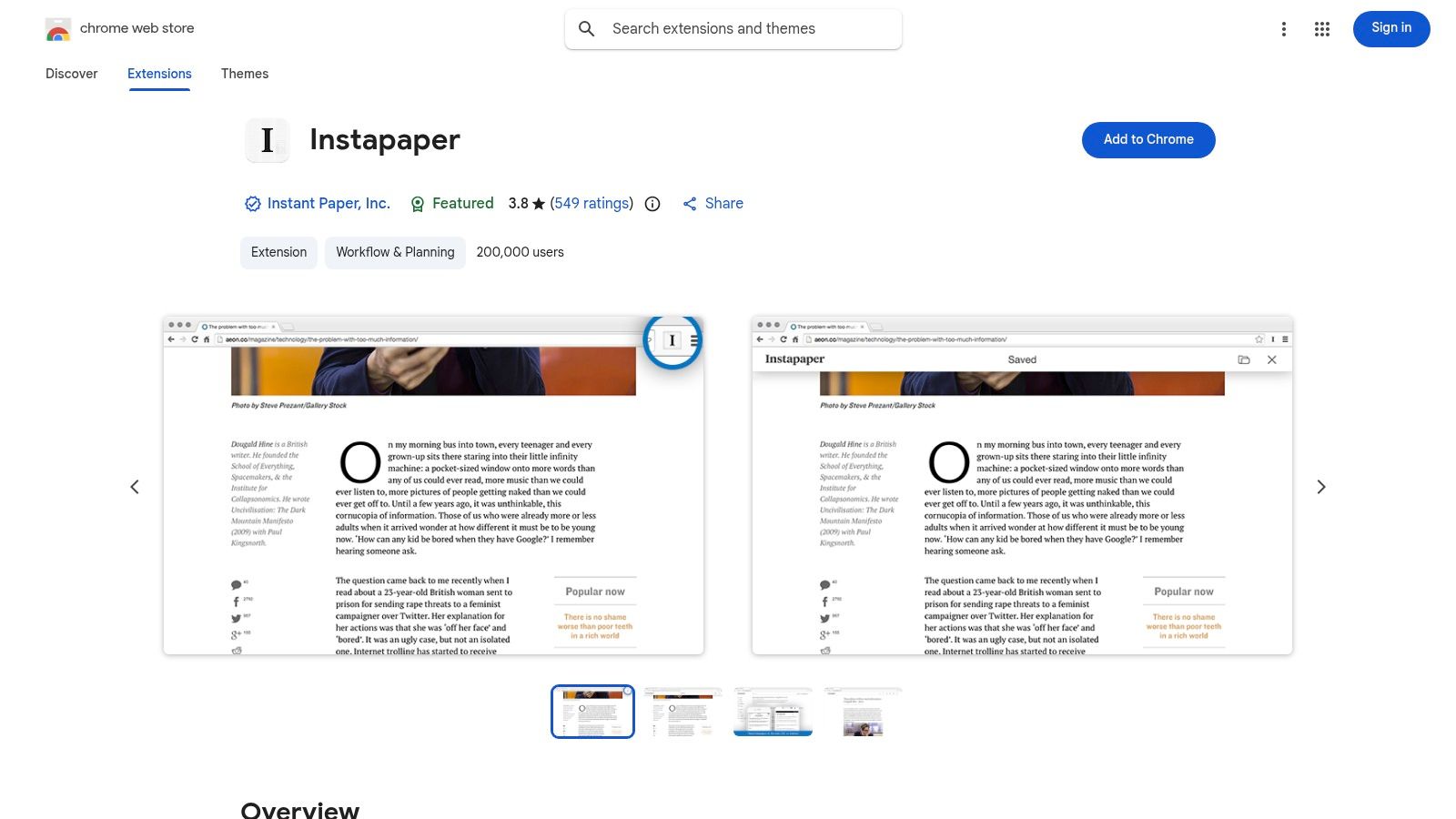
Для тех, кто часто собирает статьи и научные материалы, Instapaper решает важную задачу: очищает веб от лишнего ради сосредоточенного чтения. Его расширение Chrome позволяет сохранить любую веб-страницу одним кликом, отправляя в вашу очередь для чтения упрощенную версию с текстом и изображениями. Так перегруженные веб-страницы превращаются в чистый формат, идеально подходящий для вдумчивого чтения без отвлекающей рекламы и всплывающих окон.
Instapaper выделяется простотой и отличной синхронизацией между платформами, включая интеграцию с Kindle, которая автоматически отправляет статьи на вашу электронную книгу. Хотя его основная функция — сохранять статьи, премиум-версия открывает возможности вроде полнотекстового поиска и неограниченных заметок, превращая сервис в легкий исследовательский архив. Для студентов, собирающих источники, или разработчиков, сохраняющих руководства, это надежный способ создать список чтения, доступный в любое время, даже офлайн.
Идеально для
Исследователей, студентов и всех, кто хочет читать веб-контент без отвлечений.
Ключевая функция
Сохранение в один клик в чистую очередь чтения без рекламы, с мощной поддержкой разных платформ и Kindle.
Плюсы
Простое и надежное сохранение, отлично подходит для чтения без отвлечений, сильная интеграция с Kindle.
Минусы
Продвинутые функции, такие как полнотекстовый поиск по сохраненным статьям, требуют платного расширенного плана Instapaper.
Забытые пароли или один и тот же слабый пароль повсюду — это и лишняя нагрузка на память, и риск для безопасности. LastPass автоматизирует этот процесс: надежно хранит ваши учетные данные и автоматически заполняет их на сайтах. Такая простая автоматизация входа экономит время и умственную энергию, устраняя типичное препятствие при доступе к разным учебным платформам.
Хотя менеджеров паролей много, LastPass — зрелое и широко используемое решение с надежными возможностями автозаполнения. Для тех, кто учится и одновременно ведет десятки аккаунтов на образовательных платформах, в программных инструментах и на исследовательских сайтах, он незаменим. Возможность создавать сложные уникальные пароли для каждого сервиса и не запоминать их освобождает внимание для обучения, а не для доступа к аккаунтам.
Идеально для
Студентов, специалистов и всех, кто управляет множеством онлайн-аккаунтов на нескольких устройствах.
Ключевая функция
Безопасное хранилище паролей с надежным генератором сложных паролей и удобным автозаполнением в один клик.
Плюсы
Отличные функции автозаполнения и совместного доступа, поддержка всех основных браузеров и мобильных платформ.
Минусы
Лучшие возможности синхронизации между устройствами доступны только на расширенном тарифе; базовый доступ более ограничен.
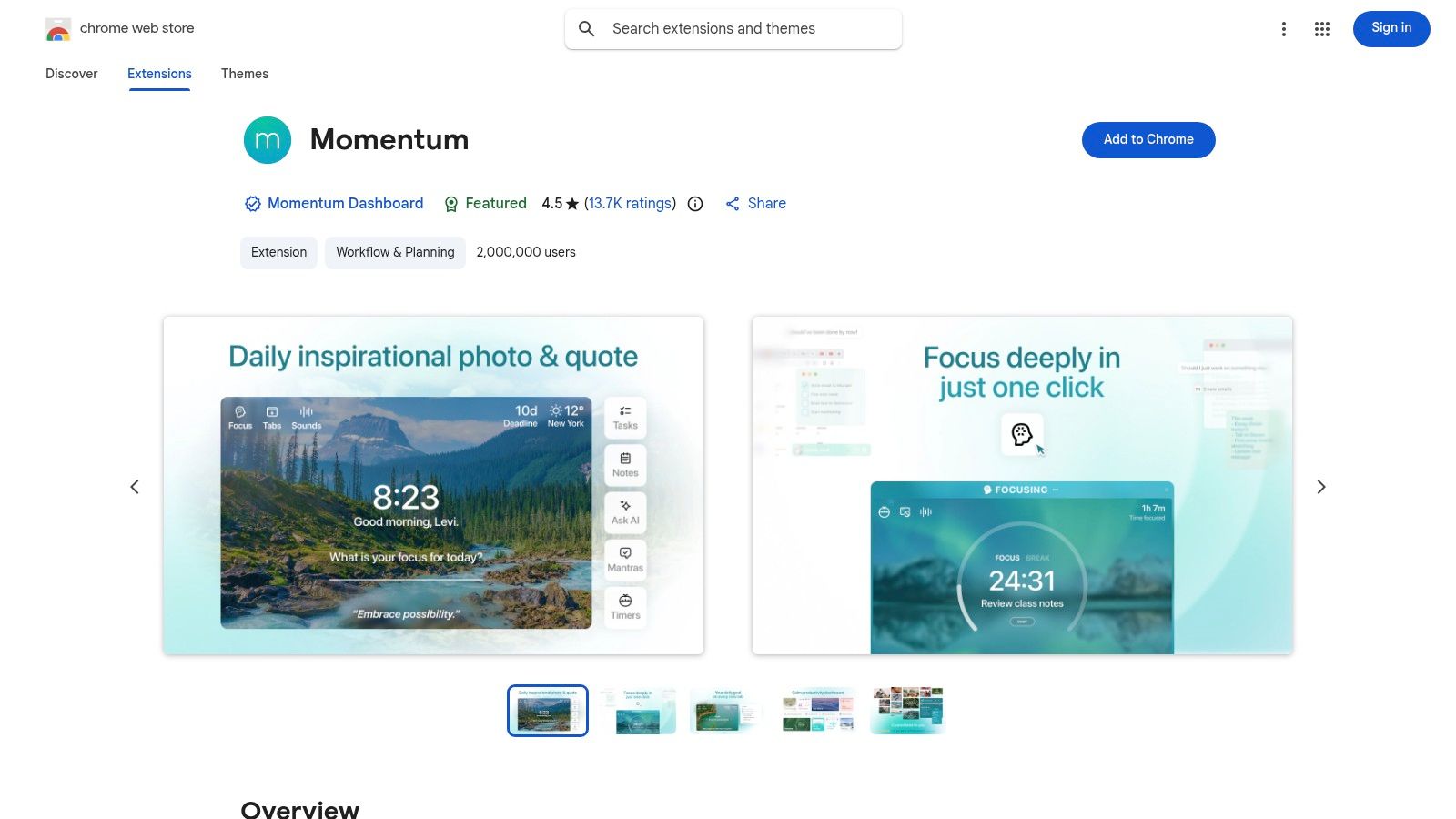
#11. Momentum — панель продуктивности для новой вкладки
Momentum превращает отвлекающую страницу новой вкладки в спокойную и сфокусированную панель. Вместо поисковой строки вас встречают приятная фотография и простой вопрос о главном фокусе дня. Такой мягкий стимул помогает заново собрать внимание каждый раз, когда вы открываете вкладку, не дает уйти в бесцельный серфинг и держит основную цель на виду. Это полезный инструмент для борьбы с отвлечениями в самой их точке возникновения.
Сильная сторона расширения — его простота. В базовый доступ входят ежедневный фокус, простой список дел и прогноз погоды. Более мощные возможности, такие как интеграции с менеджерами задач (Asana, Todoist), доступны только на платных тарифах, но основная функциональность помогает лучше концентрироваться без какой-либо настройки. Для учащихся этот инструмент может стать простой системой напоминаний об учебных целях.
Идеально для
Всех, кто хочет заменить стандартную страницу новой вкладки мягким и эстетичным инструментом для концентрации.
Ключевая функция
Ежедневный вопрос о главном фокусе на каждой новой вкладке в сочетании с вдохновляющими фонами и цитатами.
Плюсы
Красивый и успокаивающий интерфейс, простая настройка, эффективно снижает отвлечения при открытии новых вкладок.
Минусы
Ключевые интеграции и продвинутые функции, например отслеживание привычек, требуют платной подписки Momentum Plus.
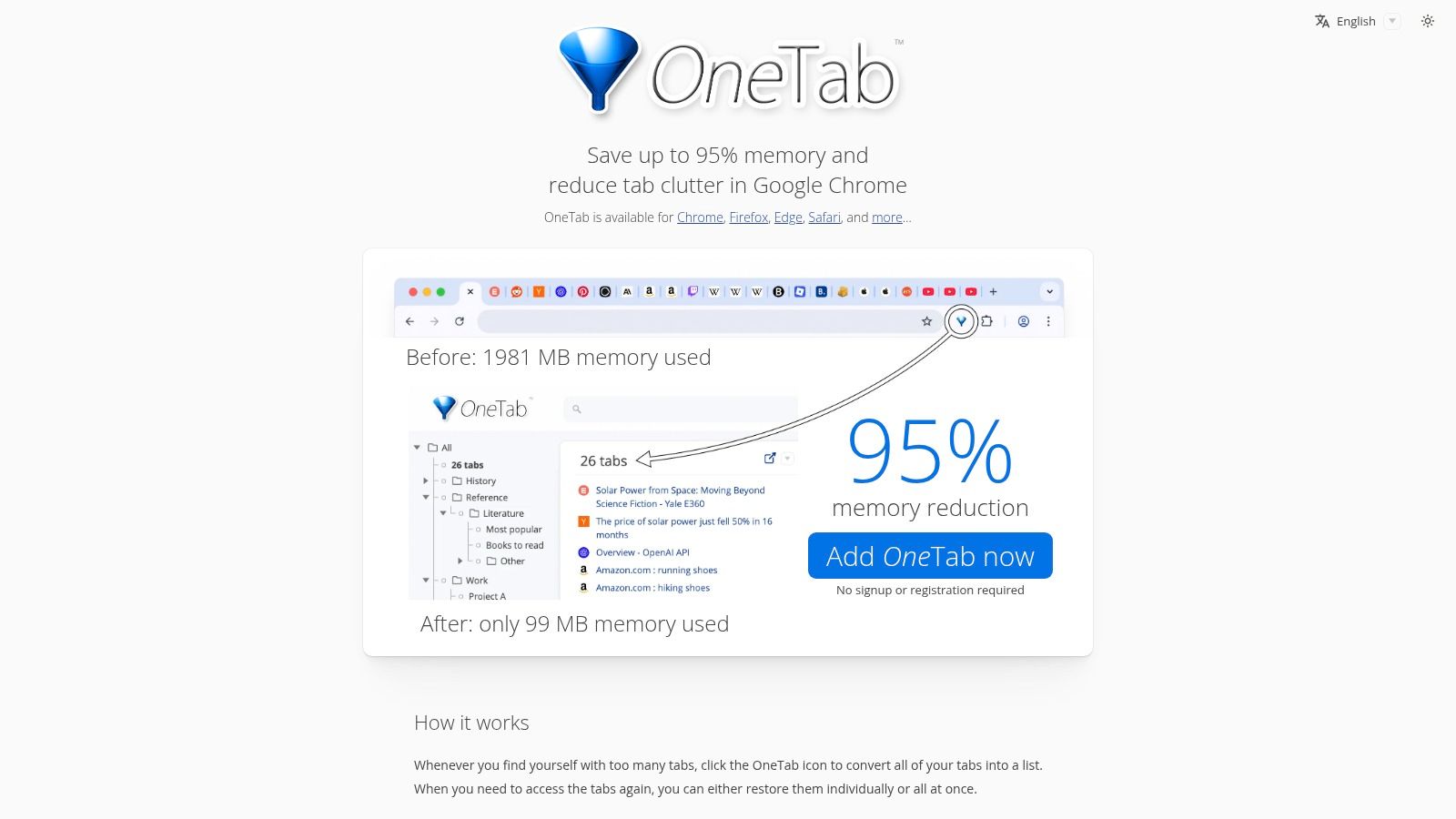
Для тех, кто после исследовательской сессии оказывается с десятками открытых вкладок, OneTab — классическое минималистичное решение против браузерного хаоса. Одним нажатием оно сворачивает все открытые вкладки в единый список, экономящий память. Это не только разгружает рабочее пространство, но и может заметно снизить потребление оперативной памяти браузером, что особенно полезно, когда компьютер начинает тормозить во время интенсивной учебы.
Сила OneTab — в простоте и подходе, ориентированном на приватность: расширение не отправляет URL ваших вкладок на серверы. Вы можете легко восстановить вкладки по одной или все сразу. Хотя здесь нет продвинутых функций вроде автоматической группировки вкладок, легковесный формат отлично подходит для быстрого сохранения исследовательской сессии или набора обучающих видео на потом без лишней нагрузки на систему.
Идеально для
Студентов, исследователей и всех, у кого регулярно накапливается слишком много вкладок.
Ключевая функция
Объединение всех открытых вкладок в простой список одним нажатием для экономии памяти.
Плюсы
Чрезвычайно легковесное расширение, заметно снижает потребление памяти браузером, дизайн с акцентом на приватность.
Минусы
Очень минималистичный набор функций; нет продвинутой сортировки или правил автоматической группировки.
#Топ-12 расширений Chrome для продуктивности — сравнение функций
Продукт
Ключевые функции
UX и качество
Ценность / УТП
Целевая аудитория
Цена / примечания
HoverNotes (Рекомендуем)
Мультимодальные AI-заметки, скриншоты с таймкодами, режим фокусировки, синхронизация с Obsidian/локальными Markdown, поддержка нескольких платформ
Рейтинг 4,9/5, 8 тыс.+ установок, структурированные заметки в реальном времени; сообщалось о небольших UX-нюансах
Превращает видео в постоянные заметки с поиском; фиксирует визуальные элементы (код, схемы), которые теряются в транскриптах; приватность по принципу local-first
Студенты, разработчики, энтузиасты PKM, учащиеся на сертификационных и медицинских курсах
План free-forever; более высокие тарифы / лимиты использования для активных пользователей
Интернет-магазин Chrome – подборка Productivity
Курируемые списки, установка в один клик, рейтинги, автообновления, бейджи редакции
Официальный источник установки; большой каталог; качество разных расширений неодинаково
Самое безопасное прямое место для поиска и установки расширений Chrome
Все пользователи Chrome, администраторы, те, кто подбирает расширения
Бесплатный доступ; цены на расширения зависят от поставщика
Product Hunt – тема расширений Chrome
Запуски, демо, обновления от основателей, комментарии сообщества, фильтры
Отлично подходит для поиска и обратной связи от сообщества; не является источником установки
Раннее обнаружение независимых/новых расширений с контекстом от основателей
Ранние пользователи, фаундеры, продуктовые исследователи
Бесплатно; ведет на страницы поставщиков/магазинов
G2 – подборки/гайды «Лучшие расширения Chrome»
Редакционные обзоры, просмотр по категориям, агрегированные отзывы
Контекст отзывов с бизнес-фокусом; полезные шорт-листы
Авторитетность и привязка к сценариям использования для бизнес-покупателей
Команды, бизнес-оценщики, составители шорт-листов
Бесплатные гайды; могут отставать от последних релизов
Grammarly (расширение Chrome)
Проверка грамматики в реальном времени, рекомендации по ясности и тону, генеративные черновики, проверка на плагиат (premium)
Большая пользовательская база; сильная помощь прямо в редакторе; широкие разрешения на страницах
Улучшает качество письма в веб-приложениях
Авторы, студенты, специалисты
Базовый доступ; расширенный план для полного набора функций
Todoist – управление задачами и проектами
Быстрое добавление со страниц, компактный вид задач, синхронизация и интеграции
Зрелый и быстрый сценарий фиксации задач; кроссплатформенные приложения
Быстрый перенос из браузера в задачи для управления рабочими процессами
Пользователи и команды, управляющие задачами
Базовый доступ; более высокие тарифы Pro / Business
Loom – запись экрана и асинхронное видео
Запись экрана/камеры/микрофона в один клик, мгновенные ссылки для просмотра, аналитика зрителей
Очень быстрый путь от записи к отправке; облачное хранение видео
Асинхронное видео для обновлений, демо и обратной связи
Команды, преподаватели, поддержка/продуктовые демо
Базовый доступ; расширенные планы для продвинутого монтажа и AI
Raindrop.io – менеджер закладок и знаний
Сохранение страниц/PDF/изображений, теги, аннотации, полнотекстовый поиск, боковая панель
Отточенный интерфейс; сильная организация и кроссплатформенные приложения
Универсальный инструмент для закладок и сбора знаний с командными функциями
Исследователи, пользователи PKM, команды
Базовый доступ; Pro для расширенных функций
Instapaper – сохранение для чтения позже
Сохранение в один клик, очередь чтения на разных устройствах, выделения и заметки, поддержка Kindle
Простое и надежное чтение
Чтение позже без отвлекающих факторов и рабочий процесс с аннотациями
Читатели, исследователи, студенты
Бесплатно; Premium открывает полный поиск и функции
Теперь у вас есть список практичных расширений, которые помогают продуктивнее учиться по видео. Мы рассмотрели инструменты для управления вкладками, организации задач и сохранения статей. Каждый из них может превратить ваш браузер в более сфокусированную среду для обучения.
Смысл не в том, чтобы установить все расширения из этого списка. Перегруженный браузер работает медленно и мешает продуктивности. Вместо этого определите свое главное узкое место и выберите инструмент, который решает именно эту проблему.
Для многих, кто учится самостоятельно, таким узким местом становится удержание знаний из видеоконтента. Мы часами смотрим YouTube, Udemy и Coursera, а через несколько дней забываем ключевые идеи. Постоянно ставить видео на паузу, чтобы вручную набрать заметки, неудобно, а инструменты, работающие только с транскриптом, упускают критически важные детали: код на экране, схему или конкретный прием, который демонстрируют. Именно здесь нужен специализированный инструмент.
Расширение, созданное для активного обучения по видео, может принципиально изменить то, как вы запоминаете материал. Оно устраняет разрыв между пассивным просмотром и активным вовлечением, помогая времени, вложенному в обучение, действительно окупаться. Интегрируя создание заметок прямо в просмотр видео, вы формируете насыщенный, контекстный и постоянный актив знаний. Для учащихся, которым важны владение данными и платформы вроде Obsidian, ключевым становится инструмент с подходом local-first. Ваши заметки должны принадлежать вам, храниться в универсальном формате и оставаться доступными всегда. Выбор правильного расширения — это не только краткосрочная эффективность; это создание более умной системы для обучения на протяжении всей жизни.
Если ваша главная трудность — превращать видеоуроки в устойчивые знания, расширение, созданное именно для этой задачи, может заметно помочь. HoverNotes создает AI-заметки из любого видео, дополняет их скриншотами с таймкодами и сохраняет как файлы Markdown на ваш локальный компьютер, идеально вписываясь в рабочие процессы Obsidian или Notion. Одна только функция скриншотов с таймкодами экономит часы повторного просмотра.
Откройте для себя лучшие плагины Obsidian для обучения в 2026 году. Полный набор инструментов, включающий видеозапись, интервальное повторение, dataview и excalidraw для студентов.
Создайте мощный рабочий процесс для своих заметок Obsidian YouTube. Узнайте, как фиксировать, упорядочивать и связывать знания из видео, чтобы действительно запоминать то, что вы смотрите.
Откройте для себя лучший плагин для видео в Obsidian, который идеально впишется в ваш рабочий процесс. Мы сравниваем лучшие варианты для создания пометок с временными метками из YouTube, Udemy и локальных видео.