Building a second brain from video content | HoverNotes Blog | HoverNotes
General2025년 12월 27일
Building a second brain from video content
Learn how to build a second brain for video content using proven frameworks like PARA. Capture, organize, and connect ideas from YouTube, Udemy, and Coursera.
작성자 HoverNotes Team•13 분 읽기
You spend hours watching YouTube tutorials or Coursera lectures. A week later, how much do you actually remember? Video learning has a retention problem—we watch, but the information doesn't stick.
This is where a "second brain" comes in. It's a practical system for turning passive screen time into a permanent, interconnected knowledge base you can actually use. This isn't just about collecting notes; it's about building a system that helps you connect ideas from everything you watch.
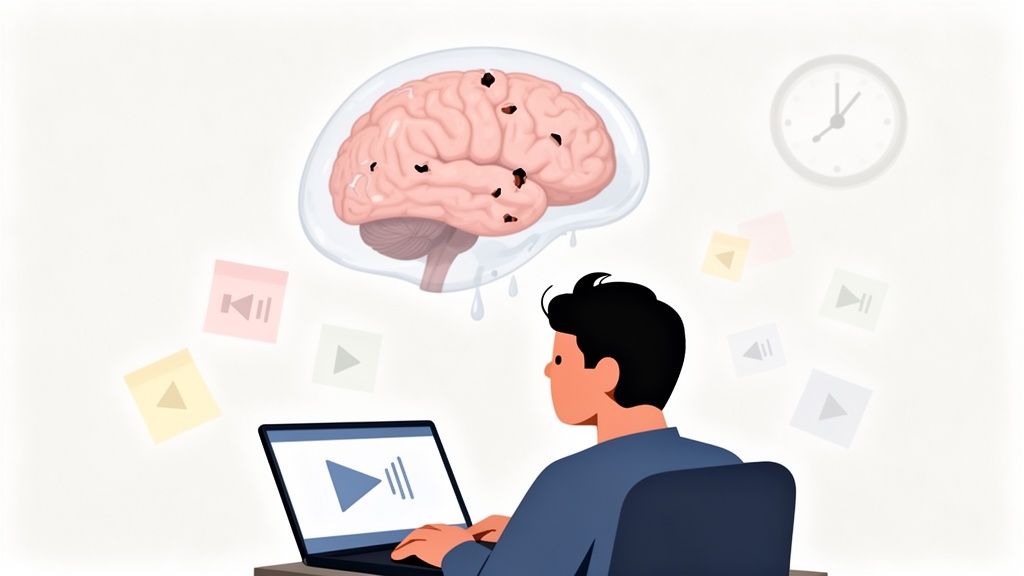
If you learn from videos, you know the feeling. You watch a two-hour lecture on machine learning. It all makes sense in the moment. But a week later, it’s gone. You're left with a few fuzzy concepts.
This is a workflow problem. Old-school note-taking methods don't work for video. Manual note-taking is hard—constantly pausing and playing is tedious and breaks your concentration. Trying to write in a notebook while watching is awkward. You end up in a frustrating loop of pausing, rewinding, and typing, completely breaking your focus.
The core issue is friction. Every time you pause to jot something down, your focus shatters. Even worse, you miss critical visual context. A simple transcript can't capture:
Code snippets shown in a programming tutorial.
Complex diagrams explained in a lecture.
Live software demonstrations.
Formulas on a digital whiteboard.
A random folder of screenshots isn't the answer either. They're stripped of the when and why you captured them, making them nearly useless later. You need a system that captures both the spoken word and the visual information in one organized place. We dig deeper into retaining this kind of complex info in our guide on how to study effectively for exams.
This "brain drain" is exactly why a structured "second brain" is essential for anyone serious about learning from video. Studies suggest we might only retain 10-20% of a video lecture without taking structured notes. Taking notes while watching improves retention dramatically. The key is finding a way to do it without constant interruptions.
The first step in building a second brain from video is getting information out of the player and into your system with zero friction. If capturing an idea is a chore, you won't do it.
This means moving past the clunky workflow of pausing, rewinding, and typing. An effective capture system should work in the background, letting you stay absorbed in the content. AI can handle the note-taking so you can focus on understanding.
Modern tools can act as a learning assistant, grabbing important details for you so you can focus on understanding the material, not just transcribing it.
For example, HoverNotes is a Chrome extension that watches videos with you, generates AI notes, and saves them as Markdown directly to your file system. Unlike tools that only parse transcripts, HoverNotes watches the video to capture what's actually on screen—the diagrams, code snippets, and slides that audio-only tools miss. It works anywhere there's a video, from YouTube and Coursera to your own local video files.
The goal is simple: turn fleeting video content into a permanent, organized asset. The less friction, the better.
This is critical for anything visual. If you’re a developer following a coding tutorial, the most valuable information is the specific syntax, the error message that pops up, and the final output. A good capture tool needs to "see" all of that.
Here’s a common scenario: a developer is learning a new JavaScript framework from a YouTube tutorial.
Start the video: As the tutorial plays, AI-generated notes appear in a side panel, summarizing key concepts.
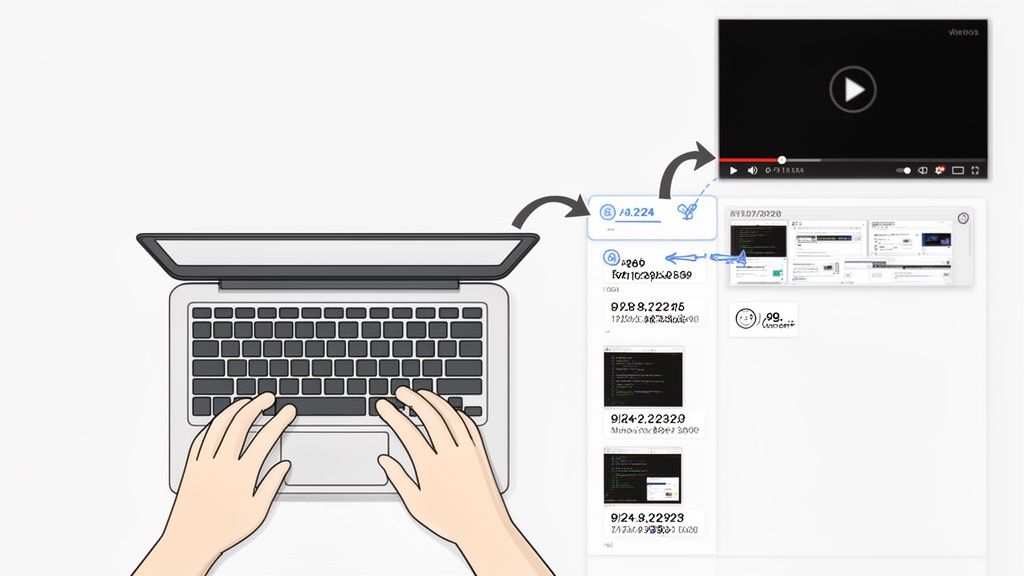
Capture a code block: When the instructor shows a critical function, a keyboard shortcut instantly captures a timestamped screenshot of just that code using the snip capture feature.
Grab a visual: The instructor points to a diagram. Another keypress snips the diagram and embeds it directly into the notes.
Finish the video: The developer now has a complete Markdown file with structured notes, timestamped screenshots of code, and all important diagrams embedded right where they belong.
Every screenshot includes a clickable timestamp—one click returns you to that exact moment in the video. The final output is a clean .md file, ready to be dropped into an Obsidian vault or copy-pasted into Notion.
This transforms raw video into organized, actionable knowledge without breaking your learning flow. For a more detailed breakdown, you can learn more about turning YouTube videos into notes in our guide. This process is the foundation of a second brain that works for video learners.
Grabbing notes from videos is the first step. But a folder crammed with random Markdown files isn't a "second brain"—it's a digital junk drawer. You need a simple, consistent way to organize everything.
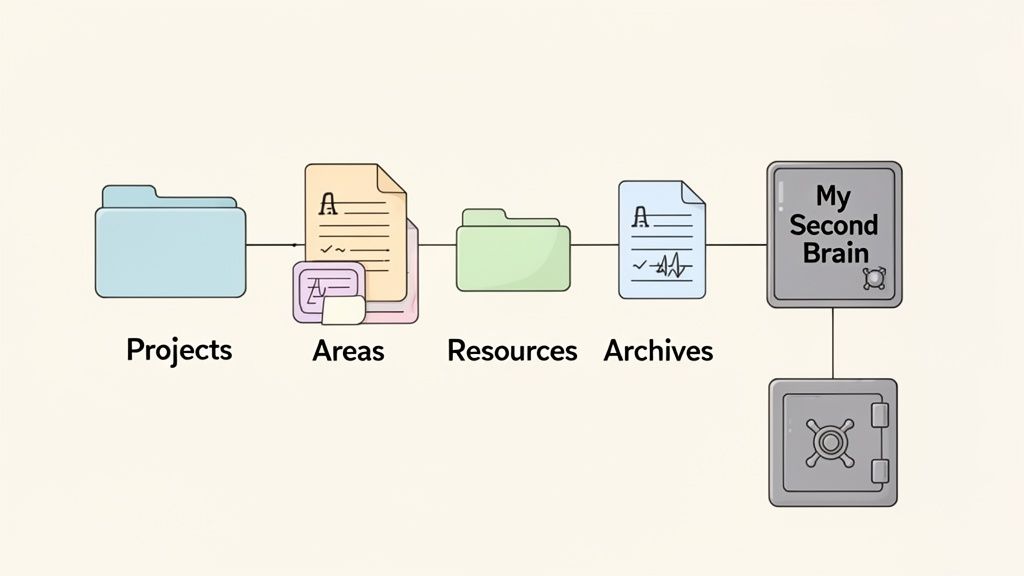
This is where the PARA method comes in. Created by Tiago Forte, PARA is a framework for organizing based on actionability. It stands for Projects, Areas, Resources, and Archives. It's four straightforward folders that help you know where everything belongs.
For video learners, this system is a game-changer. It stops the "where did I save that note?" problem and helps you find information when you need it.
Every time you capture a note from a video, drag that .md file into one of four main folders.
Here’s how they work:
Projects: Short-term efforts with a clear finish line. A project is something you're actively working on now. If your project is "Build portfolio website," all your notes from that React Hooks tutorial go here.
Areas: Long-term responsibilities that don't have an end date. Think "Health," "Finances," or "Career Development." Notes from a financial planning YouTube channel live in your "Finances" area.
Resources: Your personal library of curiosities. It’s for topics of ongoing interest not tied to a specific project. Notes from a documentary on AI or a tutorial on a new language you're exploring go here.
Archives: Where things go when they're done. Once you finish your portfolio website, the entire project folder gets moved into Archives. It's out of your way but still searchable.
The beauty of this is its simplicity, especially with local-first storage. You own the files. They're just Markdown. You can move them, back them up, or search them with any tool. They belong to you. For more on building a system you control, check our guide on how to create a knowledge base.
After you capture notes, ask yourself: "Where will I need this information next?"
The table below shows how this works for different learners.
Category
Description
Example for a Student
Example for a Developer
Projects
Short-term, goal-oriented tasks.
"Final Paper for History 101" (notes from lecture videos)
"Deploying the New API" (notes from AWS tutorials)
Areas
Long-term roles and responsibilities.
"Academic Performance" (notes on effective study habits)
"Software Development Skills" (notes on clean code)
Resources
Topics of ongoing interest.
"Stoic Philosophy" (notes from a YouTube series)
"Machine Learning Concepts" (notes from various lectures)
Archives
Inactive items from the other three categories.
"Completed BIO 204 Course"
"Old Project X Documentation"
This system reduces the friction between learning something and applying it. By organizing based on actionability, you ensure the most relevant information is always at your fingertips. This makes the leap from raw capture to structured knowledge.
A neat folder structure is just the start. The real goal is to create a system that helps you think better. This is where you stop being a digital archivist and start becoming a knowledge creator.
It’s about turning the raw, messy notes from a video into durable, interconnected ideas. This process reveals connections you would have otherwise missed.
#Processing Your Fleeting Notes into Permanent Notes
When you first capture notes from a video, you have "fleeting notes"—a mix of AI summaries, your thoughts, and screenshots. The next step is to process them into "permanent notes."
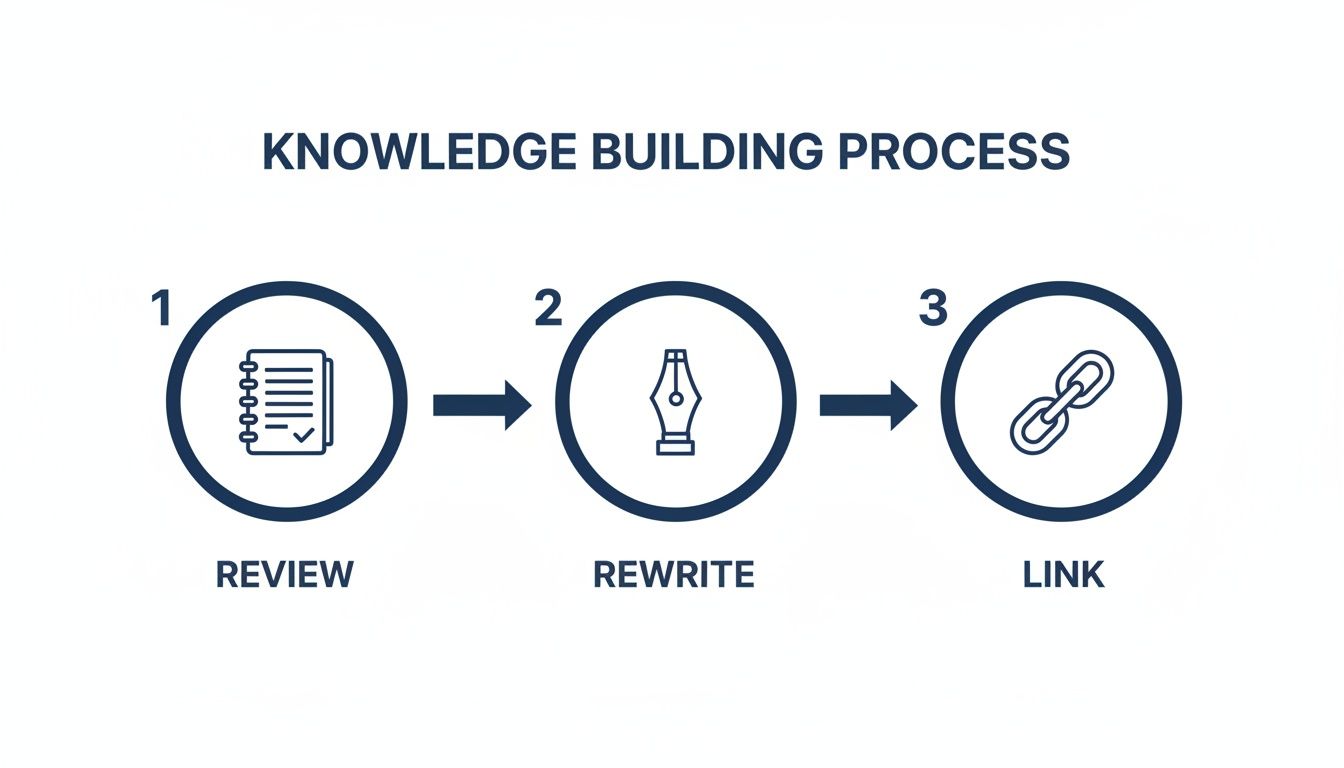
Set aside 15-20 minutes each day to review your new notes. Don't just reread them. Rewrite the core ideas in your own words.
Ask yourself:
What was the most important idea in this video?
How would I explain this to a friend?
What does this remind me of?
This act of rewriting forces you to grapple with the material. You're moving the idea from something you passively saw to something you actively know. This refined idea becomes a permanent note—a single concept that can stand on its own.
The true power of a second brain comes from linking these permanent notes together. A single note is a data point; a network of connected notes is a web of understanding.
Start asking connection-oriented questions:
Does this concept from a YouTube video on UI design relate to that Coursera lecture on behavioral psychology?
How does this Python technique connect to that problem-solving framework I learned last month?
This is where visual context becomes invaluable. Your notes might include a timestamped screenshot of a diagram or code. With a tool like HoverNotes, every screenshot has a clickable timestamp. One click, and you're back at that moment in the video, giving you the context needed to link that idea to something else.
The real value of a second brain isn't in what you put into it; it's in the novel connections you get out of it. It’s a tool for generating new ideas, not just storing old ones.
By linking [[behavioral psychology]] to your note on [[UI design principles]], you build a bridge between two separate domains. Over time, these links create a personalized wiki of your knowledge. When you pull up one topic, you naturally find related ideas from different sources. That’s how you generate insights.
A student is watching a recorded Zoom lecture for their Psychology class.
Capture: The student uses HoverNotes to get AI-generated notes. When a complex diagram appears, they hit a keyboard shortcut to snip it and embed it in their notes. The screenshot includes a clickable timestamp.
Organize: The .md file is saved directly to their Obsidian vault under 02 - Areas/University/Psychology 201/Lectures.
Connect: Later, while reviewing, they rewrite the definition of "unconditioned stimulus" in their own words. They create a link [[classical conditioning]], connecting this lecture note to another note from their textbook.
A software developer is learning a new framework from a YouTube tutorial for a current project.
Capture: As the instructor explains a key function, the developer gets AI notes. Instead of typing code, they use the snip tool to grab specific code blocks as timestamped images.
Organize: All notes from the series are filed under 01 - Projects/New App Build/Framework Tutorials, keeping learning material tied to the active project.
Connect: Days later, they can't remember the syntax. They search their Obsidian vault and find the screenshot. One click on the timestamp takes them back to that moment in the video for a quick refresher.
A second brain isn't a digital filing cabinet; it’s a dynamic workspace for applying information the moment you need it.
Once you've collected these notes, you might want to turn them into a final asset. Check out our guide on how to make a study guide from your knowledge base.
The goal isn't to add another chore. Set aside about 15-20 minutes a day to process new notes. Consistency is key. A small, daily habit of reviewing and connecting your notes prevents a digital mess. Think of it like tending a garden, not filling a warehouse.
That's perfectly fine. Many people find typing helps them process information.
You can still use a tool like HoverNotes without AI. It provides a clean workspace with the video on one side and an editor on the other.
Even when taking manual notes, you get advantages:
Distraction-free video mode: It blocks YouTube ads and recommended videos so you can focus.
Timestamped screenshots: Grab a diagram or slide with a single click. The image, with its timestamp, drops right into your notes.
Local-first storage: Everything saves as a local Markdown file. No cloud lock-in. You own your knowledge. Don't want AI? Just use the editor, screenshots, and video controls—they're free.
Go with Obsidian if... you want to build a deeply interconnected web of personal knowledge. If you value data ownership, privacy, and speed, Obsidian is ideal. Your notes are local Markdown files, making your system future-proof.
Go with Notion if... your work involves collaboration and project management. If you work with a team or need to blend notes with databases and dashboards, Notion is a great choice. Notes copy cleanly into Notion if that's where you keep everything.
There's no single right answer. Many people use both: Obsidian for a personal knowledge graph and Notion for active projects. The best tool is the one that fits your workflow.
If you use Obsidian for learning, HoverNotes saves notes directly to your vault as .md files. There’s no clunky export/import process. Your notes belong to you from the start.
You can try it for free. You get 20 minutes of AI credits to test it out, no credit card required.
Explore Otter AI plans to see if they fit your goals. Learn why video learning requires a different approach and compare top alternatives built for students.
Learn how to study effectively for exams with science-backed methods. Turn passive video lectures into powerful study tools for better recall and retention.