YouTube Notizen machen: Die besten Werkzeuge und Methoden für Lernende
Entdecke YouTube-Notizen / Tipps und Werkzeuge zum Notieren bei YouTube, um die Behaltensleistung zu steigern und dein Lernen aus Videos besser zu organisieren.
Von HoverNotes Team•17 Min. Lesezeit
YouTube ist ein riesiges Klassenzimmer, aber Zuschauen bedeutet nicht automatisch Lernen. Die meisten Menschen vergessen innerhalb einer Woche, was sie gesehen haben, da passives Betrachten ein großes Problem bei der Erinnerungsfähigkeit verursacht. Um die Informationen tatsächlich zu behalten und anzuwenden, müssen Sie sich Notizen machen.
Aber der manuelle Prozess ist lästig. Ständiges Pausieren und Zurückspulen unterbricht Ihre Konzentration. Gleichzeitig in einem Notizbuch zu kritzeln während Sie schauen, ist umständlich. Screenshots zu machen führt zu einem Ordner voller Bilder, die von Ihren Notizen getrennt sind. Ein gutes System für YouTube-Notizen sollte nicht nur das Gesprochene erfassen, sondern auch das Gezeigte – Diagramme, Code-Schnipsel und wichtige Visualisierungen, die reine Transkripte nicht abdecken.
Dieser Leitfaden stellt die besten Tools vor, um das Anschauen von YouTube in einen strukturierten Lernprozess zu verwandeln. Wir behandeln Browser-Erweiterungen, Zeitstempel-Verlinkung und Screenshot-Erfassung für kostenlose und kostenpflichtige Optionen. Der Fokus liegt auf praktischen Workflows für Studenten, Selbstlerner und Berufstätige, die Lernen ernst nehmen.
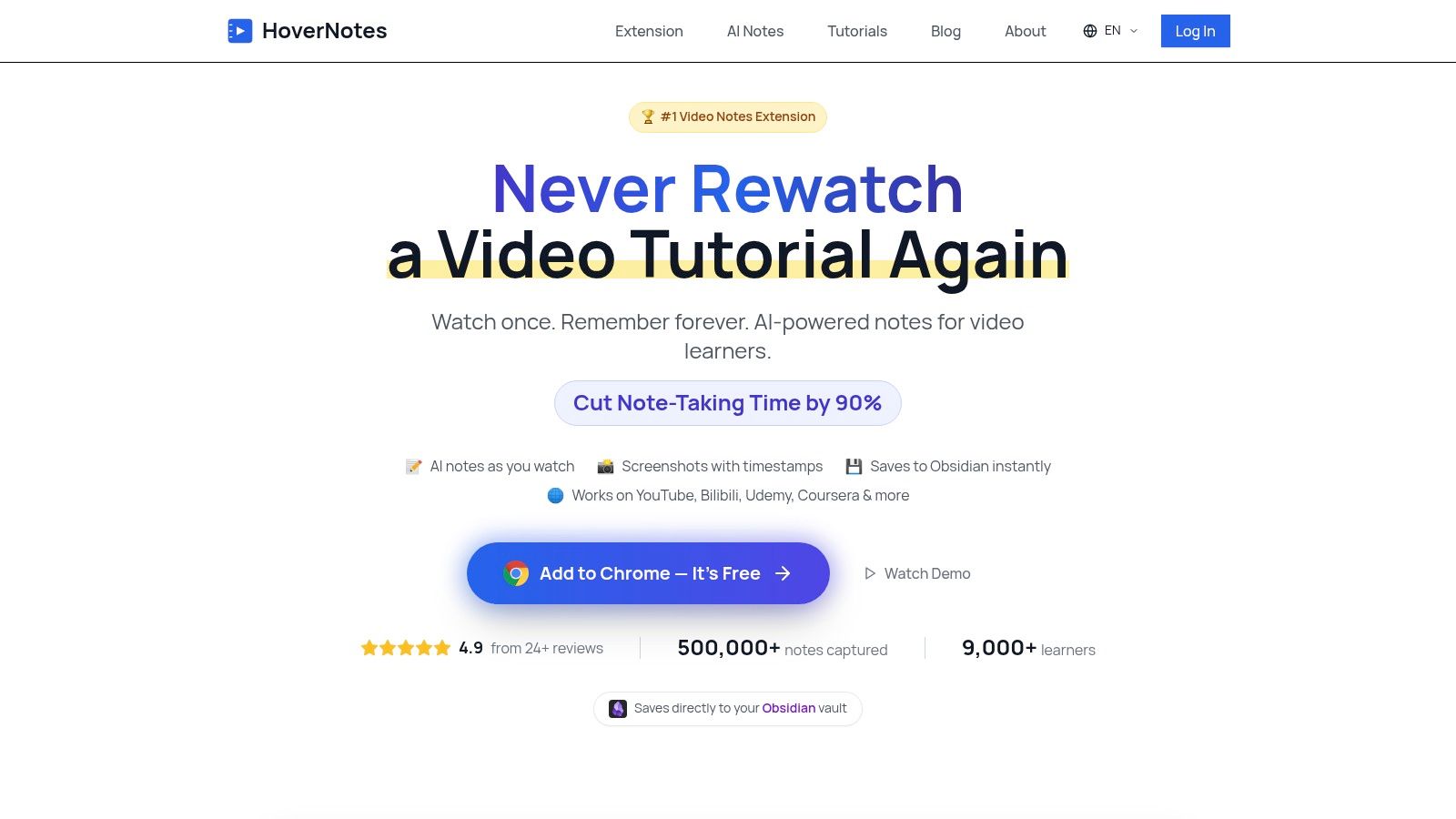
HoverNotes ist eine Chrome-Erweiterung, die für Lernende entwickelt wurde, die Videoinhalte in dauerhaftes, durchsuchbares Wissen umwandeln möchten. Sie soll wie ein Studienpartner wirken, der das Video mit Ihnen zusammen anschaut, was sie besonders effektiv für YouTube-Notizen macht, vor allem bei visuell geprägten Themen wie Programmier-Tutorials oder Ingenieurvorlesungen.
Ihr Hauptvorteil besteht darin, dass sie Videoframes direkt analysiert, nicht nur Audio-Transkripte. Das bedeutet, HoverNotes erfasst On-Screen-Text, Code, Diagramme und Formeln – visuelle Kontexte, die reine Transkript-Tools komplett übersehen. So spiegeln Ihre Notizen die gesamte Lektion wider.
HoverNotes fügt Ihrem Browser einen ablenkungsfreien "Video-Modus" hinzu, bei dem das Video auf einer Seite und Ihre Notizen auf der anderen angezeigt werden, während Website-Werbung blockiert wird.
Klickbare, zeitgestempelte Screenshots: Machen Sie mit einem Klick einen Screenshot und betten Sie ihn direkt in Ihre Notizen ein. Jeder Screenshot enthält einen klickbaren Zeitstempel – mit einem Klick springt man zu genau diesem Moment im Video zurück.
Local-First Obsidian-Integration: Dies ist eine Schlüssel-Funktion für alle, die Wert darauf legen, ihre Daten selbst zu besitzen. Notizen werden als einfache Markdown (.md) Dateien direkt auf Ihrem lokalen Dateisystem gespeichert, wie ein Obsidian-Tresor. Das garantiert Privatsphäre und verzichtet auf proprietäre Cloud-Services. Sie besitzen die Dateien.
Funktioniert auf jeder Website mit Video: Obwohl ideal für YouTube, funktioniert es überall, wo Videos laufen – Udemy, Coursera, LinkedIn Learning, Universitätsportale und sogar lokale Video-Dateien auf Ihrem Computer.
Mehrsprachige KI-Notizen: Erhalten Sie Notizen in Ihrer bevorzugten Sprache, unabhängig von der Originalsprache des Videos. Sie können ein japanisches Tutorial anschauen und Notizen auf Englisch erhalten.
Schaut sich das Video an, nicht nur das Transkript, um visuelle Inhalte wie Code und Diagramme zu erfassen.
Einige Nutzer berichten von kleineren UI-Störungen, die gelegentlich den Workflow unterbrechen können.
Klickbare, zeitgestempelte Screenshots ermöglichen direktes Springen zum genauen Video-Moment.
Intensive Nutzung von KI-Funktionen erfordert ein Upgrade auf kostenpflichtige Pläne.
Speichert als lokale .md-Dateien, ideal für Obsidian-Nutzer, die ihre Daten besitzen wollen. Ihre Notizen gehören Ihnen.
Funktioniert auf jeder Website mit Video, inklusive Kursplattformen und lokalen Dateien.
Notizen lassen sich sauber mit Formatierung nach Notion oder Google Docs kopieren.
HoverNotes bietet einen Einstiegszugang mit 20 Minuten KI-Kontingent (keine Kreditkarte nötig), und der manuelle Editor mit Screenshots und Videomodus ist immer kostenlos. Für Lernende, die visuellen Kontext und Datenbesitz schätzen, ist es ein praktisches Tool für aktives Lernen. Aktuelle Optionen finden Sie auf der HoverNotes-Preisseite.
Glasp ist eine Browser-Erweiterung, die soziales Lernen mit KI-Zusammenfassungen und Integrationen für Personal Knowledge Management (PKM) Tools verbindet. Sie erlaubt es, Text direkt aus dem Video-Transkript hervorzuheben. Jede Markierung wird automatisch mit einem Zeitstempel versehen, der zurück zum genauen Video-Moment verlinkt. Das ist praktisch, um genaue Formulierungen aus Vorträgen festzuhalten.
Glasp hat zwei Hauptfunktionen. Erstens ist es ein Produktivitätstool, um KI-generierte Zusammenfassungen von YouTube-Videos zu erhalten, unter Nutzung von Modellen wie ChatGPT oder Claude. Das spart Zeit bei der Entscheidung, ob ein Video sehenswert ist. Zweitens gibt es einen öffentlichen Feed, wo Sie sehen können, was andere Glasp-Nutzer hervorheben, was bei der Entdeckung neuer Inhalte hilft.
Glasp’s Workflow konzentriert sich auf das Erfassen und Exportieren von Wissen. Während des Anschauens wählen Sie Schlüsselsätze aus dem Transkript aus, und Glasp speichert diese als zeitgestempelte Notizen.
KI-gestützte Zusammenfassungen: Erzeugen Sie sofort eine prägnante Übersicht über den Videoinhalt.
Zeitgestempeltes Hervorheben: Erfassen Sie genaue Zitate aus dem Transkript. Ein Klick auf die Markierung in Ihren Notizen bringt Sie direkt zur entsprechenden Stelle im Video.
Starke PKM-Integration: Glasp bietet mit einem Klick den Export zu Tools wie Obsidian, Notion und Roam Research – ein entscheidendes Feature für alle, die eine digitale Wissensbasis aufbauen.
Flexible Exportoptionen: Exportieren Sie Ihre Notizen in Formaten wie Markdown, CSV, HTML oder JSON.
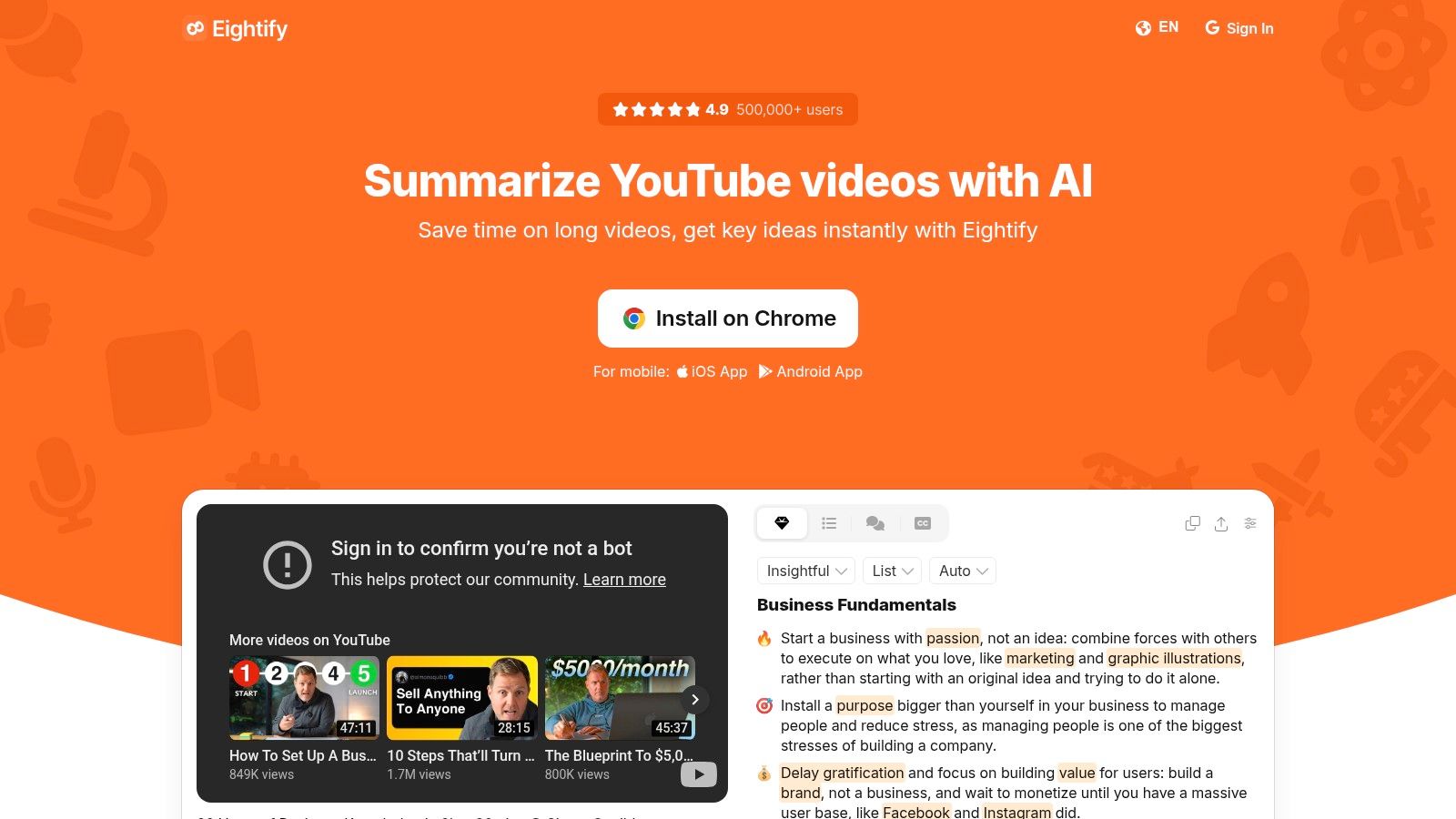
Eightify ist ein schlankes KI-Tool, um die Kernbotschaft eines YouTube-Videos schnell zu erfassen. Es ist eine einfache Browser-Erweiterung und Mobile-App, die sofortige Zusammenfassungen mit wichtigen Erkenntnissen erstellt. Sein Hauptzweck ist Effizienz, sodass Sie lange Videos in Sekunden überprüfen können.
Eightifys Stärke liegt auf der Zusammenfassung. Es macht eines besonders gut: es verdichtet Videoinhalte. Jede Zusammenfassung enthält zeitgestempelte Abschnitte, so dass Sie leicht zu den relevanten Stellen springen können. Ideal für Lernende, die schnell die wichtigsten Infos extrahieren wollen. Der Aufstieg von YouTube-Video-Zusammenfassungstools hat diese schnelle Inhaltsanalyse möglich gemacht.
Eightifys Workflow ist schnell und einfach. Nach der Installation erscheint ein "Zusammenfassen"-Button auf der YouTube-Seite, der die Zusammenfassung in einer übersichtlichen Seitenleiste generiert.
Sofortige KI-Zusammenfassungen: Erzeugt schnell eine prägnante Übersicht mit zentralen Erkenntnissen.
Zeitgestempelte Abschnitte: Die Zusammenfassung ist in logische Sektionen unterteilt, jede mit einem Zeitstempel, der zum entsprechenden Videoabschnitt führt.
Mehrsprachige Unterstützung: Es kann Videos in über 40 Sprachen zusammenfassen.
Einfache Weitergabe: Zusammenfassungen lassen sich leicht kopieren oder teilen. Erfahren Sie mehr über die Fähigkeiten solcher KI YouTube Zusammenfassungstools.
Extrem einfach und schnell: Die Benutzeroberfläche ist sauber, und Zusammenfassungen entstehen zügig.
Ideal zur schnellen Einschätzung von Inhalten: Perfekt, um zu entscheiden, ob ein langes Video relevant zum Anschauen ist.
Starke Sprachunterstützung: Umfangreiche Mehrsprachigkeit ist ein großer Vorteil.
Nachteile:
Auf Zusammenfassungen beschränkt: Es ist kein umfassendes Notizwerkzeug; eigene Notizen, Hervorhebungen oder Screenshots sind nicht möglich.
Preisgestaltung nicht offensichtlich: Der Einstiegszugang ist eingeschränkt, aber detaillierte Preise sieht man erst nach Installation der Erweiterung.
Sie können mit Eightify starten, indem Sie ihre Website besuchen: https://eightify.app
#4. ReClipped – Video-Notizen mit Zeitstempeln, Screenshots und Export
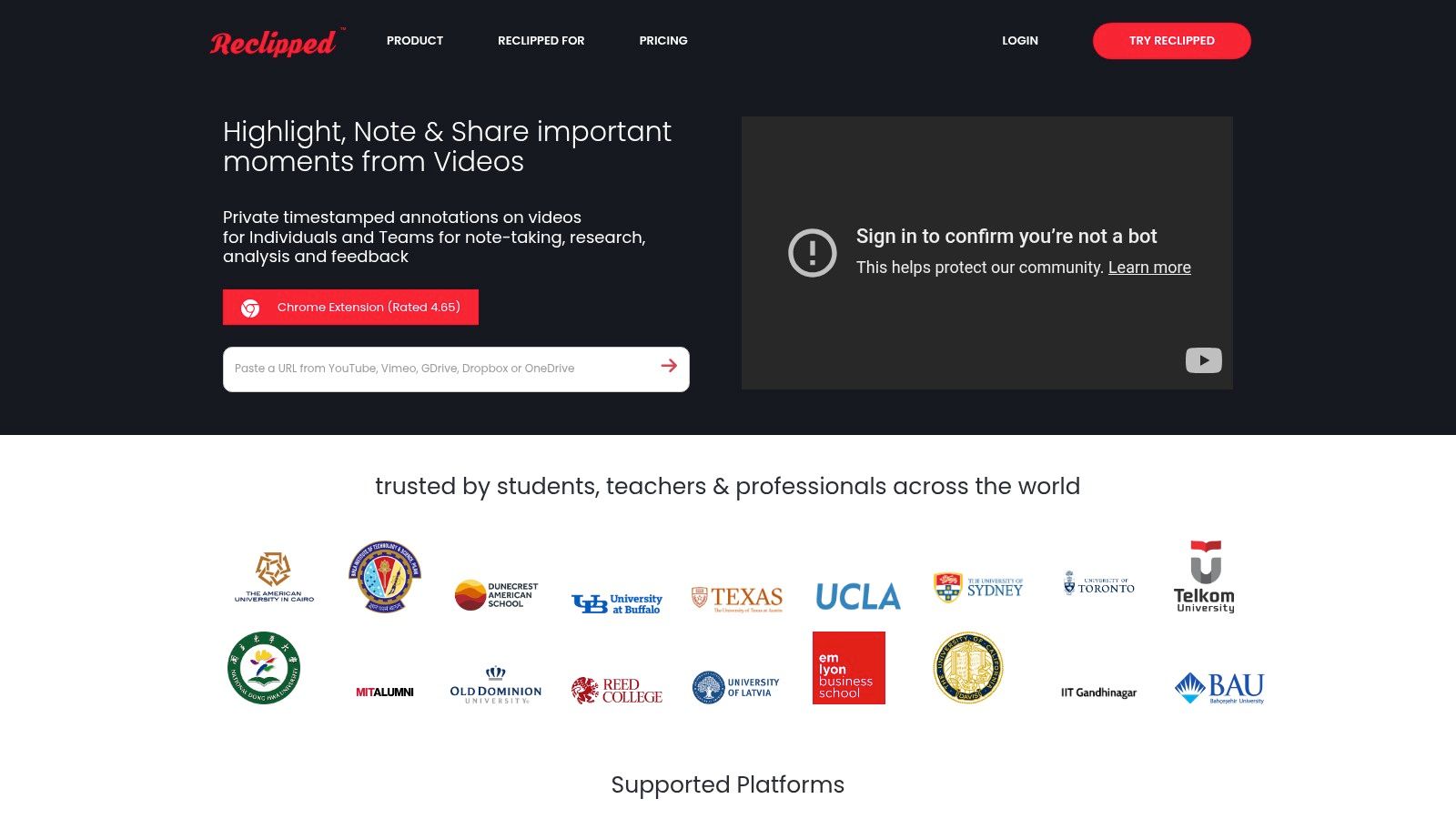
ReClipped ist ein Tool für tiefes Lernen aus Videos, das über YouTube hinaus auch Plattformen wie Coursera, Udemy und LinkedIn Learning unterstützt. Es ist eine Web-App und Browser-Erweiterung, mit der Sie zeitgestempelte Textnotizen, kurze Video-Highlights und Screenshots erfassen können. Diese Herangehensweise ist eine gute Wahl für Studenten und Berufstätige, die mit komplexem visuellem Material arbeiten.
ReClipped konzentriert sich darauf, ein umfassendes Lernarchiv zu schaffen. Statt nur Text können Sie 10-30 Sekunden lange Videosegmente ausschneiden oder einen Screenshot machen, um den kompletten Kontext einer Lektion zu erfassen. Notizen werden auf cloudbasierten "Boards" organisiert, die privat oder für gemeinsames Lernen freigegeben sein können.
Der Workflow von ReClipped dreht sich um das Erfassen verschiedener Medientypen aus einem Video. Beim Anschauen können Sie schnell Notizen hinzufügen, Highlights erstellen oder Screenshots machen, die alle zeitgestempelt sind.
Multimodales Erfassen: Gehen Sie über Text hinaus mit zeitgestempelten Video-Highlights und Screenshots. Das ist entscheidend, um Diagramme oder Demonstrationen einzufangen, die Transkripte übersehen. Für eine vertiefte Einführung können Sie mehr zum Thema Screen Capturing von YouTube lernen.
Breite Plattformunterstützung: Seine Hauptstärke ist die Kompatibilität mit großen MOOCs wie Coursera und Udemy zusätzlich zu YouTube.
Board-Organisation & Zusammenarbeit: Organisieren Sie Ihre Notizen und Clips auf verschiedenen Boards und teilen Sie diese mit anderen.
Vielfältige Exportoptionen: ReClipped unterstützt den Export als PDF und Markdown und bietet direkte Synchronisation mit Tools wie Notion, Readwise und Evernote.
Für Video-Lernen konzipiert: Die Kombination aus Notizen, Screenshots und Videoclips ist ideal für detailliertes Studium.
Weitreichende Plattformunterstützung: Die Fähigkeit, über YouTube und MOOCs hinweg zu arbeiten, macht es vielseitig.
Kooperationsfunktionen: Das Teilen von Boards ist ein Vorteil für Lerngruppen.
Nachteile:
Begrenzte mobile Unterstützung: ReClipped hat keine dedizierten mobilen Apps.
Erweiterung für volle Funktionalität erforderlich: Schlüssel-Features wie Screenshots hängen von der Chrome-Erweiterung ab und können Teil kostenpflichtiger Pläne sein.
Sie können mit ReClipped starten, indem Sie ihre Website besuchen: https://reclipped.com
#5. NoteGPT – KI-Suite mit YouTube-Transkript und Zusammenfassung
NoteGPT ist ein umfassender KI-Studienarbeitsplatz, der über einfache YouTube-Notizen hinausgeht. Es ist eine Web-App und Browser-Erweiterung, die sich auf KI-gestützte Zusammenfassungen, Transkriptextraktion und Batch-Verarbeitung konzentriert. Dadurch ist es eine gute Wahl für Nutzer, die große Mengen an Videoinhalten verarbeiten müssen, etwa ganze YouTube-Kanäle oder Vorlesungsreihen.
NoteGPT automatisiert die erste Wissensextraktion. Seine Stärke liegt darin, Videos ohne vorhandene Untertitel zu verarbeiten und mehrere Videos auf einmal zu verarbeiten, was Forschern und Studenten Zeit spart. Es zentralisiert Ihre Materialien und erlaubt es, mit Videos, Dokumenten und Audiodateien in einer Oberfläche zu chatten.
Der Workflow von NoteGPT ist für groß angelegte Inhaltsverarbeitung ausgelegt. Sie geben einen YouTube-Link (oder mehrere) an, und die Plattform erstellt ein Transkript und eine KI-Zusammenfassung.
Batch- und Kanal-Zusammenfassung: Ein wichtiges Feature ist die Möglichkeit, ganze YouTube-Wiedergabelisten oder -Kanäle zusammenzufassen.
Transkript und KI-Zusammenfassung: Es zieht zuverlässig Transkripte und erstellt Zusammenfassungen für YouTube-Videos. Dieser Prozess ist nützlich für die schnelle Erstellung von Studienführern. Sie können mehr über die Details der YouTube-Transkriptextraktion erfahren, um die zugrundeliegende Technologie zu verstehen.
Multi-Format-Unterstützung: Neben YouTube funktioniert NoteGPT mit anderen Audio- und Videodateien.
Zusätzliche KI-Tools: Die Plattform umfasst Funktionen wie KI-Chat für Abfragen Ihrer Dokumente und Übersetzungen.
Leistungsstarke Batch-Verarbeitung: Die Multi-Video- und Kanal-Zusammenfassung spart viel Zeit bei Vielfachnutzer:innen.
Großzügige Kontingente: Die Preismodelle bieten umfangreiche Verarbeitungslimits.
Vielseitiges Werkzeugset: Es unterstützt allgemeine Audio/Video-Dateien, nützlich für Lernende mit Kursbibliotheken außerhalb von YouTube.
Nachteile:
Kann überdimensioniert sein: Für Nutzer, die nur einfache, zeitgestempelte Notizen benötigen, kann die breite KI-Suite komplex wirken.
Kosten bei erweiteter Nutzung: Die höheren Tarifstufen können für Gelegenheitsnutzer teuer sein.
Sie können mit NoteGPT starten, indem Sie ihre Website besuchen: https://notegpt.io
#6. Glarity – Zusammenfassen von YouTube, Suchergebnissen und Seiten
Glarity ist ein Tool für schnelles Verstehen, das über YouTube hinausgeht und auch Suchergebnisse und Webseiten zusammenfasst. Es ist eine Browser-Erweiterung, die ein Zusammenfassungsfenster direkt auf der YouTube-Seite hinzufügt, was Ihnen sofort eine Übersicht bietet, ohne die Seite zu verlassen. Das ist praktisch, um den Inhalt eines Videos schnell zu prüfen oder wichtige Konzepte aus langen Vorträgen zu extrahieren.
Glarity ist flexibel und schnell. Es bietet eine "Ask-Video"-Funktion, mit der Sie den Videoinhalt direkt abfragen können, um spezifische Informationen zu finden. Außerdem können Sie eigene KI-Accounts für Dienste wie GPT-4 oder Claude 3.5 anbinden, was Power-Usern Kontrolle über ihre KI-Nutzung gibt.
Glaritys Workflow liefert sofortige KI-Zusammenfassungen direkt auf der Seite. Wenn Sie ein YouTube-Video öffnen, erscheint das Glarity-Panel mit einer Zusammenfassung und klickbaren "Key Moments".
In-Seiten-Zusammenfassungen: Erhalten Sie eine KI-generierte Übersicht direkt neben dem Videoplayer.
Ask-Video-Funktion: Interagieren Sie mit dem Videoinhalt, indem Sie gezielte Fragen stellen. Die KI zieht Antworten aus dem Transkript.
Flexible KI-Modellunterstützung: Wählen Sie zwischen Glaritys eigenen Modellen oder integrieren Sie Ihren API-Schlüssel für Dienste wie OpenAI, Anthropic oder Google.
Breite Anwendung: Glarity funktioniert auch für Google-Suchergebnisse und Webseiten, was es zu einem vielseitigen Tool macht.
Schneller, direkter Zugriff auf der Seite: Das Seitenfenster bietet unmittelbare Einblicke.
Flexible KI-Nutzung: Die Möglichkeit, Ihren eigenen KI-Account zu verbinden, ist ein Vorteil für Nutzer, die bereits für solche Services bezahlen.
Multi-Plattform-Nutzen: Es ist über verschiedene Webkontexte hinweg nützlich, nicht nur bei Videos.
Nachteile:
Primär ein Zusammenfasser: Es fehlen dedizierte Funktionen wie Markieren oder tiefe PKM-Integration.
Nutzungsgrenzen im Einstiegszugang: Es gibt Abfragekontingente, für erweiterten Gebrauch ist ein Abonnement nötig.
Sie können mit Glarity starten, indem Sie ihre Website besuchen: https://glarity.app
#7. YiNote – Zeitgestempelte Notizen für Online-Videos
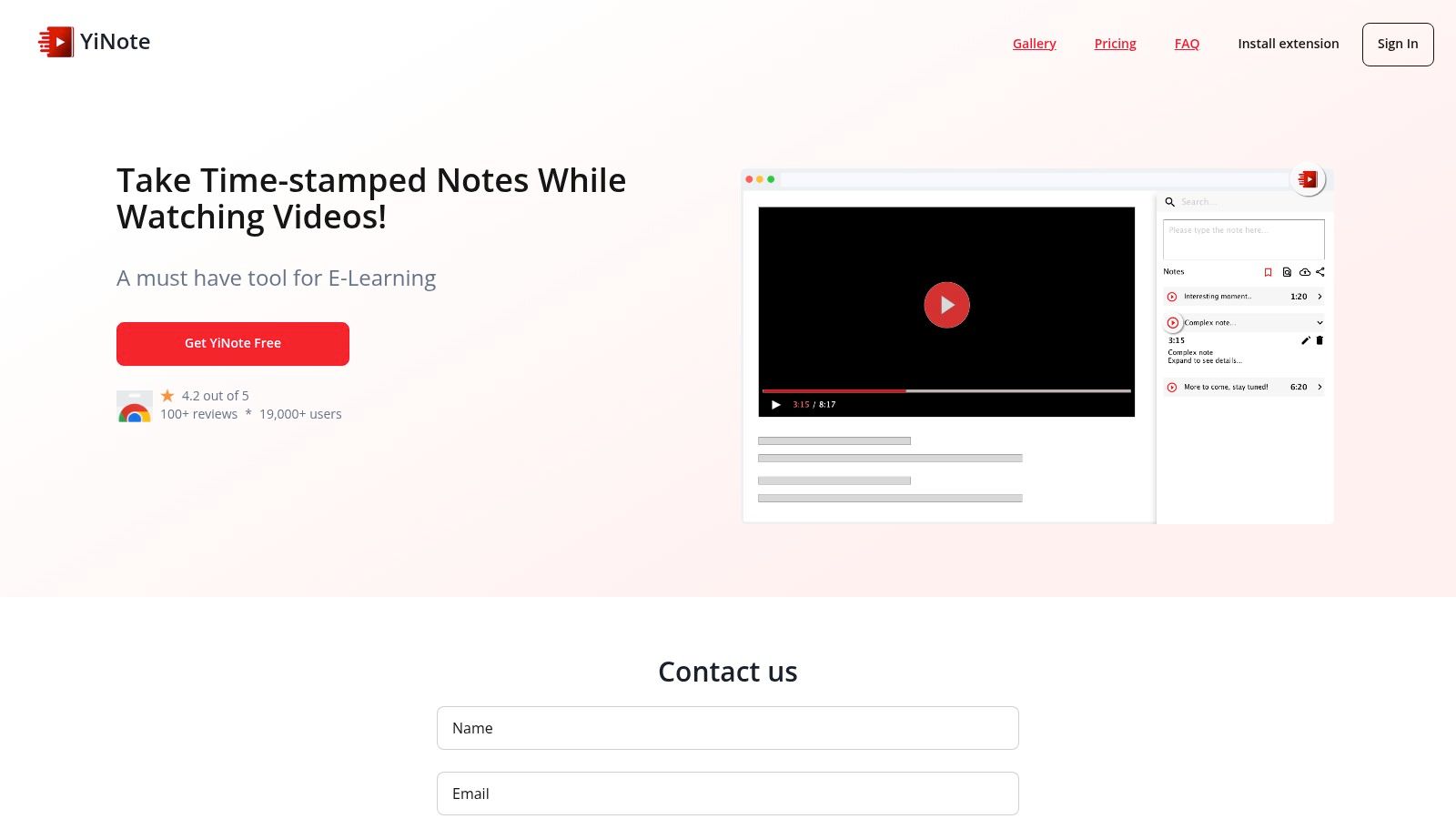
YiNote ist eine schlanke Browser-Erweiterung, die für eine Aufgabe entwickelt wurde: strukturierte, zeitgestempelte Notizen neben Online-Videos zu machen. Es unterstützt YouTube, Vimeo und BiliBili und bietet eine klare Oberfläche für Lernende, die manuelle Notizen der KI-generierten Zusammenfassungen vorziehen. Seine Stärke ist ein einfacher und direkter Workflow.
YiNotes unkomplizierter Ansatz hebt es hervor. Während andere Tools KI-Zusammenfassungen und soziale Funktionen bieten, konzentriert sich YiNote auf das manuelle Notieren. Die Möglichkeit, schnell einen Screenshot zu machen, ihn in eine zeitgestempelte Notiz einzufügen und alles mit Tags zu organisieren, macht es zu einem soliden Tool für Studierende, die eine persönliche Wissensbasis aufbauen.
YiNotes Prozess basiert darauf, eigene Gedanken und visuelle Kontexte festzuhalten. Ein Notizfeld erscheint neben dem Video, bereit für Eingaben.
In-Seiten zeitgestempelte Notizen: Jede Notiz ist automatisch mit der aktuellen Videozeit verlinkt. Ein Klick auf die Zeit springt zum betreffenden Moment.
Automatische Screenshots & Rich-Text-Editor: Ein Klick macht einen Screenshot und bettet ihn in die Notiz ein. Der Editor erlaubt grundlegende Formatierung.
Geräteübergreifende Synchronisation & Organisation: Notizen werden zwischen Geräten synchronisiert. Sie können Video-Notizen in Playlists organisieren oder Tags verwenden.
Flexible Exportoptionen: YiNote unterstützt den Export als PDF, Markdown und Evernote. Der Markdown-Export ist nützlich, um youtube-Notizen in PKM-Systeme zu integrieren. Mehr zu diesem Workflow finden Sie in unserem Leitfaden zum Verbinden von Video-Notizen mit Obsidian.
Das richtige Tool für YouTube-Notizen hängt von Ihren Lernzielen ab. Es gibt keine einzige „beste“ Lösung, sondern die, die am besten zu Ihrem Workflow passt. Entscheidend ist, vom passiven Zuschauen zum aktiven Lernen zu wechseln, um Videoinhalte in dauerhaftes, nützliches Wissen zu verwandeln.
Schnelle Einschätzung & Zusammenfassungen: Wenn Sie nur schnell die Kernbotschaft eines Videos verstehen möchten, eignen sich spezielle Zusammenfasser wie Eightify oder Glarity gut. Sie liefern schnelle KI-generierte Übersichten.
Gelegentliches Hervorheben & Teilen: Um zentrale Zitate festzuhalten und Einblicke zu teilen, ist ein Tool wie Glasp eine gute Wahl. Seine sozialen Funktionen sind ideal für kollaboratives Lernen.
Tiefgehendes Studium & Wissensaufbau: Wenn Sie Student, Entwickler oder Profi sind, der YouTube ernsthaft zum Lernen nutzt, brauchen Sie mehr als eine Zusammenfassung. Das erfordert Funktionen wie zeitgestempelte Notizen, Screenshot-Erfassung und Integration mit Personal Knowledge Management (PKM)-Systemen.
Beim Aufbau einer langfristigen Wissensbasis sind einige Faktoren entscheidend bei der Wahl eines Tools für YouTube-Notizen.
Visuellen Kontext erfassen: Technisches Lernen ist oft visuell. Transkripte übersehen Diagramme, Bildschirmcode oder physische Demonstrationen. Ein Tool, das zeitgestempelte Screenshots macht, liefert den wichtigen Kontext, den reiner Text nicht bieten kann.
Datenbesitz & Portabilität: Wo liegen Ihre Notizen? Cloud-Systeme sind bequem, aber lokale Speicherung bedeutet, dass Sie Ihr Wissen für immer besitzen. Tools, die Notizen als einfache Markdown (.md) Dateien speichern, wie HoverNotes, geben Ihnen volle Kontrolle. Sie können sie in jedem Texteditor öffnen und in Systeme wie Obsidian integrieren. Ihre Notizen gehören Ihnen, nicht einer Plattform.
Workflow-Integration: Das beste Tool fügt sich nahtlos in Ihr bestehendes System ein. Exportiert es sauber nach Notion? Kann es direkt in Ihren Obsidian-Tresor speichern? Eine reibungslose Integration sorgt dafür, dass Sie das Tool wirklich regelmäßig nutzen.
Das Ziel effektiver YouTube-Notizen ist, die Kluft zwischen Videoanschauen und Wissenserhalt zu überbrücken. Ob Sie sich für ein simples, manuelles Notiztool oder einen KI-Assistenten entscheiden: Das richtige Tool wird lästiges Pausieren und Zurückspulen eliminieren, Ablenkungen blockieren und Ihnen helfen, fokussiert zu lernen.
Wenn Sie Obsidian fürs Lernen nutzen, speichert HoverNotes Notizen direkt in Ihrem Tresor. Es schaut das Video an, um visuellen Kontext zu erfassen, speichert Notizen als lokale Markdown-Dateien, die Sie besitzen, und allein die zeitgestempelte Screenshot-Funktion spart Ihnen Stunden des erneuten Anschauens. Sie können es gratis testen unter HoverNotes — 20 Minuten KI-Kontingent, keine Kreditkarte notwendig. Aktuelle Optionen prüfen Sie auf der HoverNotes-Preisseite.
Entdecken Sie die beste Video-Notiz-App für Ihren Arbeitsablauf. Wir vergleichen die besten Tools für Studenten und Berufstätige unter Verwendung von Obsidian, Notion und Online-Kursen.
Entdecke die besten Udemy Chrome Erweiterungstools, um dein Lernen zu verbessern. Optimiere die Videowiedergabe, erstelle KI-gestützte Notizen, übersetze Untertitel und bleibe konzentriert.
Entdecken Sie, wie Sie effektiv von Udemy-Videos lernen können – mit praktischen, wissenschaftlich fundierten Strategien, um passives Zuschauen zu beenden und das Gelernte besser zu behalten.