Beliebiges Video mit HoverNotes zu NotebookLM hinzufügen
Erfahren Sie, wie Sie beliebige Videos mit HoverNotes zu notebooklm hinzufügen und Inhalte von Udemy, Coursera oder YouTube in eine leistungsstarke KI-Quelle für ein vertieftes Lernen verwandeln.
Von HoverNotes Team•12 Min. Lesezeit
Kurzfassung: NotebookLM kann nur direkt YouTube-Videos importieren. Um Videos von Udemy, Coursera, Universitätsportalen oder lokalen Dateien hinzuzufügen, müssen Sie sie zuerst in Notizen umwandeln. Verwenden Sie ein Tool wie HoverNotes, um detaillierte, mit Zeitstempeln versehene Notizen mit Screenshots aus jedem Video zu erstellen. Kopieren Sie diese Notizen anschließend in ein Google-Dokument oder laden Sie die Markdown-Datei in Drive hoch und fügen Sie sie als Quelle in NotebookLM hinzu.
Sie möchten also ein Video in NotebookLM einspeisen, aber es ist nicht auf YouTube verfügbar. Das ist ein verbreitetes Problem. Obwohl die integrierte YouTube-Funktion von NotebookLM ein guter Anfang ist, schließt sie eine riesige Welt an Inhalten aus Quellen wie Coursera, Udemy, dem privaten Vorlesungsportal Ihrer Universität oder sogar lokalen Videodateien aus. Manuelles Mitschreiben ist mühsam – ständig pausieren und abspielen, während verstreute Screenshots den Kontext verlieren.
Die Lösung ist simpel: Anstatt das Video direkt hochzuladen, erfassen Sie seinen Inhalt zuerst als detaillierte Notizen und füttern dann diese Notizen in Ihr KI-Notizbuch.
#Ihre Kurzanleitung zur Verwendung beliebiger Videos in NotebookLM
Hier kommt HoverNotes ins Spiel, eine Chrome-Erweiterung, die Videos mit Ihnen „anschaut“, KI-gestützte Notizen erstellt und diese als Markdown speichert. Sie „beobachtet“ jedes im Browser abgespielte Video und extrahiert die wichtigen Informationen – es erstellt zeitgestempelte, visuelle Notizen, die NotebookLM problemlos verarbeiten kann. Anders als Tools, die nur Transkripte analysieren, schaut HoverNotes das Video Bild für Bild an, um zu erfassen, was tatsächlich auf dem Bildschirm zu sehen ist, einschließlich Diagrammen, Code und Demonstrationen, die im Transkript fehlen.
Plötzlich ist die einst trockene Video-Vorlesung keine passive Erfahrung mehr. Es wird ein interaktives, durchsuchbares Dokument, mit dem Sie chatten können.
Dieser Prozess löst auch ein großes Problem beim Lernen mit Videos: die Behaltensleistung. Menschen schauen zwar Videos, erinnern sich aber oft nicht daran. Die Tätigkeit, ein Video in Notizen umzuwandeln, verbessert nachweislich die Erinnerung schon bevor Sie das Material überhaupt in NotebookLM hochladen. Mithilfe einer KI-Hilfe können Sie sich auf das Verstehen des Materials konzentrieren und sparen sich die lästige Transkription.
Diese Methode verwandelt visuelle Informationen in ein strukturiertes, handlungsfähiges Format – der Kern dessen, was KI-Tools so nützlich macht.
#Dreistufiger Workflow vom Video zur Quelle in NotebookLM
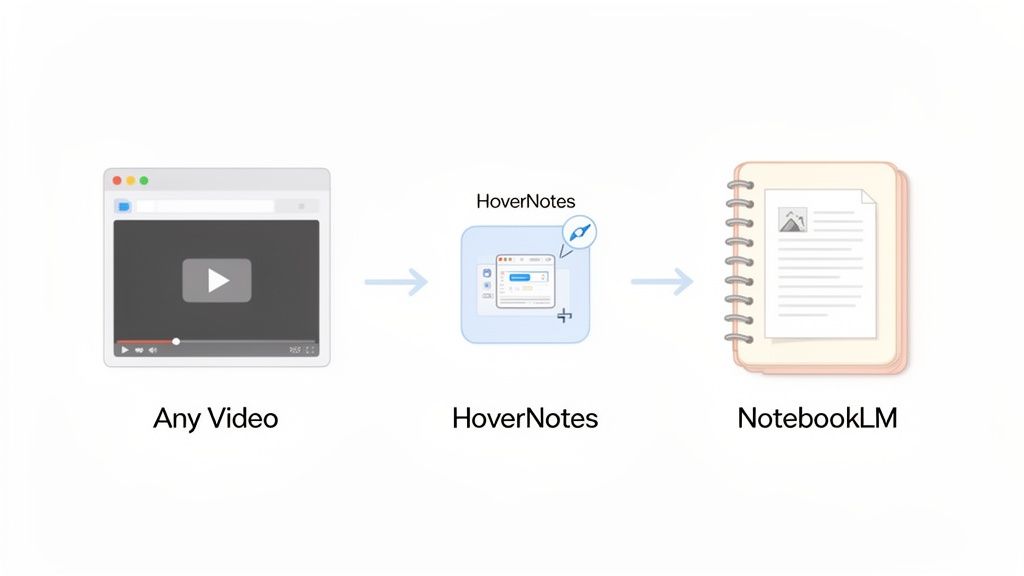
Der gesamte Ablauf lässt sich auf drei Schritte reduzieren. Es ist eine einfache Methode, jedes Video in eine Quelle für Ihr Notizbuch zu verwandeln.
Schritt
Aktion
Hauptvorteil
1. Erfassen
Verwenden Sie HoverNotes, um KI-Notizen von jedem Video zu erzeugen, das in Ihrem Browser läuft.
Erfasst entscheidenden visuellen Kontext – wie Diagramme, Grafiken oder Codeausschnitte –, den ein einfaches Transkript komplett übersehen würde.
2. Aufbereiten
Speichern Sie die erzeugten Notizen als Markdown-Datei oder kopieren Sie sie direkt in ein Google-Dokument.
Sie erhalten ein sauberes, gut strukturiertes Dokument, das NotebookLM perfekt versteht.
3. Importieren
Fügen Sie die Datei von Ihrem Google Drive oder als Textquelle direkt in Ihr NotebookLM-Notizbuch ein.
Der Inhalt Ihres Videos ist nun voll durchsuchbar, interaktiv und bereit für Ihre Anfragen.
Indem Sie diese Lücke schließen, fügen Sie nicht nur ein Video hinzu, sondern machen dessen Wissen zu einem permanenten, interaktiven Teil Ihres digitalen Gehirns.
#Warum NotebookLM für die meisten Online-Videos einen Begleiter braucht
NotebookLM ist mächtig, weil es Ihnen ermöglicht, direkt mit Ihren Quellen zu chatten. Die native Integration mit Google Drive und YouTube ist äußerst nützlich, doch sie macht auch eine große Lücke deutlich.
In Wirklichkeit befinden sich die meisten qualitativ hochwertigen Bildungsinhalte nicht auf YouTube. Sie liegen auf Plattformen, die NotebookLM nicht erreichen kann – denken Sie an Ihre Kurse auf Udemy, Coursera oder LinkedIn Learning, ganz zu schweigen von privaten Vorlesungsportalen der Universität. Das ist kein Fehler von NotebookLM, sondern einfach die technische Realität dieser Plattformen.
Wie bekommen Sie all dieses wertvolle Videowissen in Ihren KI-Arbeitsbereich? Sie müssen es zuerst verarbeiten. HoverNotes ist als Brücke dafür geschaffen worden. Als Chrome-Erweiterung funktioniert es überall, wo ein Video läuft – Kursplattformen, YouTube, sogar interne Schulungsportale. Es nutzt KI, um Notizen zu erstellen und speichert sie als saubere Markdown-Dateien auf Ihrem Computer. Ein einfacher Workflow: verwandeln Sie jedes Video in eine textbasierte Quelle, die NotebookLM lesen kann. So erweitert sich die Reichweite von NotebookLM von reinen YouTube-Videos auf buchstäblich jedes im Browser abspielbare Video.
Dieser Prozess löst auch eines der größten Probleme beim Lernen mit Videos. Allein das Erstellen von Notizen verbessert die Behaltensleistung dramatisch, sodass Sie schon vor dem Hochladen des Materials in Ihren KI-Arbeitsbereich deutlich mehr Wert aus Ihrem Video ziehen.
Nur ein Transkript eines Videos zu bekommen, verfehlt den Zweck. Eine Textwand kann das komplexe Diagramm auf der Tafel, die entscheidende Codezeile auf dem Bildschirm oder das spezifische Daten-Diagramm nicht erfassen. Visueller Kontext ist wichtig.
Deshalb brauchen Sie ein Tool, das das Video nicht nur abhört, sondern es anschaut.
HoverNotes ist darauf ausgelegt, diesen reichen visuellen Kontext zu erfassen, indem es mit Zeitstempeln versehene Screenshots direkt in Ihre Notizen einfügt. Indem Sie Ihr Quellmaterial so aufbereiten, liefern Sie NotebookLM nicht einfach ein Transkript, sondern ein hochwertiges, multimediales Dokument, mit dem es wirklich sinnvolle Erkenntnisse aus Ihren Videokursen ziehen kann.
#So erfassen Sie reichhaltige Videonotizen mit HoverNotes
Nachdem Sie die HoverNotes Chrome-Erweiterung installiert haben, öffnen Sie ein beliebiges Video, das Sie lernen wollen – eine Universitätsvorlesung, einen Kurs auf Udemy oder sogar eine Videodatei auf Ihrer Festplatte.
Starten Sie bei laufendem Video die Erweiterung. Hier zeigt sich der Unterschied zwischen HoverNotes und einem einfachen Transkriptionswerkzeug. Ziel ist es nicht, einfach nur eine Textwand auszugeben, sondern den vollen Kontext zu erfassen – die Visualisierungen, Diagramme, den auf dem Bildschirm sichtbaren Code –, die viele Tools ignorieren.
HoverNotes hört nicht nur auf den Ton, sondern schaut sich das Video Bild für Bild an, ganz so, wie es ein Mensch tut. Das erlaubt es, Notizen zu erzeugen, die wichtige visuelle Elemente eng mit dem transkribierten Text verweben.
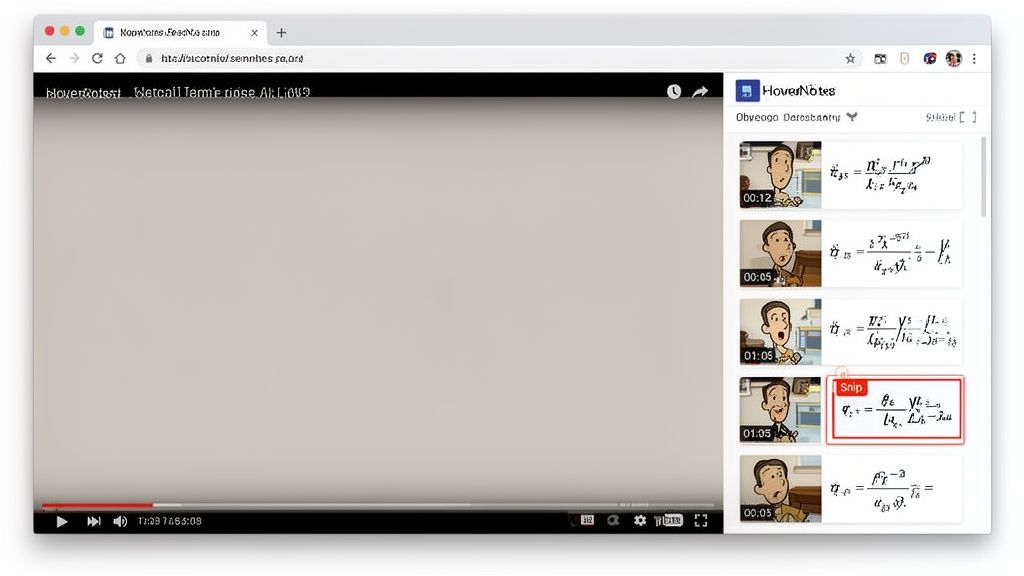
Hier ein Beispiel: Die HoverNotes-Seitenleiste läuft neben einem technischen Video und erfasst sowohl die gesprochenen Worte als auch die komplexen Formeln auf dem Bildschirm.
Sie erhalten ein reichhaltiges, kontextuelles Dokument, das für ein Tool wie NotebookLM hundertmal nützlicher ist.
Sie haben zudem eine feine Kontrolle. Statt den ganzen Bildschirm zu erfassen, können Sie mit der Snip-Erfassung gezielt einen bestimmten Bereich auswählen – eine einzelne Formel, ein Diagramm oder einen Codeausschnitt. Für maximale Details können Sie Techniken der präzisen Videoanalyse nutzen, damit nichts verloren geht.
#Machen Sie Ihre Notizen schlau und handlungsfähig
Die von HoverNotes erzeugten Notizen sind für aktives Lernen gedacht, nicht für passives Nachlesen. Sie sind die perfekte Ausgangsbasis für NotebookLM.
Das macht diese Notizen so wirkungsvoll:
Zeitgestempelte Screenshots: Jeder Screenshot enthält einen klickbaren Zeitstempel – ein Klick führt Sie genau zu diesem Videozeitpunkt zurück. Das spart Stunden beim Wiederholen schwieriger Themen.
Kontextuelle Bilder: Screenshots erscheinen genau dort in Ihren Notizen, wo sie hingehören, und liefern visuelle Referenzen beim Lernen.
Markdown-Format: Ihre Notizen werden als saubere, einfache Markdown (.md)-Dateien gespeichert. Sie lassen sich nativ in Obsidian, Logseq oder jedem Texteditor öffnen. Sie besitzen die Dateien selbst. Verschieben, sichern oder durchsuchen Sie sie ganz nach Belieben – es sind einfach Markdown. Dieser lokal-fokussierte Ansatz bedeutet, dass Sie Ihr Wissen für immer besitzen.
Dieser gesamte Prozess stellt sicher, dass das endgültige Produkt kein bloßes Transkript ist, sondern ein dynamisches, visuelles Dokument, bereit für tiefgehende Arbeit in NotebookLM. Weitere Anregungen zur Verbesserung Ihres Notiz-Stils finden Sie in diesen Strategien zum Erstellen effektiver KI-Videonotizen.
Sie haben HoverNotes verwendet, um die wichtigsten Informationen aus Ihrem Video zu erfassen. Nun zum letzten Schritt: diese Notizen in NotebookLM zu bringen, damit Sie Ihre Fragen stellen können. Das ist einfach und bietet zwei saubere Optionen.
Diese Flexibilität bedeutet, dass Sie jedes Video mit HoverNotes in NotebookLM einfügen können – egal, ob Sie vorwiegend lokale Dateien nutzen oder in der Cloud arbeiten.
Die Wahl hängt von Ihrem persönlichen Workflow ab. Ein Weg ist ideal für Nutzer lokaler Markdown-Editoren wie Obsidian, der andere eine universelle Lösung.
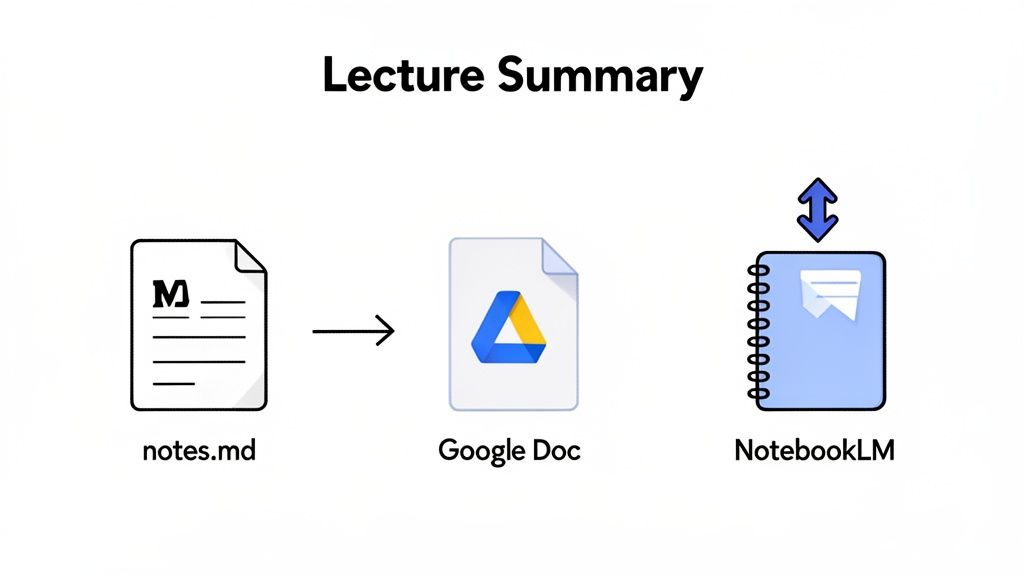
Für Obsidian-Nutzer (Local-First-Methode): HoverNotes speichert Ihre Notizen als einfache Markdown (.md) Dateien direkt im Dateisystem. Laden Sie einfach die gewünschte .md-Datei in Google Drive hoch. Dort angekommen, fügen Sie sie als neue Quelle in NotebookLM hinzu. Der Vorteil: Sie behalten die volle Kontrolle über Ihre Daten – Ihr Wissen liegt auf Ihrem Laufwerk. Notizen werden direkt als .md Dateien in Ihren Obsidian-Tresor gespeichert, ganz ohne proprietäres Format oder Synchronisationsdienst.
Für Google Docs/Notion-Nutzer (Copy-Paste-Methode): Falls Sie keinen Markdown-Editor verwenden, ist der Prozess ebenso simpel. Markieren Sie alle Notizen im HoverNotes-Editor, kopieren Sie sie und fügen Sie sie direkt in ein neues Google-Dokument ein. Dabei bleiben alle Formatierungen – Überschriften, Aufzählungen und eingebettete Screenshots – erhalten.
Pro-Tipp: Bevor Sie die Datei als Quelle hinzufügen, nehmen Sie sich 30 Sekunden Zeit, um einen klaren Titel und eine einzeilige Zusammenfassung oben in Ihr Dokument zu schreiben. Das gibt NotebookLM wichtigen Kontext und sorgt für deutlich präzisere Antworten, wenn Sie Fragen stellen.
Egal welchen Weg Sie wählen, Sie erhalten ein reichhaltiges, visuelles Dokument, das bereit zur tiefgehenden Analyse ist. Dieser Workflow ähnelt dem Vorgehen beim Vorbereiten von Notizen für jede Plattform. Weitere Strategien zur Umwandlung eines YouTube-Videos in Notizen helfen Ihnen, Ihren Prozess zu optimieren.
Indem Sie der KI eine gut strukturierte Quelle geben, verwandeln Sie Ihre Videoinhalte in eine mächtige, interaktive Wissensbasis, mit der Sie kommunizieren können.
#So holen Sie das Maximum aus Ihren Videonotizen in NotebookLM heraus
Sie haben ein Video in eine befragbare Quelle in NotebookLM verwandelt. Nun können Sie weit mehr als nur eine einfache Zusammenfassung erfragen. Die Kombination aus visuellen Notizen, Codeausschnitten und präzisen Zeitstempeln ist ein großer Vorteil.
Statt vage Fragen zu stellen, können Sie sehr gezielte Anfragen machen.
Je besser Ihre Quellnotizen, desto besser die Antworten von NotebookLM. Da Ihre HoverNotes-Erfassung reich an Kontext ist – mit Screenshots, Zeitstempeln und getipptem Text – können Sie die KI mit chirurgischer Präzision anleiten.
Probieren Sie folgende Formulierungen:
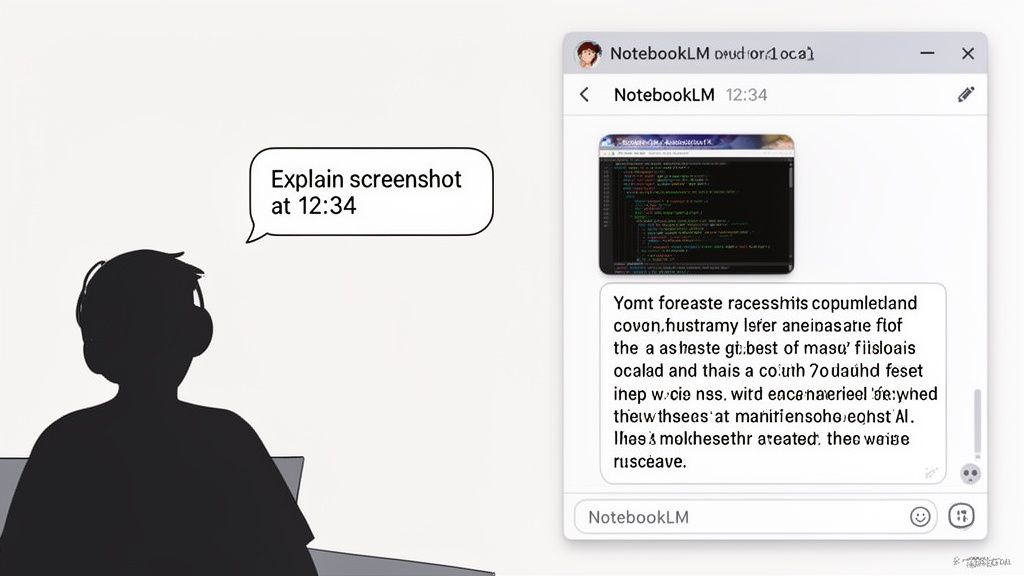
„Erklären Sie das im Screenshot bei [Zeitstempel] dargestellte Konzept.“
„Was wäre die Ausgabe basierend auf dem Codeschnipsel auf Folie 15?“
„Fassen Sie die wichtigsten Unterschiede zwischen den beiden in meinen Notizen gezeigten Diagrammen zusammen.“
Ein tolles Feature: Wenn Ihre Notizen von einem Video in einer anderen Sprache stammen, können Sie Fragen zum übersetzten Inhalt auf Englisch stellen. Sehen Sie sich eine koreanische Vorlesung an und erhalten Sie Notizen auf Spanisch – die KI übernimmt automatisch die Übersetzung. Sie haben effektiv eine eigene, mehrsprachige Wissensbasis aus einem einzigen Videokurs aufgebaut.
Wenn Sie beginnen, Videoinhalte mithilfe von HoverNotes in NotebookLM zu importieren, tauchen meist einige praktische Fragen auf. Hier sind Antworten auf die häufigsten.
#Kann ich das mit privaten Videos verwenden, z. B. von meiner Universität?
Ja. Das ist einer der größten Vorteile. Wenn ein Video im Chrome-Browser läuft, während Sie eingeloggt sind, kann HoverNotes darauf zugreifen und es verarbeiten.
So können Sie Inhalte aus passwortgeschützten Universitätsportalen, internen Firmenschulungsseiten und kostenpflichtigen Kursplattformen wie Coursera oder Udemy erschließen. Solange Sie es abspielen können, können Sie auch Notizen dazu erstellen.
#Wie sieht es mit lokalen Videodateien auf meinem Computer aus?
Das funktioniert ebenfalls. Ziehen Sie Ihre lokale Videodatei (z. B. eine .mp4- oder .mov-Datei) einfach in einen leeren Chrome-Tab.
Das Video wird im Browser abgespielt. Von dort können Sie HoverNotes nutzen, um Notizen zu generieren, genau wie bei jedem Online-Video.
#Funktioniert das auch, wenn das Video in einer anderen Sprache ist?
Ja. HoverNotes wurde für mehrere Sprachen entwickelt. Sie können beispielsweise eine Vorlesung auf Japanisch ansehen und die KI anweisen, Ihre Notizen auf Englisch zu erstellen.
Sobald Sie diese englischen Notizen in NotebookLM hinzufügen, können Sie den Inhalt vollständig auf Englisch verwenden. So lernen Sie effektiv von internationalen Quellen ohne Sprachbarriere.
Wenn Sie weitere Fragen haben, finden Sie vermutlich Antworten in unserem HoverNotes FAQ-Bereich.
Allein die Zeitstempel-Screenshots sparen Stunden an Wiederholungen. Probieren Sie es kostenlos aus – beim Anmelden erhalten Sie 20 Minuten KI-Guthaben, keine Kreditkarte erforderlich. Selbst ohne KI lohnt sich der ablenkungsfreie Modus und die Screenshots. Aktuelle Optionen finden Sie auf der HoverNotes-Preisseite.
Nützliche Notizen sollten dich dazu bringen, etwas mit dem Material zu tun, statt lediglich mehr Text zu speichern. Das U.S. Institute of Education Sciences empfiehlt, das Lernen über die Zeit zu verteilen, Grafiken mit verbalen Erklärungen zu kombinieren, aktives Abrufen zu nutzen und tiefgehende Erklärungsfragen zu stellen (Praxisleitfaden). Eine peer-reviewte Übersichtsarbeit zur Forschung über Lernvideos betont außerdem, wichtige Informationen zu signalisieren, Lektionen in handhabbare Abschnitte aufzuteilen, Lernenden Kontrolle zu geben und Impulse für aktives Lernen hinzuzufügen (Übersichtsarbeit). Hier angewendet heißt das: an Konzeptgrenzen pausieren, nur die visuellen Belege erfassen, die du brauchst, eine Frage in eigenen Worten formulieren und sie später beantworten, bevor du die Quelle erneut abspielst. Diese Praktiken sind evidenzbasiert; eine universelle Behaltensquote für eine einzelne App oder einen einzelnen Workflow ist es nicht.
Erfahren Sie, wie Sie Videos mit HoverNotes in durchsuchbare Markdown-Notizen verwandeln, einschließlich visueller Erfassung, KI-Unterstützung und direkter Speicherung im Obsidian-Tresor.
Wir stellen HoverNotes vor – die Chrome-Erweiterung, die Videoinhalte in permanente, durchsuchbare Notizen in Ihrem Obsidian Vault umwandelt. Ihr Lernen, Ihr Wissen, Ihre Kontrolle.